
Do you want to learn how to view your WordPress website’s performance on search engines and understand what that data means for your site?
Every day, thousands of WordPress site owners publish new posts and pages, hoping to rank higher and attract more visitors. Yet many have no clear picture of how their content is doing on Google or Bing, leaving them unsure which efforts are paying off.
In this guide, we’ll show you why monitoring your WordPress website’s performance on search engines is so important and walk you through how to use CrawlWP so you can make better decisions and improve your site’s visibility.
Table of Contents
Why Viewing WordPress Website Performance on Search Engines Matters
Viewing your WordPress website’s performance in search engines is about understanding what is really happening behind the scenes of your site. Publishing content alone does not guarantee visibility.
A page can be well written and still struggle to appear in search results if search engines cannot properly crawl or index it. This is why performance data matters.
When you view how your WordPress website performs on search engines, you gain clarity on whether your pages are being discovered, indexed, and shown to real users. You can see which pages appear in search results, which ones receive attention, and which ones are being ignored.
Search engine performance also helps you spot problems early. A sudden drop in impressions or indexed pages can signal crawl issues, indexing errors, or changes made on your site that affect visibility. Catching these issues early allows you to fix them before they impact traffic for long periods.
Another reason this matters is decision-making. When you understand how your WordPress website performs on search engines, you can make informed choices about content updates, site structure, and technical changes. Instead of guessing what works, you rely on real data to guide your actions.
In short, viewing WordPress website performance on search engines turns SEO from a guessing game into a clear process. It helps you understand how search engines see your site, what content gets attention, and where improvements are needed to grow steady, long-term visibility.
Using CrawlWP To View WordPress Website Performance on Search Engines
Viewing WordPress website performance on search engines becomes much easier when everything lives inside your WordPress dashboard. That is exactly what CrawlWP offers.
Instead of jumping between multiple platforms to figure out how search engines see your site, CrawlWP brings search engine data into the familiar place where you already manage your content.
It does this by connecting with Google Search Console and Bing Webmaster Tools, allowing you to view search visibility and performance data without leaving your WordPress admin area.
In the sections below, we will show you how to install the CrawlWP WordPress SEO plugin, introduce its SEO Stats and Indexing features, and explain how they work.
Install and Activate CrawlWP
To get started, head over to the CrawlWP pricing page and choose a plan that works for you. Once you’ve selected a plan, download the plugin ZIP file to your computer.
Next, log in to your WordPress dashboard and go to Plugins > Add New. Click Upload Plugin, select the ZIP file you just downloaded, and then click Install Now.
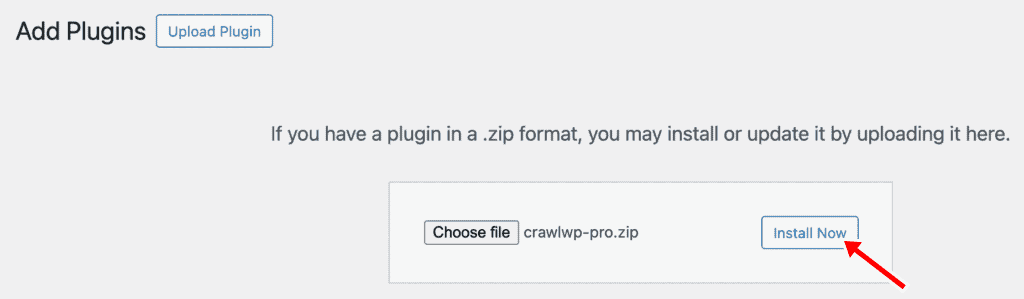
Once the installation is done, click Activate to enable CrawlWP on your site.
Viewing SEO Stats in CrawlWP
To view WordPress website performance on search engines, CrawlWP needs permission to access search data. This is done by connecting your site to Google Search Console and Bing Webmaster Tools.
Once you’re connected, navigate to CrawlWP > SEO Stats for a complete picture of your WordPress site’s search engine presence.
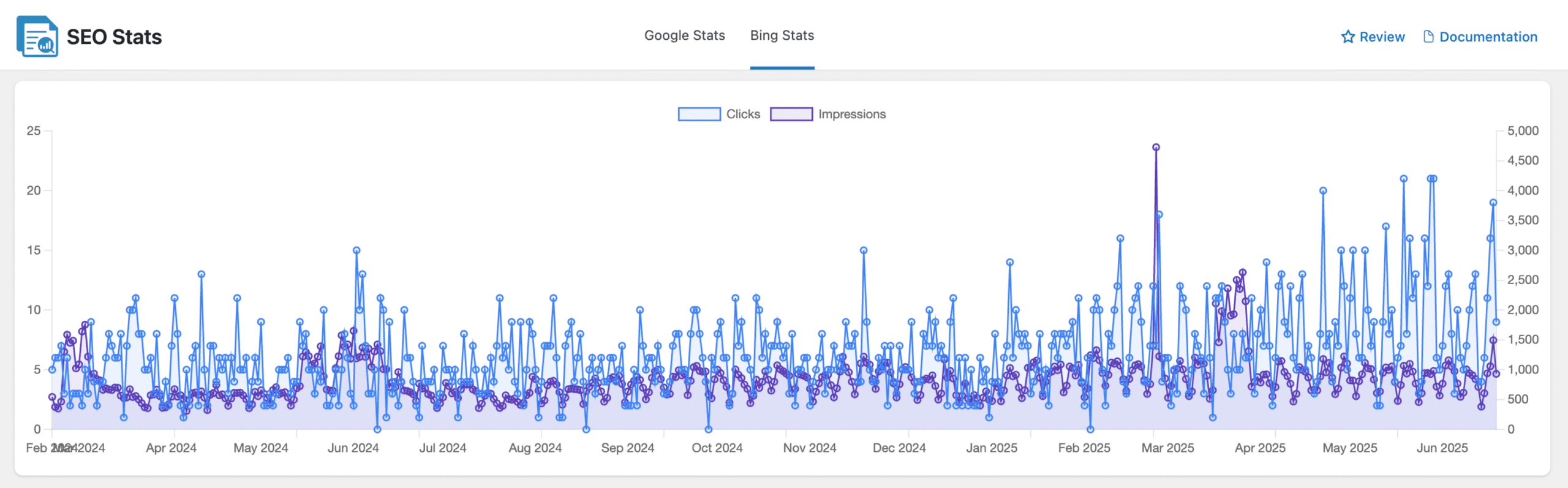
You will see total impressions and click performance for your website on Google and Bing, across any date range; discover which keywords and pages are driving traffic; and get a country-level breakdown of your audience, all for Google and Microsoft Bing.
This dashboard provides actionable data to help you diagnose and optimize your website’s search visibility and understand how users interact with your content via search.
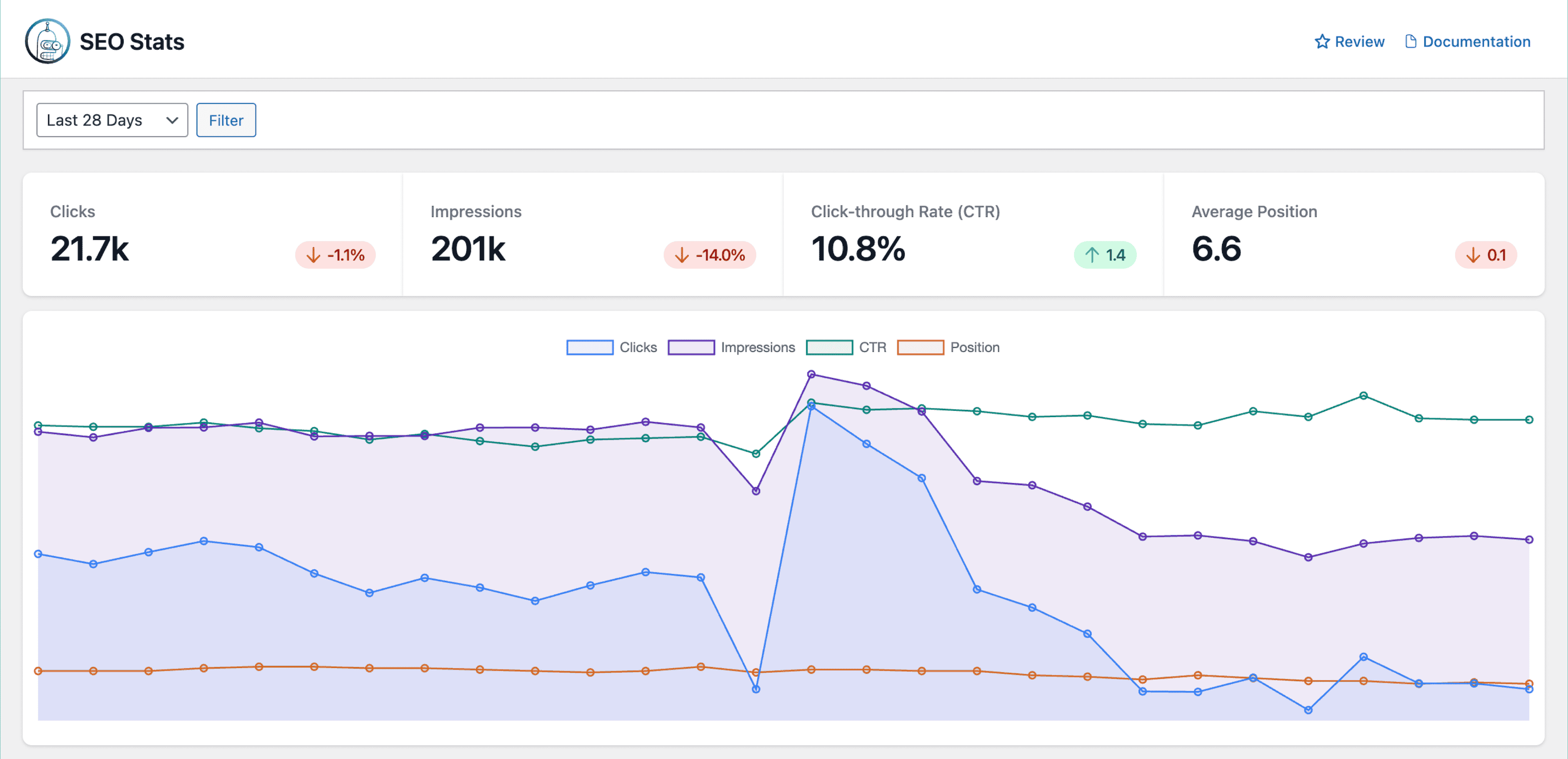
In the sections below, we’ll walk through the different parts of CrawlWP’s SEO Stats feature and explain how to use them to better understand your WordPress website’s search performance.
Performance Summary Metrics
At the top of the dashboard, CrawlWP displays a short performance summary that provides a clear snapshot of your WordPress site’s search activity for the selected date range.
Clicks: This shows how many times users clicked from Google to your website. An increase in clicks usually indicates better visibility and content that matches users’ search queries.
Impressions: This metric shows how often your pages appeared in search results. If impressions are high but clicks are low, your pages may need clearer titles or descriptions to encourage more visits.
Click-Through Rate (CTR): CTR is the percentage of impressions that resulted in clicks. A higher CTR suggests your search listings are appealing and relevant to users.
Average Position: This reflects the average ranking of your pages in search results. Lower numbers indicate better rankings and stronger visibility.

Together, these numbers give you a quick way to judge whether your site is gaining attention or needs improvement.
Performance Graph
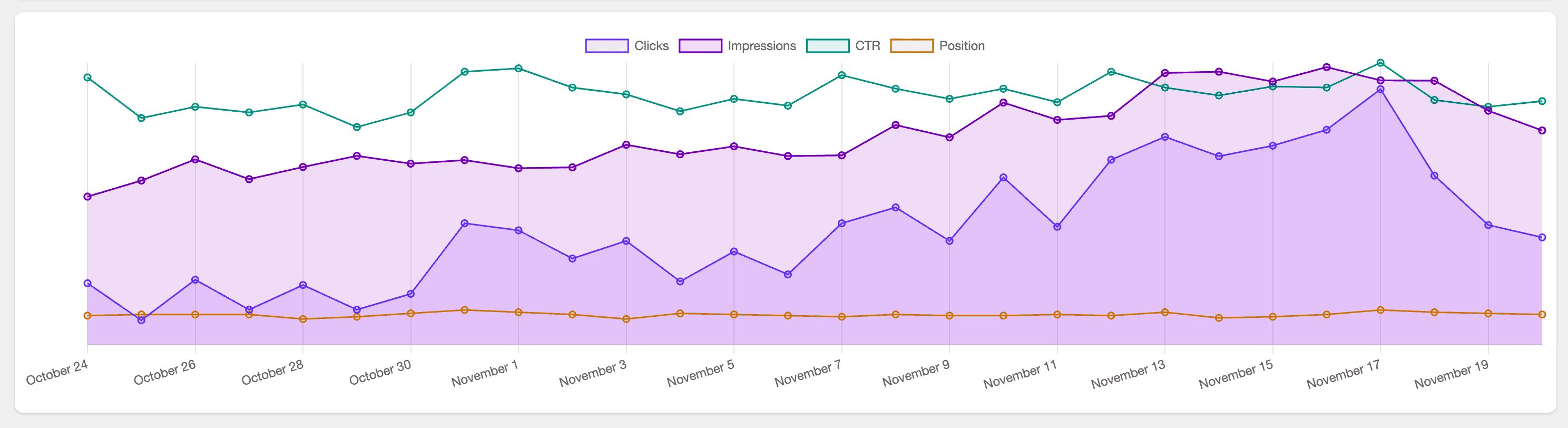
At the heart of the CrawlWP SEO Stats dashboard is the performance graph, which gives you a visual overview of how your WordPress website performs on search engines over time. Instead of just looking at numbers in a table, the graph helps you see trends at a glance, making it easier to understand the impact of your SEO efforts.
The graph tracks four main metrics:
Clicks (Blue Line): This shows how many times users clicked through to your website from search results each day.
Impressions (Green Line): Impressions measure how often your pages appear in search results. A steady rise indicates growing visibility, while sudden drops may signal indexing issues or changes in search engine behavior.
Click-Through Rate (CTR) (Orange Line): CTR is the percentage of impressions that turn into clicks. This line tells you if your page titles and descriptions are compelling enough to get users to visit your site. A declining CTR may mean your content needs more appealing titles or meta descriptions.
Average Position (Purple Line): This shows your site’s average ranking in search results. Seeing how this line moves over time can help you understand which pages are climbing in rankings and which may be slipping.
By analyzing these trends together, you can connect performance changes to specific SEO activities. For example, if you recently updated a blog post and see a spike in clicks and CTR, that update is likely having a positive effect. On the other hand, if your impressions drop after redesigning your site, it could mean some pages are not being indexed properly.
The graph is especially helpful for spotting patterns you might otherwise miss in raw data. It turns abstract numbers into actionable insights, showing you what is working and where adjustments are needed to improve visibility and engagement.
Note: In the Bing Stats section, the graph shows only Clicks and Impressions, providing a simplified yet useful view of how your content performs on Bing.
Keyword Performance Breakdown
Further down the dashboard, you’ll find a section dedicated to search terms your site appears for. This area shows how individual keywords perform in search results.
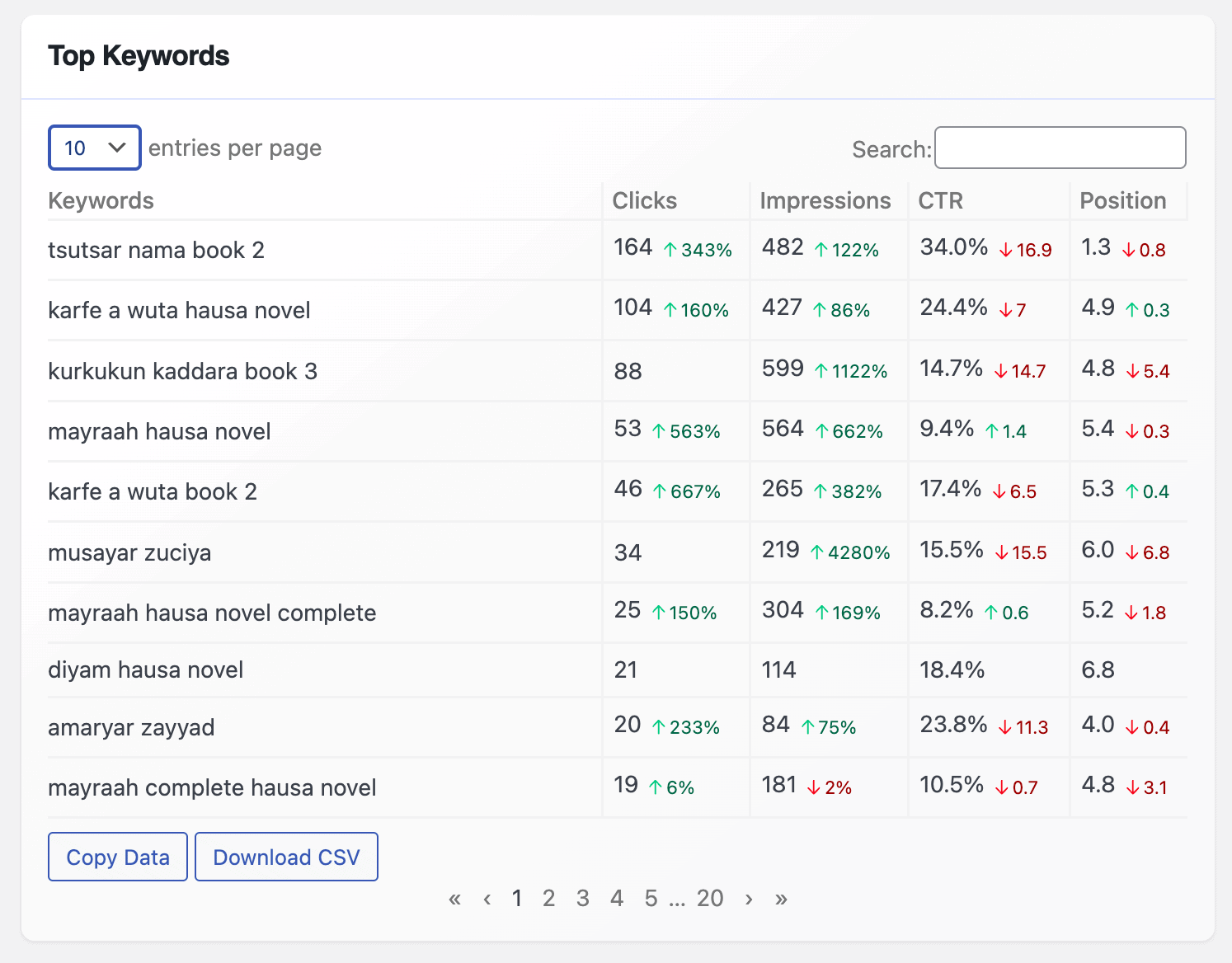
For each keyword, CrawlWP displays:
- Number of clicks
- Number of impressions
- CTR
- Average ranking position
This view helps you see which search terms drive traffic and which ones appear often but fail to attract clicks. You can use this information to improve content relevance or adjust how pages appear in search results.
Page-Level Search Performance
The page performance section focuses on how individual pages in WordPress perform rather than keywords.
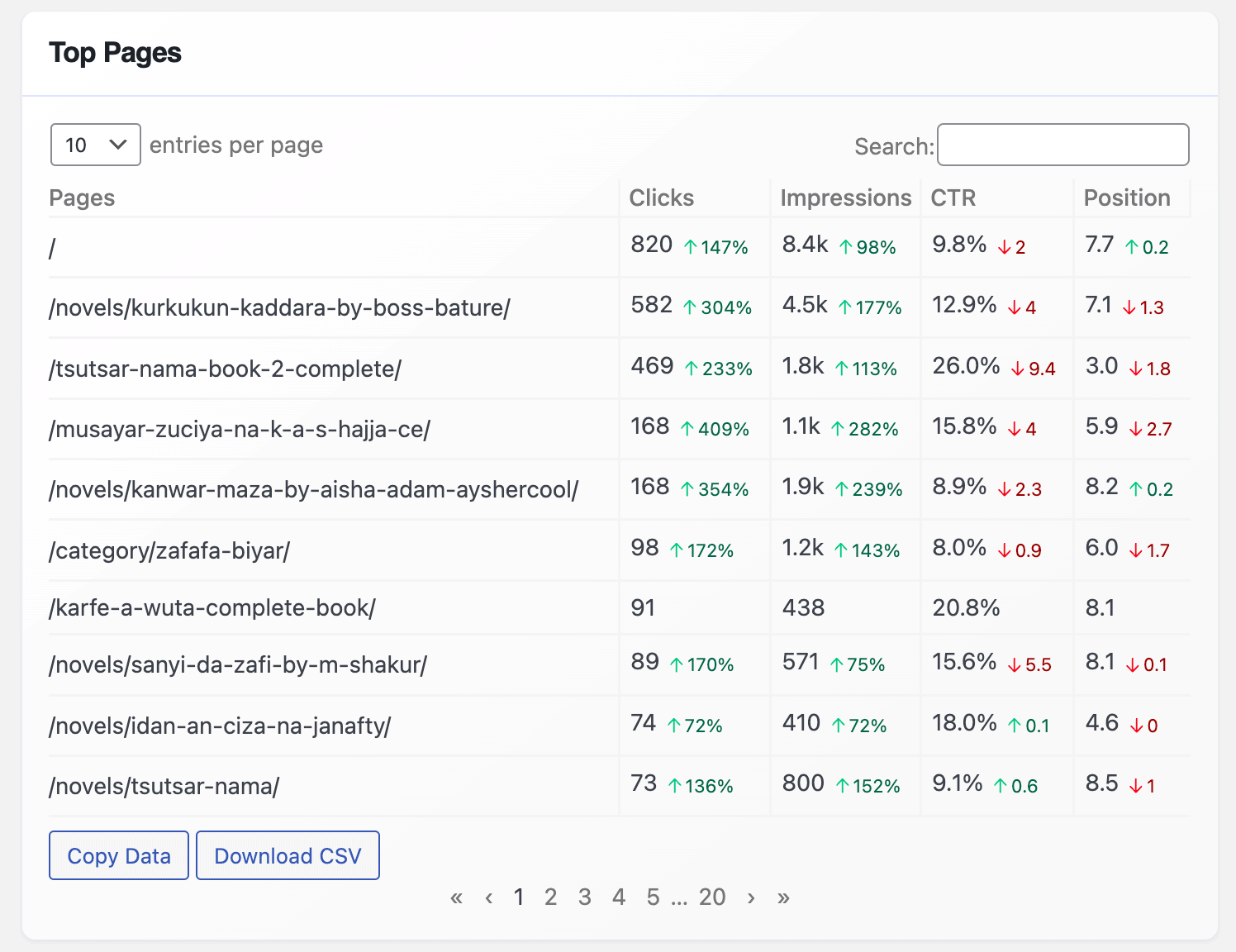
Here, you can review:
- Clicks: Shows the number of clicks each page receives
- Impressions: Displays the number of times the page appeared in search results.
- CTR: The page’s click-through rate.
- Position: The page’s average ranking.
This makes it easier to identify your strongest pages and understand why they perform well. You can then apply similar content patterns or page structures to other parts of your site.
Search Performance by Location
CrawlWP also breaks down search performance based on visitor location. This section shows how users from different countries interact with your site.
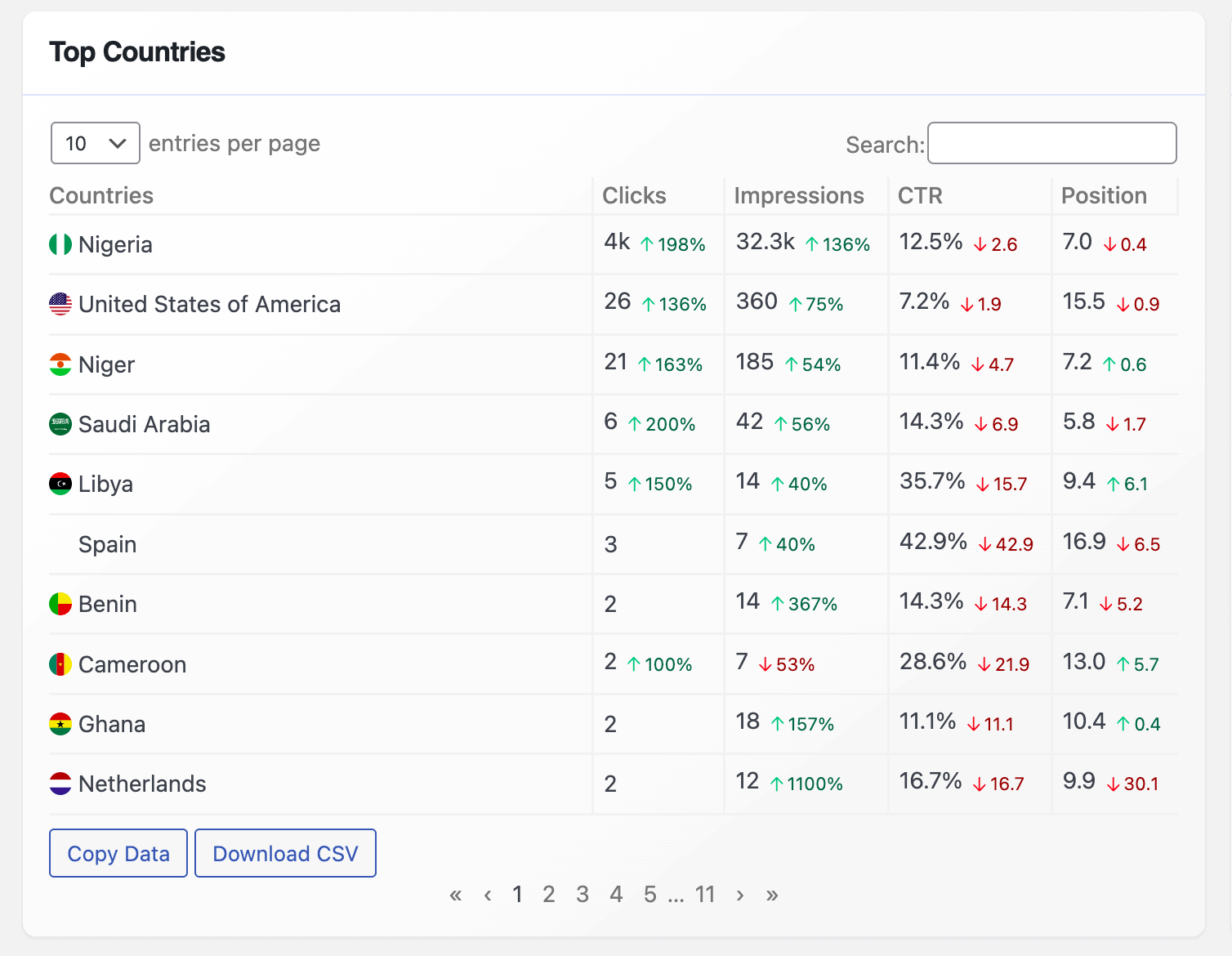
For each country, you can see:
- Clicks
- Impressions
- CTR
- Average position
This is especially useful for websites that attract visitors from multiple regions or focus on specific geographic audiences.
Device-Based Search Insights
The Devices section in CrawlWP helps you understand how people access your WordPress website across different screen types. Instead of treating all visitors the same, this view breaks performance down by mobile, tablet, and desktop, giving you a clearer picture of how your site behaves on each device.
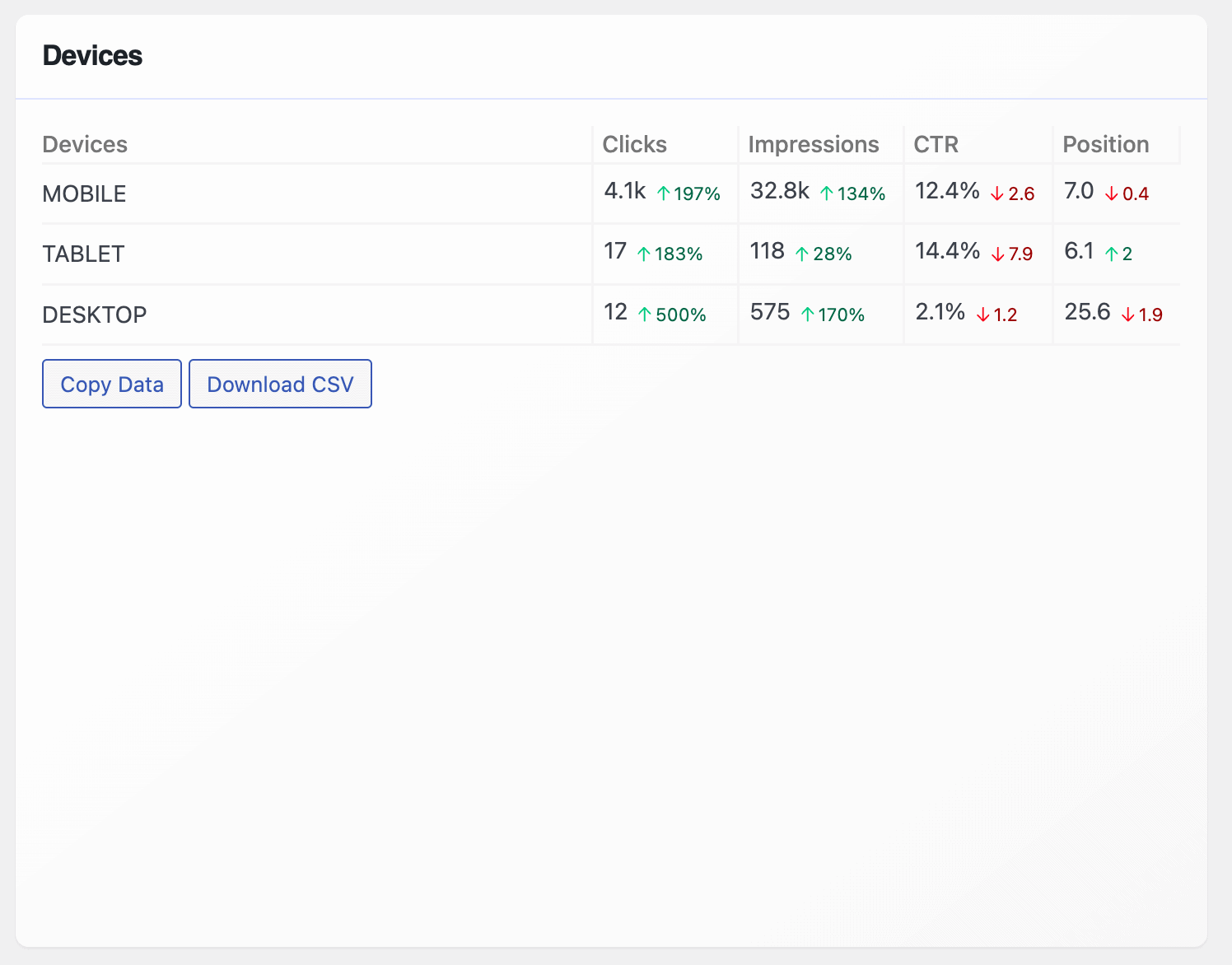
For every device type, CrawlWP shows clicks, impressions, CTR, and average position. This makes it easy to compare performance side by side.
For example, you may notice that your site receives plenty of impressions on mobile but fewer clicks compared to desktop. That kind of insight can point to issues such as slow load times, poor layout on smaller screens, or content that is harder to read on phones.
Mobile performance deserves special attention. Most searches today happen on mobile devices, and search engines now evaluate websites primarily based on their mobile version.
If your mobile CTR is low or your rankings are weaker than on desktop, it’s a sign that your site may need improvements such as better spacing, clearer headings, faster loading, or more visible calls to action.
Bing Pages and Keyword Reports
CrawlWP also includes a dedicated Bing Stats area. Here, the focus is on:
- Page performance on Bing
- Keyword performance on Bing
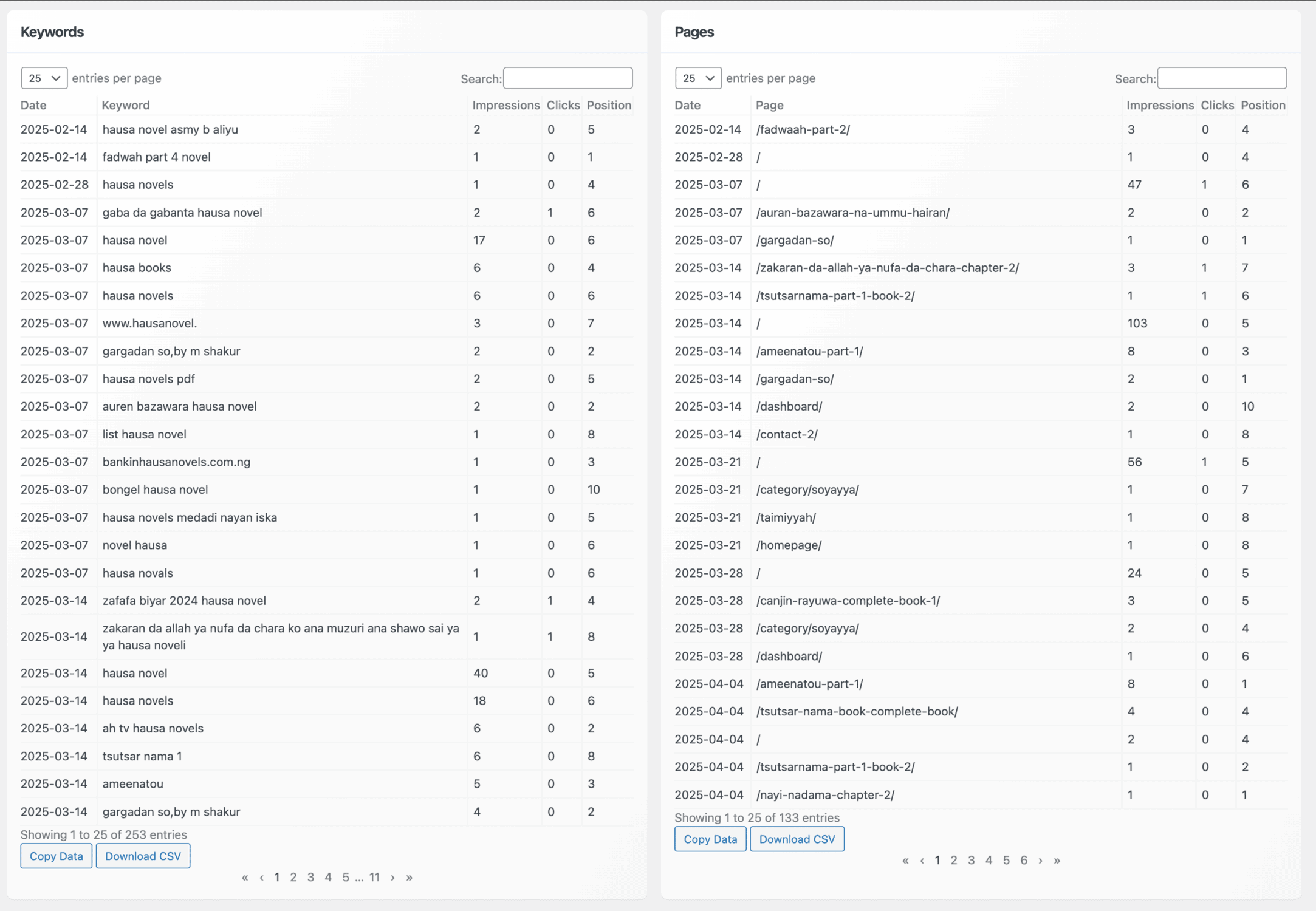
These reports allow you to monitor your website SEO performance in Bing daily and make informed decisions about which pages to update, which keywords to target, and how to improve your overall presence on the Bing search engine.
Filtering and Deep Analysis
The Data Filtering feature in CrawlWP makes it easier to focus on the exact information you want to analyze without getting lost in large datasets. Instead of reviewing all your search data at once, you can narrow things down to see how specific parts of your site perform on Google Search and Microsoft Bing.
With just a click, you can filter data by keywords, page URLs, countries, or devices. For example, clicking on a keyword allows you to see how that specific search term performs over time, including its clicks, impressions, CTR, and ranking position. This helps you understand why a particular keyword is attracting more attention or struggling to get clicks.
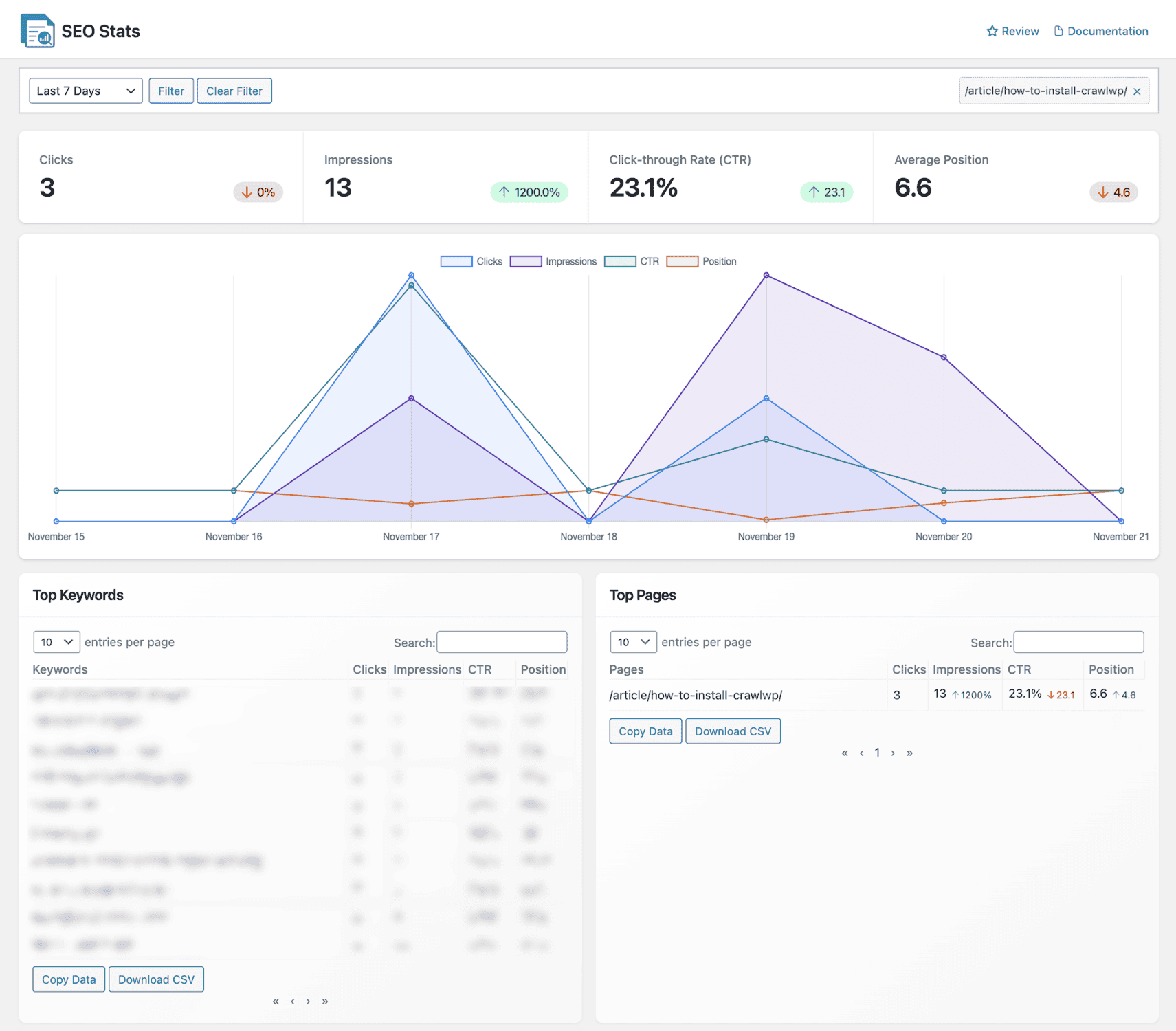
Filtering by page URL helps you focus on individual posts or pages. This makes it easier to evaluate how a specific piece of content performs in search results and whether recent updates have improved visibility or engagement.
Country-based filtering allows you to review performance by location. This is especially helpful if your site attracts visitors from multiple regions or targets a specific audience. You can quickly see which locations bring the most traffic and where visibility may need improvement.
Device filtering lets you isolate performance for mobile, tablet, or desktop devices. This helps you understand how users interact with your site on different screen sizes and spot issues that affect one device type more than others.
By applying data filtering, CrawlWP enables you to shift from broad observations to targeted analysis. It lets you ask precise questions about your site’s search performance and find answers without leaving your WordPress dashboard.
Exporting Search Performance Data
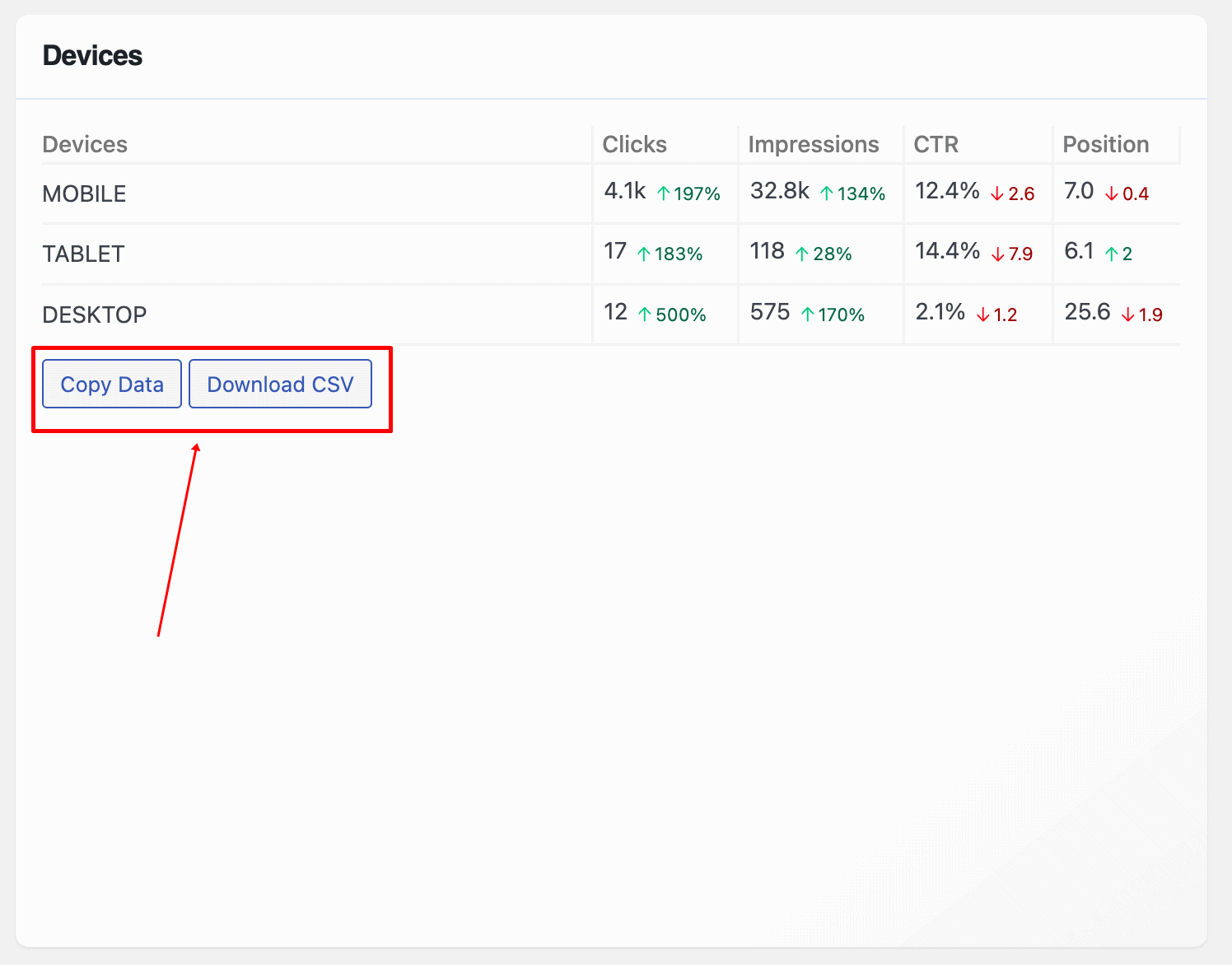
For reporting or record-keeping, CrawlWP lets you copy or download data from each section of the dashboard as a CSV file. This makes it easy to save your stats, review them later, or share them with others involved in managing the site.
CrawlWP Indexing Feature
CrawlWP also helps your content get indexed by Google, Bing, Yandex, and other search engines, and tracks the indexing status of WordPress pages.
This feature helps you confirm whether your pages are discoverable on Google and Bing and gives you control over how and when your content is submitted for indexing.
To use this feature, first follow the guide on setting up search engine indexing for WordPress. Once that step is complete, head to your WordPress dashboard and navigate to CrawlWP > SEO Indexing
This page gives you a clear snapshot of how Google and Microsoft Bing are indexing your content. At a glance, you can see what is indexed, what is still processing, and what needs attention.
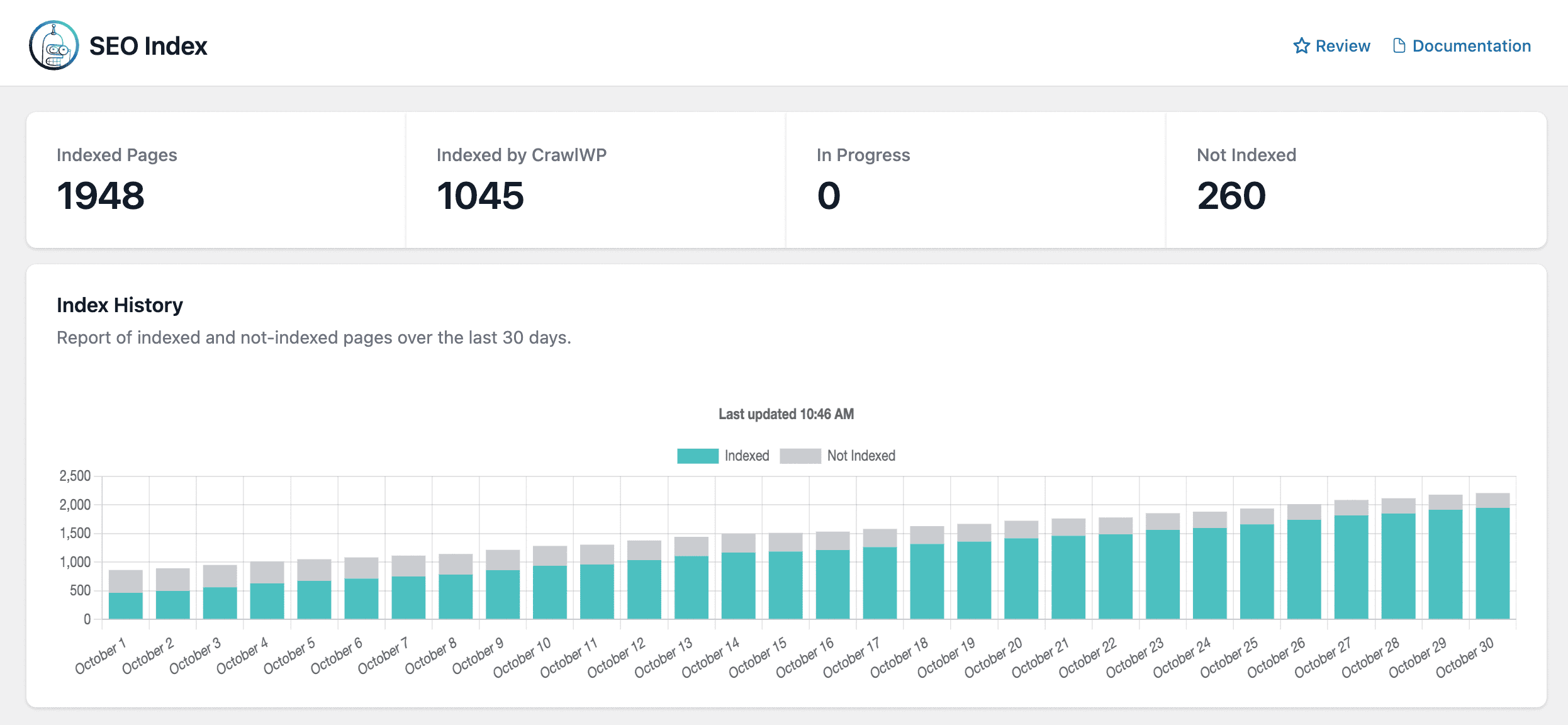
At the top of the SEO Indexing page, CrawlWP displays key numbers that reflect the current indexing state of your site:
Indexed Pages: Shows the total number of pages that Google has successfully indexed.
Indexed by CrawlWP: Highlights WordPress pages that were indexed with the help of CrawlWP.
In Progress: Shows pages that have been submitted for indexing.
Not Indexed: Show the total number of pages that are either not indexed yet or failed to index.
Index History Graph
Just below the metrics, you will find a graph showing WordPress indexing activity over the last 30 days. It visually separates indexed pages from those that are still not indexed.
This makes it easier to:
- Track indexing progress over time
- Spot sudden drops or delays in indexing
- Confirm whether recent content updates are being picked up
Content Index Table
Below the graph, CrawlWP lists all your website content in a detailed table. This includes pages, posts, and taxonomies.
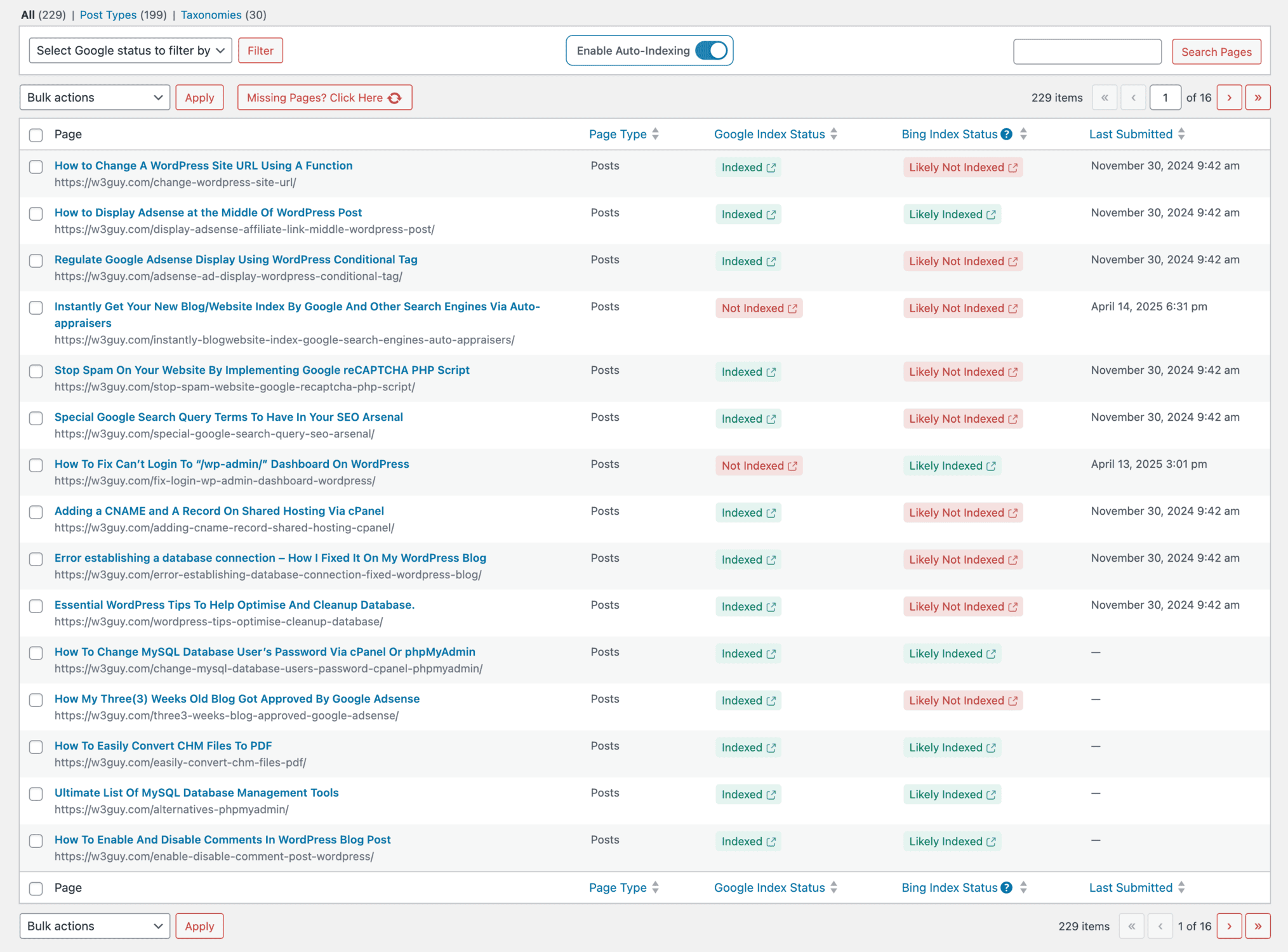
Each row displays:
- Page Name: The title of the content
- Page Type: Page, post, custom, or taxonomy
- Google Index Status: Whether the page is indexed, in progress, or unchecked
- Bing Index Status: Indicates if the page is likely indexed on Bing
- Last Submitted: The most recent date the page was sent for indexing
The table is interactive, allowing you to filter content types and manage multiple pages at once, which makes handling large sites much easier.
Auto-Indexing Feature
CrawlWP includes an Auto-Indexing feature that periodically submits WordPress posts and pages that are not indexed to Google and other search engines, improving the chances of your content getting indexed more quickly.
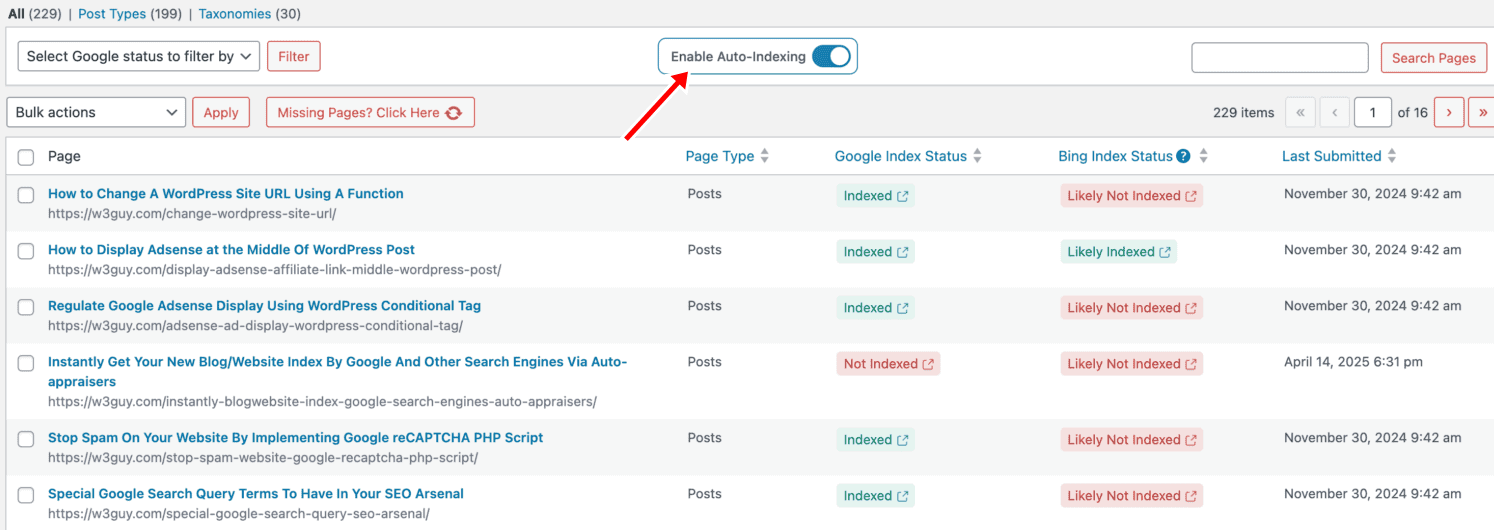
This helps keep your content visible on search results, especially when you publish new posts or update existing ones.
Manual and Bulk Indexing Submissions
For pages marked as Not Checked or In Progress, CrawlWP allows you to submit them manually using bulk actions. This option is helpful when you want to prioritize important pages, resubmit updated content, or ensure critical pages are sent to search engines without waiting for automatic indexing.
To do this, select the checkboxes next to the pages or posts you want to submit for indexing. You can choose a single page or select multiple items at once, depending on what you want to index.
Next, open the Bulk Actions dropdown located above the content table and choose Submit for Indexing. After making your selection, click Apply to start the submission process.
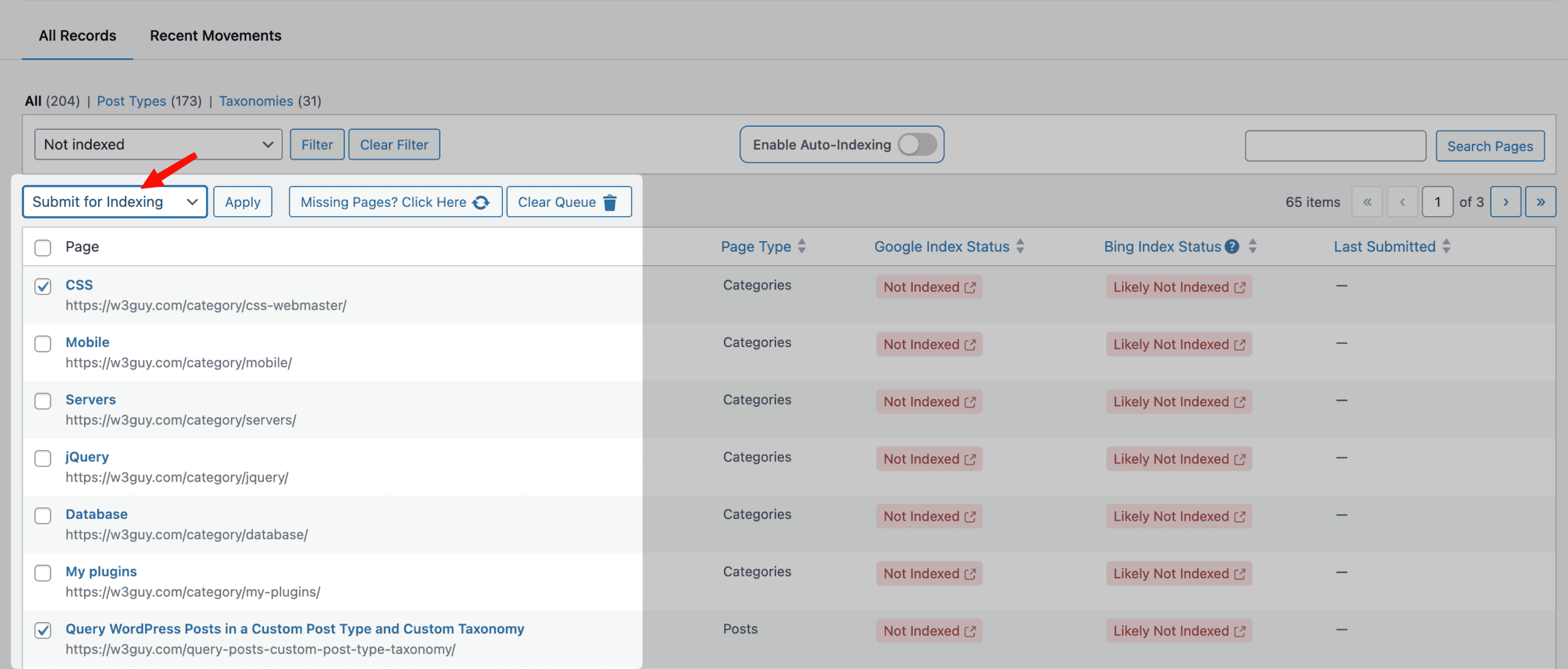
Once submitted, CrawlWP sends the selected pages to search engines and begins tracking their indexing progress. As updates occur, the indexing status is refreshed, allowing you to monitor which pages have been successfully indexed and which may need further attention.
Overall, the CrawlWP Indexing feature gives you the super-power to help your WordPress content get indexed. Instead of guessing, you can clearly see what Google, Bing, and search engines have indexed and take action where needed to improve your site’s presence in search results.
Improve WordPress Ranking on Search Engines with CrawlWP Today!
Understanding how your WordPress website performs and ranks on search engines is no longer something you should guess or ignore. If you are publishing content, updating pages, or trying to grow traffic, knowing what search engines see and how users respond makes all the difference.
CrawlWP brings that visibility directly into your WordPress dashboard, where you already spend most of your time managing your site.
From tracking clicks and impressions to spotting ranking changes, device behavior, and indexing status, everything you need is available in one place. You no longer have to jump between external platforms or feel overwhelmed by scattered reports.
For an added layer of convenience, CrawlWP has an SEO reports feature that sends you regular updates on how your website is performing on Google search, ensuring you stay informed about key metrics (impressions, clicks, ranking position, recently indexed pages, and more) and changes without having to log in to your dashboard constantly.
Get CrawlWP today to learn how to view and monitor your website performance on Google, Bing, and other search engines.