
Have you ever wondered how WordPress robots.txt affects how search engines interact with your website?
Your robots.txt file works behind the scenes, guiding search engines and crawlers on where they can and cannot access on your site.
When properly configured, it improves the crawl efficiency and SEO performance of your website. However, if misconfigured, it can block important pages of your WordPress site, thereby reducing its visibility in search results.
In this guide, you’ll learn what a robots.txt file is, why it matters for your WordPress site, and how to create one correctly. You’ll also discover how to test your robots.txt file, common mistakes to avoid, best practices to follow, and answers to frequently asked questions about WordPress robots.txt.
Table of Contents
What Is a Robots.txt File?
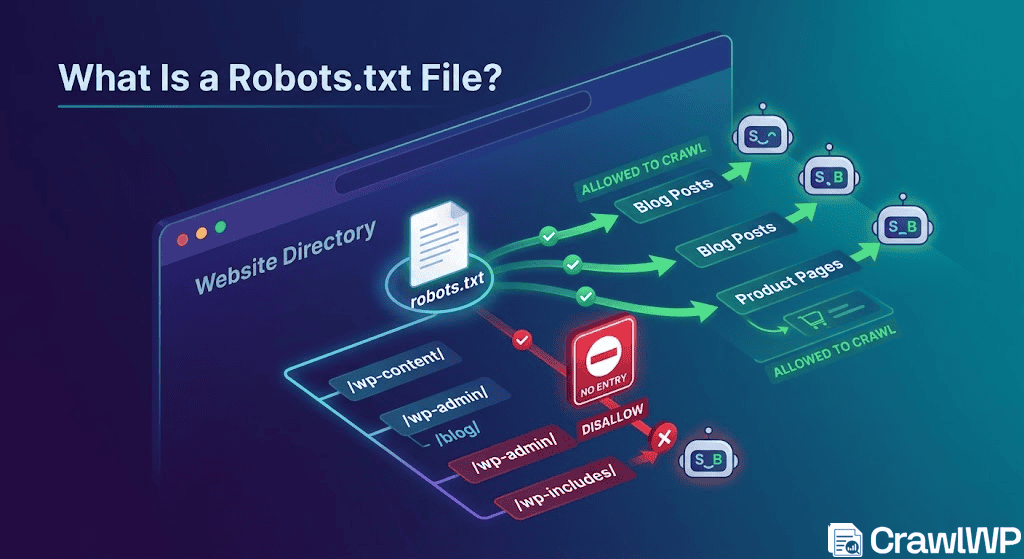
A robots.txt file is a text file located in the root directory of your website that tells search engine bots which parts of your site they can crawl and which parts they should avoid.
You can think of it as a set of ground rules for search engines. When a bot lands on your site, one of the first things it checks is the robots.txt file. The instructions inside help it decide where to go, what to skip, and how to move through your content.
The basic structure of a robots.txt file looks like this:
User-agent: [user-agent name]
Disallow: [URL string not to be crawled]
User-agent: [user-agent name]
Allow: [URL string to be crawled]

Sitemap: [URL of your XML Sitemap]
Each section starts with a User-agent, which specifies the bot the rule applies to. The Disallow directive tells the bot which areas it should not crawl, while Allow lets it access specific paths within restricted sections. The Sitemap line points search engines to your XML sitemap, helping them discover your important pages more efficiently.
Note that you can include multiple rules, combine allow and disallow instructions, and even add more than one sitemap. By default, if a page or directory is not restricted, search engines will assume they are free to crawl it.
Below is a more practical example for a WordPress site:
User-agent: *
Disallow: /wp-admin/
Disallow: /wp-login.php
Disallow: /?s=
Disallow: /cart/
Disallow: /checkout/

Allow: /wp-admin/admin-ajax.php

Sitemap: https://example.com/sitemap_index.xml
In the example above, all search engine bots are targeted using “User-agent: *”, which means the rules apply universally. The WordPress admin area and login page are blocked to prevent unnecessary crawling of sensitive or non-public sections of the site.
It also restricts internal search result pages “/?s=” to avoid duplicate content issues that can confuse search engines. In addition, pages such as the cart and checkout are blocked because they do not provide value in search results and are not meant to be indexed.
At the same time, a specific file in the admin area is allowed, as WordPress depends on it for certain functions to work properly.
Finally, the sitemap is included to guide search engines to your important pages. Altogether, this setup helps search engines focus on valuable content while ignoring areas that do not need to appear in search results.
Why Does robots.txt Matter?
A robots.txt file is not required for a WordPress website to function. Your site will still run normally without it, and search engines will not penalize you for its absence. However, adding one gives you the ability to:
1. Controls how search engines crawl your site: Robots.txt helps you decide which parts of your website search engine bots can access. Instead of letting crawlers crawl every page, you can guide them to the most important content. This gives you more control over how your site is explored.
2. Helps manage crawl efficiency: Search engines allocate a limited crawl budget to each website. If bots waste time on unnecessary pages, such as admin URLs, login pages, or internal search results, they may not reach your main content. Robots.txt helps reduce this waste by ensuring important pages are crawled more often.
3. Improves how search engines understand your site: A well-structured robots.txt file, especially when combined with a sitemap, helps search engines understand your website layout. This can improve how efficiently they discover and index your content.
4. Supports better SEO performance: By guiding bots to the right pages and away from unnecessary ones, robots.txt helps improve overall SEO efficiency. It ensures that your important pages get more attention from search engines, which can positively influence visibility over time.
How to Create a Robots.txt File in WordPress
Creating a robots.txt file in WordPress is not complicated, but doing it correctly is important if you want full control over how search engines crawl your site. WordPress already generates a basic robots.txt file automatically, but in most cases, that default version is not enough for proper SEO control, especially for growing websites.
A custom robots.txt file allows you to define clear crawling rules, reduce unnecessary bot activity, and make sure search engines focus on your important pages.
Below are the main ways to create and manage a robots.txt file in WordPress:
Method 1: Manually Editing robots.txt Using FTP or File Manager
This method gives you full control over your robots.txt file, and it is the most direct way to manage how search engines interact with your WordPress site.
To begin, you first need access to your site’s files. You can do this in two common ways:
- Using the cPanel File Manager provided by your hosting provider
- Using an FTP client such as FileZilla
Once connected, navigate to your website’s root directory (often called “public_html”).
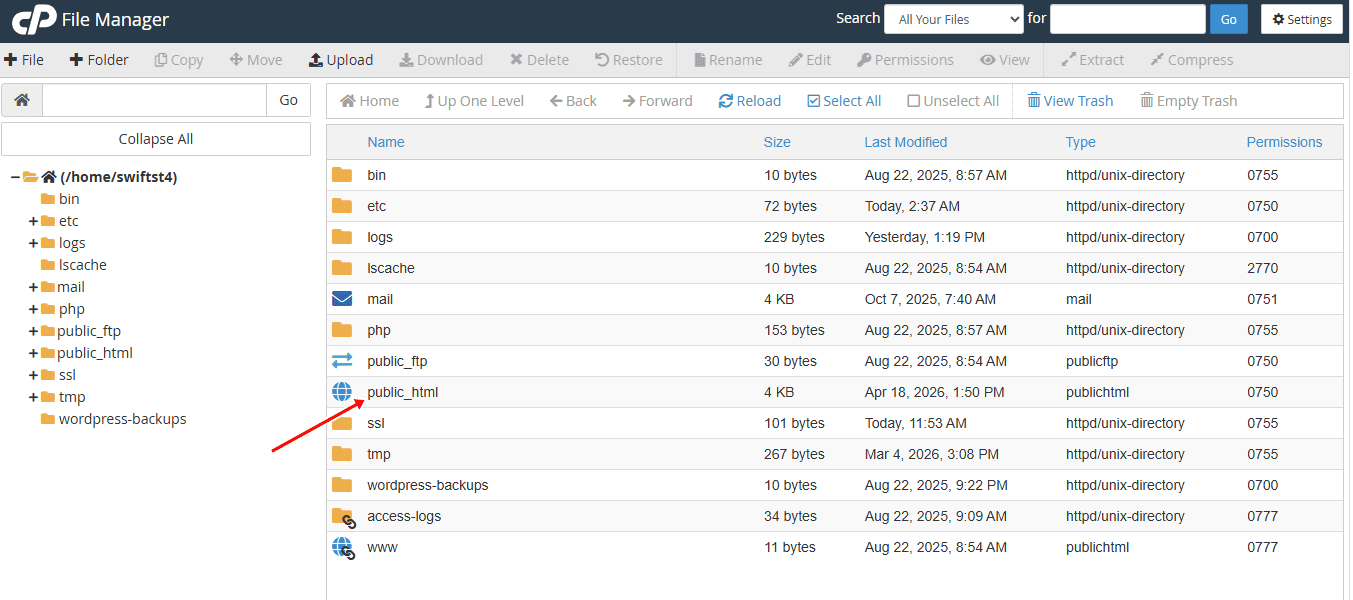
Check your website’s root folder for a file named robots.txt. If it already exists, you can open it and update the existing rules. If it does not exist, you can create a new one and upload it to the same location.
To create a new file, open a plain text editor and add your rules.
A typical WordPress robots.txt setup looks like this:
User-agent: *
Disallow: /wp-admin/
Disallow: /wp-login.php
Disallow: /?s=

Allow: /wp-admin/admin-ajax.php

Sitemap: https://yourdomain.com/sitemap_index.xml
You can adjust these rules based on your site structure. For example, WooCommerce sites may also block “/cart/” and “/checkout/” pages.
Once your file is ready, save it as “robots.txt”, then upload it directly into your root directory (public_html)
If a robots.txt file already exists, replace or update it carefully to avoid breaking existing rules.
After uploading, open your browser and visit: https://yourdomain.com/robots.txt
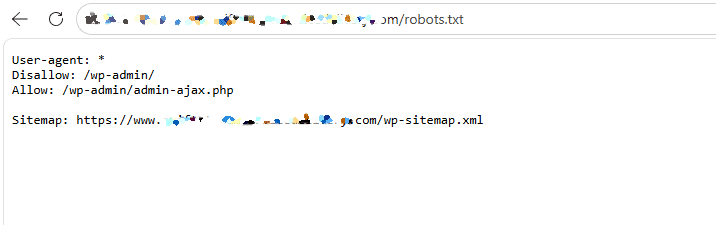
Check that:
- Your rules are displaying correctly
- Your sitemap URL is included and working
- No important pages are accidentally blocked
You can also test it in Google Search Console to confirm how Google reads your file. We will show you how to do that later in this guide.
Method 2: Creating and Managing robots.txt Using a WordPress SEO Plugin
If you prefer not to work directly with server files, using one of the WordPress SEO plugins available is the easiest way to create and manage your robots.txt file.
This method is especially useful for beginners or site owners who want to avoid breaking important rules when editing files manually.
Popular SEO plugins such as Yoast SEO, All in One SEO, and Rank Math allow you to control your robots.txt file directly from your WordPress dashboard without touching FTP or hosting file managers.
To do this, you first need to install and activate your preferred SEO plugin from the WordPress plugin directory.
Once activated, the plugin adds a settings panel inside your WordPress dashboard where you can manage SEO-related features, including your robots.txt file.
Next, navigate to the robots.txt editor within the plugin settings. For example, in All in One SEO, you can find it under All in One SEO > Tools, while in Yoast SEO, it is usually available under Tools > File Editor. From there, you can view the existing rules or create a new robots.txt file if one does not already exist.
Once the editor is open, you can add or modify your directives based on your site’s needs. This may include blocking admin pages, restricting unnecessary URLs, and adding your XML sitemap for better crawling. After making changes, save your settings, and the plugin will automatically update your robots.txt file.
Finally, it is important to test your file by visiting “yourdomain.com/robots.txt” to confirm that your rules are correctly applied.
Method 3: Editing Robots.txt File Using WP Robots Txt
Another effective way to manage your WordPress robots.txt file is by using the WP Robots Txt plugin.
WP Robots Txt is an excellent plugin that lets you create and edit your robots.txt file directly in your WordPress dashboard.
To get started, install and activate the WP Robots Txt plugin on your WordPress website.
Once activated, the plugin automatically adds a robots.txt editor to your WordPress settings. To access it, navigate to Settings > Reading.
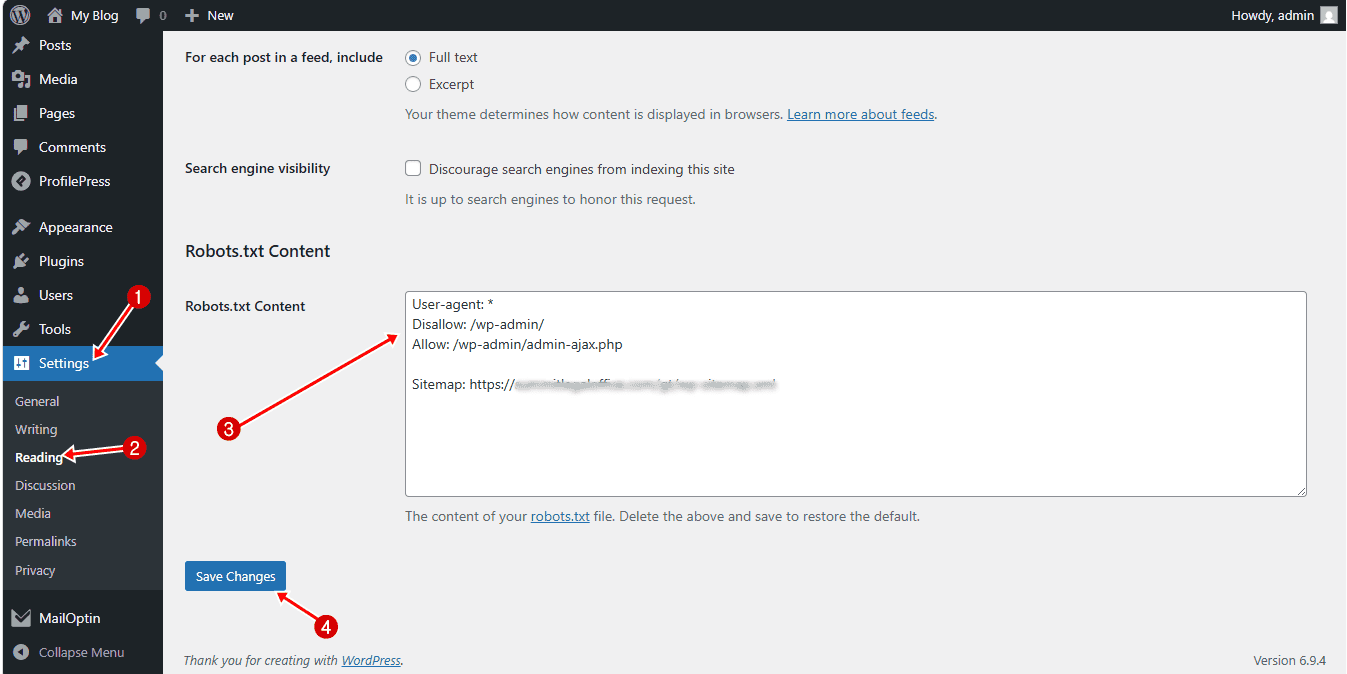
Scroll down, and you will see a new section added by the plugin. This is where you can edit your robots.txt content.
In the provided field, you can enter your custom directives.
After adding your rules, scroll down and click Save Changes. The plugin will automatically update your robots.txt file, overriding the default WordPress version.
How to Test Your WordPress Robots.txt File
After creating or updating your robots.txt file, the next important step is to test it. This ensures that search engines can read your rules correctly and that you are not accidentally blocking important pages from being crawled.
One reliable way to test your robots.txt file is by using Google Search Console. It shows you exactly how Google sees your robots.txt file and alerts you to any issues.
To do this, First, make sure your site is connected to Google Search Console. If you haven’t done that yet, follow our guide on how to verify your Website with Google Search Console.
Once your site is connected, go to your Google Search Console dashboard and click on Settings in the bottom-left corner.
From there, locate the Crawling section and click Open Report next to robots.txt.
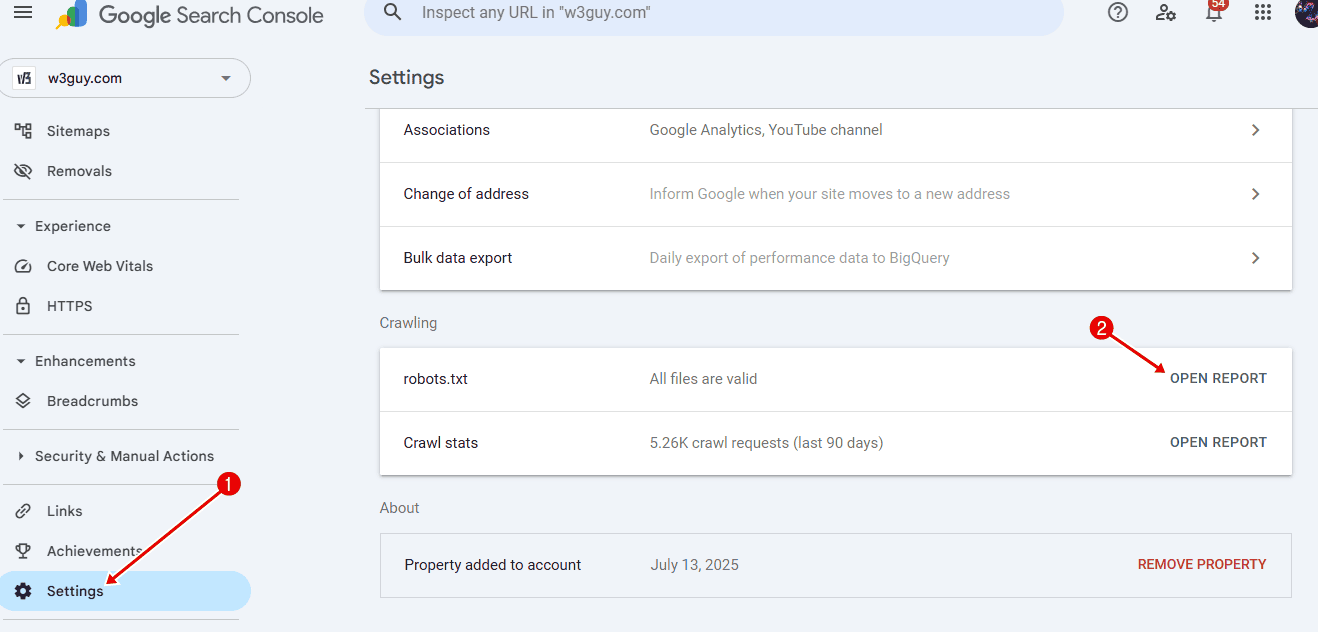
You will see the latest version of your robots.txt file that Google has discovered. Click on it to view the details. The report will highlight any errors or issues, making it easier to spot problems that could affect crawling.
If you recently updated your file and do not see the changes right away, there is no need to worry. Google usually checks your robots.txt file for updates about once a day.
You can check back later to confirm that your latest changes have been picked up and that everything is working as expected.
Common WordPress Robots.txt Mistakes to Avoid

Even though robots.txt is a simple file, small mistakes can have a serious impact on how search engines crawl your site. Many WordPress site owners unknowingly block important pages or create rules that confuse search engines.
Below are some of the most common mistakes you should avoid.
1. Blocking your entire website: One of the most damaging mistakes is accidentally blocking your entire site with:
User-agent: *
Disallow: /
This tells search engines not to crawl anything on your website. Sometimes this happens during development and is forgotten after launch. If left in place, your site may not appear in search results at all.
2. Blocking important pages by mistake: It is easy to unintentionally block pages that you actually want search engines to crawl, such as blog posts, product pages, or landing pages.
For example, blocking a parent folder can also block everything inside it. Always double-check your rules to make sure you are not restricting valuable content.
3. Overusing Disallow rules: Adding too many Disallow rules can make your robots.txt file unnecessarily complex and restrictive. This can confuse search engines and reduce crawl efficiency.
Focus on blocking only what truly needs to be restricted, such as admin areas, login pages, and low-value URLs.
4. Not including your sitemap: Many site owners forget to add their XML sitemap to the robots.txt file. While this is not mandatory, it helps search engines discover your important pages more efficiently.
Always include a line like:
Sitemap: https://yourdomain.com/sitemap_index.xml5. Using incorrect syntax: Robots.txt is very strict when it comes to formatting. Small errors, such as missing slashes, incorrect capitalization, or extra spaces, can cause rules to fail. Always test your file after making changes to ensure everything works as expected.
6. Relying only on the default WordPress robots.txt: WordPress creates a basic robots.txt file automatically, but it is often too simple for proper SEO control.
If your site has grown or includes features like WooCommerce, membership areas, or custom pages, you should create a custom robots.txt file instead of relying on the default.
Robots.txt Best Practices for WordPress Sites
A well-configured robots.txt file should guide search engines clearly without blocking important content. Below are the best practices to follow for WordPress sites.
1. Keep your robots.txt file simple: a common mistake is overcomplicating robots.txt. You do not need dozens of rules. A few well-defined directives are usually enough. Focus on blocking only what is necessary, such as admin areas, login pages, and low-value URLs. Keeping your file simple makes it easier to manage and reduces the risk of errors.
2. Block non-public and low-value pages: WordPress automatically creates pages that are not useful in search results. These include:
- Admin and login pages
- Internal search results (“/?s=”)
- Cart and checkout pages (for WooCommerce sites)
- Certain archive or filtered URLs
Blocking these pages helps search engines spend more time on content that actually matters.
3. Always allow important system files: While blocking directories like “/wp-admin/” is important, you should still allow files that WordPress needs to function properly.
4. Use robots.txt alongside other SEO methods: Robots.txt should not be your only method of control. Since it only manages crawling, you should combine it with other techniques like:
- Meta robots tags (“noindex”)
- Canonical tags
- Proper internal linking
This gives you better control over how pages appear in search results.
5. Avoid blocking CSS and JavaScript files: Search engines need access to your site’s CSS and JavaScript files to render your pages properly. Blocking these resources can prevent search engines from understanding your layout and content. Unless there is a specific reason, avoid restricting access to these files.
6. Update robots.txt as your site grows: Your website will change over time. You may add new sections, features, or plugins. As this happens, your robots.txt file should be updated to reflect those changes. For example, adding an online store or membership area may require new rules to manage crawling properly.
7. Test your robots.txt regularly: Every time you make changes, test your robots.txt file using Google Search Console. This helps you catch errors early and ensures that search engines read your rules correctly.
By following these best practices, you ensure your robots.txt file works as intended. Instead of guessing how search engines will crawl your site, you provide clear direction.
Frequently Asked Questions About WordPress Robots.txt
Below are answers to some of the most common questions WordPress users have about robots.txt.
Q1. Do I really need a robots.txt file for my WordPress site?
No, it is not required. Your WordPress site will work fine without it, and search engines can still crawl your pages. However, having a robots.txt file gives you control over how bots interact with your site, which can improve crawl efficiency and overall SEO performance.
Q2. What is the main purpose of a robots.txt file?
The main purpose of a robots.txt file is to control how search engines crawl your website. By directing bots away from areas like admin pages or plugin files, you help them focus on crawling your most important content more efficiently.
Q3. Where is the robots.txt file located in WordPress?
The robots.txt file is located in the root directory of your website. You can access it by visiting: https://yourdomain.com/robots.txt. If you have not created a physical file, WordPress may generate a default virtual version.
Q4. Does robots.txt affect search rankings?
Not directly. Robots.txt does not improve rankings on its own. However, it can influence how efficiently search engines crawl your site, which can indirectly affect how your content is discovered and indexed.
Q5. Can using robots.txt improve my site’s security?
No, robots.txt is not a security feature and should never be used to protect sensitive content. The file is publicly accessible, which means anyone can view the URLs listed in it. It only provides instructions to well-behaved search engine crawlers and does not prevent users or malicious bots from accessing those pages.
Q6. Can I use robots.txt to hide pages from search results?
Not completely. Robots.txt only controls crawling, not indexing. If a page is blocked but still linked elsewhere, it may still appear in search results. To fully prevent indexing, you should use a “noindex” meta tag instead.
Q7. Should I block WordPress category and tag pages in robots.txt?
No, it is generally not recommended to block category and tag pages. These archive pages help search engines understand your site structure and make it easier to discover your content. Blocking them can limit visibility and may affect your SEO performance.
Q8. How often should I update my robots.txt file?
You should update your robots.txt file whenever your site structure changes. For example, if you add new sections, such as a store, membership area, or custom pages, you may need to adjust your rules accordingly.
Q9. Can I have more than one robots.txt file?
No, you can only have one robots.txt file per domain, and it must be placed in the root directory. However, you can include multiple rules and even multiple sitemap entries within that single file.
Conclusion
Getting your WordPress robots.txt file right is not about adding more rules; it is about adding the right ones.
As you have seen throughout this guide, robots.txt plays an important role in how search engines crawl your site. When used correctly, it helps direct bots to your most valuable content and reduces unnecessary crawling. When used incorrectly, even a small mistake can limit visibility and affect how your pages are discovered.
The good part is that it is not complicated to manage. Whether you choose to edit it manually, use a WordPress SEO plugin, or handle it through WP Robots Txt, this guide has shown you how to set it up properly.