
How to fix pages Google won’t index requires diagnosing WHY Google rejected your page first, then applying the appropriate fix.
The most common culprits are thin content, technical blocks (noindex tags, robots.txt), duplicate content, orphaned pages, or Google thinking your page is about as valuable as a participation trophy.
Some brainer: In 2026, quality gaps are the #1 cause of indexing problems. Google’s algorithms have gotten pickier than a cat at dinnertime. They evaluate content quality, authority signals, and technical health before deciding if your page deserves shelf space in their index.
Here’s what’s coming:
- Step-by-step diagnosis of what’s blocking indexing
- Specific fixes for each indexing nightmare
- How to use CrawlWP to bypass Google’s waiting game
- Real examples of pages I’ve rescued from indexing hell
Let me tell you about the day I discovered numerous pages living in search engine purgatory and the existential crisis that followed.
Table of Contents
“Discovered – Currently Not Indexed” Breakdown I Had in a Coffee Shop
March 2025. I’m sitting in my favorite coffee shop, laptop open, checking Google Search Console for a client’s newly launched blog.
Everything looks fine. Great content. Solid technical SEO. Published three weeks ago.
Then I see it: 182 pages with “Discovered – currently not indexed” status.
ONE. EIGHTY. TWO. PAGES.
I literally said “what the f*ck” out loud. The guy next to me looked concerned. The barista probably thought I was having a breakdown. They weren’t entirely wrong.
Three weeks of work.
Thousands of words.
Careful optimization.
And Google’s response was basically: “Yeah, we found your pages. We just don’t care enough to index them. Maybe later. Maybe never. We’ll see how we feel.”
That’s when I learned that understanding how to fix pages Google won’t index is the difference between being a professional SEO and being someone who publishes content into the void while crying into their oat milk latte.
Step 1: Diagnose the Problem (Before You Rage-Fix the Wrong Thing)

Before you start frantically changing things, you need to know WHAT’S wrong. Fixing the wrong problem is how you make things worse.
Use Google Search Console Like a Detective
Navigate to: Google Search Console > Index > Pages
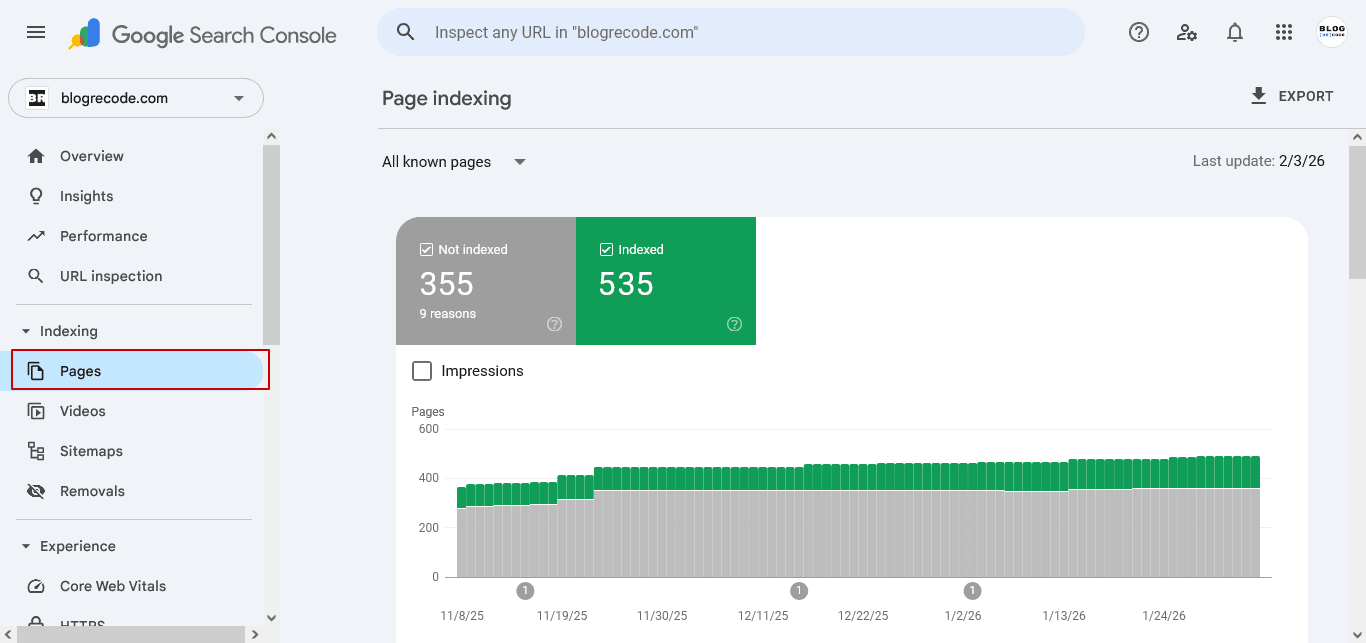
You’ll see pages categorized as:
- Indexed pages (green checkmark, you’re good)
- Not indexed pages (red X or grey, we need to investigate)
Click on “Not indexed” to see the reasons. Common statuses include:
| Status | What It Means | Panic Level |
| Discovered – currently not indexed | Google found your page but won’t index it (yet or ever) | Medium 😰 |
| Crawled – currently not indexed | Google crawled your page and said, “Not good enough.” | High 😱 |
| Blocked by robots.txt | You told Google not to crawl this (hopefully on purpose) | Low (if intentional) |
| Blocked by the noindex tag | You told Google not to index this (check if it was accidental) | Low (if intentional) |
| Duplicate content | Google found a better version of this page | Medium 😬 |
| Page with redirect | Page redirects somewhere else | Low ✅ |
| Soft 404 | Page returns 200 status but has no content | High 🚨 |
| Server error (5xx) | Your server is having a meltdown | DEFCON 1 💀 |
According to Google’s official documentation, pages may not be indexed for good reasons; for example, an expected robots.txt rule on your site, a noindex tag on the page, a duplicate URL, or a 404 for a page you’ve removed.
Use the URL Inspection Tool for Specific Pages
For any page you’re concerned about:
- Click the magnifying glass icon in Search Console
- Paste the URL
- Hit Enter
- Review the detailed diagnosis
This tool tells you:
- Last crawl date
- Whether Google can access the page
- Any crawl or indexing errors
- If the page is indexed or not
It’s like WebMD but for your website. Sometimes it tells you everything’s fine. Sometimes it tells you you’re dying. Usually, it’s somewhere in between.
Step 2: Fix “Discovered – Currently Not Indexed” (The Most Frustrating Status)
This status is Google’s passive-aggressive way of saying: “We found your page. We’re just not impressed enough to index it right now.”
According to Google’s Martin Splitt, this status can happen for various reasons, from crawl budget limitations to content quality concerns.
Why This Happens
Reason 1: Your Content Isn’t Good Enough
In 2026, thin content is invisible. Google evaluates information gain, not word count. Your 500-word blog post regurgitating what everyone else has already said? Google’s not interested.
Reason 2: Low Crawl Demand
Google doesn’t think your page is important enough to prioritize. It may have no backlinks.
Maybe it’s buried seven clicks deep in your site structure. Maybe Google just doesn’t see the value yet.
Reason 3: Server Limitations
Google wanted to crawl the URL, but this was expected to overload the site; therefore, Google rescheduled the crawl. Your server might be slow, and Google’s being polite by not breaking it.
Reason 4: Crawl Budget Waste
If you have a large site, Google might be wasting crawl budget on junk URLs instead of your valuable content.
How to Fix “Discovered – Currently Not Indexed”
Fix 1: Improve Content Quality (This Is Non-Negotiable)
Go back to that page and ask yourself honestly: “Is this better than what’s already ranking?”
If the answer is “maybe” or “probably” or “I think so,” your answer is actually NO.
Make it exceptional:
- Add unique data, research, or insights competitors don’t have
- Include expert quotes or original perspectives
- Add depth (aim for 1,500+ words for informational content)
- Include helpful visuals, screenshots, or diagrams
- Make it genuinely more helpful than existing resources
I had a client with 40 pages stuck in this status. We went back and expanded each piece from 600-800 words to 1,500-2,000 words with original research, expert quotes, and comprehensive examples.
Within three weeks, 34 of those pages were indexed. The six that weren’t? They honestly weren’t good enough. We deleted them.
Fix 2: Build Internal Links to the Page
Orphaned pages (pages with no internal links) often don’t get crawled because Google can’t efficiently find them.
Interlinking acts as a bridge for crawlers, linking one page of your content to another.
Action steps:
- Link to the unindexed page from 3-5 high-authority pages on your site
- Use descriptive anchor text (not “click here”)
- Place links contextually where they make sense
Fix 3: Get External Backlinks
Backlinks signal to Google that your content is valuable. Even one quality backlink can trigger indexing.
Realistic tactics:
- Share on relevant social platforms
- Reach out to industry connections
- Guest post and link back to the page
- Get mentioned in industry roundups or resource lists
Fix 4: Request Indexing via Search Console
Use the URL Inspection tool in Google Search Console, and if it’s not indexed, hit the “Request Indexing” button.
This won’t guarantee indexing, but it puts your page back in Google’s crawl queue. You can do this for individual pages, but it’s time-consuming if you have dozens of pages.
Fix 5: Use CrawlWP’s Auto-Index Feature
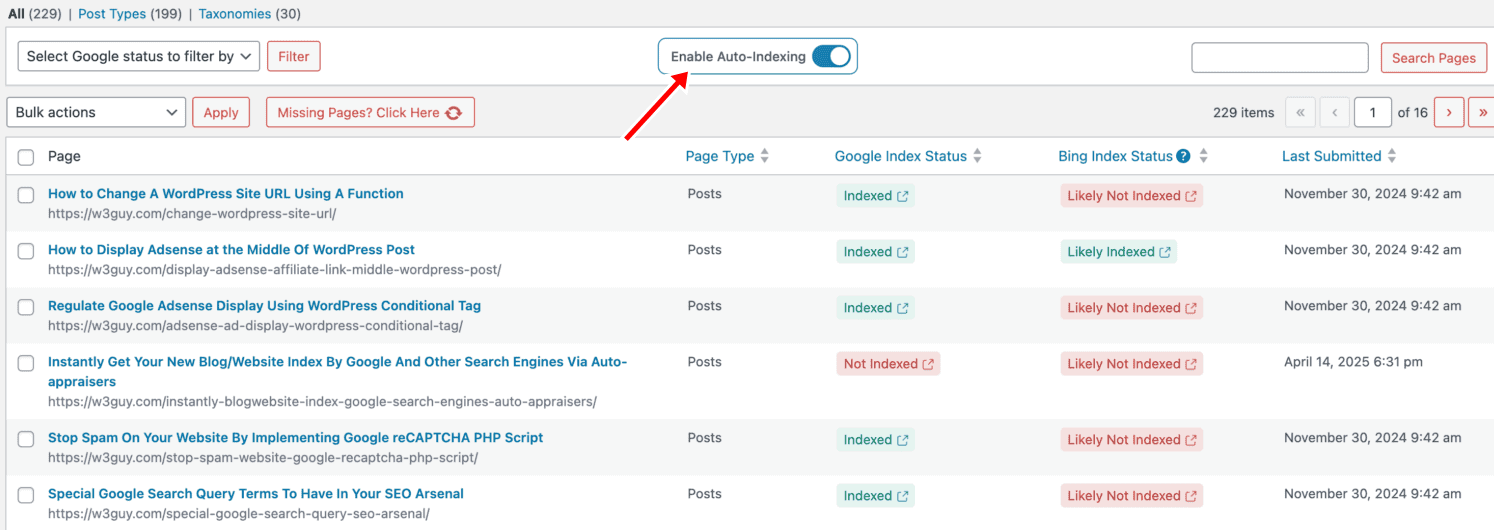
Instead of manually requesting indexing for each page like some kind of digital monk performing SEO penance, use CrawlWP’s auto-index feature.
It continuously scans your site for:
- Newly published content
- Updated pages
- Pages stuck in “Discovered – currently not indexed”
Then automatically submits them to Google via the Indexing API and to other search engines via the IndexNow protocol.
I used this for those 87 pages I mentioned. After improving content quality and enabling CrawlWP’s auto-index, 81 pages were indexed within 10 days, rather than waiting weeks or months for Google to maybe come back.
👉Stop waiting for Google. Get CrawlWP and auto-index your content.
Step 3: Fix “Crawled – Currently Not Indexed” (Google Saw It and Said No)
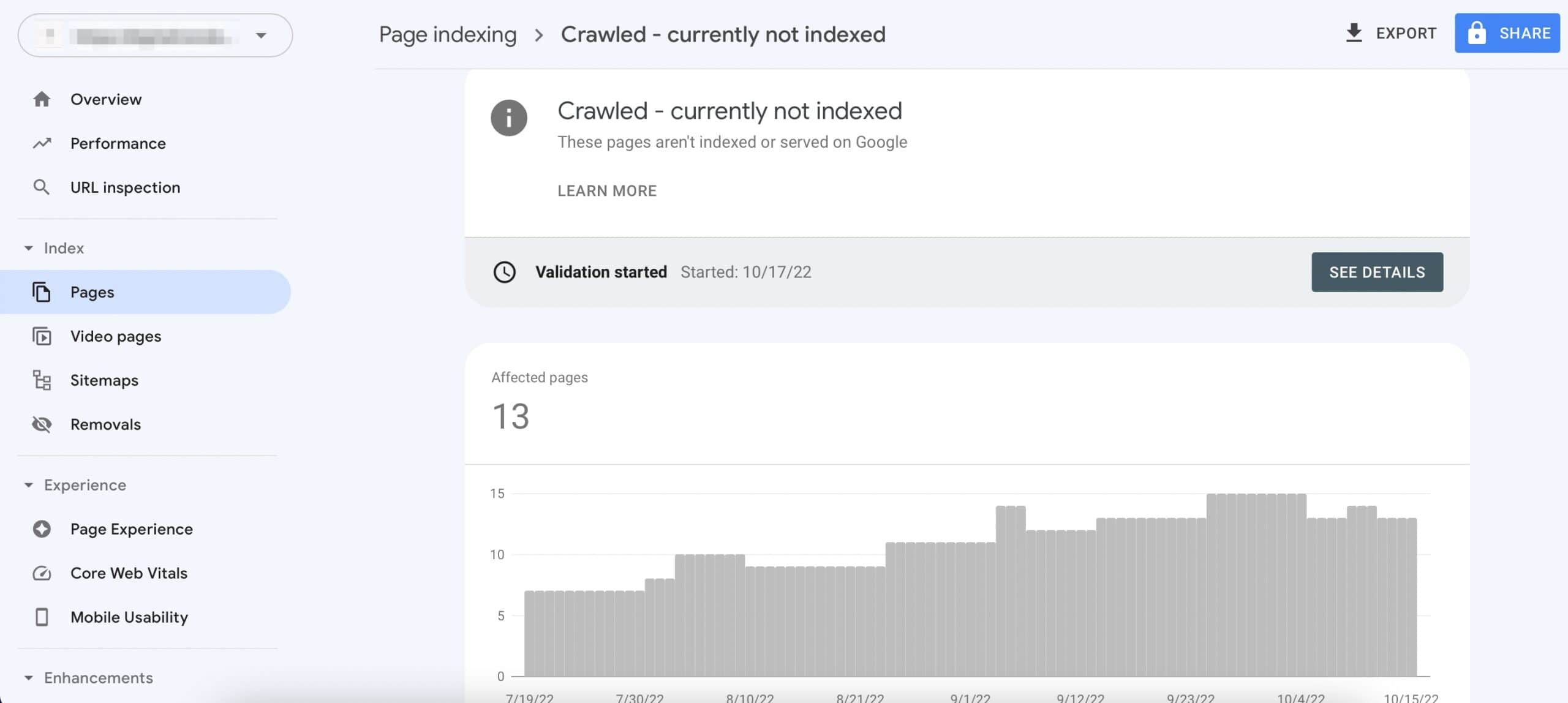
This is worse than “Discovered.” Google actually crawled your page, evaluated it, and decided it wasn’t worth indexing.
That’s a quality rejection, not a timing issue.
Why “Crawled – Currently Not Indexed” Happens
When pages are crawled but not indexed, Google has evaluated them and rejected them.
Common reasons:
- Thin or duplicate content
- Low E-E-A-T signals (Experience, Expertise, Authoritativeness, Trust)
- Technical issues Google encountered during crawling
- Page provides no unique value compared to existing indexed pages
How to Fix “Crawled – Currently Not Indexed”
Fix 1: Conduct a Brutal Content Audit
Pull up that page and compare it to the top 10 results ranking for your target keyword.
Is your content:
- More comprehensive?
- More up-to-date?
- Better organized?
- More helpful?
If not, you have work to do.
Fix 2: Add E-E-A-T Signals
Show Google this content was created by someone who knows their shit.
- Add author bios with credentials
- Include expert sources and quotes
- Link to authoritative external sources
- Show real experience (case studies, examples, data)
- Include publication dates and update timestamps
Fix 3: Check for Cannibalization
Do you have multiple pages targeting the same keyword? Google might have indexed one and decided the rest are redundant.
Solution:
- Consolidate similar pages into one comprehensive piece
- Use 301 redirects from the weaker pages to the strongest one
- Update canonical tags to point to the preferred version
Fix 4: Improve Page Speed
Slow pages get crawled less and indexed more slowly. If your page takes 5 seconds to load, that’s a problem.
Quick wins:
- Compress images (use WebP format)
- Minimize CSS/JavaScript
- Use browser caching
- Upgrade hosting if your server is garbage
Target: Under 2.5 seconds for Largest Contentful Paint (LCP).
Fix 5: Resubmit After Improvements
After making substantial improvements, use CrawlWP’s bulk indexing feature to resubmit the page immediately rather than wait for Google’s next crawl cycle.
Step 4: Fix Technical Blocks (The “You Told Google to Stay Away” Problems)
Sometimes pages aren’t indexed because YOU told Google not to index them. Accidentally. Because technical SEO is a minefield.
Check for Noindex Tags
View your page source (right-click > View Page Source) and search for “noindex”.
If you see this, Google won’t index the page:
<meta name=”robots” content=”noindex”>
The fix: Remove the noindex tag if it’s there by mistake.
Common culprits:
- Staging site settings accidentally pushed to production
- SEO plugins with wrong settings
- Developer testing that was never reverted
I once spent three hours debugging why a client’s blog wasn’t indexing. Turned out their developer left a noindex tag on the entire blog section after testing. THREE HOURS.
Check Your Robots.txt File
Go to yoursite.com/robots.txt and check if important pages are blocked.

If you see this, Google can’t crawl that section:
User-agent: *

Disallow: /blog/
Note that blocking pages in robots.txt does not guarantee they won’t be indexed through other means. To ensure Google does not index a page, remove the robots.txt block and use a ‘noindex’ directive.
The fix: Update robots.txt to allow crawling of important content.
Check for Password Protection or Login Requirements
If your page requires authentication, Google can’t index it.
This is fine for member-only content, but not fine if you accidentally protect a public page.
The fix: Remove password protection for pages you want indexed.
Step 5: Fix Duplicate Content Issues
Google won’t index multiple versions of the same page. It picks one canonical version and ignores the rest.
How to Identify Duplicate Content
Method 1: Search Console
Look for pages with status “Duplicate, Google chose different canonical than user.”
Method 2: Manual Check
Copy a unique sentence from your page and search for it in quotes on Google. If multiple URLs show up, you have duplicates.
How to Fix Duplicate Content
Fix 1: Implement Canonical Tags
Tell Google which version is the “real” one:
<link rel="canonical" href="https://yoursite.com/preferred-url" />All duplicate versions should point to the same canonical URL.
Fix 2: Use 301 Redirects
If you have duplicate pages you don’t need, redirect them to the primary version:
Redirect 301 /old-page https://yoursite.com/new-pageFix 3: Consolidate Pages
Instead of having five thin pages on similar topics, combine them into one comprehensive page.
This happened with a B2B client who had separate pages for “email marketing tips,” “email marketing strategies,” and “email marketing best practices.”
Merged them into one killer “Email Marketing Guide.” Google indexed it within 48 hours.
Step 6: Fix Orphaned Pages (The Lost Souls of Your Website)
An orphan page is a page that has no internal links. It is not linked from your website, making it nearly impossible for Googlebot to discover through normal crawling.
How to Find Orphaned Pages
Method 1: Crawl Your Site with Screaming Frog
Run a crawl and look for pages with zero internal links pointing to them.
Method 2: Compare Sitemap to Crawl
Pages in your sitemap but not found during a crawl might be orphaned.
How to Fix Orphaned Pages
Option 1: Add Internal Links
Link to orphaned pages from:
- Relevant blog posts
- Category pages
- Homepage (if it’s important enough)
- Footer or navigation (for key pages)
Option 2: Delete Them
If the page isn’t valuable, delete it. No point having pages Google won’t index, and users won’t find.
Step 7: Fix Server Errors (The “Your Website Is on Fire” Problems)
If your server returns 500 errors when Googlebot visits, indexing is impossible.
Check for Server Errors in Search Console
Navigate to: Settings > Crawl Stats
Look for spikes in:
- Server errors (5xx)
- DNS errors
- Timeout errors
How to Fix Server Errors
Fix 1: Upgrade Your Hosting
Shared hosting is cheap for a reason. If your site gets decent traffic, invest in better hosting.
Fix 2: Optimize Database Queries
Slow database queries can cause timeouts. Work with a developer to optimize problematic queries.
Fix 3: Implement Caching
Use caching plugins (such as WP Rocket or W3 Total Cache) to reduce server load.
Fix 4: Use a CDN
Content Delivery Networks like Cloudflare distribute your content globally, reducing server strain.
Step 8: The Nuclear Option (When Nothing Else Works)
Sometimes you’ve tried everything, and Google still won’t index your page.
Delete and Republish
Sounds crazy, but sometimes starting fresh works.
- Delete the page (or remove it from indexing)
- Wait a week
- Publish an improved version at a new URL or the same URL
- Use CrawlWP to immediately notify Google
Drastically Improve Quality
If Google keeps rejecting your page, the content probably isn’t good enough.
Go nuclear on improvements:
- Triple the word count with valuable information
- Add original research or data
- Include expert interviews
- Create custom graphics or infographics
- Make it the definitive resource on the topic
Build Serious Backlinks
Sometimes a page won’t be indexed until Google receives external validation.
Get 3-5 quality backlinks from relevant sites, then resubmit for indexing.
The CrawlWP Advantage: Stop Waiting, Start Indexing
Here’s where we talk about the hippo in the room: even after you fix everything, you’re still waiting for Google to recrawl and reevaluate your pages.
That could take days. Or weeks. Or months.
CrawlWP eliminates the waiting game.
Instant Indexing via Multiple APIs
CrawlWP pings:
- Google Indexing API for immediate Google notification
- IndexNow protocol for Bing, Yandex, Naver, Seznam, Yep
- Bing URL Submission API
- Yandex API
Your page jumps the crawl queue instead of waiting for Google’s next scheduled visit.
Auto-Index for New & Updated Content
Set it and forget it. CrawlWP continuously monitors your site for:
- Newly published pages
- Updated content
- Pages stuck in limbo
Then automatically submits them to search engines without manual intervention.
Bulk Indexing for Mass Fixes
Fixed 50 pages at once? Use bulk indexing to submit them all in one click instead of manually requesting indexing for each URL like a masochist.
Real-Time Index Status Dashboard
See exactly which pages are indexed in Google and Bing without constantly checking Search Console.
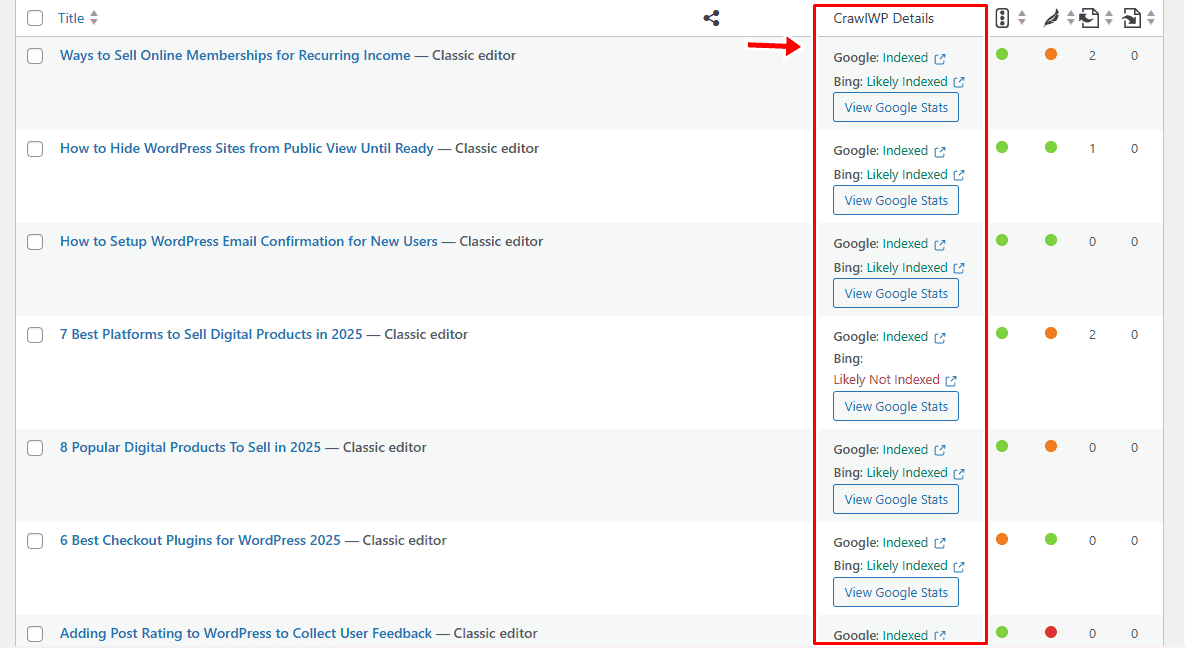
Real example: A client had 127 pages stuck in “Discovered – currently not indexed” after a content overhaul. We fixed content quality issues, improved internal linking, and used CrawlWP’s bulk indexing feature.
Result: 119 pages indexed within 72 hours instead of 3-4 weeks.
The 8 that didn’t index? They genuinely weren’t good enough. We deleted them and redirected to better content.
👉Get CrawlWP and fix your indexing problems faster.
Common Mistakes That Make Indexing Problems Worse
Mistake 1: Spamming “Request Indexing”
Clicking “Request Indexing” 47 times doesn’t make Google index your page faster. It just makes you look desperate.
Fix the underlying problem, then request indexing ONCE.
Mistake 2: Publishing More Content Instead of Fixing Existing Content
“Maybe if I publish 20 more posts, Google will index them!”
No. Fix the quality of what you have first. Publishing more garbage just creates more unindexed pages.
Mistake 3: Obsessing Over Unimportant Pages
Not every page needs to be indexed. Your privacy policy? Your cart page? Your “thank you for subscribing” page?
Those don’t need to rank. Focus on pages that actually drive business results.
Mistake 4: Making Multiple Changes Simultaneously
Changed content, updated robots.txt, added canonical tags, and rebuilt internal linking all at once?
Now you don’t know which fix actually worked (or which change made things worse).
Make one change at a time. Monitor results. Then make the next change.
Mistake 5: Giving Up Too Soon
Sometimes, pages index after 30-60 days even if you do everything right. New sites, in particular, need time to build authority.
Be patient (while also being proactive with tools like CrawlWP to speed things up).
Final Thoughts: You’re Not Crazy, Google’s Just Picky
Understanding how to fix pages that Google won’t index is one of the most frustrating parts of SEO.
You did the work.
You published quality content.
You optimized everything.
And Google basically ghost you like that person who said “let’s hang out sometime” but never followed up.
Here’s the truth: In 2026, Google has become insanely selective about what deserves index space. AI-generated content has flooded the internet, and Google’s response is to raise the bar dramatically.
The fix hierarchy:
- Fix content quality first (nothing else matters if your content sucks)
- Fix technical blocks (noindex tags, robots.txt, server errors)
- Build internal links (help Google find and prioritize your pages)
- Get external validation (backlinks signal value)
- Use instant indexing (CrawlWP to bypass the waiting game)
Most people skip step 1 and wonder why nothing works. Don’t be most people.
And for the love of all that’s holy, stop waiting weeks for Google to maybe recrawl your fixes. Use CrawlWP to notify search engines immediately and get pages indexed in days, not months.
Your content deserves to be found. Stop letting Google’s timeline dictate your success.
Ready to fix your indexing problems for good?Get CrawlWP and take control.
FAQs: Your Indexing Questions Answered
How do I fix pages Google won’t index?
First, diagnose WHY Google won’t index them using Search Console. Common fixes include improving content quality, adding internal links, removing technical blocks (noindex tags, robots.txt), fixing duplicate content, and using instant indexing tools like CrawlWP to notify Google immediately after fixes.
Why does Google say “Discovered – currently not indexed”?
This means the page was found by Google, but not crawled yet. Typically, Google wanted to crawl the URL but this was expected to overload the site; therefore Google rescheduled the crawl. It can also indicate low content quality or crawl demand issues.
What’s the difference between “Discovered” and “Crawled” not indexed?
“Discovered – currently not indexed” means Google found your page but hasn’t crawled it yet. “Crawled – currently not indexed” means Google crawled your page, evaluated it, and decided not to index it due to quality or value concerns.
How long does it take Google to index a page after fixing issues?
It varies. High-authority sites: 1-3 days. Medium sites: 5-14 days. New or low-authority sites: 2-4 weeks. Using CrawlWP’s instant indexing features can reduce this to 24-72 hours regardless of site authority.
Can I force Google to index my page?
No, but you can strongly encourage it by fixing quality issues, requesting indexing via Search Console, and using CrawlWP to notify Google via the Indexing API immediately. Google ultimately decides based on content quality and relevance.
Should I delete pages that won’t index?
If you’ve tried improving content, adding links, and fixing technical issues and the page still won’t index after 60 days, evaluate if it’s actually valuable. Weak pages dilute your site’s overall quality. Sometimes deletion is the right choice.
Do noindex tags prevent crawling or indexing?
Noindex tags prevent indexing but NOT crawling. Google still has to crawl the page to see the noindex tag. To prevent both crawling and indexing, use robots.txt to block crawling entirely.
Why are my new pages not indexing?
New pages on established sites usually index within days. New pages on new sites can take weeks. Speed up indexing by submitting pages via sitemap, requesting indexing in Search Console, building internal links, and using CrawlWP’s instant indexing features.
How do I check if a page is indexed?
Search Google for site:yourwebsite.com/specific-page-url. If it shows up, it’s indexed. For more details, use Google Search Console’s URL Inspection tool or CrawlWP’s indexing status dashboard.
Does page speed affect indexing?
Yes. Faster pages allow Google to crawl more efficiently, improving indexing speed. Slow pages may be deprioritized in Google’s crawl queue. Aim for under 2.5 seconds LCP (Largest Contentful Paint).