
Do you want to learn how to submit websites to search engines for indexing?
Here’s the harsh reality: publishing a website doesn’t automatically make it visible on Google. You can have perfect content, flawless SEO, and brilliant design, but if search engines haven’t indexed your pages, you’re invisible.
Traditional advice says, “Just wait for Google to crawl your site”. That takes anywhere from days to weeks. For a new product launch, a time-sensitive blog post, or an ecommerce site adding inventory, that’s unacceptable.
The good news?
You don’t have to wait. Search engines offer direct submission methods that cut indexing time from weeks to hours. And with tools like CrawlWP, you can automate the entire process so every new page gets indexed within 24-48 hours.
This guide covers everything about submitting websites to search engines: Google Search Console, Bing Webmaster Tools, sitemaps, IndexNow protocol, and the instant indexing strategies that serious sites use in 2026.
Let’s get your website pages found.
Table of Contents
Why Manual Index Submission Matters

Search engine crawlers eventually find most websites through backlinks and sitemap discovery. But “eventually” is the problem.
Without manual submission to search engines:
- New sites can wait 2-6 weeks for initial indexing
- New pages take 3-14 days to appear in search results
- Product launches miss their peak traffic window
- Updated content sits in limbo while competitors rank
With proper submission to search engines:
- Initial indexing happens within 24-72 hours
- New pages get discovered within hours
- Priority content gets crawled immediately
- You control timing instead of hoping for the best
The difference between submitting and waiting is the difference between being found during relevant search volume and being discovered when nobody cares anymore.
Complete Search Engine Submission Checklist

Before submitting your website to search engines (such as Google, Bing, Yandex, Yep, etc.), make sure your site is ready:
✅ Site is live and accessible – Not password-protected, not showing “coming soon.”
✅ Robots.txt allows crawling – Check yoursite.com/robots.txt doesn’t block everything
✅ No “noindex” tags – Remove any meta tags telling search engines to stay away
✅ XML sitemap exists – Automatically generated by WordPress, SEO plugins, or your CMS
✅ HTTPS is enabled – Sites without SSL get penalized
✅ Basic content published – At least 5-10 pages worth indexing
If any of these fail, fix them before submission. Submitting a broken site wastes time.
How To Submit Your Website To Google for Indexing
Google owns 85-87% of global search traffic. Consequently, getting indexed on Google is non-negotiable.
To submit your website to Google Search, you first need to add and verify it in Google Search Console.
Step 1: Set Up Google Search Console
Google Search Console (GSC) is the official tool for managing how Google sees your site. Free, essential, mandatory.
Create your account:
- Go to search.google.com/search-console
- Click “Start Now”
- Sign in with your Google account
Add your property:
You have two options:
Domain Property (recommended) – Covers all subdomains and protocols (HTTP, HTTPS, www, non-www)
- Requires DNS verification through your domain registrar
- More comprehensive but slightly more technical
URL Prefix Property – Covers only the exact URL you specify
- Easier verification (HTML file upload, meta tag, Google Analytics)
- Need separate properties for HTTP/HTTPS or www/non-www
For most sites, Domain Property is worth the extra 5 minutes of DNS setup.
Step 2: Verify Ownership
Google needs proof that you own the site during submission before it indexes pages from the website. Five verification methods available:
DNS Verification (best for Domain Property):
- Copy the TXT record from Google Search Console
- Log in to your domain registrar (GoDaddy, Namecheap, Cloudflare, etc.)
- Add the TXT record to your DNS settings
- Return to GSC and click “Verify.”
- It can take 5 minutes to 48 hours for DNS propagation
HTML File Upload (easiest for beginners):
- Download the verification file from GSC
- Upload it to your site’s root directory via FTP/cPanel
- Verify the file is accessible at yoursite.com/google-verification-file.html
- Click “Verify” in GSC
HTML Meta Tag (works for WordPress):
- Copy the meta tag from GSC
- Paste it in your site’s <head> section
- Most WordPress SEO plugins have dedicated fields for this
- Click “Verify”
Google Analytics (automatic if GA is installed):
- If you have Google Analytics already running, GSC auto-detects it
- Just click the Google Analytics verification option
- Instant verification
Google Tag Manager (for GTM users):
- Similar to Google Analytics auto-verification
- Requires a GTM container actively running on the site
Step 3: Submit Your XML Sitemap to Google
Sitemaps tell Google which pages exist on your site and how they’re organized. Essential for proper crawling.
Submitting your sitemap to Google Search Console ensures Google indexes your website pages.
Find your sitemap URL:
- WordPress with Yoast: yoursite.com/sitemap_index.xml
- WordPress with Rank Math: yoursite.com/sitemap.xml
- WordPress with AIOSEO: yoursite.com/sitemap.xml
- Custom sites: Check your CMS documentation
Submit to Google Search Console:
- Click “Sitemaps” in the left menu
- Enter your sitemap URL in the field
- Click “Submit”
- Status should show “Success” within a few hours
Google will now check your sitemap regularly and automatically discover new pages.
But here’s the problem: Google checks sitemaps on its own schedule. For new sites, that might be daily. For established sites, maybe hourly. You’re still waiting.
Step 4: Request Indexing For Priority Pages
For pages you need indexed immediately, use the URL Inspection Tool in Google Search Console.
How to manually request indexing:
- Go to the URL Inspection Tool (top search bar in GSC)
- Paste the full URL you want indexed
- Click “Request Indexing”
- Wait 5-10 seconds for processing
- Google adds it to the priority crawl queue
Limitations:
- You can only request a few URLs per day (quota varies by site)
- Processing still takes hours to days
- Not practical for sites with dozens of new pages weekly
This is where most sites get stuck. Google Search Console is great for monitoring, but terrible for speed.
CrawlWP Solution: Instant Indexing For WordPress Sites
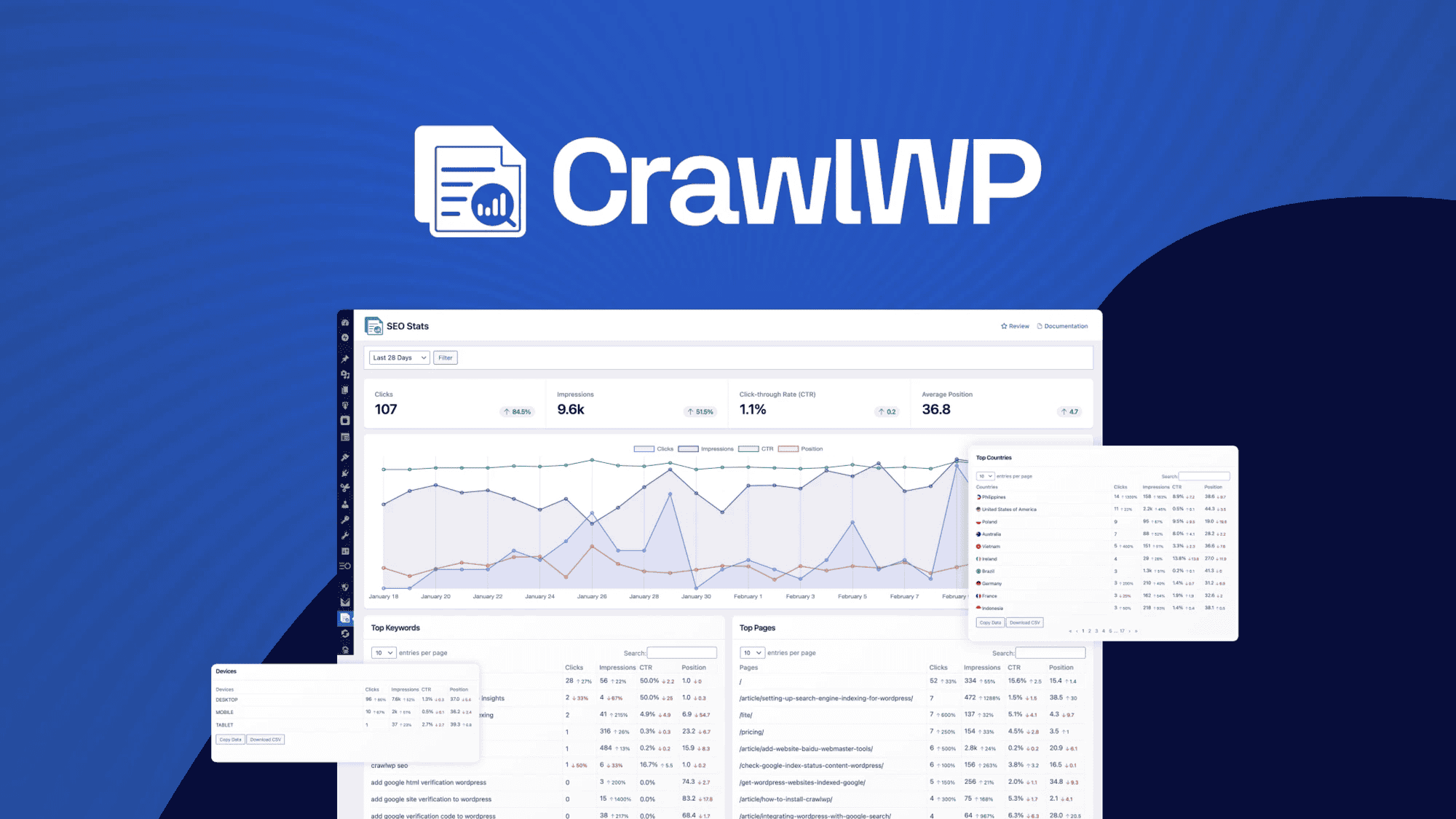
Traditional Google Search Console submission is reactive. You publish, then you ask Google to crawl. Sometimes it works quickly. Usually it doesn’t.
CrawlWP flips this model entirely.
How CrawlWP Works
CrawlWP automatically notifies Google, Bing, Yandex, and other search engines the instant you publish or update content. Instead of waiting for crawlers to find your sitemap, you’re pushing notifications directly.
We believe it is a better way to submit your website pages to search engines.
The workflow:
- You publish a new post, page, or product
- CrawlWP detects the change automatically
- It submits the URL to Google’s Indexing API (for supported content) and the IndexNow protocol
- Search engines receive instant notification
- Your page gets crawled within 24-48 hours instead of weeks
Real results from WordPress sites using CrawlWP:
- 73% faster indexing than the sitemap-only approach
- New products appearing in search within 48 hours
- Updated content is getting re-indexed the same day
- Zero manual submission needed
Why This Matters For WordPress Sites
WordPress powers 43% of the web, but most WordPress sites struggle to get indexed quickly. The default setup relies entirely on passive sitemap discovery.
Without instant indexing:
- New blog posts take 3-7 days to rank
- Product updates don’t reflect in Google Shopping
- Seasonal content misses peak search volume
- Time-sensitive news articles arrive too late
With CrawlWP:
- Blog posts indexed within 24 hours
- Product changes updated in the search on the same day
- Launch day content available for launch day traffic
- Breaking news ranks while it’s still breaking
For WooCommerce stores especially, instant product indexing directly impacts revenue. A new product that takes 10 days to index misses its launch buzz entirely.
CrawlWP Setup (Takes 10 Minutes)
- Install the CrawlWP plugin from the WordPress repository
- Connect to Google Search Console (one click)
- Enable auto-submission for posts/pages/products
- Done
The free version covers basic indexing, such as IndexNow submissions and manual URL requests, but it’s quite limited. The paid plans (starting around $59/year) unlock automatic indexing, bulk submissions, deeper insights, and full integration with Google and Bing APIs.
Install CrawlWP and stop waiting for Google →
How To Submit Your Website To Bing (And Why You Should)

Bing controls 7-9% of global search traffic. Sounds small until you realize that’s still billions of searches monthly. Plus, Bing powers:
- Microsoft Edge default search
- Windows 11 search integration
- ChatGPT web search results
- DuckDuckGo search results
- Yahoo search (Bing’s index)
- Amazon Alexa answers
Ignoring Bing means missing all that traffic. Follow the steps below to learn how to submit your website to Bing search engine.
Step 1: Access Bing Webmaster Tools
Go to bing.com/webmasters and sign in with:
- Microsoft account
- Google account
- Facebook account
Pick whichever you already have. Doesn’t matter which.
Step 2: Add Your Site (Two Methods)
There are two methods for submitting your website to Bing Search in Webmaster Tools.
Method 1: Import from Google Search Console (easiest)
If you have already verified your site in Google Search Console:
- Click “Import from Google Search Console”
- Sign in to your Google account
- Select which properties to import
- Click “Import”
- Verification happens automatically
This copies your sitemap, verification, and basic settings from GSC to Bing. Takes 2 minutes.
Method 2: Manual Addition
If you don’t have GSC set up:
- Click “Add a Site”
- Enter your full URL (include https://)
- Choose a verification method
- Complete verification
- Submit sitemap manually
Step 3: Verify Ownership
Similar to Google, multiple verification options exist for verifying your website on Bing:
XML File Upload:
- Download BingSiteAuth.xml from Bing Webmaster Tools
- Upload to your site’s root directory
- Verify file is accessible at
yoursite.com/BingSiteAuth.xml - Click “Verify”
Meta Tag:
- Copy the meta tag from Bing
- Add to your site’s <head> section
- Most WordPress SEO plugin all support this
- Click “Verify”
CNAME Record:
- Add a CNAME record to your DNS settings
- More technical, but it works for complex setups
Step 4: Submit Your Sitemap To Bing
- Navigate to “Sitemaps” in the left menu
- Click “Submit Sitemap”
- Enter your sitemap URL
- Click “Submit”
Bing accepts more formats than Google:
- XML (standard)
- RSS 2.0
- Atom 0.3 and 1.0
- Plain text files
- mRSS (Media RSS)
Step 5: Enable IndexNow (Secret Weapon)
Here’s what most guides miss: Bing supports the IndexNow protocol for instant indexing.
IndexNow is an open protocol that instantly notifies Bing, Yandex, Naver, and Seznam when you publish new content. Google doesn’t support it yet, but everyone else does.
Setting up IndexNow on WordPress:
Option 1: Use CrawlWP
- CrawlWP Pro includes automatic IndexNow submissions
- Works alongside Google Indexing API
- One plugin handles both
Option 2: Use Rank Math
- Free version includes IndexNow
- Enable in Rank Math > General Settings > IndexNow
- Paste API key
- Automatically pings Bing on publish
Option 3: Dedicated IndexNow Plugin
- Install the official IndexNow plugin from the WordPress repo
- Generate API key
- Enable auto-submission
IndexNow gets your pages indexed on Bing within minutes to hours instead of days. Combined with Google Search Console for Google and IndexNow for Bing, you’re covering 95%+ of search traffic.
Submitting To Other Search Engines (Quick Reference)
Yahoo
Don’t bother submitting your website to Yahoo. Yahoo uses Bing’s search index, so submitting to Bing automatically covers Yahoo.
DuckDuckGo
Also uses Bing’s index. Same deal – Bing submission covers it.
Yandex (Russia’s Google)
If you have Russian traffic:
- Go to webmaster.yandex.com
- Add your site
- Verify ownership
- Submit sitemap
Supports IndexNow, so if you’re using it for Bing, Yandex gets notified too.
Baidu (China’s Google)
Only relevant if you’re targeting Chinese users:
- Visit ziyuan.baidu.com
- Requires Chinese business registration
- The verification process is complex
- Better to hire a local SEO specialist
Naver (South Korea)
For the Korean market:
- Go to searchadvisor.naver.com
- Add the site and verify
- Submit sitemap
- Supports IndexNow
Common Submission Mistakes That Kill Indexing
Blocking crawlers with robots.txt
Your robots.txt file at yoursite.com/robots.txt might be blocking search engines entirely. Check for:
User-agent: *

Disallow: /
That blocks everything. Remove it.
Noindex tags are still enabled
Developers often add <meta name="robots" content="noindex"> during development and forget to remove it. Check your page source.
Wrong sitemap URL submitted
Submitting yoursite.com/sitemap.xml when it’s actually at yoursite.com/sitemap_index.xml wastes time. Verify the URL works in your browser first.
Duplicate submissions
Submitting the same URL 50 times doesn’t speed up indexing. It might actually slow it down if it looks like spam.
Forgetting HTTPS
If your site is HTTPS but you submitted the HTTP version to Search Console, Google sees them as different sites. Match your actual live URL.
Not fixing crawl errors before submitting
If your site has 500 errors, broken links, or redirect chains, submitting won’t help. Fix technical issues first.
How To Check If Your Site Is Indexed
Before and after submission of your website to search engines (including Google and Bing), verify its indexing status:
Site: Operator Method
Type into Google: site:yoursite.com
This shows all indexed pages from your domain. If nothing appears, you’re not indexed.
For specific pages: site:yoursite.com/specific-page-url
Google Search Console Method
- Go to the “Coverage” or “Pages” report
- See exactly which pages are indexed
- Identify pages with errors or excluded
- More detailed than the site: operator
Bing Webmaster Tools Method
- Navigate to “Site Explorer”
- View the indexed pages count
- Check individual URL status in URL Inspection
The Long-Term Indexing Strategy
Submission is step one. Staying indexed and getting priority crawling requires ongoing work:
1. Keep Publishing Fresh Content
Websites that publish regularly get crawled more frequently by search engines. Google prioritizes active sites.
2. Build Internal Links
New pages linked from your homepage or popular posts get discovered faster. Internal linking teaches Google your site structure.
3. Earn Quality Backlinks
External links from authoritative sites signal to Google, “this content matters.” More backlinks = faster crawling.
4. Update Old Content
Refreshing existing posts with new information triggers re-crawls. Add “Updated: [Date]” and resubmit via GSC.
5. Fix Technical Issues Immediately
Monitor GSC and Bing Webmaster Tools weekly for:
- 404 errors
- Server errors (500, 503)
- Mobile usability problems
- Core Web Vitals failures
Address these fast. Persistent errors slow crawling.
6. Use CrawlWP For Automation
Instead of manually submitting every new post, let CrawlWP handle it automatically. Set it and forget it.
Speed Comparison: Different Submission Methods
Based on data from 2026 WordPress sites:
Google Search Console Only (sitemap submission):
- New sites: 7-14 days for initial indexing
- New pages on established sites: 3-7 days
- Updated content: 5-10 days for re-crawl
Google Search Console + Manual URL Inspection:
- New pages: 24-72 hours
- Updated content: 12-48 hours
- Limited by daily quota
CrawlWP Instant Indexing:
- New pages: 24-48 hours consistently
- Updated content: Same-day re-indexing
- Unlimited submissions
IndexNow (Bing/Yandex):
- New pages: Minutes to 24 hours
- Updated content: Near-instant notification
- Works for all supported search engines simultaneously
The speed difference is massive, especially for time-sensitive content.
Your Website Submission Action Plan
Week 1: Foundation
- Set up Google Search Console
- Verify ownership
- Submit XML sitemap
- Set up Bing Webmaster Tools
- Submit sitemap to Bing
Week 2: Optimization
- Install CrawlWP for instant indexing
- Enable IndexNow for Bing
- Request indexing for the top 10 priority pages
- Fix any crawl errors showing in GSC
Ongoing:
- Monitor the indexing status of your website weekly
- Let CrawlWP handle new content submissions to search engines automatically
- Update and resubmit high-value content quarterly
- Build internal links to new pages
Don’t try to do everything at once. Start with Google Search Console and Bing Webmaster Tools. Add instant indexing once the basics are working.
Bottom Line
Search engines will eventually discover and submit your site to their index. But “eventually” isn’t a strategy.
Proper submission through Google Search Console and Bing Webmaster Tools gets you indexed within days instead of weeks. Adding instant indexing through CrawlWP or IndexNow cuts that to hours.
For new product launches, time-sensitive content, or any site where speed matters, the difference between manual submission and instant indexing is the difference between capturing traffic and missing it entirely.
Stop waiting for Google to find you. Tell them where you are.
Get instant indexing with CrawlWP →
FAQs
Do I have to submit my website to Google?
No. Google will eventually find most sites through backlinks and web crawling. But submission through Google Search Console dramatically speeds up discovery (from weeks to days) and gives you control over which pages to prioritize.
For new sites or time-sensitive content, manual submission is essential.
How long does it take Google to index a website after submission?
With Google Search Console sitemap submission, expect 24-72 hours for established sites and 7-14 days for brand new sites. Using the URL Inspection Tool can speed this up to 24-48 hours for individual pages. Instant indexing tools like CrawlWP consistently achieve indexing within 24-48 hours, regardless of site age.
Can I submit individual pages instead of my whole site?
Yes. Use Google Search Console’s URL Inspection Tool to submit specific URLs. Useful for new blog posts, updated product pages, or priority content that needs fast indexing. However, you’re limited by daily quotas (varies by site). Submitting your sitemap handles bulk pages more efficiently.
Does submitting to Bing help with Google rankings?
No. Bing and Google have completely separate indexes and algorithms. Submitting to Bing doesn’t directly affect Google rankings. However, Bing traffic can lead to social shares and backlinks, which indirectly benefit Google SEO. Plus, Bing powers ChatGPT search, DuckDuckGo, and Yahoo, making it worth the 10-minute setup.
What’s the difference between a sitemap and manual submission?
A sitemap is a file that lists all your pages, which search engines check periodically (daily to weekly). Manual submission using the URL Inspection Tool requests immediate crawling of specific pages.
Sitemaps are passive discovery; manual submission is an active request. Best practice: submit sitemap for ongoing crawling, use manual submission for urgent new content.
Will submission guarantee my site ranks well?
No. Submission only ensures Google knows your pages exist (indexing). Ranking depends on content quality, backlinks, technical SEO, user experience, and hundreds of other factors. Submission gets you in the game; optimization determines where you rank.
How often should I resubmit my sitemap?
Once is enough. After initial submission, Google automatically checks your sitemap regularly. Only resubmit if: you completely restructure your site, you create a new sitemap file, or Google Search Console shows errors with your current sitemap.
For updated content, use the URL Inspection Tool or instant indexing instead.
Can I submit the same URL to multiple search engines?
Yes, and you should. Google, Bing, Yandex, and other search engines have separate indexes. Submitting to Google Search Console doesn’t notify Bing. Use Google Search Console for Google, Bing Webmaster Tools for Bing/Yahoo/DuckDuckGo, and IndexNow to notify multiple search engines simultaneously.