
WordPress powers 43% of all websites. That’s great. It also means your competition is using the same platform you are.
The difference between sites that dominate search results and those that languish on page 5? WordPress SEO Optimization. Proper, systematic, nothing-left-to-chance optimization.
WordPress is SEO-friendly by default, but that’s like saying a car comes with an engine. Sure, it’ll run. But will it win races? Not until you tune it.
This guide covers everything on WordPress SEO optimization: technical foundation, content optimization, site speed, indexing strategy, Core Web Vitals, schema markup, and the ongoing maintenance that separates thriving sites from abandoned ones.
No fluff. No outdated tactics. Just the exact WordPress SEO optimization strategy that works in 2026.
Let’s build something that ranks.
Table of Contents
Why WordPress Is Perfect For SEO (And Why That’s Not Enough) 
WordPress handles the basics beautifully:
What WordPress Does Right:
- Clean, semantic HTML structure
- Automatic XML sitemap generation (with plugins)
- SEO-friendly permalink structure
- Mobile-responsive themes (most of them)
- Fast page editing and publishing
- Native support for meta tags and schema
- Massive plugin ecosystem for specialized SEO needs
What WordPress Doesn’t Do:
- Optimize your content for search intent
- Fix your slow hosting or bloated theme
- Build quality backlinks
- Index your pages instantly
- Prevent you from installing numerous plugins that tank page speed
- Stop you from ignoring Core Web Vitals
- Magically rank you without a strategy
WordPress gives you the tools. WordPress SEO optimization is actually using them correctly.
WordPress SEO Foundation (Get This Right First)
Before touching plugins, keywords, or content, fix your technical foundation. Nothing else matters if these basics are broken.
1. Choose Fast, Reliable Hosting
Your hosting provider directly impacts page speed, uptime, and server response time. All three affect rankings.
What makes hosting SEO-friendly:
- Server response time (TTFB) under 200ms
- 99.9%+ uptime guarantee
- SSD storage (standard now, but verify)
- Built-in caching or CDN integration
- Managed WordPress updates
Cheap shared hosting ($3/month plans) will sabotage every other optimization you make. Sites on quality managed WordPress hosting pass Core Web Vitals at 2-3x the rate of sites on budget shared hosting.
The performance difference between bottom-tier and mid-tier hosting is massive. The difference between mid-tier and premium hosting is marginal.
Sweet spot: $15-30/month managed WordPress hosting.
2. Pick A Lightweight, SEO-Optimized Theme
Your theme controls site structure, page speed, and mobile responsiveness. Pick wrong, and you’re fighting uphill forever.
What to look for:
- Performance-focused design (Astra, GeneratePress, Kadence, Neve)
- Clean code without bloat
- Mobile-first responsive design
- Native schema markup support
- Accessibility compliance (WCAG standards)
- Regular updates from the developer
What to avoid:
- Page builders with 20MB of code (Elementor, Divi, WPBakery add massive overhead)
- Themes stuffed with features you’ll never use
- Themes that haven’t been updated in 12+ months
- Anything with “multipurpose” in the description
Test before committing: run the theme demo URL through Google PageSpeed Insights. If the demo scores below 70 on mobile, keep looking.
3. Install An SEO Plugin (Pick One, Not Three)
WordPress doesn’t handle advanced SEO out of the box. You need an SEO tool or plugin.
The big three:
Rank Math (my pick for most sites)
- Free version includes everything most sites need
- Product schema for WooCommerce
- Multiple focus keywords per post
- Built-in keyword tracking
- Clean, modern interface
- IndexNow support built-in
Yoast SEO
- Most established, largest user base
- Beginner-friendly with clear guidance
- Premium required for WooCommerce features
- More hand-holding, fewer advanced features, free
- Starting at $118.80/year for full features
All In One SEO (AIOSEO)
- Middle ground between Rank Math and Yoast
- WooCommerce support in the free version
- Simpler than Rank Math, more features than Yoast free
- Good for users who want power without complexity
- Free or $49.50/year Basic
Pick one. Install it. Configure it properly (we’ll cover this). Don’t install multiple SEO plugins – they conflict and cause problems.
4. Set Permalink Structure To “Post Name”
This is crucial and non-negotiable.
Go to: Settings → Permalinks Choose: Post name Result: yoursite.com/keyword-rich-title instead of yoursite.com/?p=123
Clean URLs help both users and search engines understand page content. Plus, they look professional when shared.
Do this immediately if you haven’t already. Changing the permalink structure on an established site breaks all your URLs and requires 301 redirects. Get it right from day one.
5. Configure Your SEO Plugin Correctly
Installing Rank Math (or Yoast/AIOSEO) isn’t enough. You need to configure it.
Essential settings to verify:
XML Sitemap
- Enable automatic sitemap generation
- Include: posts, pages, and custom post types you want indexed
- Exclude: admin pages, tag archives (usually), search results
- Submit the sitemap to Google Search Console immediately
Robots.txt
- Ensure it’s not blocking search engines
- Should allow all crawlers unless you have specific reasons
Meta Tags
- Set up global title and description templates
- Configure Open Graph tags for social sharing
- Enable Twitter Cards
Schema Markup
- Enable Article schema for blog posts
- Product schema for WooCommerce
- Organization/Person schema for about pages
- FAQ schema for FAQ sections
Most SEO plugins have setup wizards. Use them. They configure 90% of settings correctly.
WordPress SEO Optimization Workflow (What To Do)
Foundation set. Now the real optimization begins.
Step 1: Research Keywords Before Writing Anything
Most WordPress users write first, optimize later. That’s backward.
The right workflow:
- Identify topic
- Research keywords people actually search for
- Analyze search intent (what do they want to find?)
- Create content matching that intent
- Optimize while writing, not after
Tools for keyword research:
- Google Keyword Planner (free, decent data)
- Semrush (best for competitive analysis, $139.95/month)
- Ahrefs ($129/month, strongest backlink data)
- Ubersuggest (budget option, $12/month)
What to look for:
- Search volume: minimum 50-100/month for niche topics
- Keyword difficulty: Can you actually rank with your site’s authority?
- Search intent: informational, commercial, transactional, or navigational?
- Related keywords: what else do searchers want to know?
Target one primary keyword per page. Include 3-5 secondary keywords naturally.
Step 2: Write Content That Answers The Query
Google ranks content that satisfies search intent. Period.
What this means practically:
Someone searches “how to optimize WordPress speed” – they want actionable steps, not a 2,000-word history of page speed.
Someone searches “best WordPress hosting” – they want comparisons and recommendations, not technical server specifications.
Someone searches “WordPress SEO optimization guide” – they want comprehensive, structured information they can follow systematically.
Match the format search intent demands:
- How-to queries → step-by-step tutorials
- Best/top queries → comparison posts with rankings
- What are queries → clear definitions with examples
- Guides → comprehensive, structured long-form content
Content length:
- Comprehensive guides: 2,500-3,500 words
- How-to posts: 1,500-2,500 words
- Product comparisons: 2,000-3,000 words
- Definitions: 800-1,500 words
Longer isn’t automatically better. But thorough beats shallow every time.
Step 3: Optimize On-Page Elements (The Checklist)
For every post/page you publish:
Title Tag (60 characters max):
- Include the primary keyword near the beginning
- Make it click-worthy, not just keyword-stuffed
- Example: “WordPress SEO Optimization: Complete Guide (2026)”
Meta Description (155-160 characters):
- Include the primary keyword naturally
- Add a call-to-action or value proposition
- Example: “Master WordPress SEO in 2026. From indexing to Core Web Vitals, this complete guide covers everything you need to rank higher.”
H1 Heading:
- One H1 per page (usually your title)
- Include primary keyword
- Make it compelling
H2-H6 Subheadings:
- Use proper hierarchy (H1 → H2 → H3, never skip levels)
- Include secondary keywords in some subheadings
- Break content into scannable sections
URL Slug:
- Include primary keyword
- Keep it short and descriptive
- Example:
wordpress-seo-optimisation-guide - Remove stop words (a, the, and, etc.)
First Paragraph:
- Include the primary keyword within the first 100 words
- Answer the main question immediately
- Hook readers to keep scrolling
Image Optimization:
- Descriptive file names: wordpress-seo-checklist.jpg, not IMG_1234.jpg
- Alt text with keyword when natural: “WordPress SEO optimization checklist showing 12 essential steps”
- Compress images before upload (under 200KB for most)
- Use WebP format for better compression
Internal Links:
- Link to 3-5 related posts/pages within your content
- Use descriptive anchor text (not “click here”)
- Help Google understand your site structure
External Links:
- Link to 2-4 authoritative sources
- Cite data, statistics, official documentation
- Builds trust and provides value
Your SEO plugin will guide you through most of this with real-time feedback.
Step 4: Optimize Site Speed And Core Web Vitals
Page speed is a confirmed ranking factor. Core Web Vitals (Google’s specific page experience metrics) matter even more in 2026.
The three Core Web Vitals:
Largest Contentful Paint (LCP) – Loading Performance
- Measures: how fast your largest content element loads
- Target: under 2.5 seconds
- Fix: optimize images, enable caching, upgrade hosting, use CDN
Interaction to Next Paint (INP) – Responsiveness
- Measures: how quickly the page responds to user interactions
- Target: under 200 milliseconds
- Fix: reduce JavaScript execution, defer non-critical JS, minimize plugins
- Note: Replaced First Input Delay (FID) in March 2024
Cumulative Layout Shift (CLS) – Visual Stability
- Measures: how much the page layout shifts while loading
- Target: under 0.1
- Fix: set width/height on images, avoid inserting content above existing content
How to check your scores:
- Go to PageSpeed Insights
- Enter your URL
- Review mobile scores (Google prioritizes mobile)
- Follow specific recommendations
Quick WordPress speed fixes:
Install a caching plugin:
- WP Rocket (paid, easiest, most effective – $59/year)
- W3 Total Cache (free, more technical)
- LiteSpeed Cache (free, requires LiteSpeed server)
Use a CDN:
- Cloudflare (free tier available)
- BunnyCDN ($1/month minimum)
- Jetpack CDN (comes with Jetpack)
Compress images:
- ShortPixel (100 images/month free)
- Imagify (25MB/month free)
- Smush (free with limitations)
Remove unused plugins:
- Every plugin adds code and potential conflicts
- If you’re not actively using it, delete it
- Deactivated plugins still load code in many cases
Optimize database:
- WP-Optimize (free plugin)
- Removes revisions, spam comments, and transients
- Run monthly maintenance
Enable lazy loading:
- Images load only when scrolled into view
- Reduces initial page load
- Built into WordPress 5.5+, plugins enhance it
Sites that pass all three Core Web Vitals rank measurably better than those that fail them.
Fewer than half of WordPress sites pass all three Core Web Vitals on mobile, based on recent industry analyses, so improving them can provide a competitive advantage.
Step 5: Submit Your Site To Search Engines (And Speed Up Indexing)
WordPress sites don’t automatically appear in Google. You need to tell search engines you exist.
Google Search Console:
- Go to search.google.com/search-console
- Add your property
- Verify ownership
- Submit your XML sitemap
- Monitor indexing status weekly
Bing Webmaster Tools:
- Go to bing.com/webmasters
- Import from Google Search Console (easiest)
- Submit sitemap
- Enable IndexNow for instant indexing
The CrawlWP Advantage (Instant Indexing):
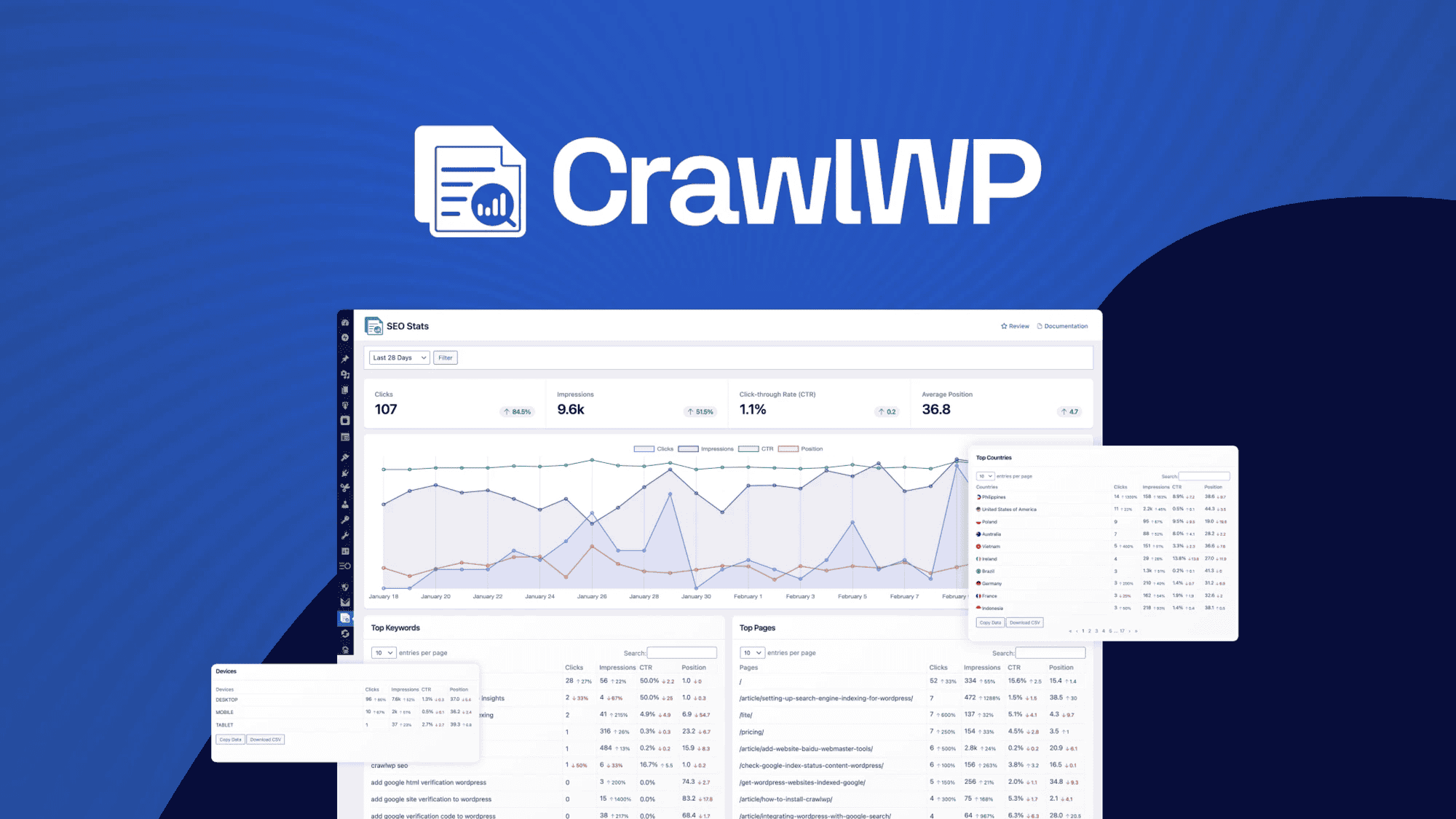
Traditional sitemap submission is passive. Google checks your sitemap on its schedule – could be hours, could be days, could be weeks.
CrawlWP actively notifies search engines to index your content the instant you publish or update it.
How it works:
- Install the CrawlWP plugin
- Connect to Google Search Console
- Enable auto-submission
- Every new post/page automatically gets submitted
- Indexing happens in 24-48 hours instead of weeks
For WooCommerce stores, this is critical. New products indexed immediately = sales during launch buzz. Products taking 10 days to index = missed revenue.
The free version handles a few features. Standard adds bulk submissions, detailed reporting, and Bing integration.
Get instant indexing with CrawlWP →
Step 6: Build Internal Link Structure
Internal links help Google understand your site structure and distribute page authority.
Best practices:
- Link from new WordPress posts to related older posts
- Update older posts in WordPress with links to new, relevant content
- Create pillar content with supporting articles
- Use descriptive anchor text
- Aim for 3-6 internal links per post
Strategic internal linking:
- High-authority pages should link to pages you want to rank
- Category pages in WordPress should link to the best posts in that category
- Related posts sections automate some of this
- Breadcrumbs help both users and search engines
Rank Math includes internal linking suggestions. Use them.
Step 7: Implement Schema Markup
Schema markup helps search engines understand your content type and can enable rich results (FAQ dropdowns, star ratings, recipe cards, etc.).
Common schema types for WordPress:
- Article/BlogPosting (blog posts)
- FAQPage (FAQ sections)
- HowTo (tutorials)
- Product (WooCommerce)
- Review (product/service reviews)
- LocalBusiness (local companies)
- Organization (about pages)
Most WordPress SEO plugins automatically generate basic schema. For advanced schema, use Schema Pro or Rank Math Pro.
Step 8: Optimize For Mobile
Google uses mobile-first indexing. The mobile version of your site is what Google indexes and ranks.
Mobile optimization checklist:
- Responsive theme (adapts to all screen sizes)
- Readable text without zooming (minimum 16px font)
- Tap targets spaced appropriately (48px minimum)
- No horizontal scrolling
- Fast mobile load times (under 3 seconds)
Test: Google’s Mobile-Friendly Test tool or PageSpeed Insights mobile tab.
Most modern WordPress themes are mobile-responsive by default. But verify, especially after adding custom code or page builder elements.
WordPress-Specific SEO Issues To Avoid
Duplicate Content:
- WordPress creates multiple URLs for the same content (category archives, tag archives, author archives)
- Your SEO plugin should handle canonical tags automatically
- Verify in Rank Math → Titles & Meta → Archives
Thin Tag/Category Pages:
- Tag archives with 1-2 posts provide no value
- Either write substantial descriptions or noindex them
- Rank Math → Titles & Meta → Categories/Tags → Show in Search
Unoptimized Media Library:
- Uploading 5MB photos directly from your phone kills page speed
- Always compress images before upload
- Use descriptive file names
- Add alt text to every image
Comment Spam:
- Enable Akismet or similar spam protection
- Moderate comments before publishing
- Spam comments hurt user experience and SEO
Broken Links:
- Use the Broken Link Checker plugin
- Fix or redirect broken internal links
- Monitor 404 errors in Google Search Console
Too Many Plugins:
- Each plugin adds code and potential conflicts
- Audit monthly, remove unused plugins
- Some plugins significantly harm page speed
Outdated WordPress/Plugins/Themes:
- Security vulnerabilities hurt SEO
- Performance improvements in updates
- Update regularly (but test first on staging)
Advanced WordPress SEO Tactics
Once basics are solid, these advanced tactics compound your results:
Content Clusters:
- Create pillar content on broad topics
- Support with cluster content on specific subtopics
- Interlink heavily between pillars and clusters
- Builds topical authority
FAQ Schema:
- Add FAQ sections to posts
- Enable FAQ schema in Rank Math/Yoast
- Increases chances of featured snippets
- Provides more keyword targeting opportunities
Structured Data Testing:
- Use Google’s Rich Results Test
- Verify schema markup is error-free
- Fix validation issues immediately
Optimize For Featured Snippets:
- Answer questions concisely (40-60 words)
- Use bullet/numbered lists
- Include clear definitions
- Add FAQ sections
Video Content:
- Embed YouTube videos in posts
- Increases time on page
- Enables video-rich results
- Add video schema markup
Update Old Content:
- Refresh top-performing posts every 6-12 months
- Update statistics and examples
- Add new sections covering recent developments
- Change publication date
- Resubmit to Google Search Console
Build Quality Backlinks:
- Guest post on relevant blogs
- Create linkable assets (original research, tools, comprehensive guides)
- Reach out to sites linking to competitors
- Participate in industry communities
Backlinks remain a top-ranking factor. No amount of on-page SEO optimization replaces quality backlinks.
Monitoring And Measuring WordPress SEO Success
Track these metrics monthly:
Google Search Console:
- Impressions (how often you appear in search)
- Clicks (how many people click your results)
- Average position (where you rank)
- Coverage issues (indexing problems)
Google Analytics:
- Organic traffic trends
- Bounce rate by landing page
- Time on page
- Conversion rates from organic traffic
Rank Tracking:
- Monitor positions for target keywords
- Alternatives: SEMrush, Ahrefs, SE Ranking
Core Web Vitals:
- Check PageSpeed Insights monthly
- Monitor Search Console Core Web Vitals report
- Address issues before they become widespread
Backlink Growth:
- Use Ahrefs or SEMrush
- Track new backlinks
- Monitor lost backlinks
- Analyze competitor backlinks
Set realistic expectations. SEO is a 3-6 month game, not a 3-day sprint.
Monthly WordPress SEO Maintenance Checklist
WordPress SEO optimization isn’t set-it-and-forget-it. Monthly maintenance keeps your site healthy:
Week 1:
- Review Google Search Console for errors
- Fix any indexing issues
- Check the Core Web Vitals report
- Address speed regressions
Week 2:
- Update WordPress core, plugins, and theme
- Test site after updates
- Run a security scan
- Optimize WordPress database
Week 3:
- Review top-performing content in WordPress
- Plan updates for underperforming posts
- Research new keyword opportunities
- Audit internal links
Week 4:
- Publish new optimized content
- Update 1-2 old posts
- Monitor rankings for target keywords
- Check the backlink profile
Consistency beats intensity. One well-optimized post per week beats 10 rushed posts per month.
WordPress SEO Plugins You Need
Required:
- Rank Math (or Yoast/AIOSEO) – Core SEO functionality
- CrawlWP – Instant indexing for new/updated content
Highly Recommended:
- WP Rocket – Caching and speed optimization
- ShortPixel – Image compression
- Broken Link Checker – Monitor link health
Optional (Depending On Needs):
- Schema Pro – Advanced schema markup
- Redirection – Manage 301 redirects
- Akismet – Spam protection
That’s it. Don’t install 30 plugins. Every plugin adds potential conflicts and performance overhead.
Common WordPress SEO Mistakes That Kill Rankings
Installing competing SEO plugins or running multiple SEO WordPress plugins that do the same thing simultaneously can cause conflicts. Pick one.
Ignoring Google Search Console warnings, Coverage errors mean pages aren’t indexed. Fix them immediately.
Keyword stuffing, or cramming keywords unnaturally, tanks readability and rankings. Write for humans first.
Forgetting to update old content causes stale information to lose rankings to fresh, updated competitors.
Not optimizing images. Huge images kill page speed. Compress everything.
Skipping mobile testing can make your site look perfect on desktop but broken on mobile. Test both.
No clear site structure. Poor navigation confuses users and search engines. Organize logically.
Weak internal linking. New content with zero internal links gets overlooked by Google.
Fix these before worrying about advanced tactics.
FAQs
Is WordPress good for SEO?
Yes. WordPress powers almost half of the web and offers unmatched flexibility for SEO optimization. With proper hosting, a lightweight theme, an SEO plugin, and systematic optimization, WordPress sites can outperform any platform.
The key is implementation – WordPress is SEO-friendly by default, but requires configuration to reach its full potential.
How long does WordPress SEO take to show results?
Expect 3-6 months for new sites to start ranking for competitive keywords. Established sites that optimize existing content can see improvements within 4-8 weeks.
Instant indexing tools like CrawlWP speed up the discovery phase (days instead of weeks), but earning rankings requires consistent quality content and backlinks over time.
Do I need to hire an SEO expert for my WordPress site?
Not necessarily. WordPress SEO is learnable with time investment. This guide covers the fundamentals most sites need. Hire an expert if: your site has complex technical issues, you’re in a highly competitive niche, you need enterprise-level optimization, or you don’t have time to learn.
For most small-to-medium sites, DIY SEO works.
What’s the most important WordPress SEO factor?
Content quality matching search intent. Technical optimization (speed, mobile-friendliness, proper indexing) enables your content to compete. But ultimately, you rank when your content best answers what people are searching for.
Everything else supports this core goal.
How do I fix a slow WordPress site speed?
Start with hosting (upgrade if needed), then add WP Rocket for caching, compress all images with ShortPixel, use a CDN like Cloudflare, remove unused plugins, optimize your database, and defer JavaScript loading.
Most speed issues trace to cheap hosting, unoptimized images, or plugin bloat. Fix those three first.
Should I use a page builder like Elementor for SEO?
Page builders like Elementor, Divi, and WPBakery add significant code bloat that hurts page speed and Core Web Vitals scores. If you must use one, choose lightweight options and optimize aggressively with caching/minification.
For best SEO performance, use the WordPress Block Editor (Gutenberg) or a lightweight theme like GeneratePress with minimal builders.
How do I optimize WordPress for Core Web Vitals?
Use high-quality hosting with fast TTFB, enable page caching with WP Rocket, compress and lazy-load images, minimize JavaScript execution, remove render-blocking resources, set image dimensions to prevent layout shifts, and audit plugins for performance impact.
Test with PageSpeed Insights, fix the biggest issues first, then iterate.