
This article explains how to activate your CrawlWP Premium license key, move the license to another site, change or remove a key, and renew an expired license. You need both CrawlWP Premium and the free CrawlWP plugin installed and active. See Upgrading from Lite to Premium.
What the License Does
Activating your license key on a site enables automatic updates for CrawlWP Premium on that site.
Until the license is activated, administrators see this message at the top of WordPress admin screens:
“Welcome to CrawlWP Premium! Please activate your license key or renew it to enable automatic updates.”
Your license key is available in your account at crawlwp.com. The renew it link in the message above also takes you to your account page.
Activate Your License Key
- Go to CrawlWP > Settings.
- Click the License tab at the top of the page.
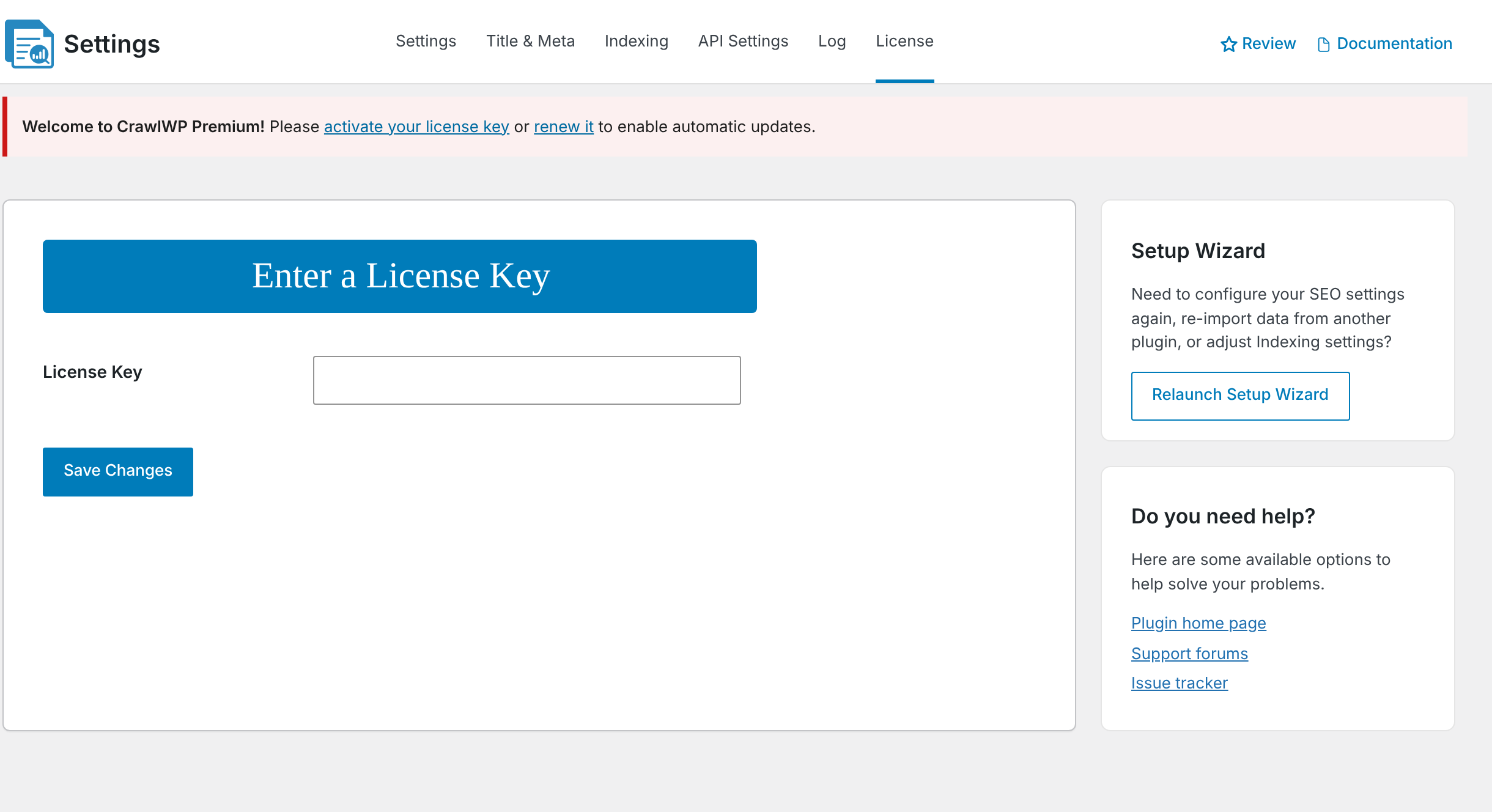
- Paste your key into the License Key box.
- Click Save Changes.
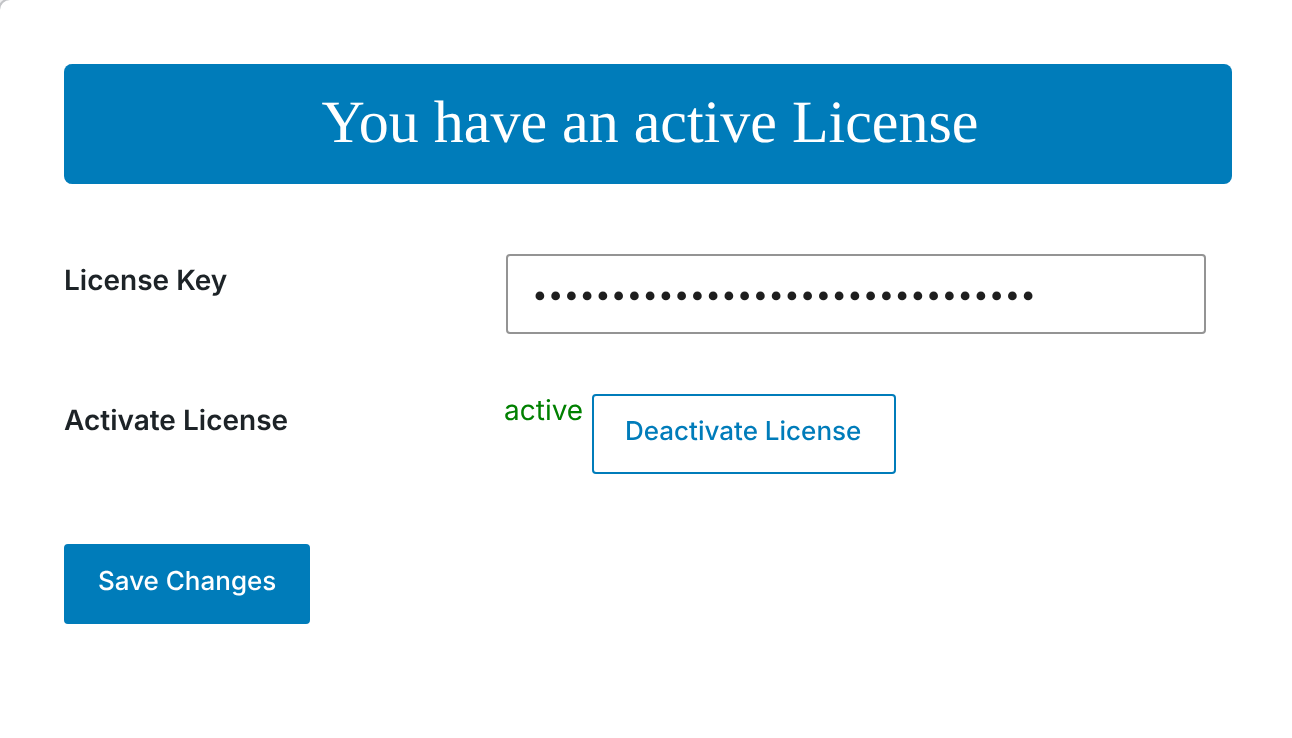
When activation succeeds, CrawlWP saves the key and activates it for the site’s address. The banner changes to “You have an active License”, and the Activate License row shows “active” with a Deactivate License button.
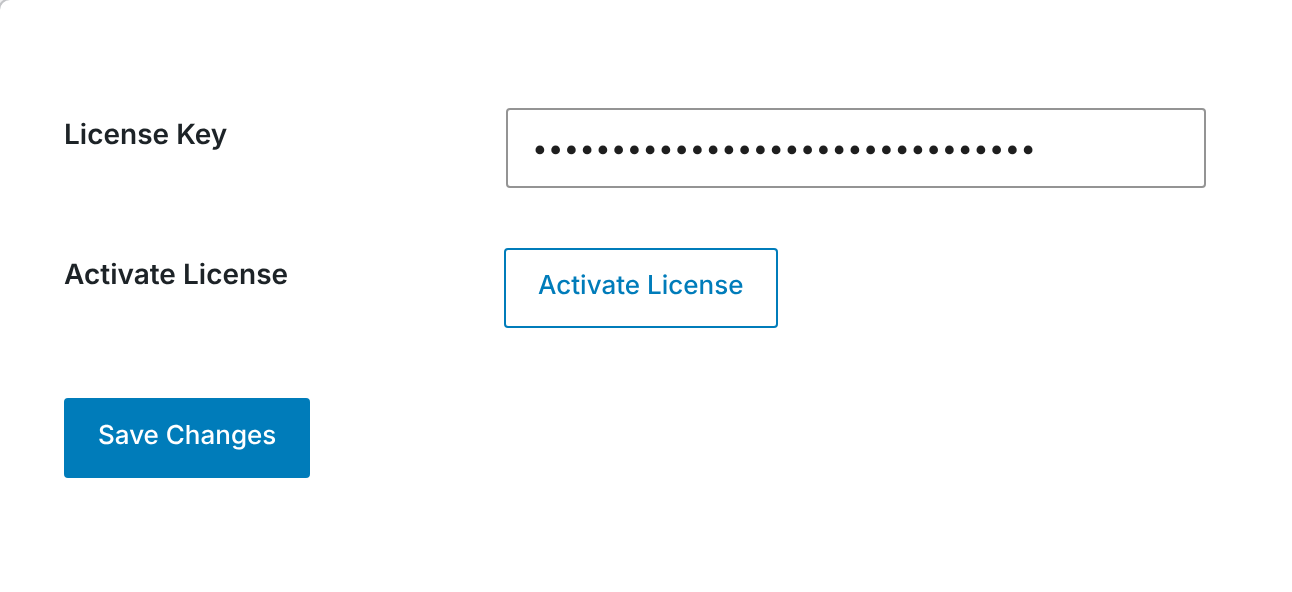
If you still see an Activate License button, the key was saved but was not activated. CrawlWP doesn’t show the reason when you click Save Changes. Click Activate License to try again and view the activation message.
Each activated site counts toward the number of sites allowed by your license. On a WordPress multisite network, each site is activated separately. See Using CrawlWP on WordPress Multisite.
Check for Updates
Once your license is active, new versions of CrawlWP Premium appear under Dashboard > Updates and on the Plugins screen, just like other WordPress plugins.
To check for an update immediately, go to Dashboard > Updates and click Check again.
The free CrawlWP plugin is updated separately through WordPress.org. Keep both the free plugin and CrawlWP Premium up to date.
Move Your License to Another Site
- On the old site, go to CrawlWP > Settings > License.
- Click Deactivate License. You should see “License key deactivation successful.”, and the Activate License button will replace the “active” status.
- On the new site, activate the same key using the steps above.
Deactivating the license frees that activation so you can use it on another site.
The license is tied to the site’s address. When moving a site to a different domain, deactivate the license before the move and activate it again after the site is available at the new address.
Deleting CrawlWP Premium does not deactivate the license. Deactivate the license first if you plan to use that activation on another site.
Change or Remove Your Key
To replace the license key currently used on a site:
- Click Deactivate License to free the existing activation.
- Replace the key in the License Key box.
- Click Save Changes.
After you replace the key and click outside the field, the Activate License row is temporarily hidden. It appears again after you save the settings.
To completely remove the key from the site, click Deactivate License, empty the License Key box, and click Save Changes.
The banner will then say “Enter a License Key”, and the “Welcome to CrawlWP Premium!” message will appear again.
When Your License Expires
CrawlWP checks the license with crawlwp.com approximately every two days when an administrator visits the dashboard.
When the license has expired or been disabled:
- The banner on the License tab says “License key is invalid or expired”.
- Administrators see this message: “Your CrawlWP license has expired and all premium features disabled. Click here to renew your license to re-enable them.”
- CrawlWP Premium features are switched off, and the SEO Indexing and SEO Stats pages show the upgrade pages from the free plugin.
- The Get CrawlWP Premium box and CrawlWP Premium button return to the settings pages.
Your CrawlWP settings and data are kept even though the Premium features are disabled.
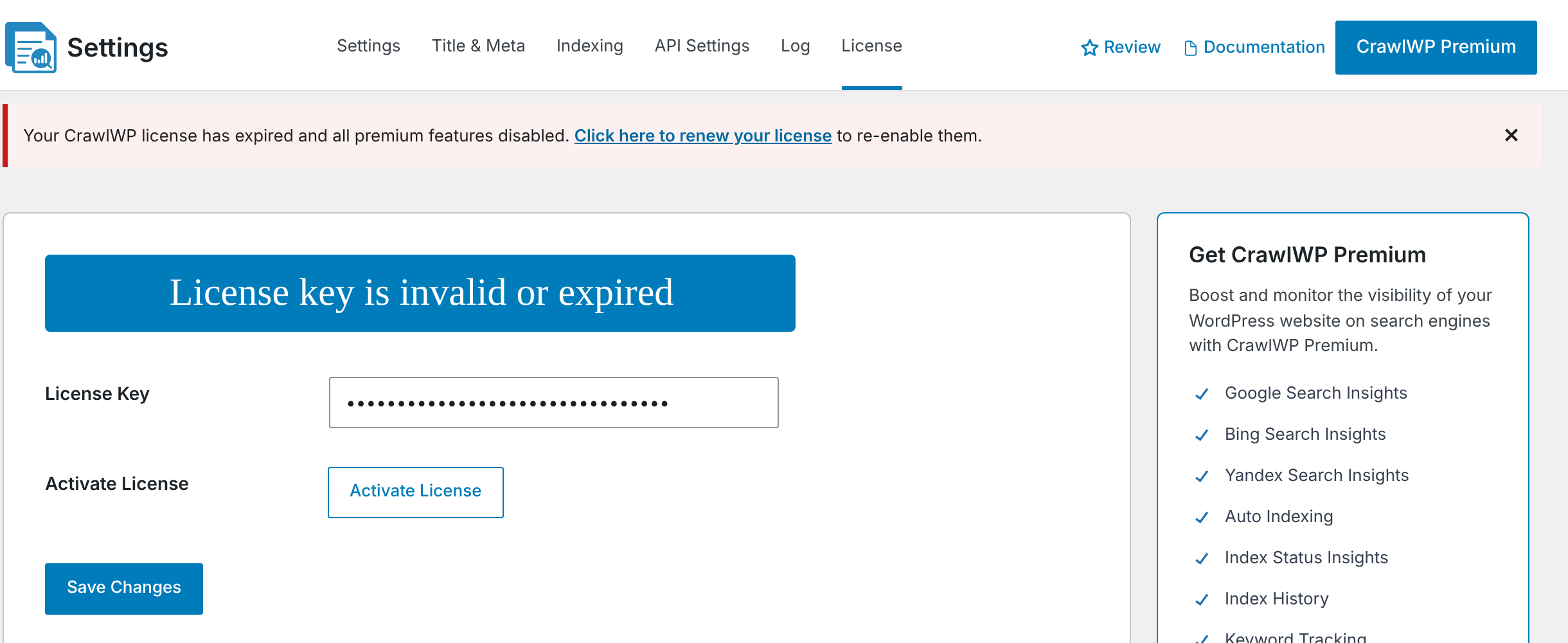
You can close the expired license message.
To enable the Premium features again:
- Click Click here to renew your license and complete the renewal from your CrawlWP account.
- Go to CrawlWP > Settings > License and click Activate License.
Activating the license immediately restores the Premium features without waiting for the next automatic license check, which can take up to two days.
If It Does Not Work
“Invalid license.” or “License key entered is invalid.” Make sure you copied the complete license key and that there are no spaces before or after it.
“Your license is not active for this URL.” Make sure you are using a CrawlWP Premium key and that the Site Address (URL) under Settings > General is correct. Then try activating the key again. If the error continues, contact CrawlWP support.
“Your license key has reached its activation limit.” Deactivate the license on a site you no longer use and then try again. When you no longer have access to that site, contact CrawlWP support.
“Your license key expired on …” or “Your license key has been disabled.” Renew the license through your account at crawlwp.com and then click Activate License.
“License validation error. Please try again”, or an error mentioning cURL or a timeout. Your server was unable to connect to crawlwp.com. Try again after a few minutes. If the problem continues, ask your hosting provider to allow outgoing connections from your site to crawlwp.com.
“An error occurred, please try again.” Wait a few minutes and try again. If the error continues, contact CrawlWP support.
“active” still appears after “License key deactivation successful.” The deactivation did not complete successfully. Click Deactivate License again. If it continues to show as active, contact CrawlWP support.
Nothing happens after I click Save Changes. The license key was saved, but activation did not succeed. Click Activate License to see the reason.
The expired message still appears after I renewed. Go to the License tab and click Activate License.
No updates appear. Confirm that the License tab says “You have an active License”. Then go to Dashboard > Updates and click Check again.