
This article explains what happens to your CrawlWP settings and SEO data when you deactivate or delete the plugin. It also shows how to remove all CrawlWP data if you want to uninstall it completely.
Deactivating Keeps Everything
Deactivating CrawlWP from the Plugins screen does not delete its settings or data. If you reactivate the plugin, your previous configuration and data remain.
While CrawlWP is deactivated, its features are no longer active:
- Your pages no longer use CrawlWP’s SEO titles, meta descriptions, social tags, or schema.
- Your CrawlWP redirects stop working.
robots.txtfalls back to the WordPress default and/llms.txtstop working./wp-sitemap.xmlfalls back to the standard WordPress sitemap.
Deleting: The Remove Data on Uninstall Setting
When you delete CrawlWP from the Plugins screen, the Remove Data on Uninstall setting determines whether it removes stored data. This setting is off by default.
| Setting | What Deleting the Free Plugin Does |
|---|---|
| Off | Deletes the plugin files only. Your settings and SEO data remain in the database and are available if you install CrawlWP again. |
| On | Deletes the plugin files and all CrawlWP data. This cannot be undone. |
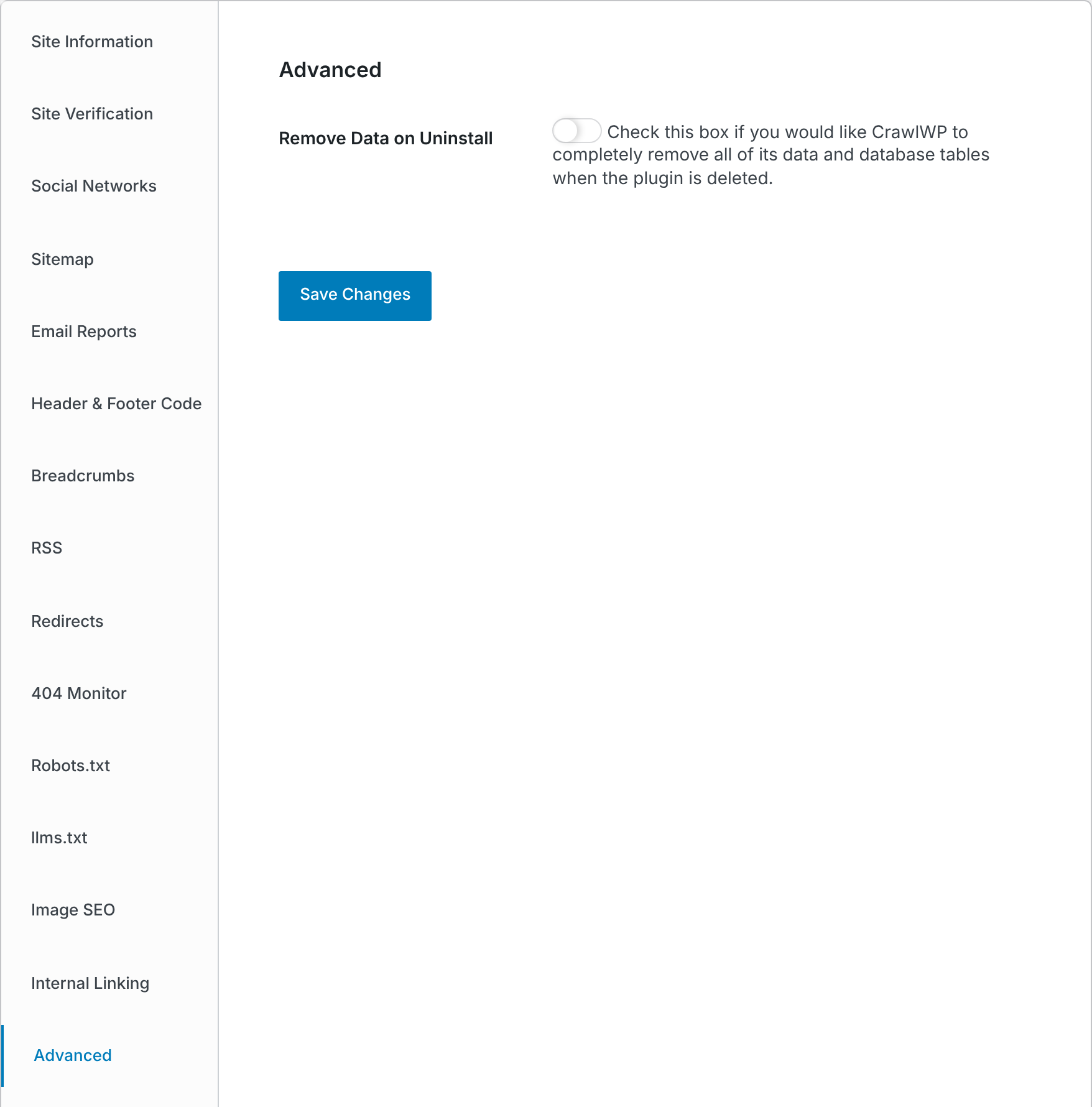
To enable Remove Data on Uninstall:
- Go to CrawlWP > Settings.
- Click Advanced in the left-hand menu.
- Turn on Remove Data on Uninstall.
- Click Save Changes.
What Is Removed
When Remove Data on Uninstall is enabled, deleting the free CrawlWP plugin removes its stored data, including:
- All CrawlWP settings, including your Google, Bing, and Yandex connections, IndexNow key, and Title & Meta templates.
- SEO data saved on posts, pages, categories, tags, and users, including SEO titles, meta descriptions, focus keywords, SEO scores, social settings, schema settings, canonical URLs, and robots settings.
- Your redirects, 404 log, and indexing log.
- CrawlWP’s scheduled tasks and cached data.
- The CrawlWP Premium license key and Premium settings, even when Premium is still installed. The SEO Indexing data is removed only when Premium itself is deleted.
Deleting CrawlWP SEO Premium always removes the following, regardless of the Remove Data on Uninstall setting:
- Your license details.
- SEO Indexing data, such as each post’s index status and history.
- Premium-specific records, such as when email reports were last sent.
Other Premium settings, such as email report and sitemap settings, are stored with the free plugin’s settings. These are removed only when the free plugin is deleted with Remove Data on Uninstall enabled.
What Is Not Removed
- Alt text. Alt text that CrawlWP’s Image SEO saves on images when you upload them belongs to the images themselves, so it remains after uninstalling CrawlWP.
- Data from other SEO plugins. When you import SEO data from another plugin, CrawlWP copies that data. The original plugin’s data is not removed.
- A few small records. CrawlWP stores a timestamp on posts, terms, and comments when they are updated. Premium’s scheduled tasks for indexing checks and email reports also remain in the database. These records have no effect when CrawlWP is no longer installed.
Remove CrawlWP Completely
- Back up your database first. Once CrawlWP data is deleted, it cannot be recovered.
- If you use Premium, go to CrawlWP > Settings > License and click Deactivate License. This frees the license activation for use on another site.
- Go to CrawlWP > Settings > Advanced, enable Remove Data on Uninstall, and click Save Changes.
- Go to Plugins > Installed Plugins.
- Under CrawlWP SEO Premium, click Deactivate, then Delete, and confirm the deletion.
- Under CrawlWP SEO – WordPress SEO, Instant Indexing & Search Performance, click Deactivate, then Delete, and confirm.
On a WordPress multisite network, the main site’s Remove Data on Uninstall setting controls whether data is removed from every site. When it is off on the main site, each site follows its own setting. See Using CrawlWP on WordPress Multisite.
If It Does Not Work
My data is still there after I deleted the plugin. The plugin was deleted while Remove Data on Uninstall was disabled. Install the free CrawlWP plugin again, enable Remove Data on Uninstall, save the setting, and then deactivate and delete CrawlWP from the Plugins screen.
I deleted the plugin folder with FTP or my host’s file manager. CrawlWP’s uninstall cleanup runs only when the plugin is deleted from the Plugins screen. Install CrawlWP again and remove it through the WordPress Plugins screen.
SEO titles still appear after I deleted CrawlWP. Clear your site’s page cache and any cache maintained by your hosting provider. If the titles still appear, another plugin or your theme may be generating them.
Premium asks for my license key again. The free plugin was deleted while Remove Data on Uninstall was enabled, which also removed the stored license key. Enter the key again on the License tab.