
Moving from The SEO Framework to CrawlWP doesn’t mean you have to set up your SEO settings from scratch. CrawlWP can bring over the SEO information already stored on your WordPress site, including custom titles, meta descriptions, robots settings, and redirects attached to individual posts.
The migration tool is included with the CrawlWP SEO plugin. It copies your existing The SEO Framework data into CrawlWP without modifying or removing anything from the old plugin.
Get your site ready
- Install CrawlWP and activate it on your website.
- Turn on CrawlWP’s on-page SEO tools. Visit CrawlWP > Settings. If the top menu shows SEO Features instead of Title & Meta, open SEO Features, enable Enable all on-page SEO features on this website, and save your changes. Once enabled, the Import SEO Data option becomes available.
- Do not remove The SEO Framework yet. You can leave it active or deactivate it, but CrawlWP must keep its data in the database to import it.
- Create a backup of your WordPress database before starting the migration.
The SEO Framework does not include a redirect manager or SEO fields for individual authors. Because of this, CrawlWP does not have site-wide redirects or author SEO data to import. A redirect configured for a specific post is handled together with that post.
Import your SEO settings
- From the WordPress dashboard, open CrawlWP > Settings.
- Select the Settings tab, then choose Import SEO Data from the menu on the left.
CrawlWP will scan your site and display The SEO Framework along with the number of posts, terms, authors, and redirects it detected. If one of the numbers is 0, CrawlWP didn’t find any data of that type to import.
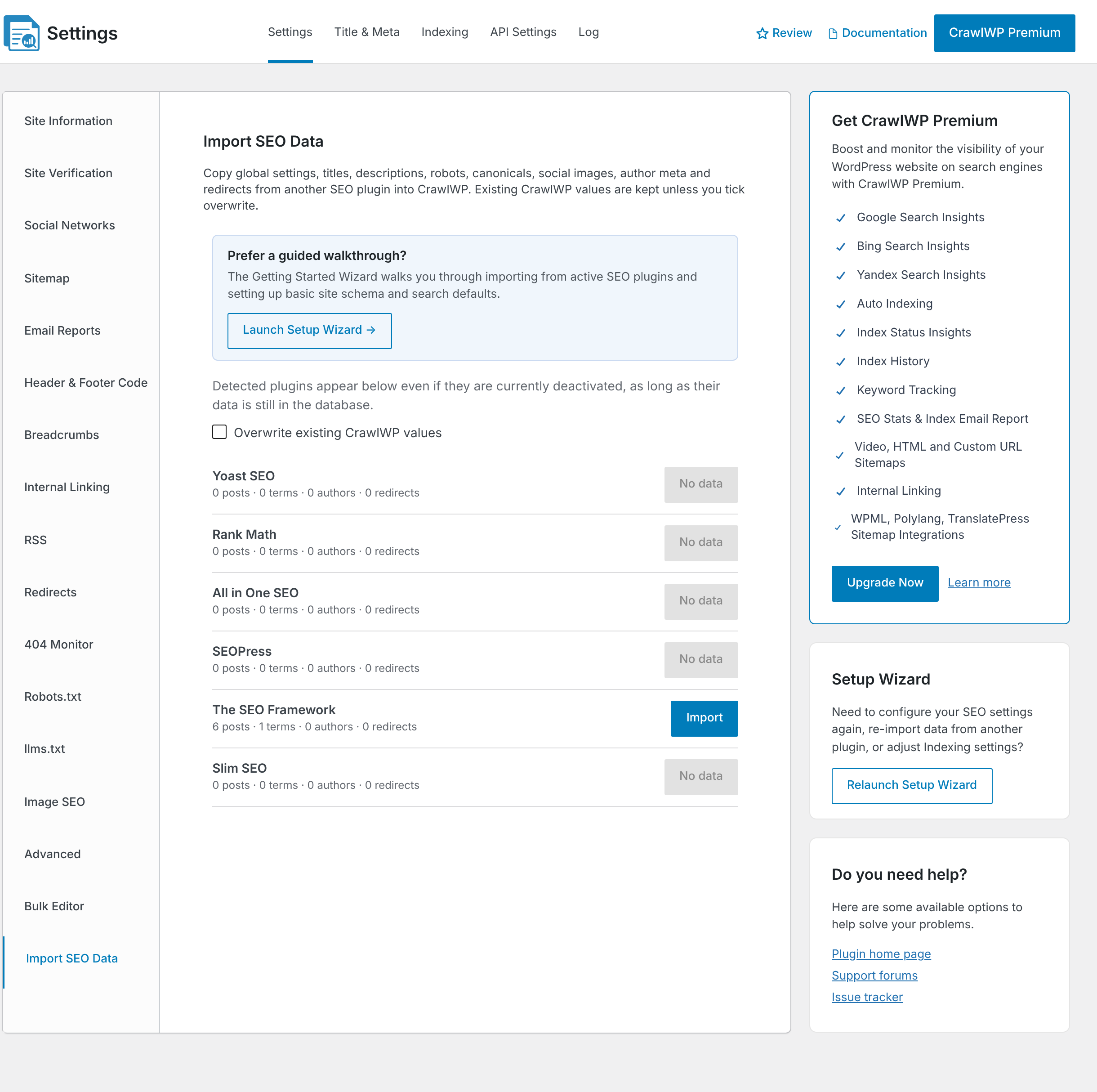
- Choose how CrawlWP should handle SEO fields that already contain data. With Overwrite existing CrawlWP values turned off, existing CrawlWP values are preserved, and only empty fields are populated. Turn the option on when you want imported The SEO Framework values to replace existing CrawlWP values whenever a value is available. When CrawlWP is still empty, there is usually no need to enable this option.
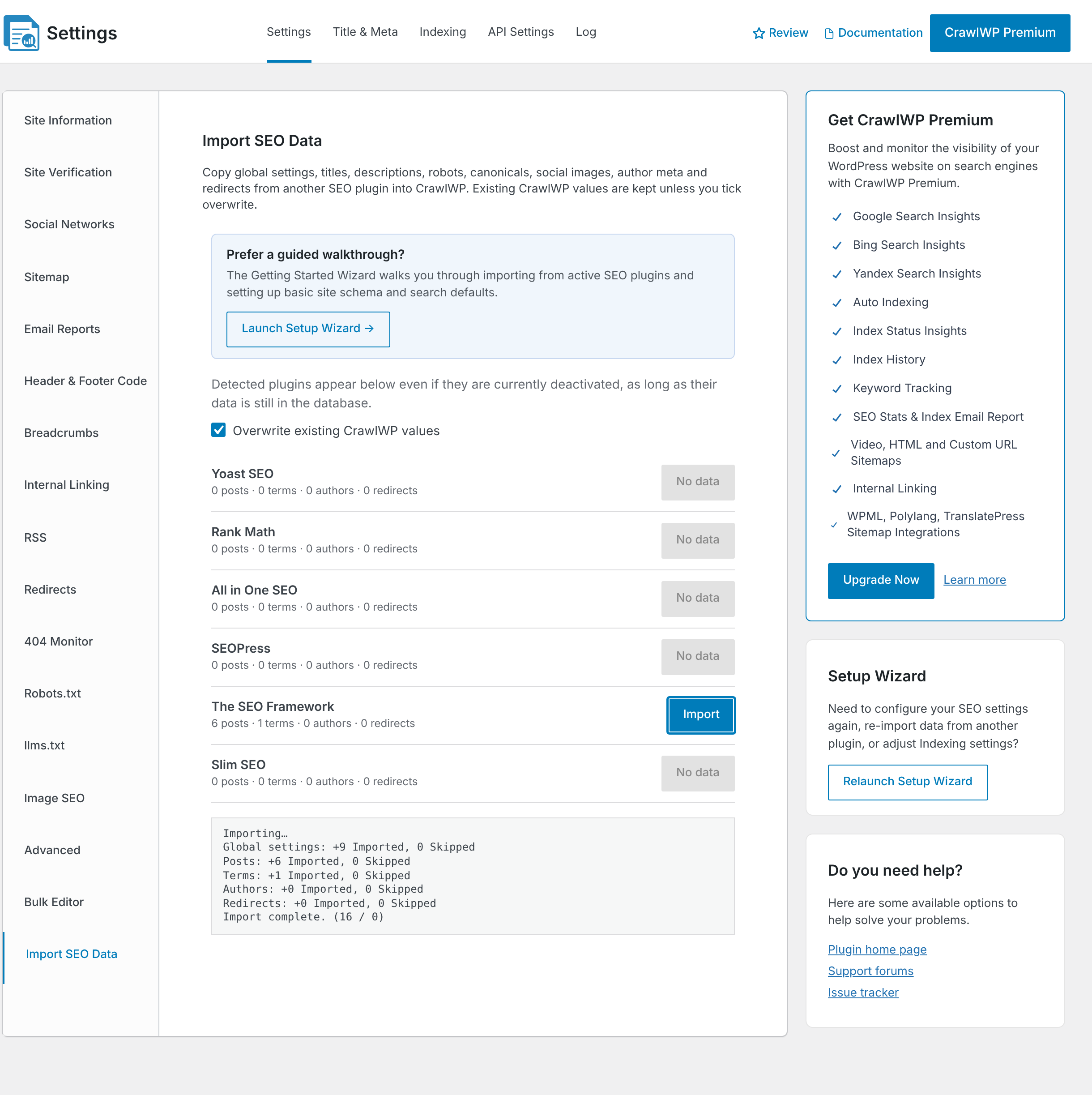
- Find The SEO Framework in the list and click Import. Confirm the action by clicking OK.
- Allow the process to finish and look for Import complete in the log. Keep the import page open until it has finished.
The Imported number tells you how many items CrawlWP successfully wrote data to. Skipped counts items where source data existed but CrawlWP did not make a change.
The same migration step is available in the Setup Wizard. From this screen, click Launch Setup Wizard and continue until you reach Import SEO Data.
Review what was imported
- Open Bulk Editor from the left-hand menu. This gives you a quick way to inspect the custom SEO titles and meta descriptions that CrawlWP imported for your posts and pages.
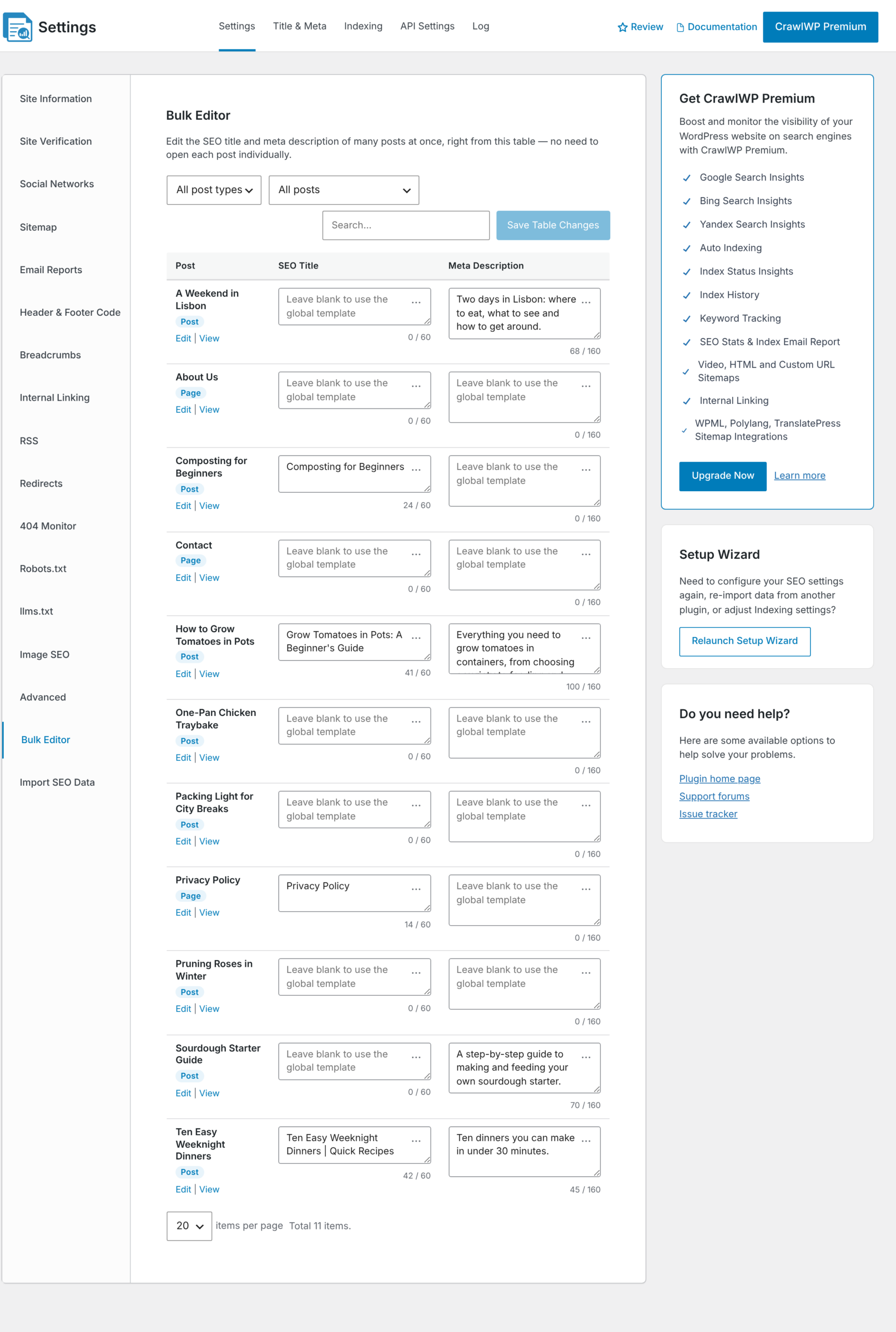
- Look through your imported titles and make sure the site name appears where you expect it. The SEO Framework normally adds the site name when generating the final title, and CrawlWP carries that information over when it imports the custom title.
- Go to Title & Meta and review the Homepage title and description. The SEO Framework does not provide title templates for post types or taxonomies. Their noindex settings are imported, but you will need to create any title templates you want to use in CrawlWP.
- Visit a few pages on your website and inspect their source code. Check that the generated title and meta description match what you expect.
Turn off The SEO Framework
Once you have checked the migration, disable The SEO Framework from the Plugins screen. Keeping both plugins active can cause both plugins to add the same SEO tags.
If you used the Setup Wizard, you can also disable The SEO Framework from the final step. It is best to leave the plugin installed but inactive for a little while in case you need to import the data again.
Can you run the importer again?
- When Overwrite existing CrawlWP values is disabled, only blank CrawlWP fields are populated. It checks existing values individually rather than replacing them all at once.
- When the option is enabled, an available value from The SEO Framework can replace the corresponding CrawlWP value. A blank field in The SEO Framework will not erase an existing CrawlWP value.
For details about every field that can be migrated, see What gets imported and what doesn’t.
Troubleshooting the migration
The SEO Framework reports “No data”. CrawlWP searches your database for The SEO Framework’s settings and post metadata. If you already deleted The SEO Framework and that data was removed with it, restore a database backup made before the plugin was deleted.
Some titles contain %% variables. This can happen if the site previously used Yoast SEO or SEOPress and left some of their variables behind. CrawlWP converts the Yoast SEO and SEOPress variables it recognizes into its own format. Unknown variables are not changed, so review them in Bulk Editor and remove or replace anything that should no longer be there.
The import log says “Import failed. Please try again.” Refresh the page and start the import once more. CrawlWP does not remove data it successfully saved before the error.
Your pages contain two meta descriptions. This usually means The SEO Framework and CrawlWP are both generating SEO output. Deactivate The SEO Framework and check the page again.
CrawlWP keeps an old value instead of importing the value from The SEO Framework. This happens when Overwrite existing CrawlWP values is disabled. Run the importer again with the option enabled if you want The SEO Framework value to replace the existing CrawlWP value.