
This guide is for WordPress site owners moving from All in One SEO (AIOSEO) to CrawlWP. It shows you how to copy your SEO titles, meta descriptions, and robots settings across, and what to check before you switch All in One SEO off.
The importer is part of the free CrawlWP plugin. It reads your All in One SEO data and copies it into CrawlWP. It does not change or delete anything in All in One SEO.
Before you start
- Install and activate CrawlWP.
- Make sure CrawlWP’s on-page SEO features are switched on. If you go to CrawlWP > Settings and see an SEO Features tab at the top instead of Title & Meta, open it, tick Enable all on-page SEO features on this website, and click Save Changes. The Import SEO Data screen only appears once these features are on.
- Leave All in One SEO installed. It can be active or deactivated, but don’t delete it until you’re finished. CrawlWP can only import data that is still in your database.
- Take a backup of your WordPress database.
What CrawlWP can import depends on which version of All in One SEO you used:
- Posts and pages are imported from All in One SEO.
- Categories, tags, and other terms are only imported if you used All in One SEO Pro, which stores term SEO data.
- Redirects are only imported if you used the Redirection Manager in All in One SEO Pro.
- Author SEO data is not imported.
Run the import
- In your WordPress admin, go to CrawlWP > Settings.
- Make sure the Settings tab at the top is selected, then click Import SEO Data in the left-hand menu.
All in One SEO is listed with the number of posts, terms, authors, and redirects CrawlWP found. A count of 0 means there is nothing of that kind to import.
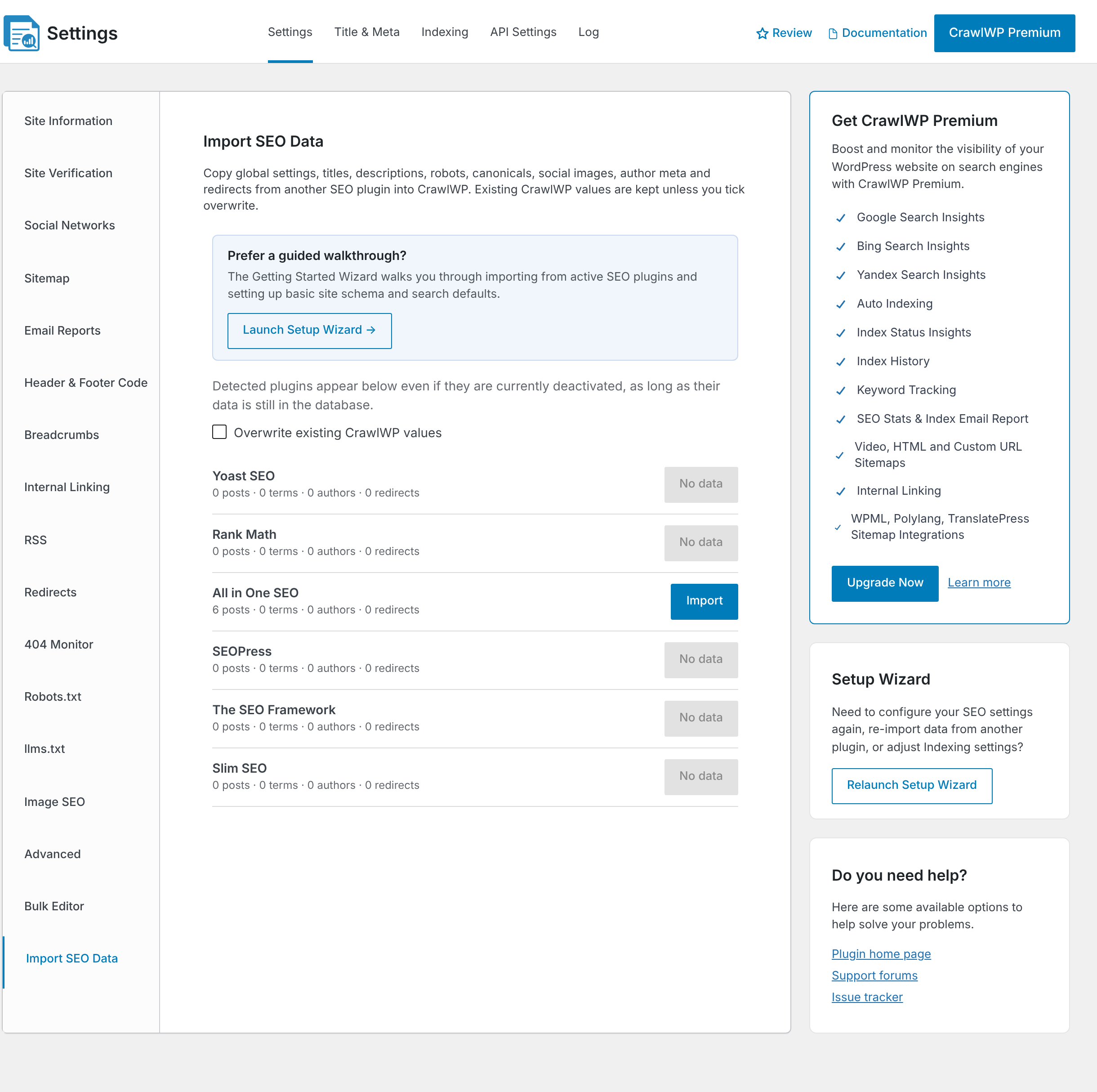
- Decide whether to tick Overwrite existing CrawlWP values. Leave it unticked to keep any SEO values you have already set in CrawlWP. CrawlWP then only fills fields that are empty. Tick it to replace CrawlWP’s values with All in One SEO’s wherever All in One SEO has a value. If you have not set anything in CrawlWP yet, you can leave it unticked.
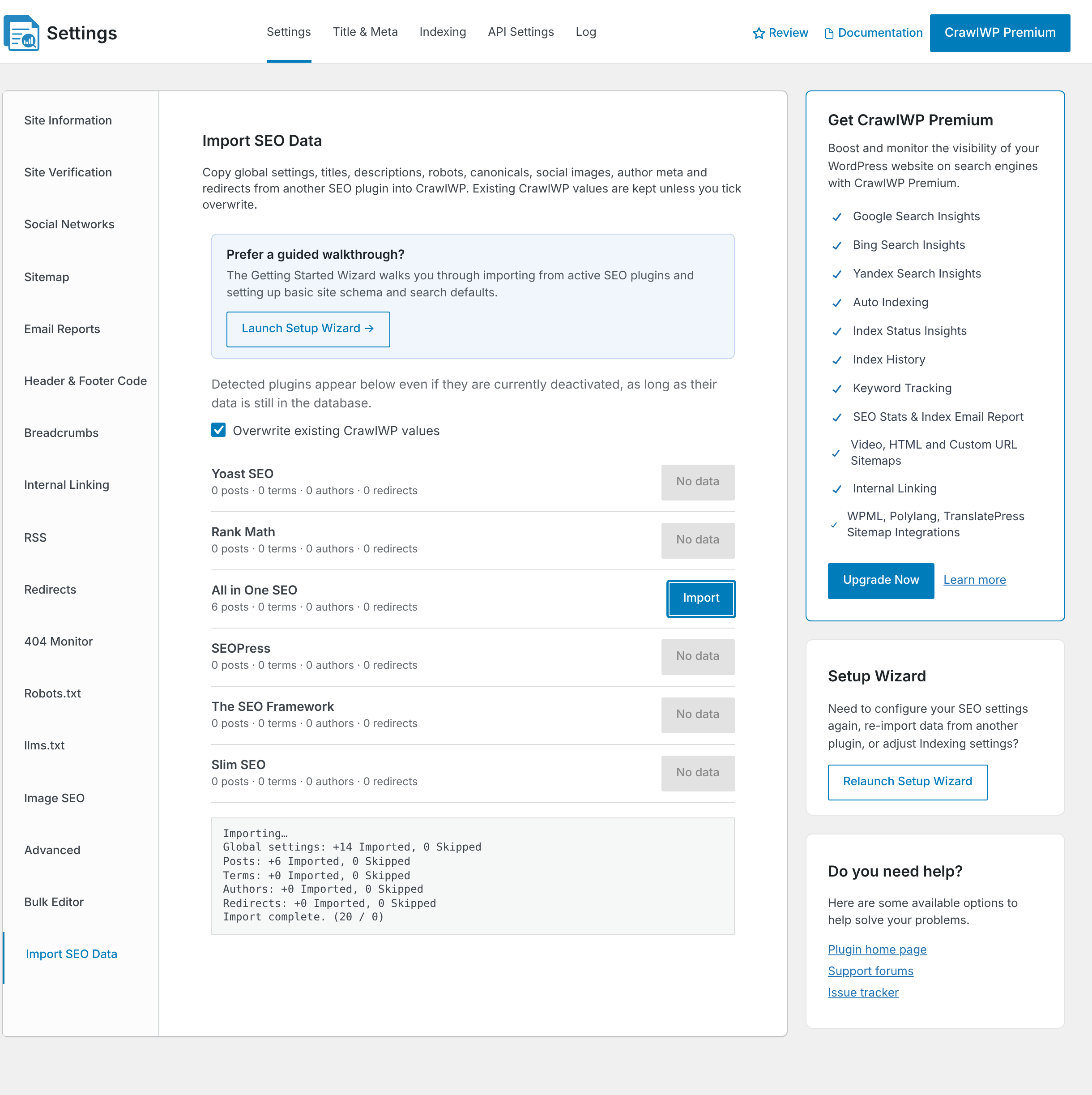
- Click Import next to All in One SEO, then click OK to confirm.
- Wait for the log to show Import complete. Do not leave the page while it runs.
Imported is the number of items CrawlWP wrote values to. Skipped is the number of items that had All in One SEO data but where nothing was written.
You can also run the import from the Setup Wizard. Click Launch Setup Wizard on the same screen and follow the Import SEO Data step.
Check the imported data
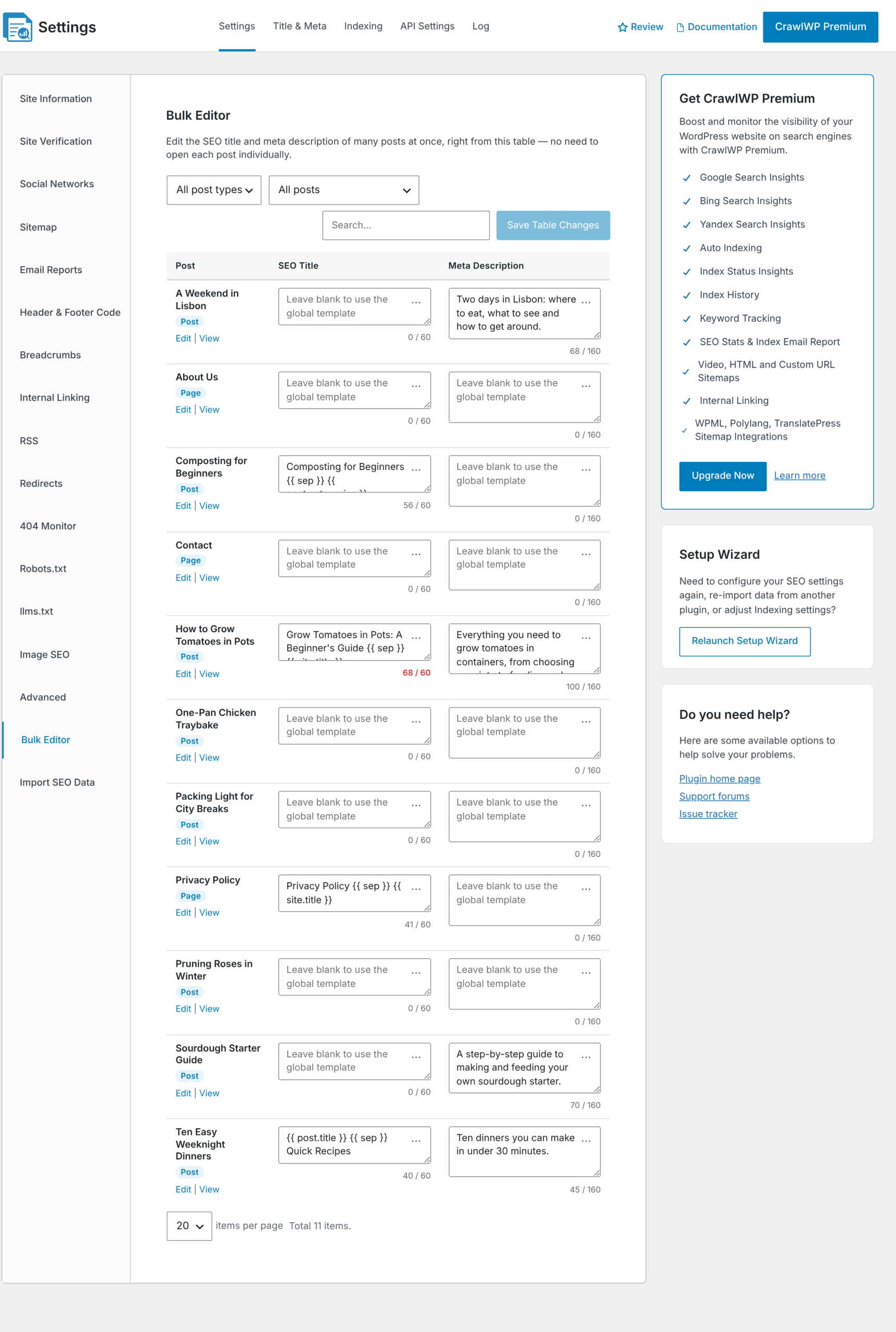
- Click Bulk Editor in the left-hand menu. Your imported SEO titles and meta descriptions are shown for each post and page. All in One SEO tags are converted to CrawlWP variables, so
#post_titlebecomes{{ post.title }}and#separator_sabecomes{{ sep }}.
- Open the Title & Meta tab and check the Homepage title and description, and the templates for your post types and taxonomies.
- Go back to the Settings tab and click Site Information. Check the Name and logo copied from All in One SEO.
- If you imported redirects from All in One SEO Pro, click Redirects. Imported redirects have the note Imported from All in One SEO. Redirects that were disabled in All in One SEO are imported with Enable switched off.
- Open two or three posts on the front end of your site and view the page source. Check that the title and meta description are the ones you expect.
Deactivate All in One SEO
While both plugins are active, your pages output two sets of SEO tags. When you are happy with the imported data, deactivate All in One SEO from Plugins. If you ran the Setup Wizard while All in One SEO was active, its last step also has a button to deactivate it.
Keep All in One SEO installed but deactivated for a while, so you can run the import again if you need to.
Running the import more than once
- With Overwrite existing CrawlWP values unticked, CrawlWP only fills fields that are empty in CrawlWP. This is checked field by field.
- With it ticked, CrawlWP replaces its values with All in One SEO’s wherever All in One SEO has a value. It leaves fields that are empty in All in One SEO alone.
- Redirects are skipped when CrawlWP already has a redirect from the same URL.
To see exactly which All in One SEO fields are copied, read What gets imported and what doesn’t.
If it does not work
All in One SEO shows “No data”. CrawlWP looks for All in One SEO’s settings, its posts table, or the old 3.x post meta. If All in One SEO removed its data when you deleted it, restore a backup taken before that.
Terms or redirects show 0. These are only stored by All in One SEO Pro. The free plugin has no term SEO data or redirect manager to import.
The log shows “Import failed. Please try again.” Reload the page and run the import again. Values that were already written are kept.
Pages show two meta descriptions. Both plugins are active. Deactivate All in One SEO.
A post keeps a value you set in CrawlWP instead of the imported one. Overwrite existing CrawlWP values was unticked, so CrawlWP kept its own value. Run the import again with it ticked.