
This guide explains how to move your SEO data from Slim SEO to CrawlWP. You will learn how to import your SEO titles, meta descriptions, robots settings, and redirects, and what to check before turning off Slim SEO.
The importer is included in the CrawlWP plugin. It reads your Slim SEO data and copies it to CrawlWP. It does not change or delete anything in Slim SEO.
Before you start
- Install and activate CrawlWP.
- Make sure CrawlWP’s on-page SEO features are enabled. Go to CrawlWP > Settings. If you see an SEO Features tab instead of Title & Meta, open it, select Enable all on-page SEO features on this website, and click Save Changes. The Import SEO Data screen only appears after these features are enabled.
- Keep Slim SEO installed until you finish the migration. Slim SEO can be active or deactivated, but do not delete it. CrawlWP can only import data that is still in your database.
- Back up your WordPress database before you start.
Slim SEO does not have SEO fields for individual authors, so there is no author data to import.
Run the import
- In your WordPress dashboard, go to CrawlWP > Settings.
- Make sure the Settings tab is selected, then click Import SEO Data in the left-hand menu.
CrawlWP will show Slim SEO and the number of posts, terms, authors, and redirects it found. A count of 0 means there is nothing in that category to import.
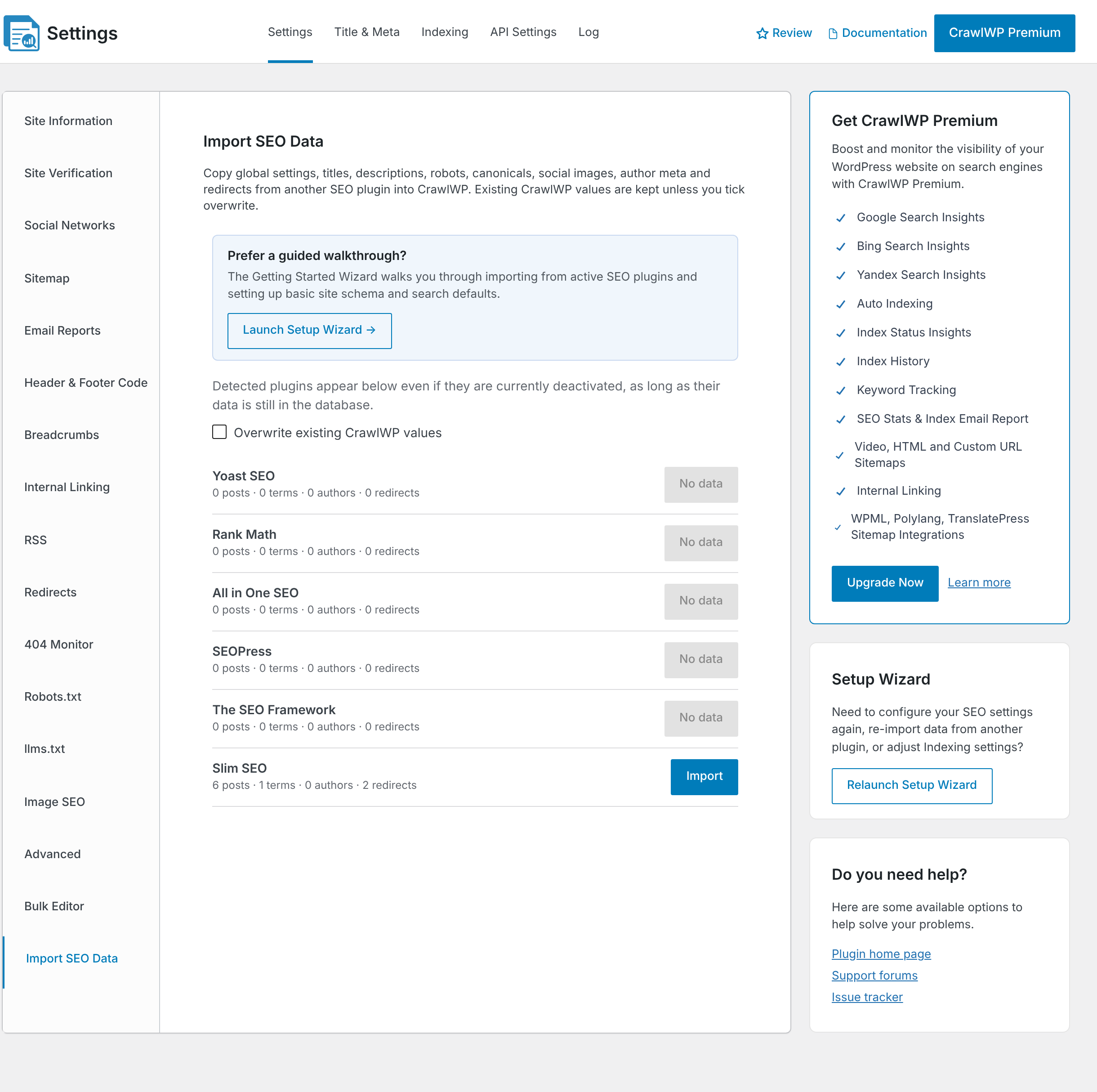
- Choose whether to enable Overwrite existing CrawlWP values. Leave it unchecked to keep any SEO values you have already added to CrawlWP. CrawlWP will only fill empty fields. Check it to replace existing CrawlWP values with Slim SEO values wherever Slim SEO has data. If you have not added any SEO data to CrawlWP yet, you can leave it unchecked.
- Click Import next to Slim SEO, then click OK to confirm.
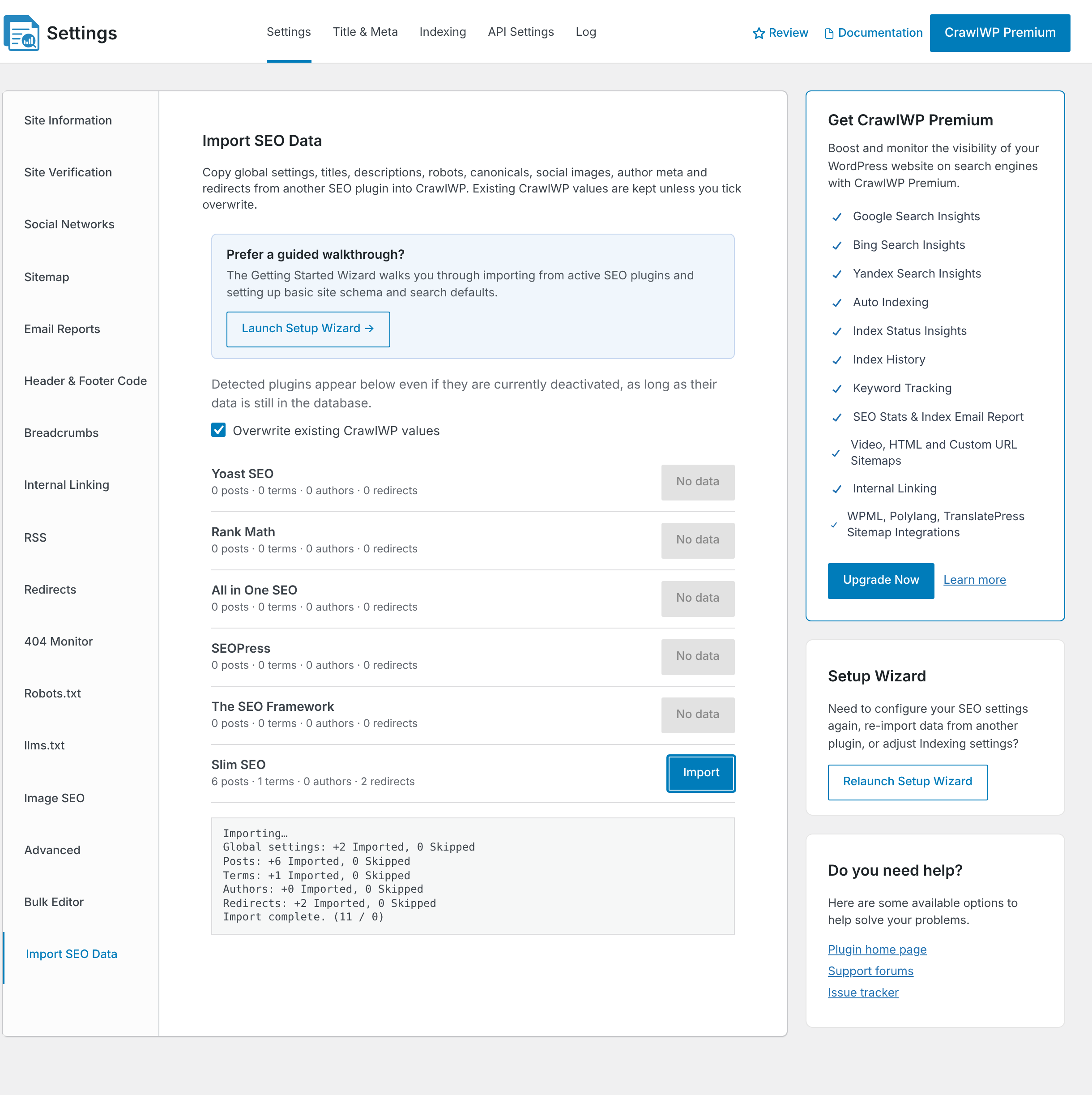
- Wait until the log says Import complete. Do not leave the page while the import is running.
Imported shows how many items CrawlWP added or updated. Skipped shows how many items had Slim SEO data but were not changed in CrawlWP.
You can also run the import from the Setup Wizard. Click Launch Setup Wizard on the same screen and follow the Import SEO Data step.
Check the imported data.
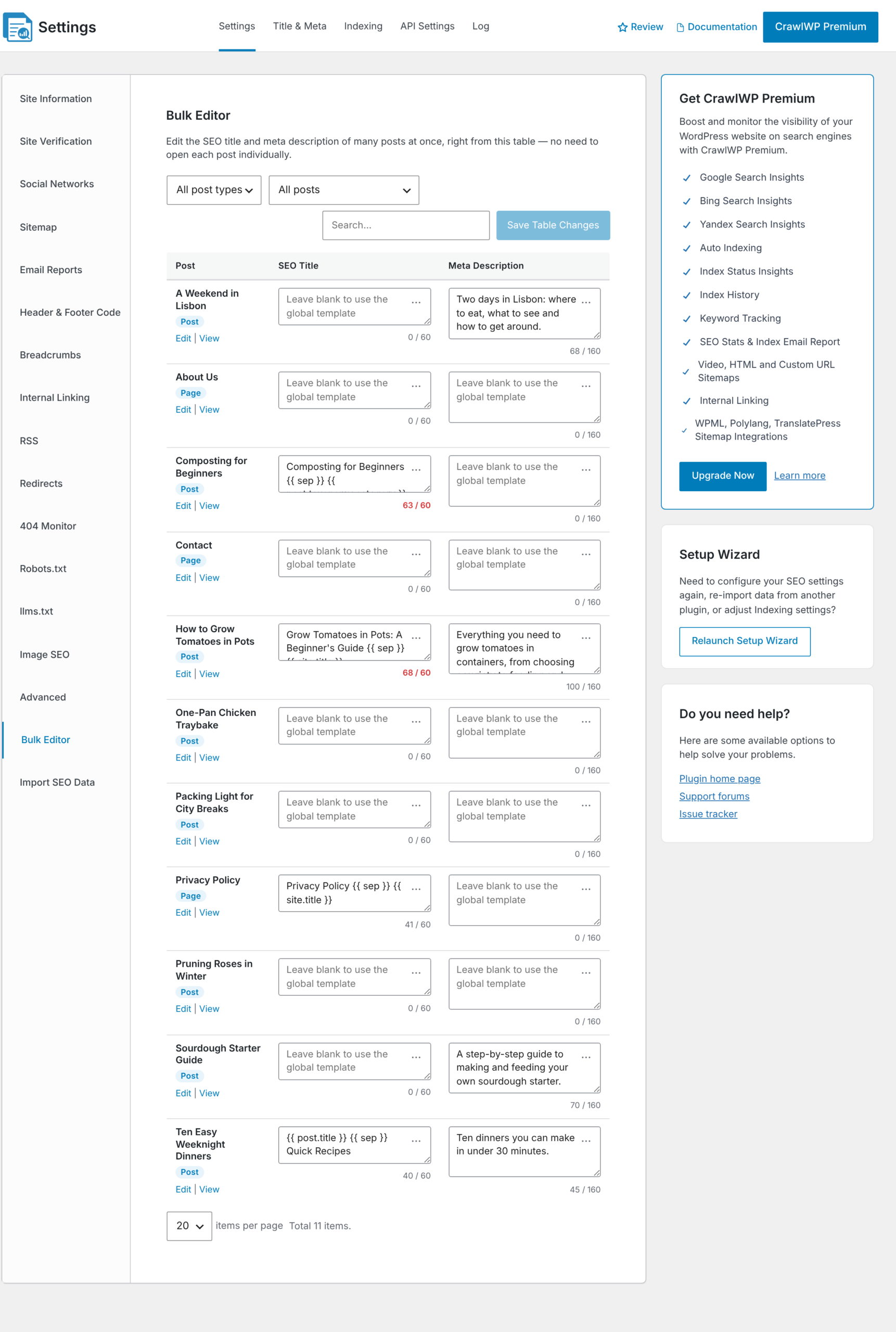
- Click Bulk Editor in the left-hand menu. You can review the imported SEO titles and meta descriptions for your posts and pages. Slim SEO already uses the same
{{ }}variable format as CrawlWP. A few variable names are different and are renamed during import. For example,{{ post.tax.category }}becomes{{ post.taxonomy.category }}.
- Open the Title & Meta tab and check the Homepage, Author, Date, and Search titles and descriptions.
- On the same tab, check the templates for your post types and taxonomies under Post Types and Taxonomies.
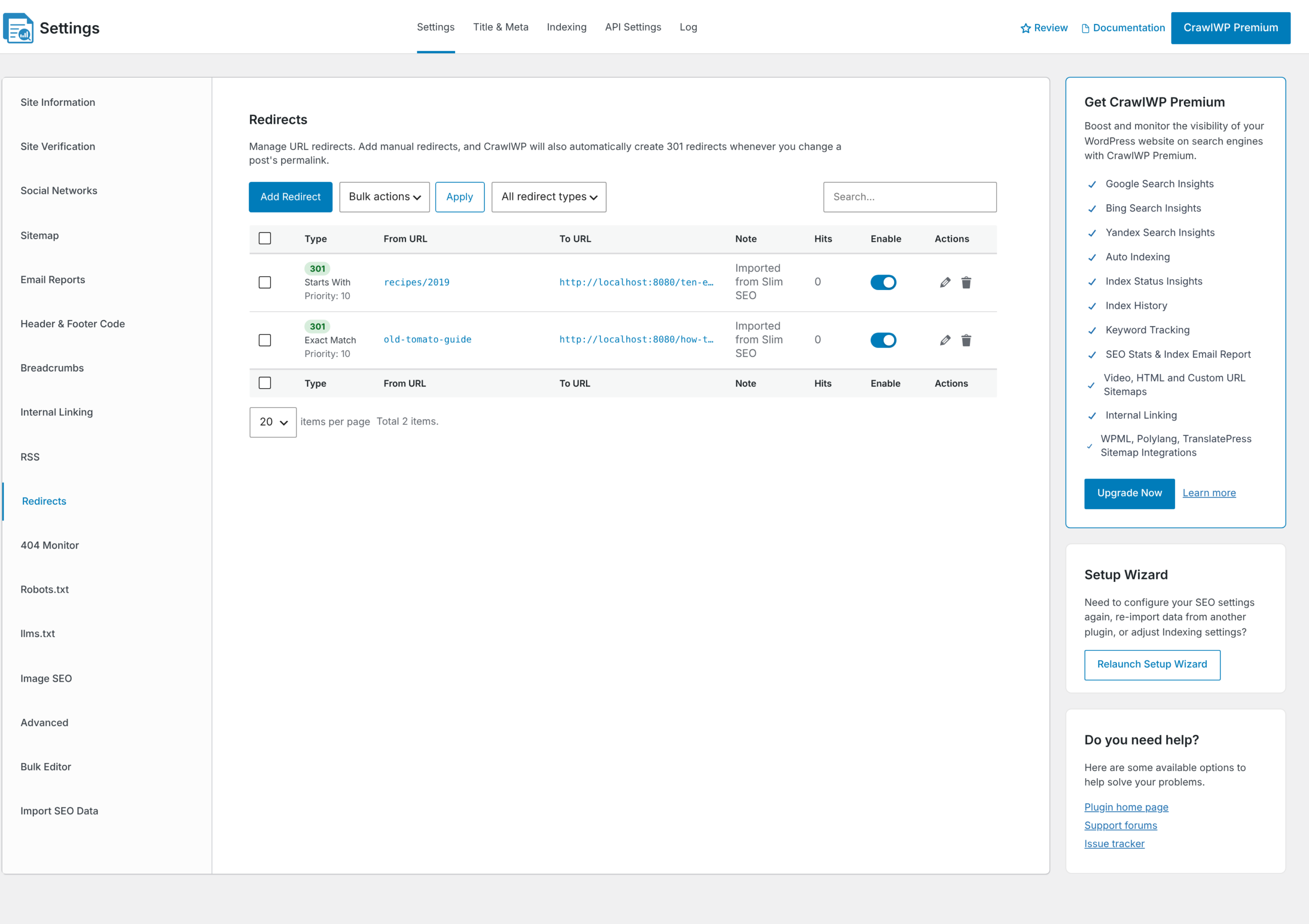
- Click Redirects in the left-hand menu under the Settings tab. Imported redirects are marked Imported from Slim SEO. Each redirect keeps its type. If CrawlWP does not support the original type, it is imported as a 301 redirect. It also preserves the match type, ignore parameters setting, and enabled status.
- Open two or three posts on the front end of your site and view the page source. Make sure the page title and meta description are correct.
Deactivate Slim SEO
When both plugins are active, your pages can output two sets of SEO tags. After checking the imported data, deactivate Slim SEO from Plugins. If you used the Setup Wizard while Slim SEO was active, you can also deactivate it from the last step of the wizard.
Keep Slim SEO installed but deactivated for a while. This makes it easier to run the import again if you need to.
Running the import more than once
- When Overwrite existing CrawlWP values is unchecked, CrawlWP only fills fields that are empty. It checks each field separately.
- When it is checked, CrawlWP replaces existing values with Slim SEO values wherever Slim SEO has data. Empty Slim SEO fields do not replace existing CrawlWP values.
- Redirects are skipped when CrawlWP already has a redirect for the same URL.
For a complete list of the Slim SEO fields that CrawlWP imports, see What gets imported and what doesn’t.
If the import does not work
Slim SEO shows “No data”. CrawlWP looks for Slim SEO settings, redirects, and post meta in your database. If Slim SEO removed its data when you deleted the plugin, restore a database backup from before it was deleted.
The log says “Import failed. Please try again.” Reload the page and run the import again. Any values that were already imported will stay in CrawlWP.
Your pages show two meta descriptions. Both plugins are active. Deactivate Slim SEO.
A post keeps its CrawlWP value instead of the imported Slim SEO value. Overwrite existing CrawlWP values was not enabled, so CrawlWP kept its existing value. Run the import again with this option enabled.