
Ready to replace Yoast SEO with CrawlWP? You can move the SEO information already stored on your WordPress site instead of re-entering everything. This guide walks you through importing titles, meta descriptions, robots settings, and redirects, then checking your site before disabling Yoast SEO.
The migration tool comes with the CrawlWP SEO plugin. It copies supported Yoast SEO data into CrawlWP and leaves your existing Yoast SEO data untouched.
Prepare your website
- Install CrawlWP and activate the plugin.
- Enable CrawlWP’s on-page SEO features before starting the migration. Go to CrawlWP > Settings. When the top of the page shows SEO Features instead of Title & Meta, open that tab, turn on Enable all on-page SEO features on this website, and click Save Changes. You will then see the Import SEO Data option.
- Keep Yoast SEO on the site until the migration is finished. It doesn’t matter whether the plugin is active or inactive, but don’t uninstall it. CrawlWP needs the data Yoast SEO stores in your database.
- Create a database backup before importing. CrawlWP writes the imported information to its settings as well as post, term, and user meta.
Option 1: Use the Import SEO Data screen
- Open your WordPress dashboard and go to CrawlWP > Settings.
- With the Settings tab selected, choose Import SEO Data from the menu on the left.
CrawlWP will detect Yoast SEO and show how many posts, terms, authors, and redirects are available for import. A zero beside a category simply means that CrawlWP did not find anything to bring over. When the Yoast SEO action shows No data, check the troubleshooting section below.
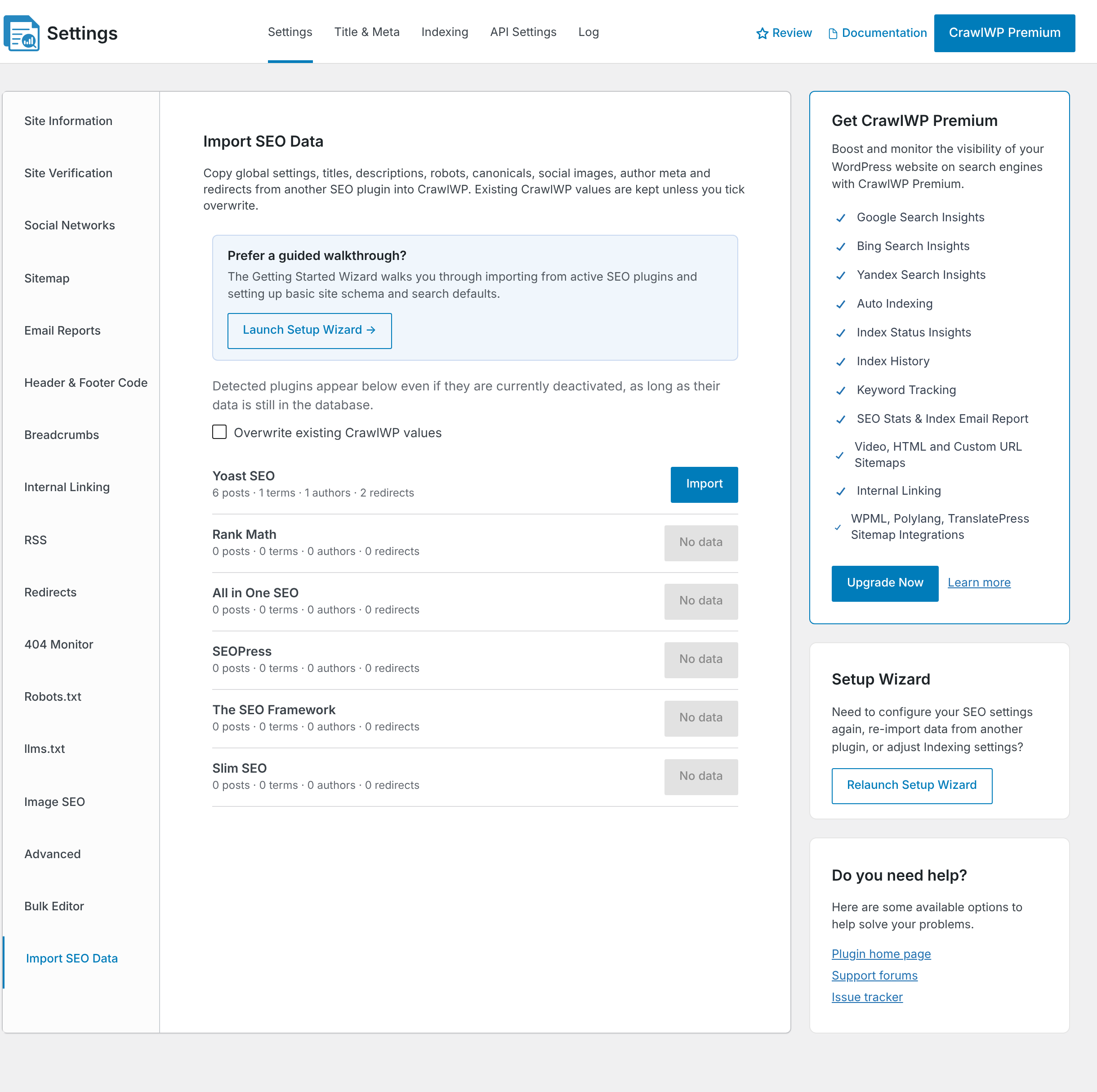
- Choose what should happen to fields that already contain CrawlWP data. Keep Overwrite existing CrawlWP values turned off to protect your existing CrawlWP settings; only empty fields will receive imported values. Turn it on when you want Yoast SEO values to replace existing CrawlWP values wherever Yoast SEO contains a value. When CrawlWP does not contain any data yet, leaving the option off is fine.
- Click Import beside Yoast SEO and then select OK when CrawlWP asks you to confirm.
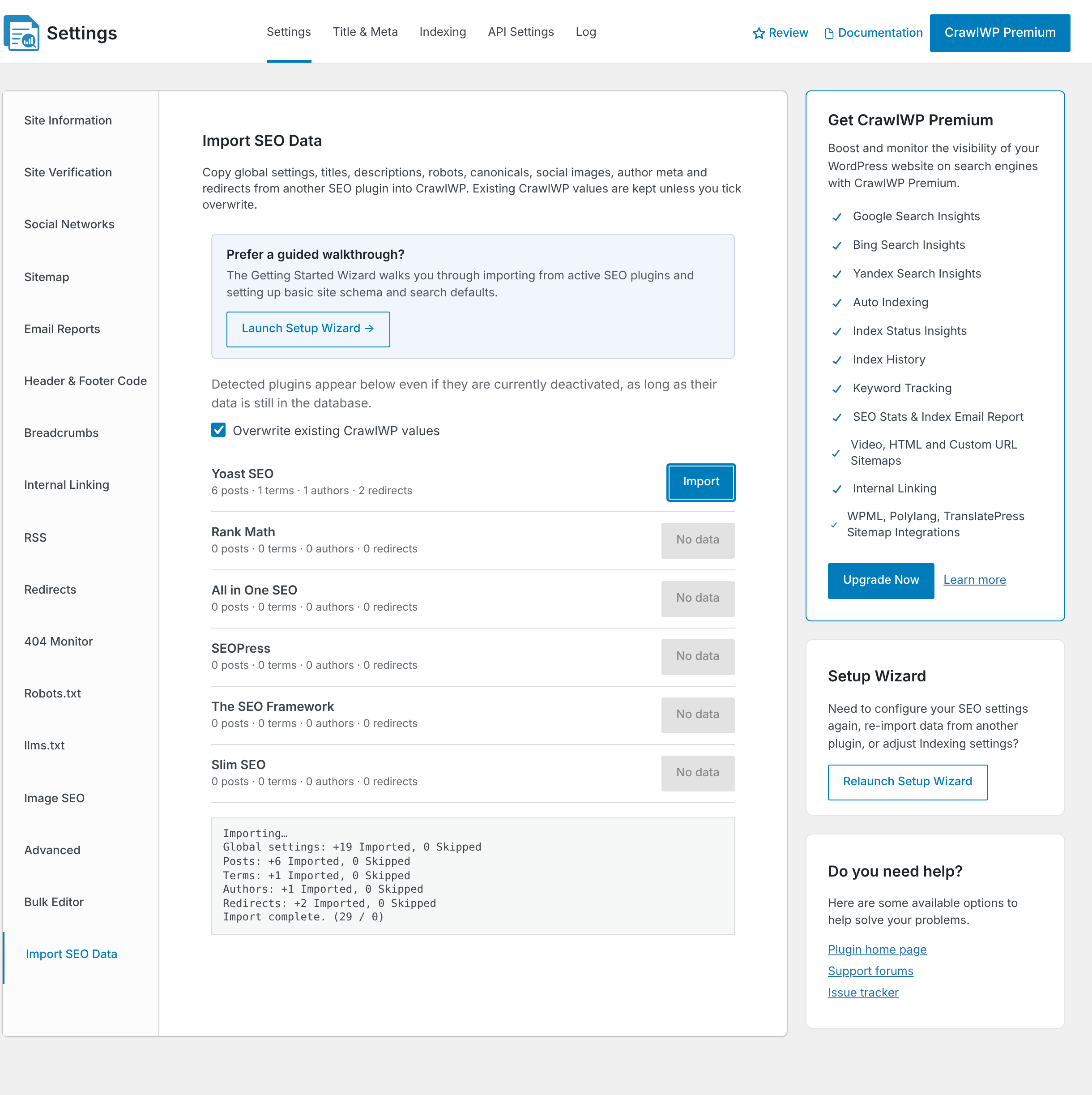
- Keep the page open until the import log reports Import complete. On larger websites, CrawlWP processes records in groups of 50, so the operation may take several minutes.
CrawlWP records the progress of each batch in the log. It processes global settings first, followed by posts, terms, authors, and redirects. Imported is the number of items for which CrawlWP saved a value. Skipped counts items that contained Yoast SEO data but could not be imported, either because CrawlWP could not use the value or because an existing CrawlWP value was protected when overwrite was disabled.
Option 2: Use the Setup Wizard
The CrawlWP Setup Wizard includes the same Yoast SEO importer. It also helps you configure other important settings, such as your site identity, search appearance defaults, and instant indexing.
- Go to CrawlWP > Settings, open Import SEO Data, and select Launch Setup Wizard.
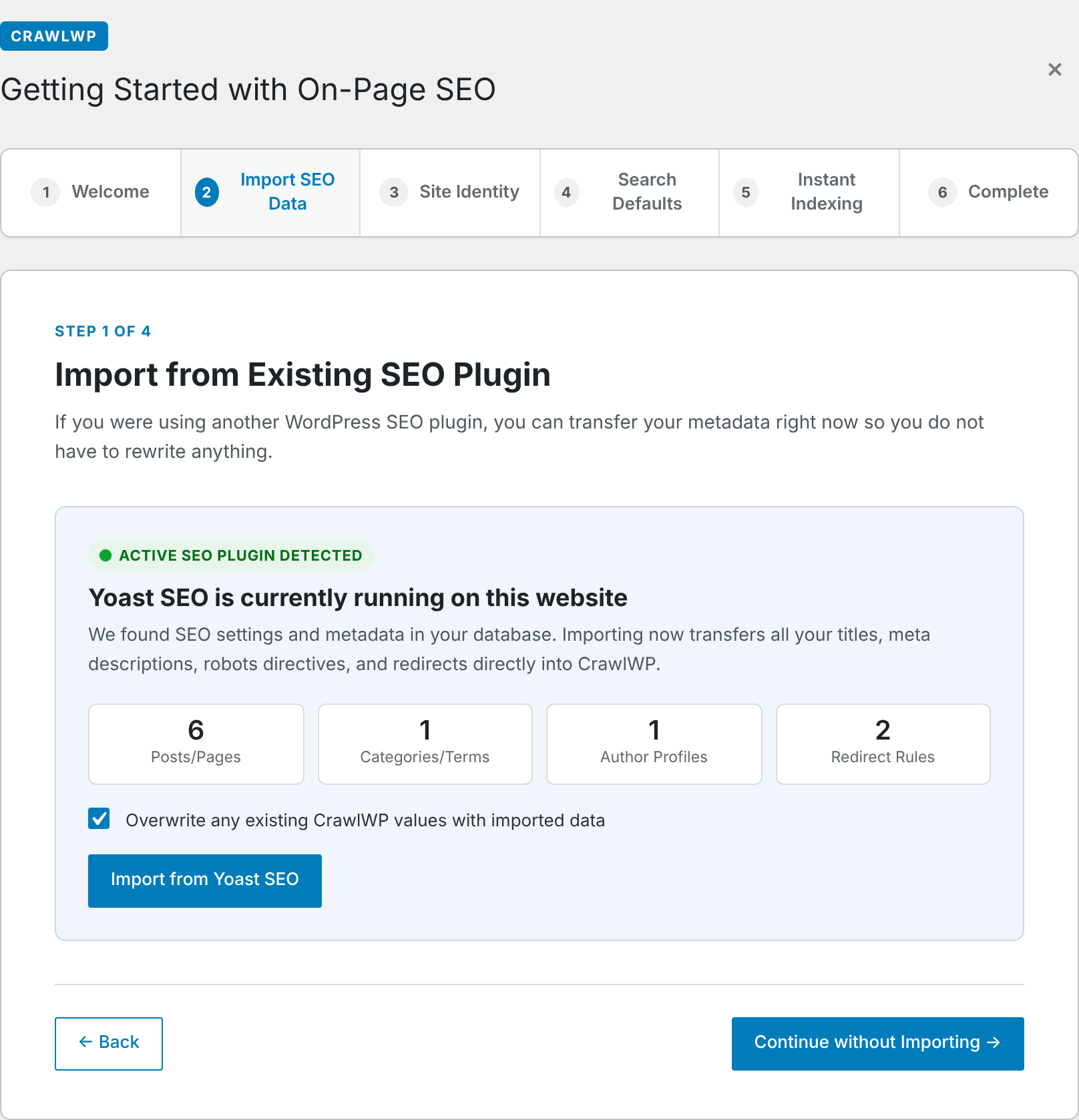
- At the Import SEO Data step, review the numbers shown for Yoast SEO. When Yoast SEO is active, CrawlWP places it under Active SEO Plugin Detected. When Yoast SEO is disabled and no other WordPress SEO plugin is active, the stored data appears under SEO Data Detected in Database. The option Overwrite any existing CrawlWP values with imported data is enabled by default.
- Select Import from Yoast SEO when Yoast SEO is active. When it is inactive, the button is labeled Import SEO Data. Let the importer finish before moving on.
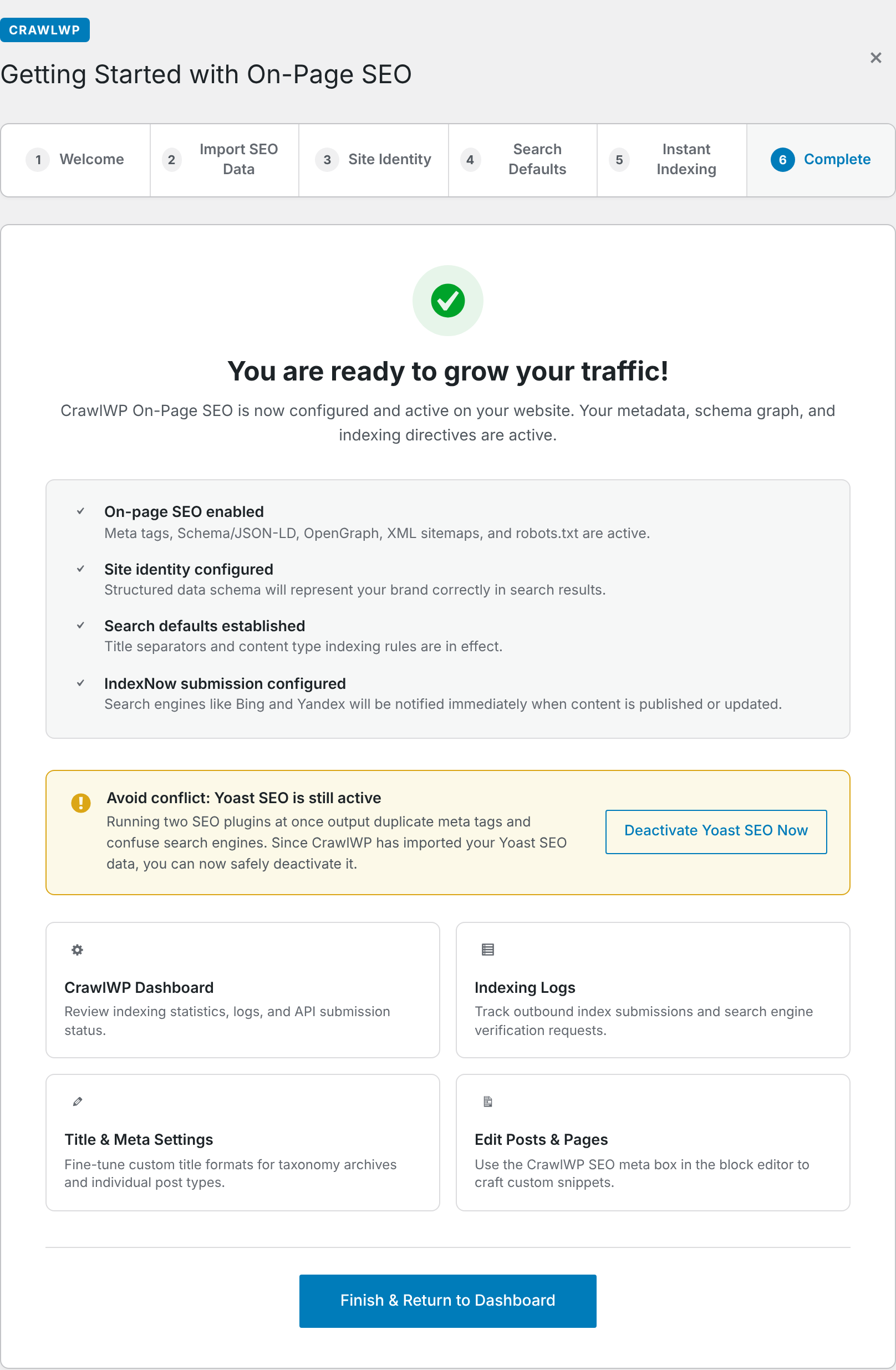
- Continue through the remaining wizard screens. On the final Complete step, CrawlWP warns you if Yoast SEO is still active and provides a Deactivate Yoast SEO Now button. Review the imported SEO information first, then use the button when you are satisfied.
Review the migration
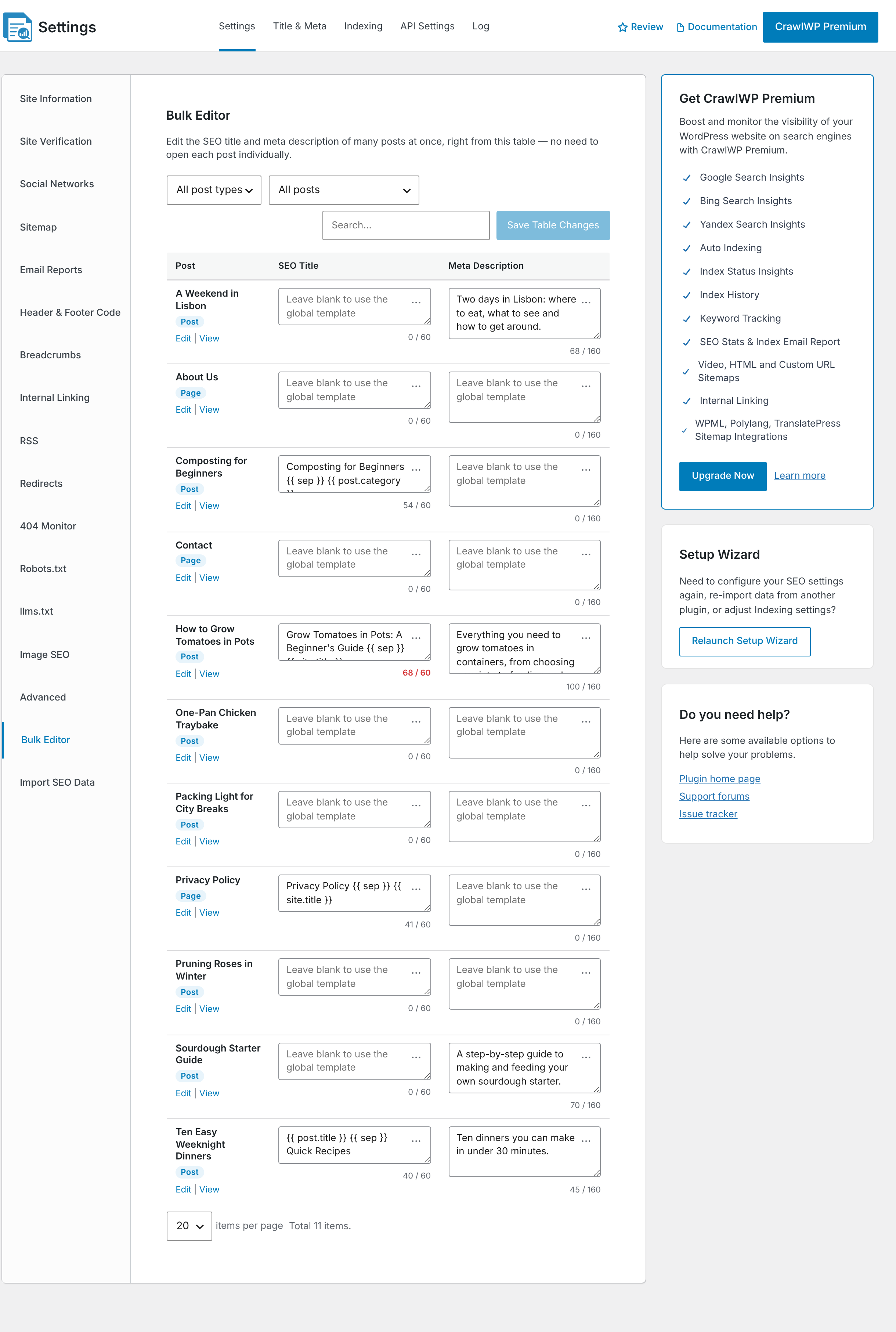
- Visit CrawlWP > Settings and open Bulk Editor. Here you can inspect the titles and meta descriptions imported for individual posts and pages. Yoast SEO variables are changed to CrawlWP’s format during the import. For example,
%%title%%becomes{{ post.title }}, while%%sep%%becomes{{ sep }}. When a field displays “Leave blank to use the global template”, Yoast SEO did not have a custom value saved for that field.
- Open Title & Meta and verify the Homepage title and description. Review the title templates used for your post types and taxonomies as well.
- Still under Homepage, make sure Title separator matches the separator you previously used with Yoast SEO.
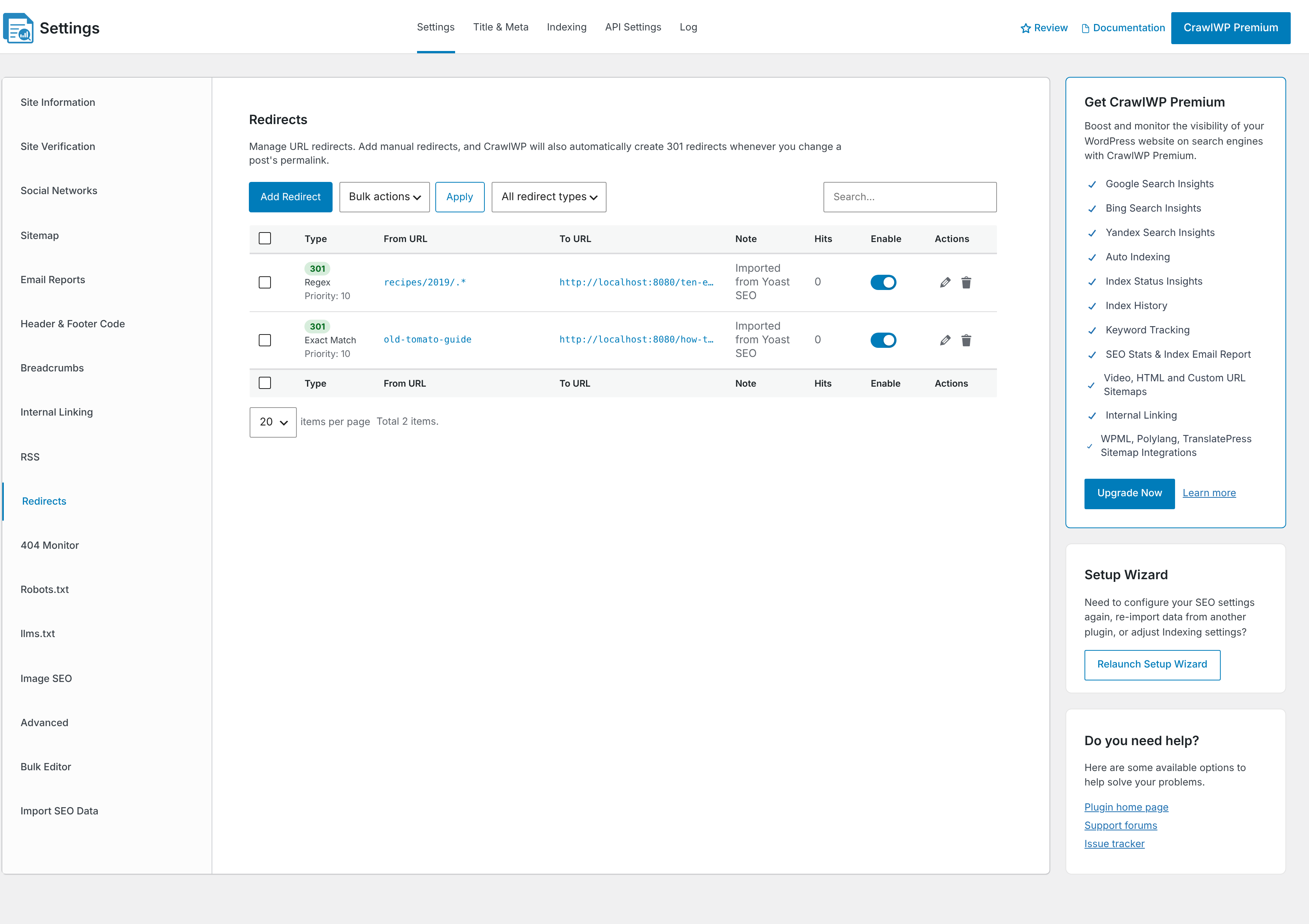
- When you used Yoast SEO Premium’s redirect feature, open Redirects from the left-hand menu under Settings. Migrated redirects are marked Imported from Yoast SEO. Standard redirects are brought in as Exact Match, while regex redirects are imported as Regex.
- Check a few live posts on your website and inspect the page source. Confirm that the generated title and meta description match the values you expect.
Disable Yoast SEO
Do not leave both plugins generating SEO metadata at the same time. Once you have confirmed that the migration looks correct, deactivate Yoast SEO from the Plugins page. You can also use the Deactivate Yoast SEO Now button in the final step of the Setup Wizard.
For now, leave Yoast SEO installed but inactive. That way, its database data remains available should you need to repeat the migration.
Need to import again?
You can repeat the migration whenever necessary. The result depends on the overwrite setting you choose.
- With Overwrite existing CrawlWP values disabled, CrawlWP writes only to empty fields. Each field is handled separately, so an existing title does not prevent an empty meta description from being imported.
- With the option enabled, available Yoast SEO values replace the matching CrawlWP values. A blank field in Yoast SEO does not remove a value that already exists in CrawlWP.
- If CrawlWP already contains a redirect for the same URL, that redirect is skipped during the import.
To find out which Yoast SEO fields CrawlWP supports, see What gets imported and what doesn’t.
Troubleshooting
Yoast SEO shows “No data”. CrawlWP checks your database for Yoast SEO settings and metadata. If you already removed Yoast SEO and deleted its data, you will need to restore a database backup made before you removed the plugin.
The redirects total is 0. CrawlWP only imports redirects from Yoast SEO Premium. The free version of Yoast SEO does not include a redirect manager.
The log says “Import failed. Please try again.” The import may have timed out, or the session may have expired. Refresh the page and start the import again. Data that was successfully saved before the error is not lost.
Your pages contain two meta descriptions. Yoast SEO and CrawlWP are both still active and generating SEO tags. Disable Yoast SEO, then check the affected pages again.
A CrawlWP value remains instead of the Yoast SEO value. This means Overwrite existing CrawlWP values was turned off when the import ran. Start the migration again with the option enabled to allow Yoast SEO’s value to replace the existing CrawlWP value.