
After moving to CrawlWP, you may find that your pages contain duplicate meta descriptions, canonical links, Open Graph tags, X (Twitter) card tags, or schema. This usually means CrawlWP and another part of your site are outputting the same SEO information.
Duplicate tags can give search engines and social platforms conflicting information. The quickest fix is to identify where the second copy comes from and disable that output.
Why duplicate tags appear
When duplicate tags appear after switching to CrawlWP, another plugin, your theme, or manually added code is usually still generating some of the same markup.
- Your previous SEO plugin is still active.
- Your theme has its own SEO, social, or schema output.
- Another plugin is adding social tags, such as a sharing plugin or Jetpack.
- Someone previously pasted the tags into the theme or a header-script field.
Find out which tags are duplicated
Check the HTML source of an affected page before changing settings. This confirms that the problem is duplicate output and can often show you which component produced the second copy.
- Open one of your site’s posts or pages in a private or incognito browser window.
- Right-click the page and choose View Page Source.
- Search the source for the tags you suspect are duplicated.
| Search for | What you are checking |
|---|---|
<title | The page title |
name="description" | The meta description |
rel="canonical" | The canonical URL |
og:title | Open Graph output |
twitter:card | X (Twitter) card output |
application/ld+json | Schema markup |
Most of these should normally appear once. Schema is different: a page can contain multiple schema blocks when they describe different things. Duplicate schema becomes a problem when separate blocks describe the same thing.
Most CrawlWP SEO output is wrapped in comments such as <!-- CrawlWP SEO and <!-- /CrawlWP SEO -->. Its title, robots tag, and schema block are printed elsewhere in the head. Other plugins may use their own comments, which can help you identify the source of a duplicate.
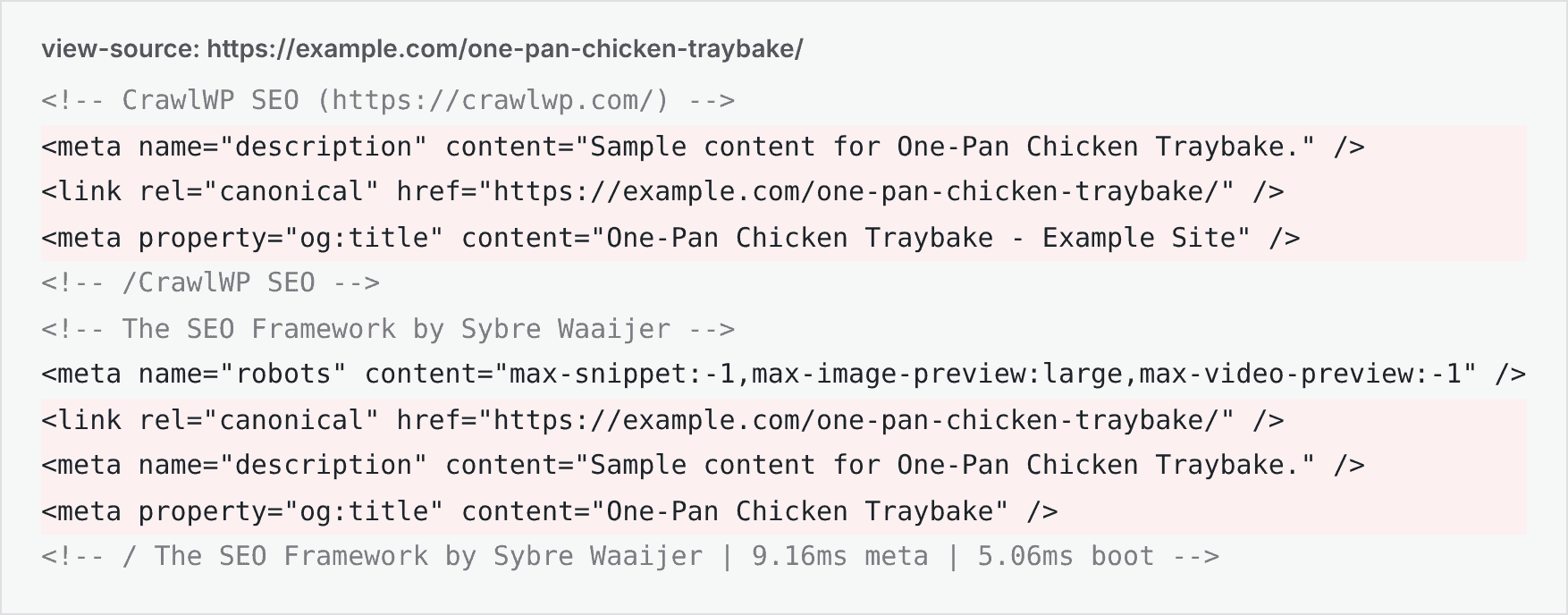
Deactivate the old SEO plugin
CrawlWP warns you when it detects several common SEO plugins still active. The notification appears when CrawlWP finds Yoast SEO, All in One SEO, Rank Math, The SEO Framework, Slim SEO, or Squirrly SEO.
Click the bell icon in the admin bar to view CrawlWP notifications. The warning names the first conflicting plugin it finds. If you previously dismissed the warning, it does not appear again.
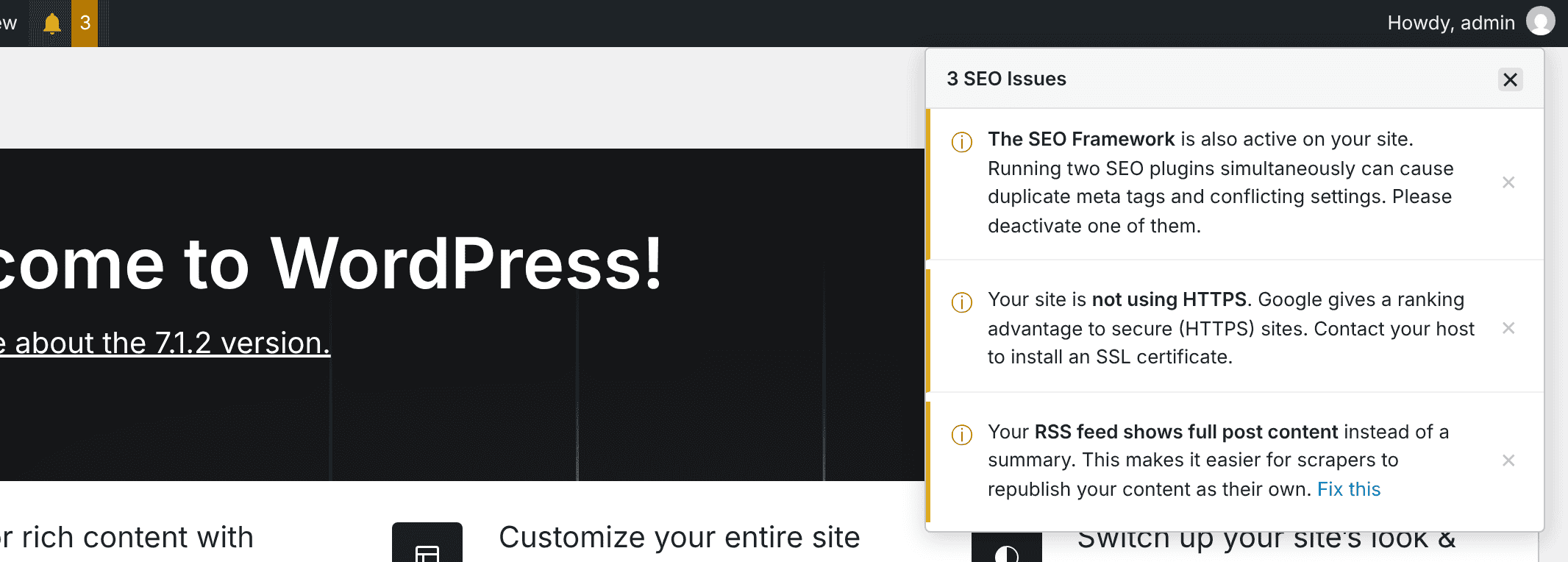
- Import your existing SEO data into CrawlWP first if you have not already. See What gets imported and what doesn’t. Squirrly SEO data cannot be imported.
- Go to Plugins > Installed Plugins.
- Click Deactivate under the old SEO plugin.
- Clear your caches and inspect the page source again.
You do not need to delete the old plugin immediately. CrawlWP can still import its stored data after the plugin is deactivated, provided the data remains in the database.
Other SEO plugins that CrawlWP does not detect should be handled in the same way. SEOPress, for example, is not among the plugins CrawlWP detects automatically.
Check your theme for duplicate output
Some themes output their own meta description, Open Graph tags, or schema. Look through the theme’s SEO, social, and schema settings, often under Appearance > Customize or a separate theme options page.
Disable the theme’s copy when CrawlWP already provides the same information. When the relevant setting is not obvious, ask the theme developer where the markup is being generated.
Stop another plugin from duplicating social tags
A sharing plugin, Jetpack, or another social plugin may add Open Graph or X (Twitter) tags independently. You can disable those tags in the other plugin, or keep them and turn off CrawlWP’s social output.
To disable CrawlWP’s social tags:
- Go to CrawlWP > Settings.
- Make sure the Settings tab is selected, then click Social Networks in the left-hand menu.
- Switch off Output Open Graph meta tags?, Output X/Twitter Card meta tags?, or both.
- Click Save Changes.
See Setting up Open Graph for Facebook and Setting up Twitter/X cards.
CrawlWP does not provide individual switches for its title, meta description, or canonical link output. When those are duplicated, remove the competing source instead.
Remove duplicate schema
CrawlWP does not have a setting for turning off its schema output. If another plugin is generating the same schema, remove the duplicate source where possible.
When you need to keep the other schema source, a developer can stop CrawlWP from printing schema with a filter such as:
add_filter( 'crawlwp_schema_graph', '__return_empty_array' );This removes all CrawlWP schema, including breadcrumb schema. See How CrawlWP generates schema markup.
Look for manually added tags
Old SEO markup can also remain after a plugin migration because it was added manually. Check CrawlWP > Settings > Header & Footer Code, your theme’s header files, and other header-script plugins for pasted meta descriptions, canonical tags, or og: markup.
Remove manually added copies when CrawlWP is already generating the same information. Verification tags for services such as Google and Bing can remain, provided each required tag appears only once.
Recheck the page after fixing the source
Once you deactivate or remove the competing output, clear your caching plugin, hosting cache, and CDN cache. Then open the page again in a private window and inspect the source.
Repeat the searches for name="description", rel="canonical", og:title, twitter:card, and application/ld+json to make sure the duplicate output is gone.
Troubleshoot common duplicate-tag problems
I deactivated the other plugin but the tags are still there. Clear your caching plugin, hosting cache, and CDN cache, then inspect the source again in a private browser window.
There is only one title but two meta descriptions. WordPress uses one page title, so plugins commonly replace each other’s title rather than print two titles. Meta descriptions and other tags can be added independently, which makes duplication possible. Use the source inspection steps above to identify the second source.
CrawlWP’s comments are missing from the source. CrawlWP’s SEO features may not be enabled. See My meta title isn’t showing in Google.
The CrawlWP warning names a plugin I still need. Some SEO plugins also provide other features, such as redirects. Check whether CrawlWP already handles the feature you need before removing the other plugin. If both must remain active, disable the other plugin’s duplicate title, meta, and social output in its own settings where possible.
Aim for one source of each SEO signal
A clean setup normally has one component responsible for each SEO signal. After your migration, check the page source and make sure the expected title, description, canonical, social tags, and schema are being produced without unnecessary duplicates.
Schema is the main exception: multiple blocks can be perfectly valid when they describe different entities or types of information. The problem is duplicated schema that describes the same thing more than once.