
When someone shares a link from your website on X (formerly Twitter), X uses special metadata in the page to build a preview card. CrawlWP SEO plugin generates these X/Twitter Card tags automatically for WordPress websites, including the title, description, image, and author information.
You can use the default settings for the entire site or customize the card type, text, image, and author attribution for individual posts and pages. The same metadata can also be read by some other platforms and services that support Twitter Card tags.
Enable X/Twitter Card Meta Tags
To enable X/Twitter card meta tags for your WordPress websites, follow the steps below.
- Go to CrawlWP > Settings.
- Make sure the Settings tab at the top is selected, then click Social Networks in the left-hand menu.
- Under Social Meta Tags Settings, make sure Output X/Twitter Card meta tags? is enabled. It is enabled by default.
Leave this enabled unless another WordPress SEO plugin or your theme is already generating the X/Twitter Card tags. Having two systems output the same metadata can lead to duplicate or conflicting values.
Choose the Default Card Type
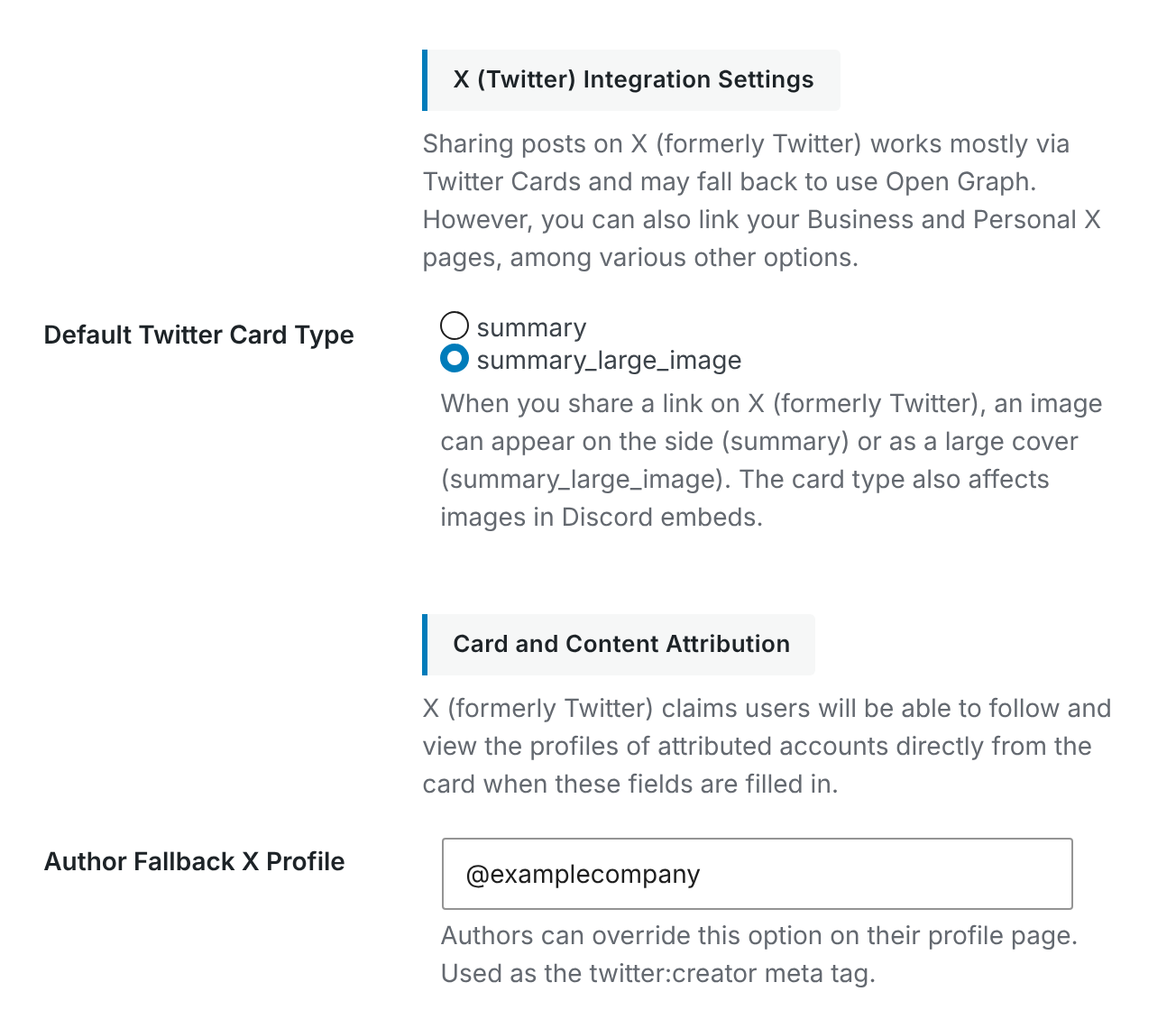
Under X (Twitter) Integration Settings, choose the Default Twitter Card Type. This determines the card format used when an individual WordPress post does not specify its own card type.
- summary_large_image: displays a large image above the title and description. This is the default and is a good choice for most websites.
- summary: displays a smaller square image alongside the title and description.
After choosing a card type, click Save Changes.
Add Your X Accounts
CrawlWP can add both your WordPress site’s X account and the account associated with the author of the content. These are output as twitter:site and twitter:creator.
- Site account (
twitter:site): go to Site Information > Social Profiles and enter your X profile in X (Twitter) URL, such ashttps://x.com/examplecompany. CrawlWP extracts the@examplecompanyhandle from the URL. - Author account (
twitter:creator): you can enter a fallback handle under Author Fallback X Profile in Card and Content Attribution. Individual authors can set their own handle under X (Twitter) @handle in their WordPress profile.
For an individual post or page on your WordPress website, an Author handle can also be entered on the Social tab. CrawlWP uses the author handle in this order: the post’s Author handle, the author’s WordPress profile setting, then Author Fallback X Profile.
What X/Twitter Card Tags Does CrawlWP Output?
| Tag | Where the value comes from |
|---|---|
twitter:card | The site’s default card type or the post’s Card type. |
twitter:title | The post’s X title, or its Open Graph title when no separate X title is set. |
twitter:description | The post’s X description, or its Open Graph description when no separate X description is set. |
twitter:image | The post’s X image, or its Open Graph image when no X-specific image is set. |
twitter:image:alt | The post’s Social image alt text, or the image alt text stored in the Media Library. |
twitter:site | Your site’s X account, when configured. |
twitter:creator | The author’s X account on individual posts and pages, when available. |
For most WordPress websites, CrawlWP uses the same title, description, and image for X that it uses for Facebook and other Open Graph platforms. You only need to create X-specific values when you want the preview to be different.
Set a Different Card for One Post
You can override the site-wide X settings for an individual post in WordPress when a particular article needs a different card layout or social copy.
- Open the post or page in the WordPress editor.
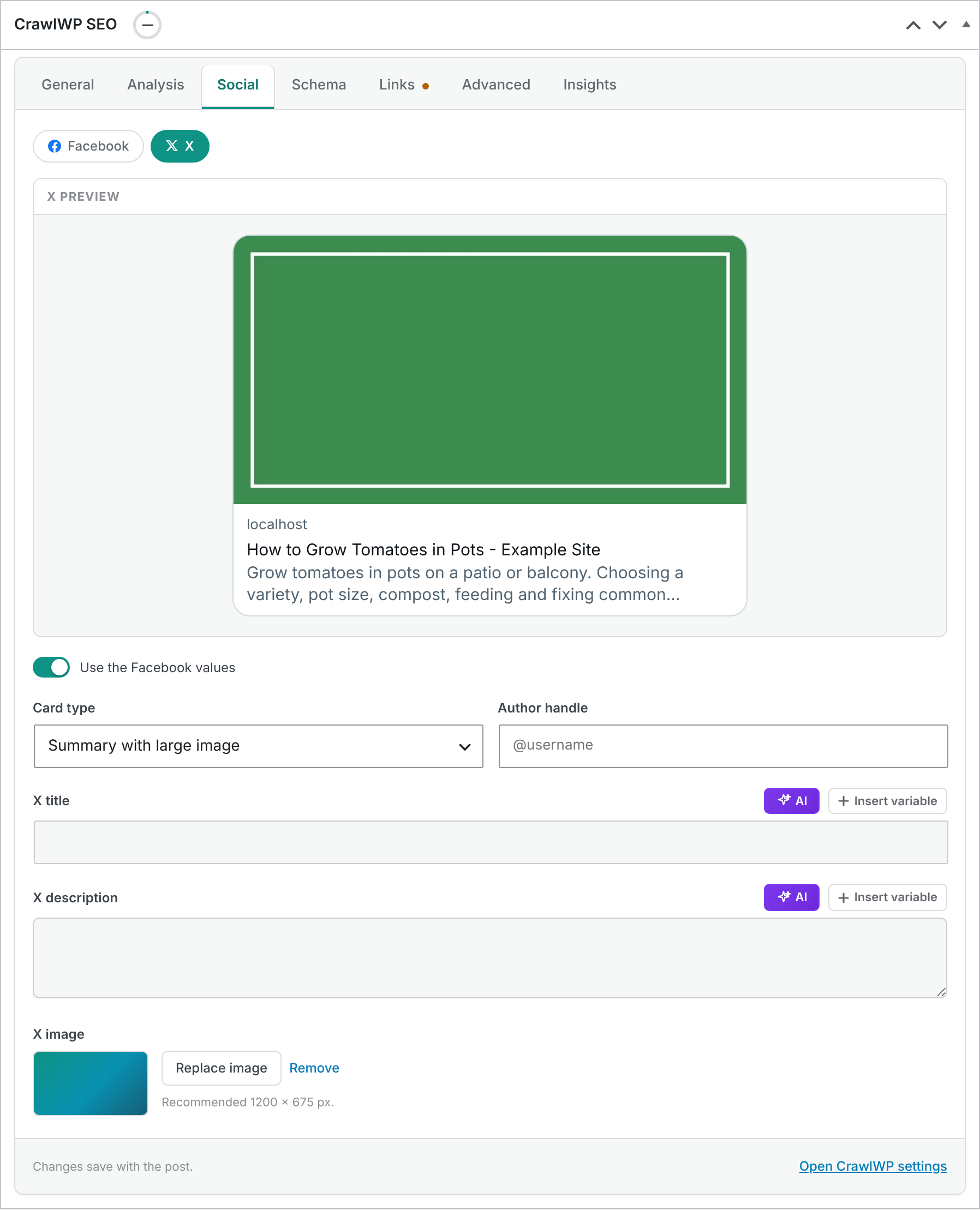
- In the CrawlWP SEO box, open the Social tab and click X.
- Choose the required Card type and, if needed, enter an Author handle.
- To use different text on X, turn off Use the Facebook values and enter an X title and X description.
- To use a different image, click Replace image under X image and choose or upload the image you want to display. For a large image card, use 1200 × 675 pixels.
- Update the post or page.
The X preview at the top of the tab lets you see how the card may be displayed.
Use X-Specific Titles and Descriptions
The SEO title and meta description of your WordPress sites are written primarily for search results, while your X title and description appear in a social-sharing context.
Keeping them separate can be useful when a shorter or more conversational message works better on X.
When Use the Facebook values is enabled, CrawlWP reuses the corresponding Facebook/Open Graph values. Turn it off only when the X version needs different wording.
Choose the Right Image for a Large Card
Large image cards give your visual more space, so the image should be designed for a wide layout. CrawlWP recommends 1200 × 675 pixels for X-specific large card images.
- Keep important text and logos away from the edges.
- Use an image that clearly relates to the page being shared.
- Avoid putting too much small text in the image because it may be difficult to read in a compact preview.
- Compress large image files so the page can be fetched and processed efficiently.
Check Your X Card
X no longer provides the old public card validator. A practical way to test a card is to paste the URL into a new post on X and inspect the preview before publishing it.
You can also inspect the page source and search for twitter:. This lets you verify the exact values CrawlWP is outputting, including the card type, title, description, image, and account handles.
Keep in mind that social platforms can cache previously fetched metadata. A card may therefore continue showing an older image or title for links that were already shared.
Check for Duplicate X Card Tags
If another WordPress SEO or social plugin is also generating Twitter Card metadata, the page may contain more than one set of X tags. Inspect the source for duplicate entries such as twitter:title or twitter:image.
When this happens, choose one system to generate the metadata. You can disable Output X/Twitter Card meta tags? in CrawlWP or disable the competing plugin’s equivalent feature.
Troubleshooting X/Twitter Cards
No card appears when the URL is shared on X
Make sure Output X/Twitter Card meta tags? is enabled under Social Meta Tags Settings. Also check that the page is publicly accessible and not blocked by a firewall, security plugin, login requirement, or other access restriction.
The card uses a small image instead of a large one
Check the card type. If it is set to summary, X uses the smaller image layout. Change Default Twitter Card Type to summary_large_image, or select Summary with large image as the post’s Card type.
The X image is not the image I selected
Check the image hierarchy for the post. An individual X image takes priority over the Open Graph image. If no X-specific image is set, CrawlWP can fall back to the Open Graph image selected by its normal social image rules.
The image is cropped badly
Large image cards use a wide aspect ratio. Try an X-specific image around 1200 × 675 pixels and keep important content away from the edges of the artwork.
The title or description is different from what I entered
On the post’s Social tab, check whether Use the Facebook values is enabled. When it is enabled, CrawlWP uses the Facebook/Open Graph title and description instead of separate X values.
The page contains duplicate X card tags
Another plugin or your theme may also be generating the tags. Inspect the page source and disable one of the competing implementations so only one system controls the X/Twitter Card metadata.
For most websites, setting summary_large_image as the default, configuring your site’s X account, and providing good social images is enough. Use the per-post Social > X settings when a particular page needs different text, imagery, card type, or author attribution.
Setting Up Twitter/X Cards
When someone shares a link from your WordPress website on X (formerly Twitter), X uses special metadata in the page to build a preview card. CrawlWP generates these X/Twitter Card tags automatically, including the title, description, image, and author information.
You can use the default settings for the entire site or customize the card type, text, image, and author attribution for individual posts and pages. The same metadata can also be read by some other platforms and services that support Twitter Card tags.
Enable X/Twitter Card Meta Tags
- Go to CrawlWP > Settings.
- Make sure the Settings tab at the top is selected, then click Social Networks in the left-hand menu.
- Under Social Meta Tags Settings, make sure Output X/Twitter Card meta tags? is enabled. It is enabled by default.
Leave this enabled unless another plugin or your theme is already generating the X/Twitter Card tags. Having two systems output the same metadata can lead to duplicate or conflicting values.
Choose the Default Card Type
Under X (Twitter) Integration Settings, choose the Default Twitter Card Type. This determines the card format used when an individual post does not specify its own card type.
- summary_large_image: displays a large image above the title and description. This is the default and is a good choice for most websites.
- summary: displays a smaller square image alongside the title and description.
After choosing a card type, click Save Changes.
Add Your X Accounts
CrawlWP can add both your site’s X account and the account associated with the author of the content. These are output as twitter:site and twitter:creator.
- Site account (
twitter:site): go to Site Information > Social Profiles and enter your X profile in X (Twitter) URL, such ashttps://x.com/examplecompany. CrawlWP extracts the@examplecompanyhandle from the URL. - Author account (
twitter:creator): you can enter a fallback handle under Author Fallback X Profile in Card and Content Attribution. Individual authors can set their own handle under X (Twitter) @handle in their WordPress profile.
For an individual post or page, an Author handle can also be entered on the Social tab. CrawlWP uses the author handle in this order: the post’s Author handle, the author’s WordPress profile setting, then Author Fallback X Profile.
What X/Twitter Card Tags Does CrawlWP Output?
| Tag | Where the value comes from |
|---|---|
twitter:card | The site’s default card type or the post’s Card type. |
twitter:title | The post’s X title, or its Open Graph title when no separate X title is set. |
twitter:description | The post’s X description, or its Open Graph description when no separate X description is set. |
twitter:image | The post’s X image, or its Open Graph image when no X-specific image is set. |
twitter:image:alt | The post’s Social image alt text, or the image alt text stored in the Media Library. |
twitter:site | Your site’s X account, when configured. |
twitter:creator | The author’s X account on individual posts and pages, when available. |
For most sites, CrawlWP uses the same title, description, and image for X that it uses for Facebook and other Open Graph platforms. You only need to create X-specific values when you want the preview to be different.
Set a Different Card for One Post
You can override the site-wide X settings for an individual post when a particular article needs a different card layout or social copy.
- Open the post or page in the WordPress editor.
- In the CrawlWP SEO box, open the Social tab and click X.
- Choose the required Card type and, if needed, enter an Author handle.
- To use different text on X, turn off Use the Facebook values and enter an X title and X description.
- To use a different image, click Replace image under X image and choose or upload the image you want to display. For a large image card, use 1200 × 675 pixels.
- Update the post or page.
The X preview at the top of the tab lets you see how the card may be displayed.
Use X-Specific Titles and Descriptions
Your SEO title and meta description are written primarily for search results, while your X title and description are shown in a social sharing context. Keeping them separate can be useful when a shorter or more conversational message works better on X.
When Use the Facebook values is enabled, CrawlWP reuses the corresponding Facebook/Open Graph values. Turn it off only when the X version needs different wording.
Choose the Right Image for a Large Card
Large image cards give your visual more space, so the image should be designed for a wide layout. CrawlWP recommends 1200 × 675 pixels for X-specific large card images.
- Keep important text and logos away from the edges.
- Use an image that clearly relates to the page being shared.
- Avoid putting too much small text in the image because it may be difficult to read in a compact preview.
- Compress large image files so the page can be fetched and processed efficiently.
Check Your X Card
X no longer provides the old public card validator. A practical way to test a card is to paste the URL into a new post on X and inspect the preview before publishing it.
You can also inspect the page source and search for twitter:. This lets you verify the exact values CrawlWP is outputting, including the card type, title, description, image, and account handles.
Keep in mind that social platforms can cache previously fetched metadata. A card may therefore continue showing an older image or title for links that were already shared.
Check for Duplicate X Card Tags
If another SEO or social plugin is also generating Twitter Card metadata, the page may contain more than one set of X tags. Inspect the source for duplicate entries such as twitter:title or twitter:image.
When this happens, choose one system to generate the metadata. You can disable Output X/Twitter Card meta tags? in CrawlWP or disable the competing plugin’s equivalent feature.
Troubleshooting X/Twitter Cards
No card appears when the URL is shared on X
Make sure Output X/Twitter Card meta tags? is enabled under Social Meta Tags Settings. Also check that the page is publicly accessible and not blocked by a firewall, security plugin, login requirement, or other access restriction.
The card uses a small image instead of a large one
Check the card type. If it is set to summary, X uses the smaller image layout. Change Default Twitter Card Type to summary_large_image, or select Summary with large image as the post’s Card type.
The X image is not the image I selected
Check the image hierarchy for the post. An individual X image takes priority over the Open Graph image. If no X-specific image is set, CrawlWP can fall back to the Open Graph image selected by its normal social image rules.
The image is cropped badly
Large image cards use a wide aspect ratio. Try an X-specific image around 1200 × 675 pixels and keep important content away from the edges of the artwork.
The title or description is different from what I entered
On the post’s Social tab, check whether Use the Facebook values is enabled. When it is enabled, CrawlWP uses the Facebook/Open Graph title and description instead of separate X values.
The page contains duplicate X card tags
Another plugin or your theme may also be generating the tags. Inspect the page source and disable one of the competing implementations so only one system controls the X/Twitter Card metadata.
For most websites, setting summary_large_image as the default, configuring your site’s X account, and providing good social images is enough. Use the per-post Social > X settings when a particular page needs different text, imagery, card type, or author attribution.
This article is for site owners who want their links to show a preview card when shared on X (formerly Twitter). X cards are also read by Discord, Slack, LinkedIn, and some other sites. CrawlWP adds the card tags to every page automatically.
Check that X card tags are on
- Go to CrawlWP > Settings.
- Make sure the Settings tab at the top is selected, then click Social Networks in the left-hand menu.
- Under Social Meta Tags Settings, check that Output X/Twitter Card meta tags? is on. It is on by default.
Choose the card type
Under X (Twitter) Integration Settings, choose the Default Twitter Card Type:
- summary_large_image: a large image above the title. This is the default and suits most sites.
- summary: a small square image beside the title.
Then click Save Changes.
Add your X accounts
- Your site’s account (
twitter:site): enter your X profile under Site Information > Social Profiles > X (Twitter) URL, for examplehttps://x.com/examplecompany. CrawlWP turns it into the@examplecompanyhandle. - The author’s account (
twitter:creator): enter a handle in Author Fallback X Profile under Card and Content Attribution, for example@yourname. Each author can set their own under X (Twitter) @handle on their WordPress profile, and a single post can set one in Author handle on its Social tab.
For twitter:creator, CrawlWP uses the post’s Author handle first, then the author’s profile, then Author Fallback X Profile.
What CrawlWP outputs
| Tag | Where the value comes from |
|---|---|
twitter:card | The default card type, or the post’s Card type |
twitter:title | The X title on the post, or the Open Graph title |
twitter:description | The X description on the post, or the Open Graph description |
twitter:image | The X image on the post, or the Open Graph image |
twitter:image:alt | The Social image alt text on the post, or the image’s alt text |
twitter:site | Your site’s account, on every page |
twitter:creator | The author’s account, on single posts and pages only |
By default, X uses the same title, description, and image as Facebook. You only need to change them if you want something different on X.
Change the card for one post
- Open the post in the WordPress editor.
- In the CrawlWP SEO box, click the Social tab, then click X.
- Change the Card type or Author handle if needed.
- To use different text on X, switch off Use the Facebook values and enter an X title and X description.
- To use a different image on X, click Replace image under X image. X recommends 1200 × 675 pixels for large image cards.
- Update the post.
The X preview at the top shows how the card may look.
Check how a link looks
X no longer offers a public card validator. To check a card, paste the link into a new post on X and look at the preview before posting, or use a third-party card preview tool. You can also view the page source and search for twitter:.
X caches cards. Changes can take some time to appear for links that were already shared.
Write social text with AI
The X title and description fields have an AI button. Switch off Use the Facebook values first. See Generating SEO titles and descriptions with AI.
If it does not work
No card appears on X. Check that Output X/Twitter Card meta tags? is on, that the page is public, and that it is not blocked in robots.txt.
The card shows a small image instead of a large one. The card type is set to summary. Change the Default Twitter Card Type to summary_large_image, or set the post’s Card type to Summary with large image.
The image is cropped badly. Large image cards use a wide shape. Set an X image of 1200 × 675 pixels or similar.
The page has two sets of X card tags. Another plugin or your theme also adds them. Turn off one of them.