
Our CrawlWP SEO plugin can use WordPress’s AI connection to draft SEO titles, meta descriptions, and social titles and descriptions for individual posts and pages. Once an AI provider is connected, you can generate or rewrite text directly from the CrawlWP SEO box.
The feature is available in the free version. You choose the provider once under WordPress’s Settings > Connectors; CrawlWP then uses that connection when you click an AI button.
Before using AI in CrawlWP
- Your site must run WordPress 7.0 or later so that the AI connection under Settings > Connectors is available.
- You need an account with a supported AI provider: Anthropic, Google, or OpenAI. The provider supplies the API key and charges for its usage according to its own pricing.
- CrawlWP’s SEO features must be enabled before the AI controls are available. See My meta title isn’t showing in Google.
There is also a privacy consideration before you generate anything. When an AI button is used, CrawlWP sends the post title, the beginning and end of the saved content, the focus keyword, and the field’s current text to the connected provider.
Connect your AI provider through WordPress
The connection is managed by WordPress rather than by a separate CrawlWP settings page. OpenAI is used in this example, but Anthropic and Google follow the same general connection process.
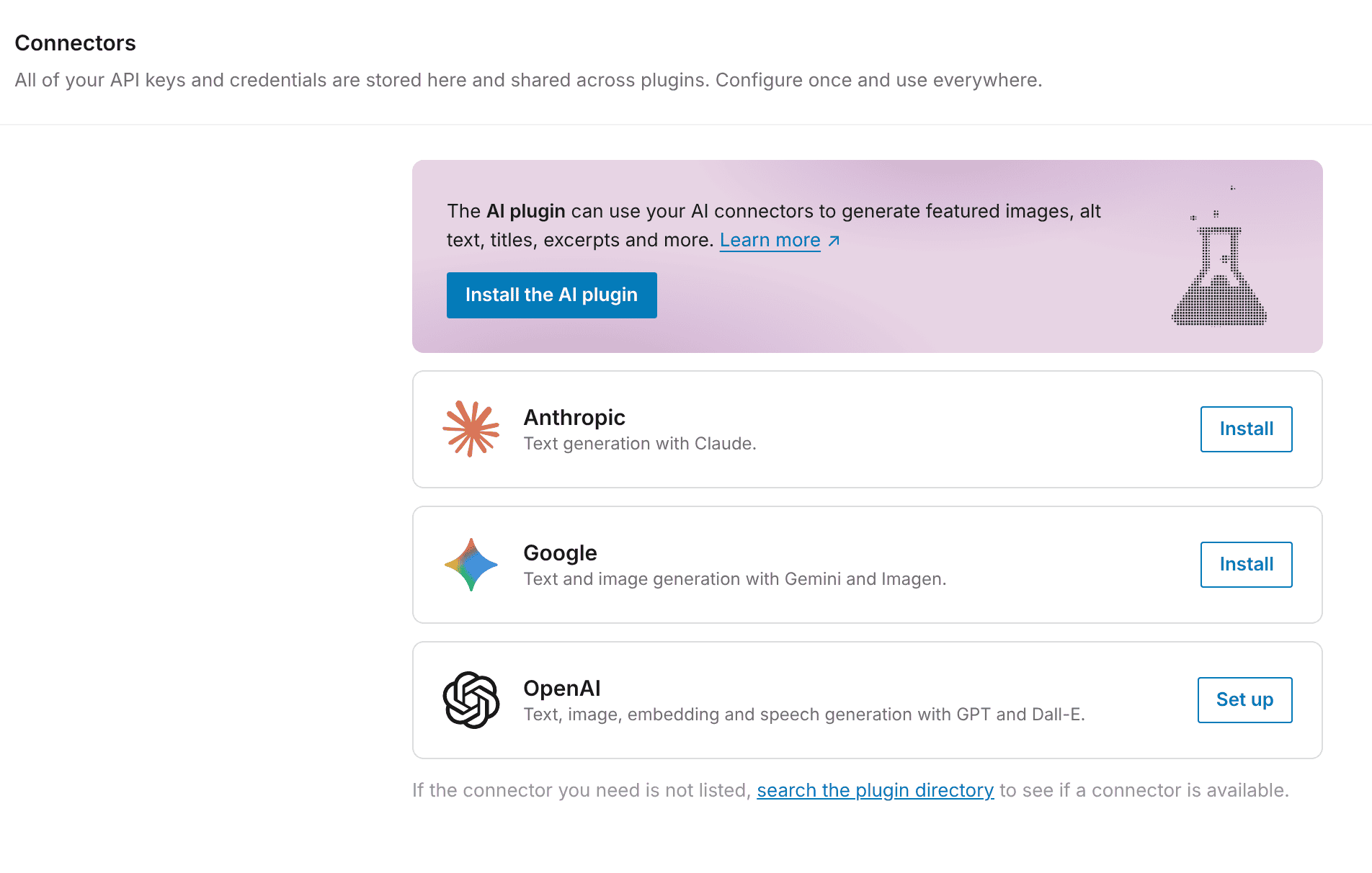
- In WordPress, go to Settings > Connectors.
- Find OpenAI and click Install. WordPress installs the AI Provider for OpenAI plugin. When the button changes to Set up, click Set up.
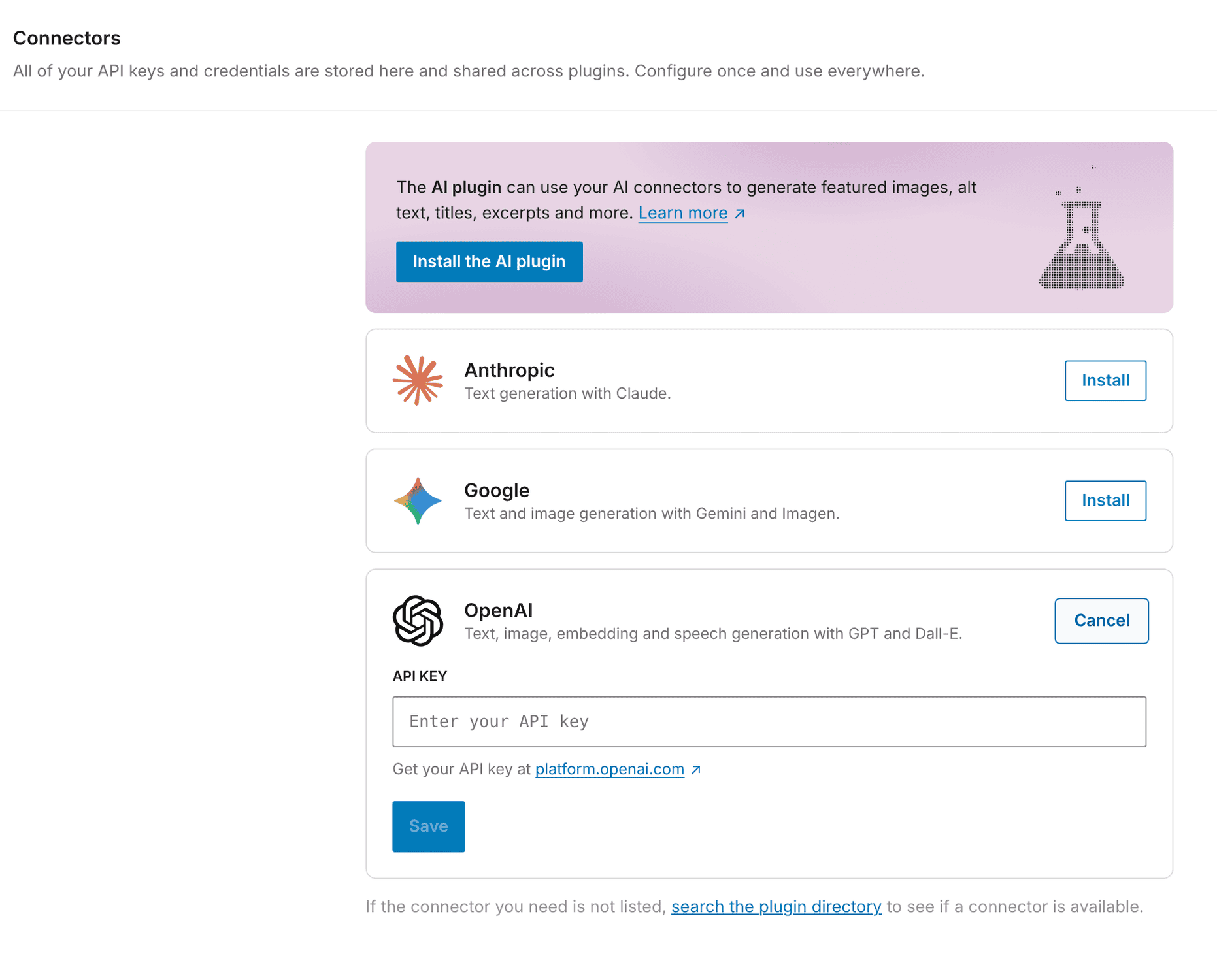
- Copy an API key from your OpenAI account. The Get your API key at platform.openai.com link takes you to the relevant page.
- Paste the key into API KEY.
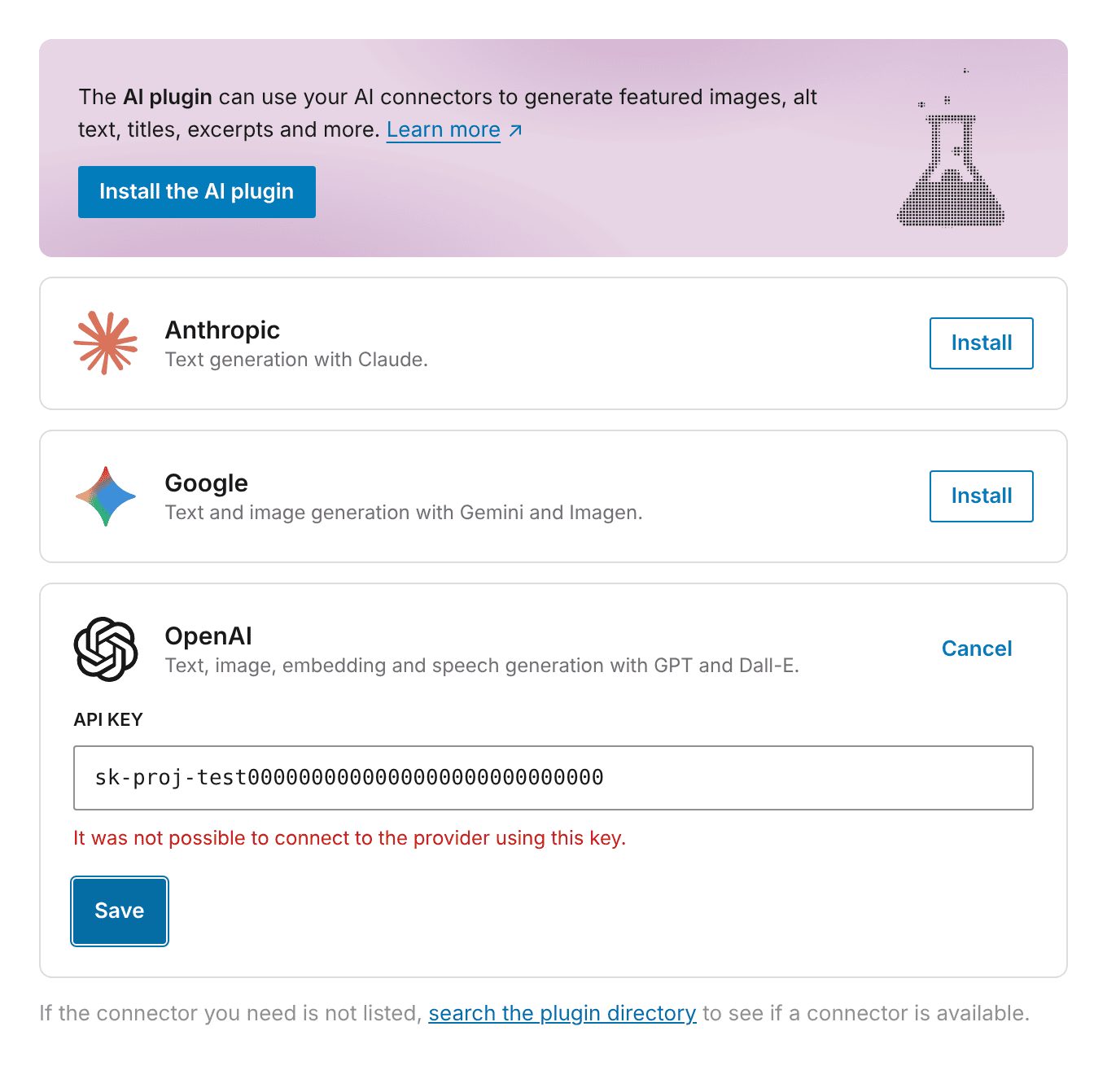
- Click Save. WordPress checks the key with OpenAI.
When the connection succeeds, the provider card shows Connected.
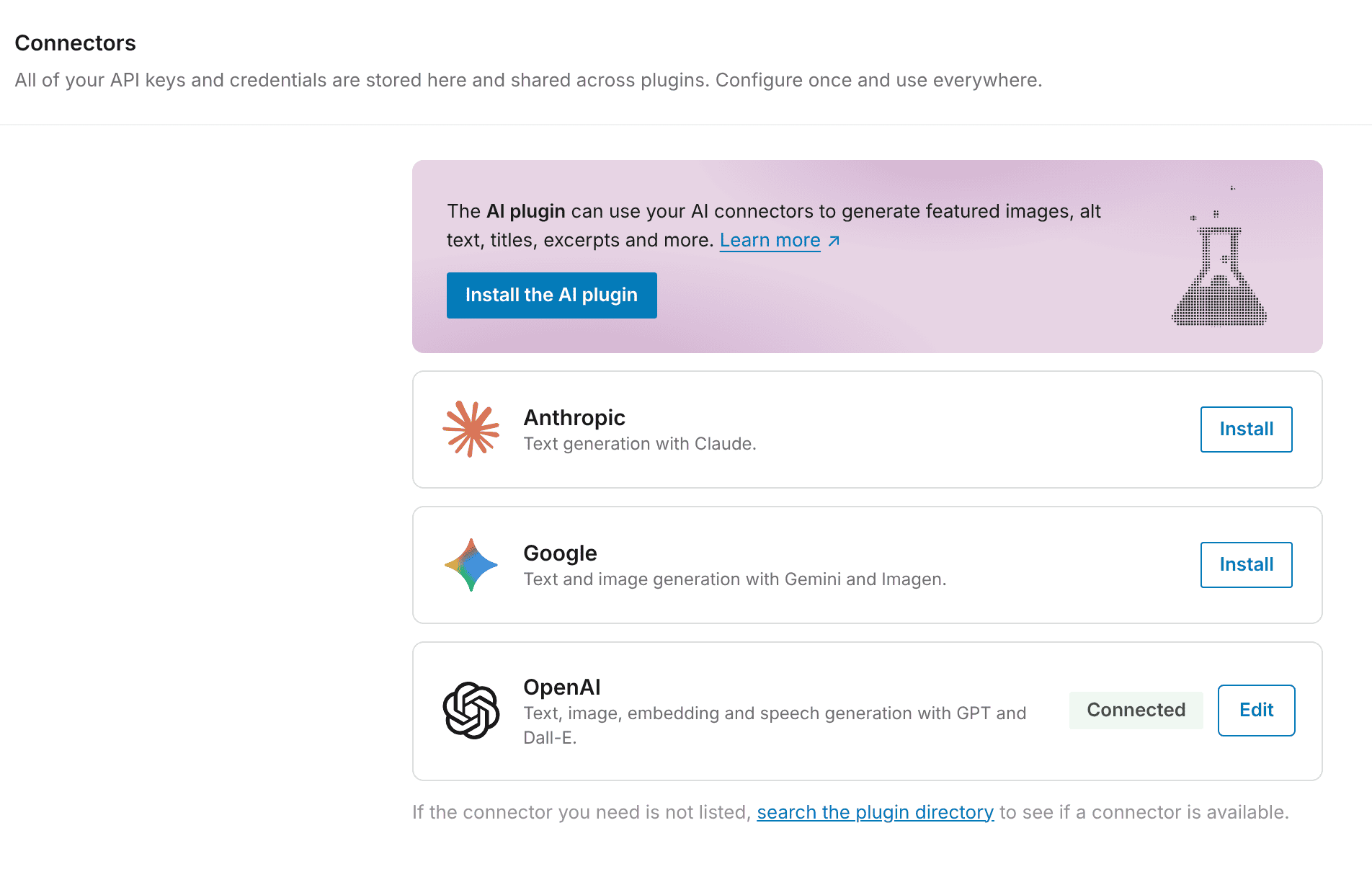
You only need one provider. Other plugins on the site that use WordPress’s AI connection can share the same connection, including CrawlWP.
You do not need to install the separate AI plugin promoted at the top of the Connectors screen. CrawlWP only needs a connected provider.
When WordPress cannot install the provider
The Install button needs permission to install plugins. When your host blocks plugin installation, you can install the AI Provider for OpenAI plugin another way, such as uploading it through Plugins > Add Plugin. Then return to Settings > Connectors and click Set up.
Store the API key in wp-config.php
A developer can put the provider key in wp-config.php instead of entering it on the settings screen:
define( 'OPENAI_API_KEY', 'your-key-here' );For Anthropic use ANTHROPIC_API_KEY, and for Google use GOOGLE_API_KEY. The corresponding provider plugin must still be active.
Generate SEO text from the CrawlWP SEO box
After you connect the AI provider, CrawlWP generates SEO titles and meta descriptions when you edit the SEO fields.
Follow the steps below to use your connected Ai provider to generate SEO titles and meta descriptions for your WordPress posts using CrawlWP.
- Open the post or page in the WordPress editor.
- Save the post if you have changed its content since the last save.
- In the CrawlWP SEO box, open the General tab.
- Find SEO title and Meta description. Each field has an AI button.
- Click AI beside SEO title. While CrawlWP waits for the response, the button shows Generating….
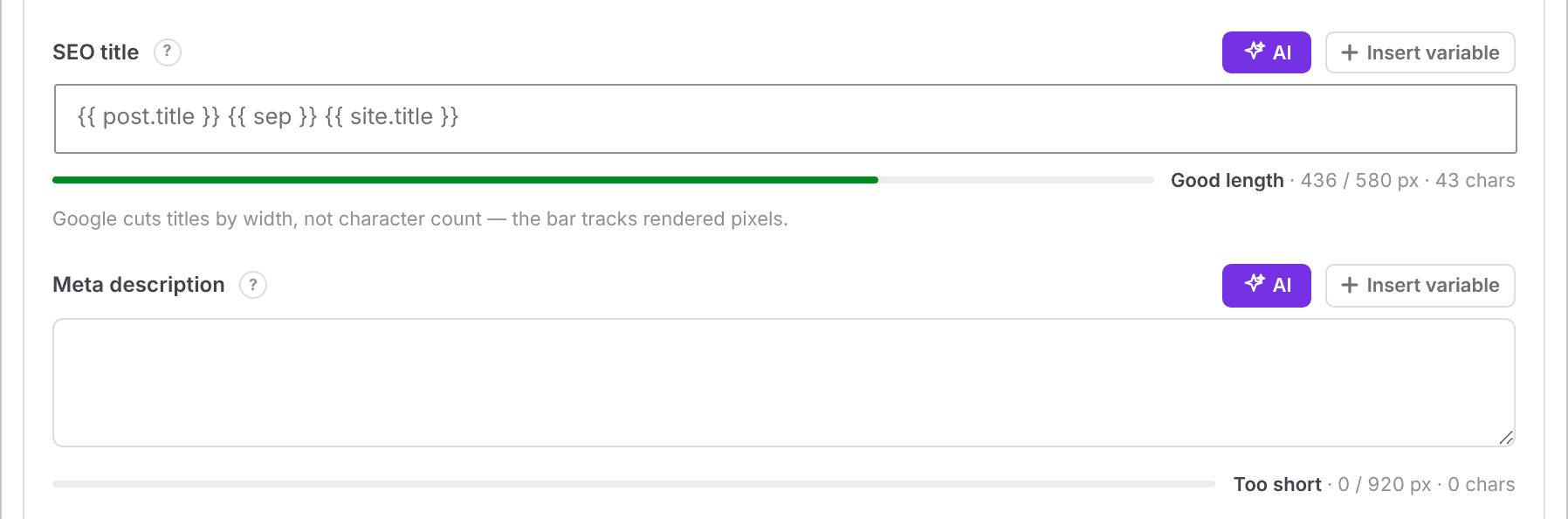
The generated SEO title for the WordPress post or page is inserted into the field. Click AI beside Meta description to create the description.
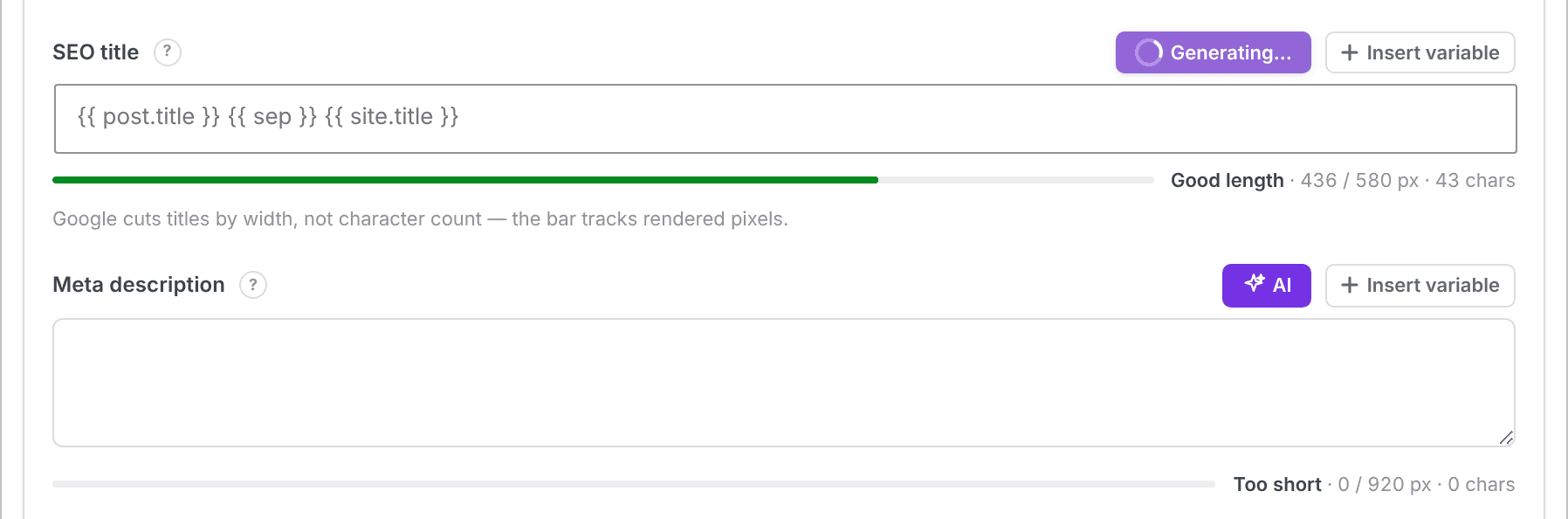
After both fields have values, review the wording. CrawlWP’s normal length indicators and search preview continue to update as you edit the fields.
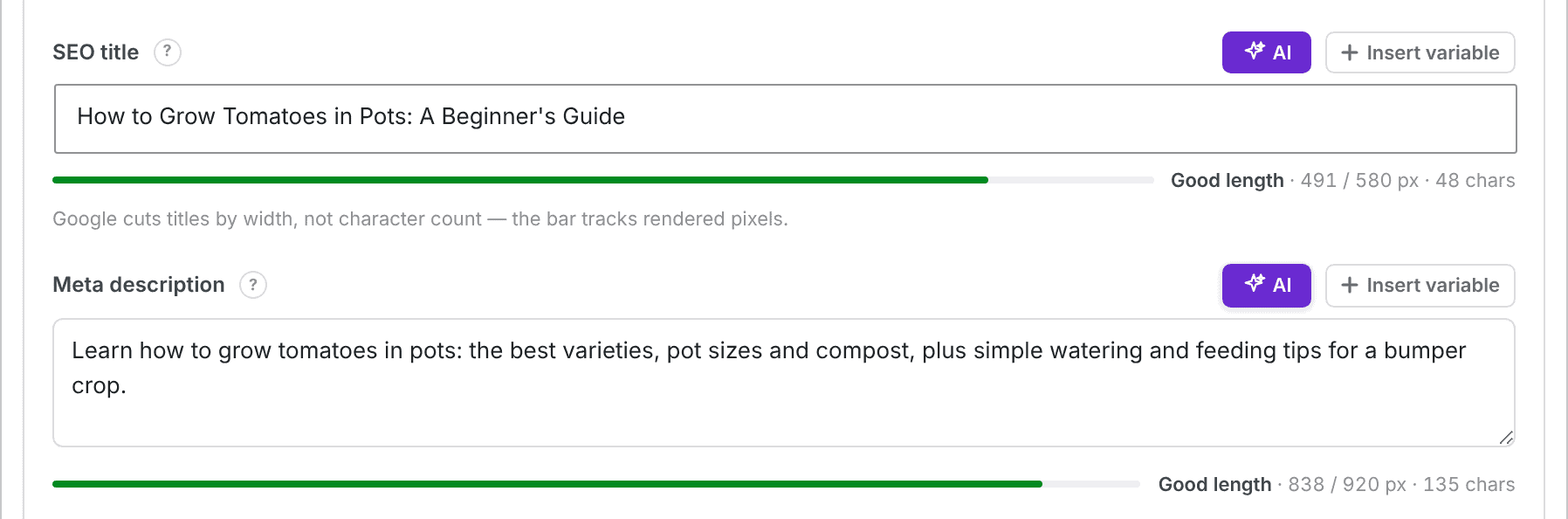
The generated text is only placed in the fields at this stage. Click Update or Publish to save it with the post.
Rewrite an existing title or description
When a field already contains text, its button uses the tooltip Rewrite with AI. Click it to ask for different wording that keeps the same meaning. You can generate another version when the first result is not suitable.
How CrawlWP prepares the AI request
The generation is based on information from the post, not the SEO field alone. CrawlWP sends the post title, the start and end of the saved content, the focus keyword, and the current value of the field being generated or rewritten.
For long posts, CrawlWP sends up to 8,000 characters of content. Most comes from the beginning of the post, with the remainder taken from the end. Shortcodes and HTML are removed first. Divi and Bricks layouts are read correctly.
- SEO titles target about 40 to 60 characters.
- Meta descriptions target about 120 to 160 characters.
- When a generated value is longer than the target, CrawlWP shortens it.
- When multiple focus keywords are set, the first one is used as the main keyword.
- The generated text follows the post’s language: the site language, or the language selected by WPML or Polylang.
CrawlWP does not add quotation marks, emojis, your site name, or a separator to generated text. It also replaces the entire field, including any variables that were there previously.
When you need the site name in a generated title, add the required variables yourself after generation, for example {{ sep }} {{ site.title }}. See Title and meta description template variables (reference).
Review every generated value before publishing it. AI can produce text that sounds plausible but does not accurately describe the page.
Generate separate social titles and descriptions
The Social tab has AI controls for the Open Graph title and Open Graph description. Click X at the top of the tab to access the X title and description, which also have AI buttons.
These buttons are unavailable when the corresponding fields inherit another set of values. Open Graph fields and their AI buttons are disabled when Use the SEO title and description is enabled. The X fields are disabled when Use the Facebook values is enabled.
- Open the Social tab. For X, also click X at the top of the tab.
- Turn off Use the SEO title and description for Open Graph, or Use the Facebook values for X.
- Click AI beside the social field you want to generate.
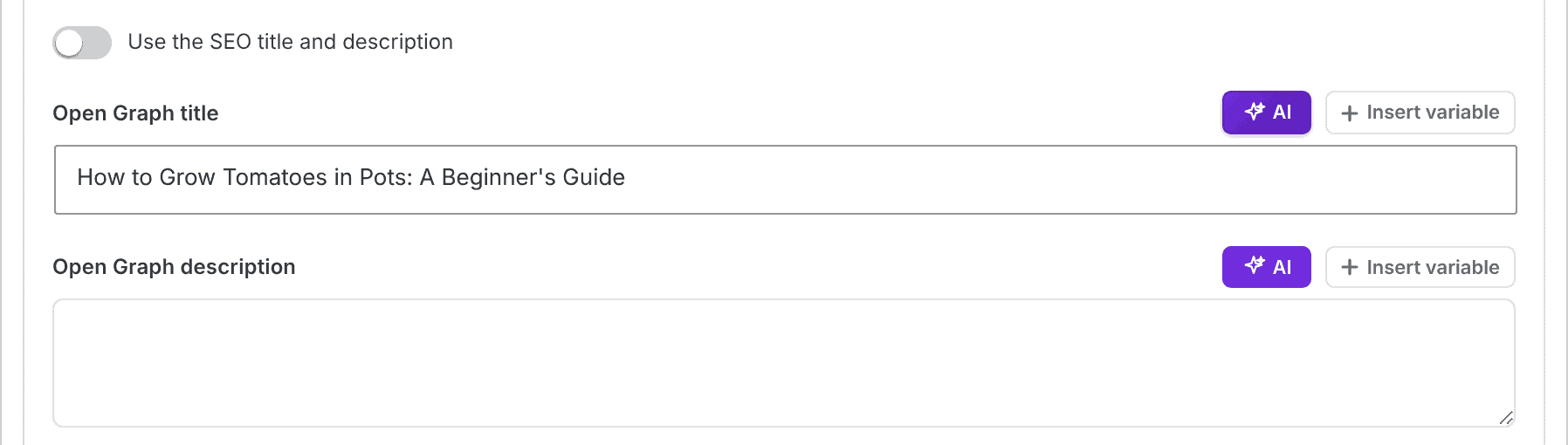
Open Graph and X descriptions target up to 155 characters. See Setting up Open Graph for Facebook and Setting up Twitter/X cards.
Permissions and request limits
- Connecting an AI provider under Settings > Connectors requires administrator access.
- The AI buttons are available to users who can edit the post.
- Each user can make up to 20 AI requests every 5 minutes.
Troubleshooting AI generation
“AI generation is unavailable. Connect an AI provider in WordPress under Settings → Connectors, then try again.” CrawlWP cannot use a connected provider that is missing or unable to write text. Open Settings > Connectors and make sure the provider card says Connected. CrawlWP can also offer to open the Connectors screen in a new tab.
“It was not possible to connect to the provider using this key.” This message appears when a provider key cannot be verified. Check that the complete key was copied, that the key has not been deleted, and that billing is set up with the provider. When the key is valid but the connection still fails, your server may be unable to reach the provider; ask your host to investigate.
CrawlWP asks you to add content first. The AI-generated meta description is based on the page content, so the post needs content. Add some content and save the post before trying again. An SEO title can be generated from the post title alone.
“Too many AI requests. Please wait a few minutes and try again.” You have reached the limit of 20 requests in 5 minutes for that user. Wait and try again.
The provider returns a quota or billing error. The request was refused by the AI provider. Check the provider account for its quota, billing, or account status.
The generated text is based on an older version of the post. CrawlWP uses the content that was last saved. Save the post first, then click AI again.
The AI button beside a social field does nothing. Check the Social tab and turn off Use the SEO title and description, or Use the Facebook values for X. The inherited fields must be enabled for separate editing before their AI buttons can be used.
There is no Connectors screen. The site may be running a WordPress version older than 7.0, or your host or a developer may have disabled AI functionality. Update WordPress or ask whoever manages the site to check the configuration.
Use AI as a drafting tool
CrawlWP makes it quicker to turn existing page content into a first draft for search and social metadata. A good workflow is to save the page, generate the text, check that it is accurate and useful, make any edits you need, and then click Update or Publish.
Because the request uses your connected AI provider and generated values replace the contents of the selected field, review the result before saving it and make sure the provider and data-sharing arrangement are appropriate for your site.