
Open Graph metadata controls the title, description, image, and other information that many platforms use when someone shares a link from your website. Facebook uses these tags to build its link previews, as do platforms such as LinkedIn and WhatsApp.
CrawlWP SEO plugin generates Open Graph tags automatically for WordPress sites, so you do not normally need to add them manually. You can also customize the social title, description, and image for an entire section of your site or for an individual post or page.
Enable Open Graph Meta Tags in WordPress
To use CrawlWP to generate Open Graph meta tags for your WordPress website, follow the steps below.
- Go to CrawlWP > Settings.
- Make sure the Settings tab at the top is selected, then click Social Networks in the left-hand menu.
- Under Social Meta Tags Settings, make sure Output Open Graph meta tags? is enabled. It is enabled by default.
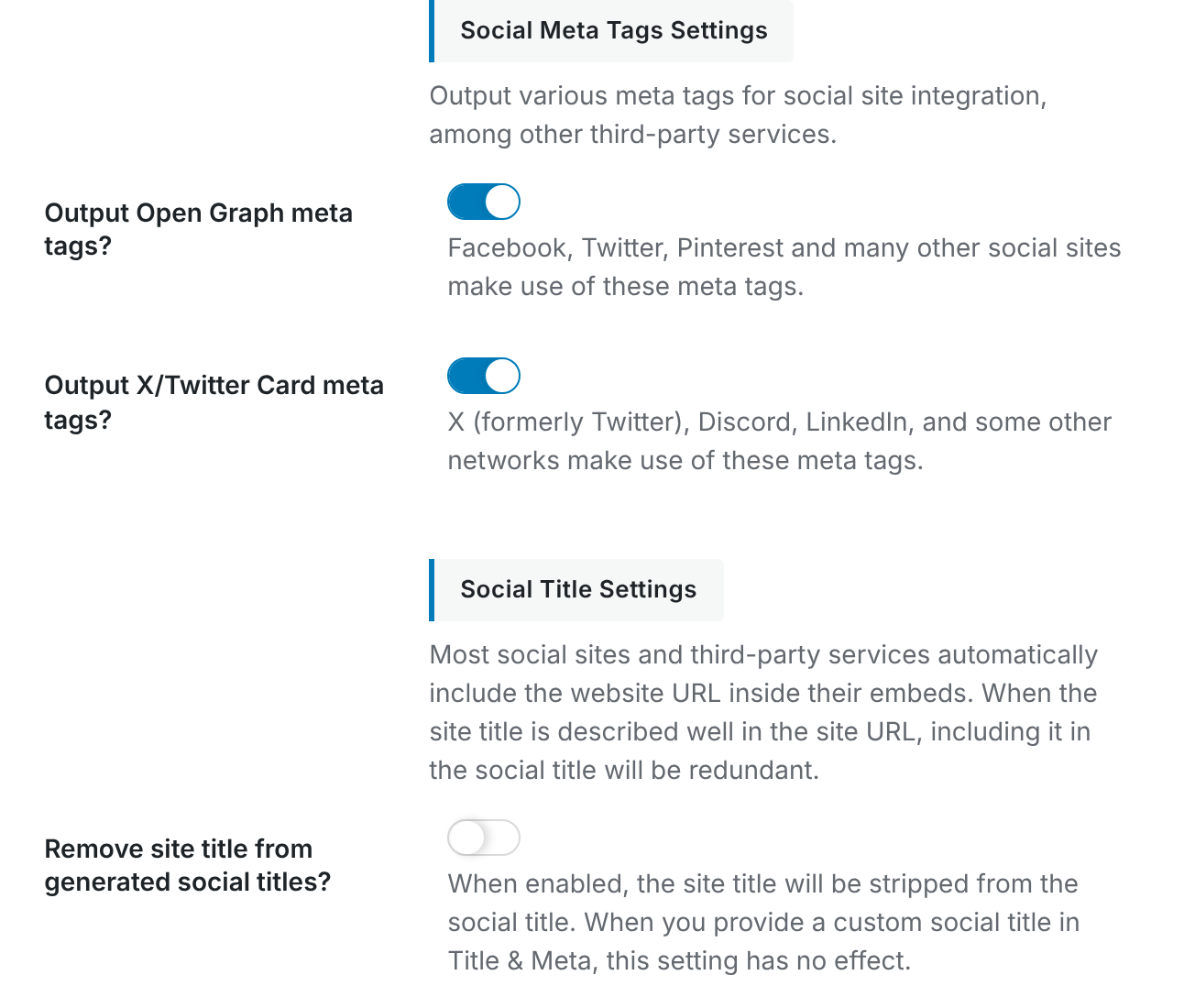
Disable this option only when another plugin or your theme already outputs Open Graph metadata. Having two different systems generate the same tags can result in duplicate or conflicting values.
What Open Graph Tags Does CrawlWP Output?
| Tag | Value used by CrawlWP |
|---|---|
og:title | The page’s SEO title unless a separate social title has been configured. |
og:description | The page’s meta description unless a separate social description has been configured. |
og:image | The social sharing image selected by CrawlWP. See Setting a default social sharing image. |
og:image:alt | The post’s Social image alt text, or the image alt text stored in the Media Library. |
og:url | The canonical URL of the page. |
og:type | article for single posts and pages, and website for the homepage and archive pages. |
og:site_name | Your WordPress site title. |
og:locale | Your site’s configured language. |
On individual posts and pages in WordPress, CrawlWP can also output additional article metadata:
article:published_timeandarticle:modified_time, unless these are disabled under Post Date Settings.article:authorwhen a Facebook profile is available for the author.article:sectionandarticle:tagfor blog posts, using the post’s first category and its tags.
Stop Repeating the Site Name in Social Titles
Social platforms often display your site or domain name separately from the title. If your generated social title also contains the site name, the branding can appear twice in the preview.
To remove the site title from titles generated by CrawlWP, enable Remove site title from generated social titles? under Social Title Settings, then click Save Changes.
This setting affects titles that CrawlWP generates from your SEO title. It does not alter a custom social title that you entered yourself; custom social titles are used as written.
Configure the Facebook Integration
Further down the Social Networks screen, you will find Facebook Integration Settings.
- Facebook Author Fallback Page: the Facebook profile URL used for
article:authorwhen an individual author has not configured one. An author’s own profile setting takes priority. - Facebook App ID: your Facebook app ID, if you use a Facebook app that requires the
fb:app_idtag. Most websites can leave this empty.
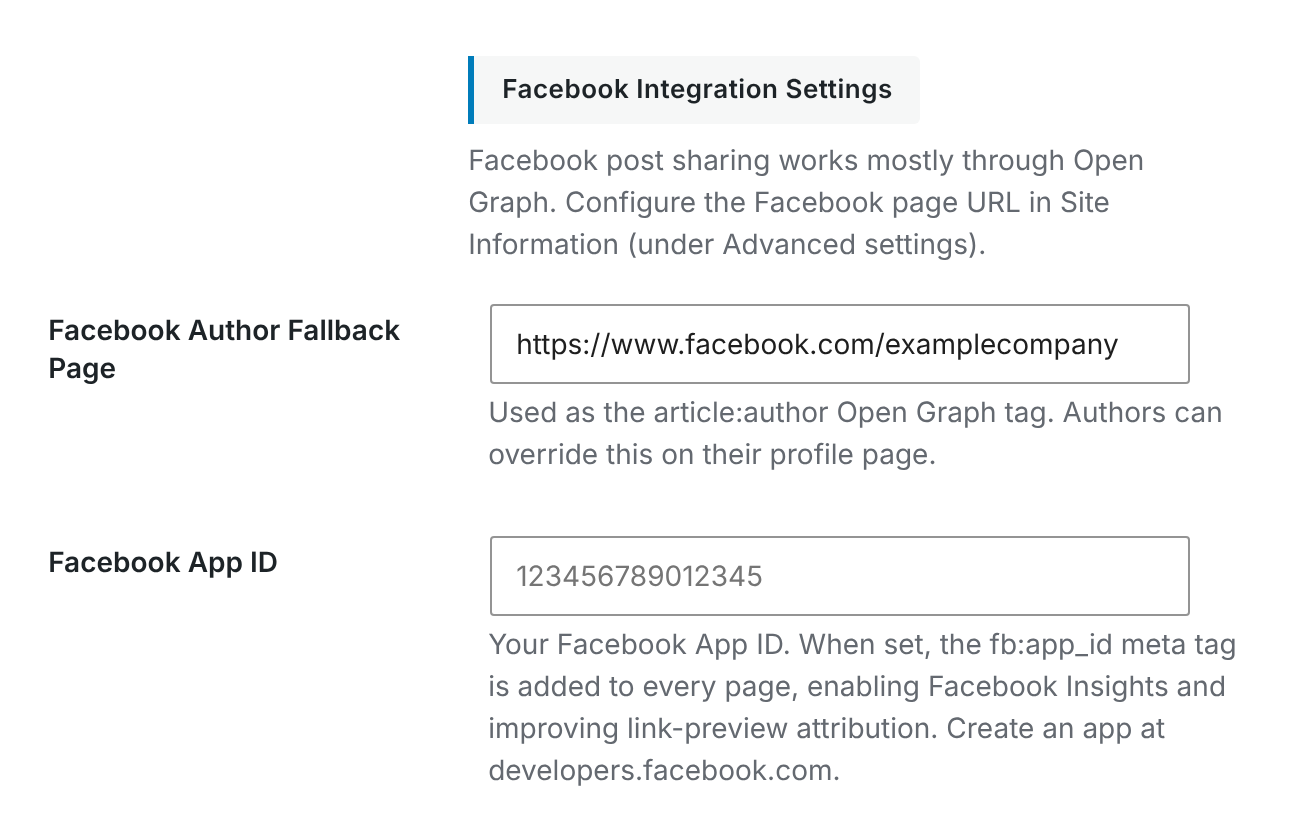
Authors can set their own Facebook profile under their WordPress user profile by entering a Facebook Page URL in the CrawlWP SEO Social Profiles section. That value takes priority over the fallback configured here.
Your site’s Facebook page is configured separately under Site Information > Social Profiles. That setting is used by CrawlWP’s structured data and should not be confused with the Facebook author settings or Open Graph metadata.
Customize the Title and Description Shared on Social Media
Your social preview does not have to use the same title and description that appear in search results. CrawlWP lets you create social-specific text when the SEO version is not the best fit for a share.
- For a complete post type, taxonomy, or homepage: open the relevant section on the Title & Meta tab and use Social title and Social description under Social overrides. If the homepage is a static page, configure the social details on that page instead.
- For one post or page: open its Social tab in the CrawlWP SEO box, disable Use the SEO title and description, and enter an Open Graph title and Open Graph description.
Using separate social copy is useful for campaigns, announcements, tutorials, product pages, and other content where a more conversational headline or description may work better for sharing.
Choose the Right Social Image
The og:image tag uses CrawlWP’s social image selection rules. An individual Open Graph image takes priority, followed by section-level social images, the featured image, and finally the global Social Image Fallback.
For instructions on configuring a site-wide fallback image, see Setting a default social sharing image. To override the image for a particular post, see Overriding the social image for one post.
Check How Facebook Will Display a Link
After configuring your Open Graph settings, use Facebook’s Sharing Debugger to check what Facebook can read from the page.
- Open https://developers.facebook.com/tools/debug/.
- Paste the URL of the page you want to test.
- Click Debug.
The debugger shows the metadata Facebook found and gives you a preview of the shared link. Check the title, description, image, and URL rather than relying only on how the page looks in WordPress.
Facebook caches link previews. When you change your social title, description, or image, click Scrape Again in the debugger so Facebook requests the updated metadata.
Check the Page Source When Debugging
If the preview still looks incorrect, inspect the page source and search for og:title, og:description, and og:image. This helps determine whether the problem is with CrawlWP’s output or with a social platform’s cached copy.
If you find more than one og:title, og:description, or og:image tag, another plugin or your theme may also be generating Open Graph metadata.
Writing social text with AI
The social title and description fields have an AI button. Switch off Use the SEO title and description first. See Generating SEO titles and descriptions with AI.
Troubleshooting Open Graph Metadata
Facebook shows an old title, description, or image
This is usually caused by Facebook using a cached version of the URL. Open the Sharing Debugger, enter the page URL, and click Scrape Again to request a fresh copy of the metadata.
The page contains duplicate Open Graph tags
Check whether your theme or another SEO or social plugin is also outputting Open Graph tags. Only one system should normally handle them. Disable CrawlWP’s Output Open Graph meta tags? setting or disable the competing implementation, depending on which system you want to use.
No image appears in the Facebook preview
Check the page’s social image settings first. Make sure it has an applicable Open Graph image, post type social image, featured image, or Social Image Fallback. Also confirm that the image URL is publicly accessible.
The Sharing Debugger cannot fetch the page
Make sure the page is publicly accessible and does not require a password or login. Security plugins, firewalls, bot protection, and server rules can also prevent Facebook from fetching the URL.
My custom social title is being changed
Check whether you have actually configured a custom social title. The Remove site title from generated social titles? option only changes titles generated by CrawlWP. A title entered manually in the social settings is used as written.
Keep Open Graph Settings Consistent
For most WordPress sites, the default CrawlWP settings are enough to produce useful social previews. The main thing is to avoid having multiple plugins generate the same metadata and to make sure your pages have suitable titles, descriptions, and images.
When a particular page needs different social content, use CrawlWP’s social overrides rather than changing the SEO settings just to affect a Facebook preview. This keeps your search metadata and social metadata independent while giving you control over how your links appear when shared.