
CrawlWP normally chooses a social sharing image for a post or page based on your site’s default social image settings. Sometimes you need a different image for a specific URL, such as when the featured image isn’t suitable for social sharing.
You can override the image for an individual post or page from the Social tab in the CrawlWP SEO box. Facebook and other Open Graph platforms can use one image, while X can use a separate image when needed.
Set a Custom Social Image
- Open the post or page in the WordPress editor.
- In the CrawlWP SEO box below the content, open the Social tab.
- With Facebook selected, find Open Graph image and click Replace image.
- Select an image from the Media Library or upload a new one. CrawlWP recommends an image size of 1200 × 630 pixels.
- Enter a meaningful description in Social image alt text.
- Update the post or page.
The preview at the top of the Social tab shows how the shared card may appear.
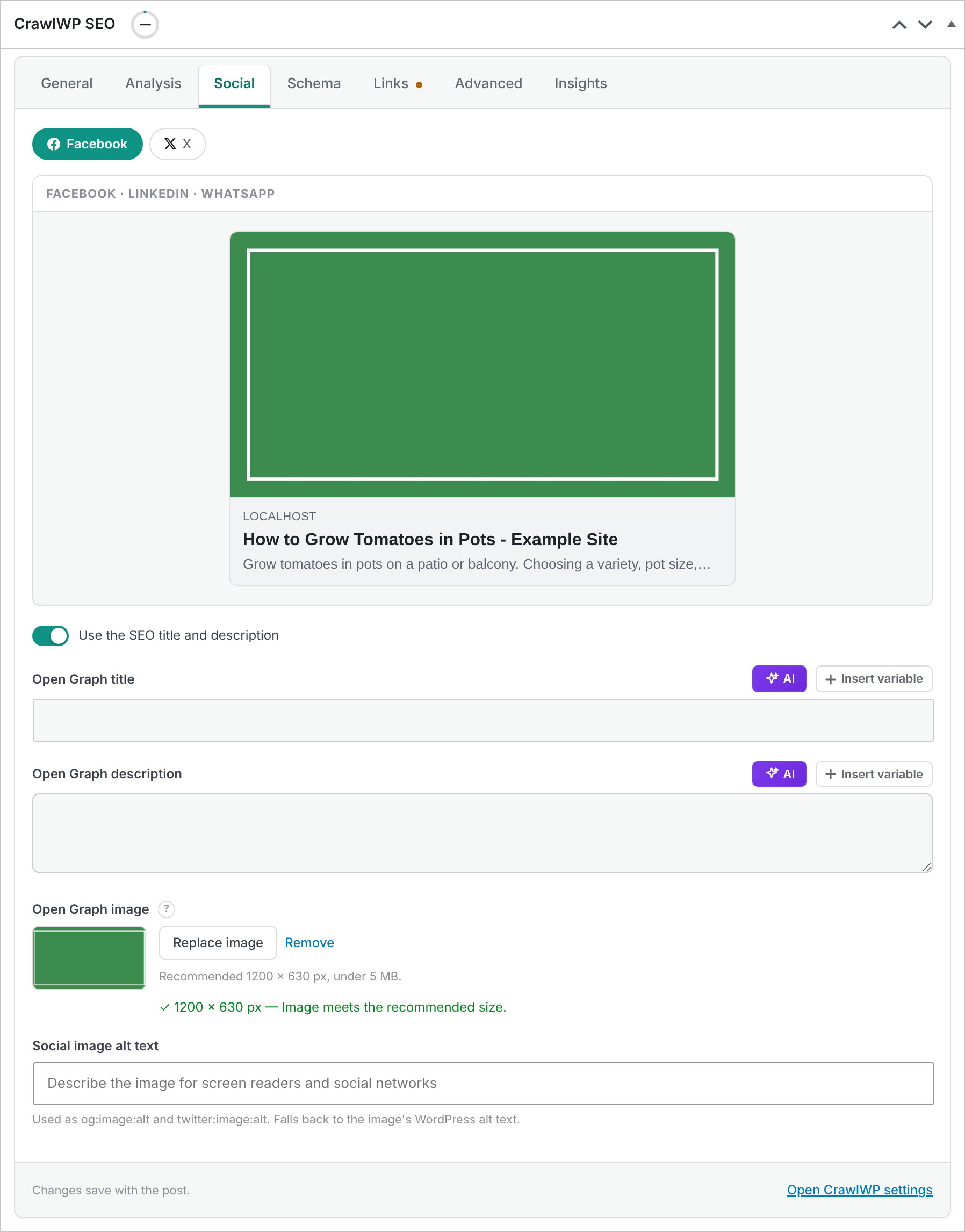
The Open Graph image is used by Facebook, LinkedIn, WhatsApp, and other platforms that read Open Graph metadata. X can also use this image when you have not configured a separate X image for the post or for the relevant post type.
Use a Different Image on X
You may prefer a wider image for X or want completely different artwork for that platform. CrawlWP lets you set a separate image for the individual post.
- Open the post’s Social tab in the CrawlWP SEO box.
- Click X.
- Under the X image, click Replace image and choose or upload an image.
- For large image cards, use 1200 × 675 pixels.
- Update the post.
Once you save an X-specific image, it takes precedence for X sharing instead of relying on the Open Graph image.
How the Image Override Works
Setting an image on an individual post or page creates a local override. It does not change the default social image configured for the rest of your site.
This is useful when a particular article has a campaign graphic, product image, announcement banner, or other visual that needs to be shown when that URL is shared.
Remove the Custom Image
To return the post to your normal social image settings, click Remove next to the custom image and update the post.
Once the override is removed, CrawlWP falls back to its default image selection order: the post type’s social image, then the featured image, and finally the default social image. See Setting a default social sharing image.
Write Useful Social Image Alt Text
The Social image alt text field is used for both Open Graph and X image metadata:
og:image:alt and twitter:image:alt
Describe what the image represents rather than stuffing it with keywords. For example, an article about a WordPress plugin could use a description such as “CrawlWP SEO settings screen showing social sharing options”.
When the field is empty, CrawlWP uses the image’s existing alt text from the WordPress Media Library. The same social image alt text is used for the X image as well.
Customize the Social Title and Description
The social image is independent of the title and description displayed with the share card. You can customize those fields for an individual post too.
- Open the Social tab in the CrawlWP SEO box.
- Turn off Use the SEO title and description.
- Enter your own Open Graph title and Open Graph description.
- Update the post.
This lets you keep your search result title and description focused on SEO while creating social copy that is more suitable for sharing. See Setting up Open Graph for Facebook.
Choose Images That Work Well on Social Platforms
- Use the recommended dimensions. Start with 1200 × 630 pixels for Open Graph sharing and 1200 × 675 pixels for large X image cards.
- Keep important text away from the edges. Social platforms can crop or resize images depending on the device and sharing context.
- Use a clear subject. The main visual should remain understandable even when the preview is displayed at a smaller size.
- Compress large files. CrawlWP recommends keeping social images below 5 MB. Smaller files are generally easier to load and process.
Check the Generated Social Metadata
After updating the post, inspect the page source or use a social preview/debugging tool to verify that the expected image is being output. This is especially useful when the site has caching, another SEO plugin, or custom code that may affect social metadata.
If the page has separate images configured for Facebook and X, verify each platform’s metadata independently so you know the correct image is being supplied for each service.
Troubleshooting Social Image Problems
Facebook is still showing the old image
Social platforms may cache previously generated previews. Open the Facebook Sharing Debugger at https://developers.facebook.com/tools/debug/, enter the post URL, and click Scrape Again to request a fresh preview.
The image is cropped incorrectly
Check the dimensions of the uploaded image. For Open Graph sharing, use 1200 × 630 pixels. For a large X image card, use 1200 × 675 pixels. Also keep important text and visual elements away from the edges.
The image is too large
Try resizing or compressing the file so it is below 5 MB. Extremely large images can increase page and preview processing time and may cause problems with some social platforms.
The featured image is still being used
Make sure the replacement image was actually saved and that you clicked Update on the post. If you set an X-specific image, also check that the X section contains the image you expect.
An individual social image override gives you more control over how important posts and pages look when shared. For most content, your site’s default settings are sufficient, but custom images are useful whenever a particular URL needs a more relevant or campaign-specific visual.