
A social sharing image is the image that appears when someone shares one of your URLs on platforms such as Facebook, LinkedIn, WhatsApp, or X. CrawlWP can choose an image from the content itself, but some pages may not have a suitable image.
The Social Image Fallback gives those pages a default image to use when CrawlWP cannot find another applicable image. A branded image, logo, or general site graphic works well for this purpose.
Set the Social Image Fallback
- Go to CrawlWP > Settings.
- Make sure the Settings tab at the top is selected, then click Social Networks in the left-hand menu.
- Under Social Image Settings, click Choose Image next to Social Image Fallback.
- Select an image from the Media Library or upload a new one.
- Click Save Changes.
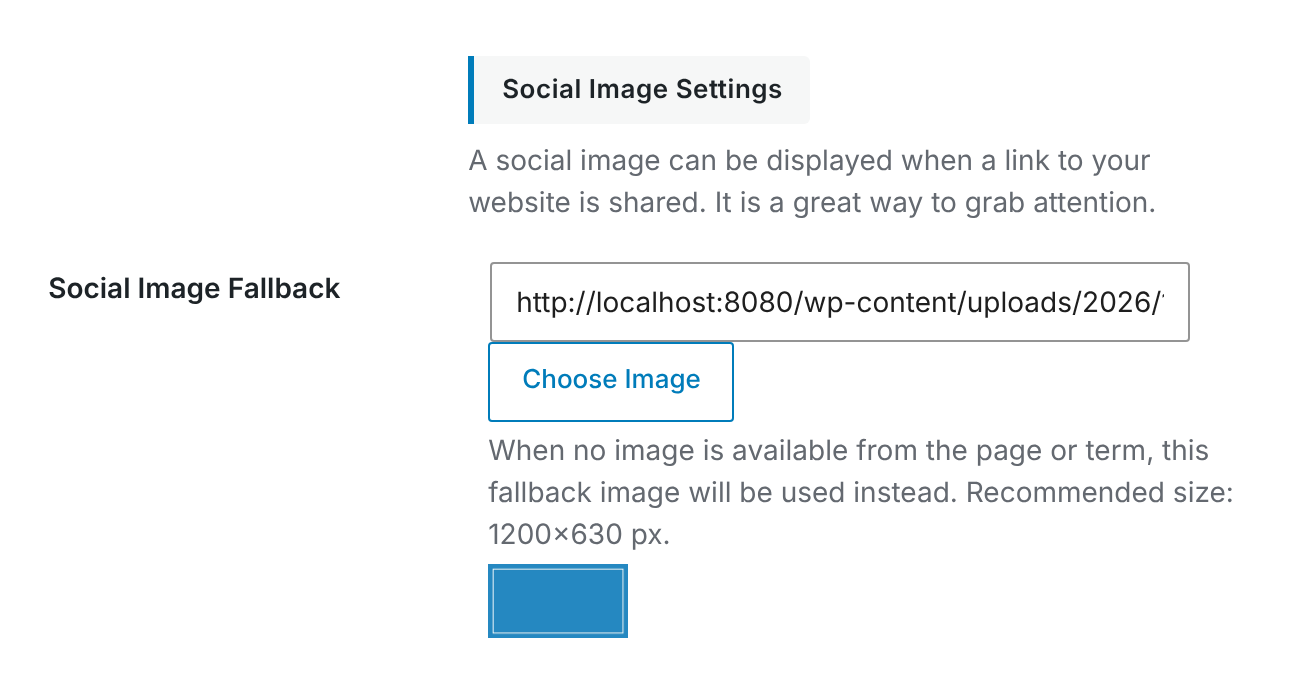
CrawlWP recommends using an image around 1200 × 630 pixels. This aspect ratio works well for Open Graph previews and is suitable for many social sharing platforms.
Choose an image that still makes sense when it is displayed alongside different types of content. A simple branded banner, logo treatment, or site-wide promotional graphic is usually a better fallback than an image that refers to a single article.
How CrawlWP Selects an Image
CrawlWP does not immediately use the fallback image for every page. It checks for more specific images first and only reaches the fallback when none of those sources provide an image.
- Open Graph image set on the individual post in the Social tab of the CrawlWP SEO box.
- Social image (OG) configured for the relevant post type, taxonomy, or page type on the Title & Meta tab.
- The post’s featured image.
- Social Image Fallback configured under Social Networks.
This means setting a site-wide fallback does not replace featured images. A post that has a featured image and no higher-priority social image normally continues to use that featured image.
How X Chooses Its Image
X has its own image setting, so its selection can differ from the Open Graph image other platforms use.
- CrawlWP first checks the individual post’s X image.
- It then checks the X/Twitter image configured for the relevant post type, taxonomy, or page type on the Title & Meta tab.
- When neither is configured, X uses the same image selected for Facebook and other Open Graph-based sharing.
Use a separate X image when you need a different crop, layout, or design for that platform.
Set a Different Default for a Specific Section
A single fallback image may not be ideal for every part of a large website. CrawlWP lets you configure social images for individual post types, taxonomies, and other page types.
- Go to CrawlWP > Settings and open the Title & Meta tab.
- Select the relevant post type, taxonomy, or page from the left-hand menu.
- Set the Social image (OG) and, when needed, the X/Twitter image.
- Click Save Changes.
For a post type, the configured Social image (OG) takes priority over the post’s featured image. Leave this setting empty when you want individual posts to fall back to their own featured images.
Choose the Right Level of Control
There are three useful levels of social image control in CrawlWP:
| Setting | Best used for |
|---|---|
| Individual post image | A specific article, page, campaign, or product that needs a custom visual. |
| Post type or taxonomy social image | A consistent image style for a section of the website. |
| Social Image Fallback | A final image to use when no more specific image is available. |
This hierarchy lets you keep a consistent default across the site while still giving important pages their own images.
Homepage Social Images
The homepage has a special case. When your homepage displays a static WordPress page, the Homepage settings on the Title & Meta screen do not provide image fields.
To give the homepage a specific social image, open the page assigned as your homepage and set the image from its Social tab in the CrawlWP SEO box. You can also give that page a featured image and let it participate in CrawlWP’s normal image selection.
Make Your Default Image Social-Friendly
- Use a clear design. The image should still make sense when shown as a small social preview.
- Keep important elements visible. Logos, headlines, and key graphics should not sit too close to the edges.
- Use consistent branding. A fallback image is often seen on pages without their own imagery, so it should represent the site well.
- Keep the file reasonably sized. Compress large images before uploading them to avoid unnecessarily heavy social assets.
Check Which Image a Page Is Using
If you are unsure which image CrawlWP will use, inspect the page’s Social settings and check whether a more specific image has been configured. Remember that an individual Open Graph image, a post type image, and a featured image can all take precedence over the fallback image.
You can also inspect the generated page source or use a social preview/debugging tool to confirm the image URL being output in the Open Graph metadata.
Troubleshooting the Default Social Image
Shared links still show no image
Confirm that you selected an image and clicked Save Changes. Then test the page again. Social networks may cache an earlier preview, so you may need to ask the platform to fetch the URL again.
On Facebook, you can use the Sharing Debugger and click Scrape Again to request a refreshed preview.
A post is showing the fallback instead of its featured image
First confirm that the post actually has a featured image and has been updated. Then check whether a Social image (OG) is configured for its post type or whether an individual Open Graph image has been set. Those settings have a higher priority than the featured image.
Every post uses the same image
Check the relevant post type under the Title & Meta tab. If a Social image (OG) has been set there, it takes precedence over individual featured images. Remove that post type image when you want each post to use its own featured image.
X shows a different image than Facebook
Check whether an X image is set on the individual post or an X/Twitter image is configured for the relevant post type or page type. X-specific settings take priority over the shared Open Graph image.
A well-chosen fallback image ensures that pages without their own suitable artwork can still produce a consistent social preview. Configure it as the final fallback, then use post-specific or section-specific images where a more relevant visual will improve how individual URLs are shared.