
CrawlWP template variables let you build SEO titles, meta descriptions, and social metadata automatically from information already stored in WordPress. Instead of writing the same structure repeatedly, you can create one template and let CrawlWP insert the relevant page, post, term, author, date, or WooCommerce information.
This reference explains the variables available in CrawlWP, what each one returns, where you can use it, and what happens when a variable has no value. It is also useful when creating templates for posts, pages, custom post types, taxonomy archives, author archives, search pages, and WooCommerce products.
How CrawlWP variables work
A CrawlWP variable is written between double curly brackets. For example:
{{ post.title }}When CrawlWP generates the page, it replaces the variable with the corresponding value. Variables can also be combined with normal text and other variables:
{{ post.title }} {{ sep }} {{ site.title }}On a post titled “Composting for Beginners”, this could produce something like “Composting for Beginners – Example Site”.
You can use variables in several places:
- SEO title and meta description fields for posts, pages, custom post types, and terms
- SEO templates under CrawlWP > Settings > Title & Meta
- Social title and social description fields
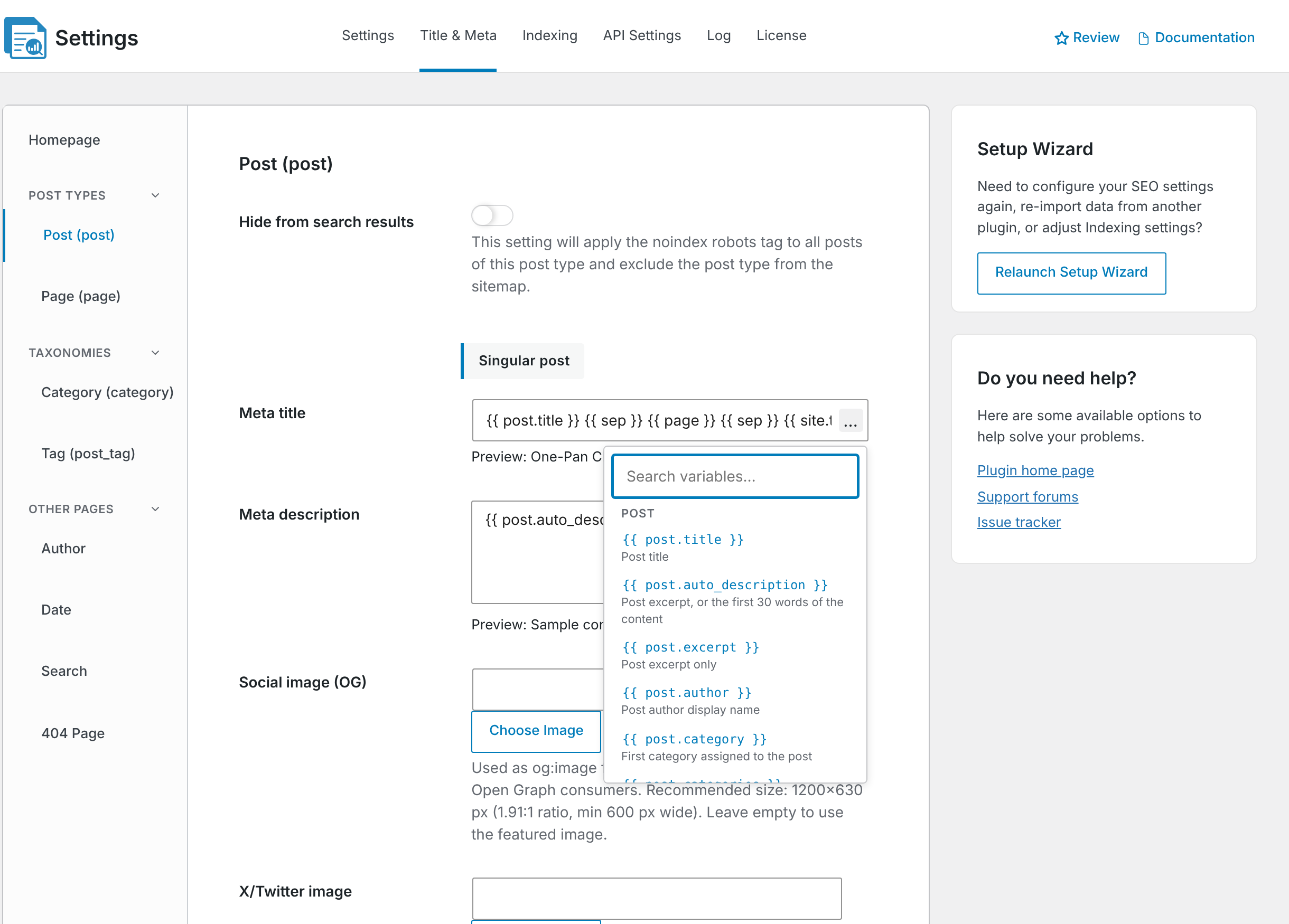
Insert variables from the variable picker
You do not have to remember every variable name. CrawlWP provides a variable picker when you create templates.
- Go to CrawlWP > Settings > Title & Meta.
- Open the template field you want to edit.
- Click the … button at the end of the field.
- Search for the variable you need or browse the available options.
- Click a variable to insert it into the field.
In the CrawlWP SEO box on an individual post or page, click Insert variable to open a shorter list containing the most commonly used options. Variables not shown in that menu can still be entered manually.
For the complete list of supported variables, use the reference below.
Rules to remember
- Variable names are case-insensitive. Uppercase and lowercase letters in a variable name do not change its meaning.
- Empty values produce nothing. If a variable has no value for the current page, CrawlWP leaves that part of the template empty. For example,
{{ post.excerpt }}produces nothing when the post has no excerpt. - Unknown variables are removed. CrawlWP does not output an unrecognized variable as visible text.
- CrawlWP cleans up the final result. After replacing variables, it removes unnecessary separators at the beginning or end, combines repeated separators, and removes extra spaces.
- Variables depend on the page context. A post variable makes sense on a post or page, term variables are intended for taxonomy archives, author variables are for author archives, and so on.
For example, a template such as {{ post.title }} {{ sep }} {{ page }} {{ sep }} {{ site.title }} does not produce a double separator on page 1. Because {{ page }} is empty there, CrawlWP cleans up the unused separator and produces a result such as “Composting for Beginners – Example Site”.
General variables
These variables can be used across the site wherever CrawlWP supports template variables.
| Variable | What it returns |
|---|---|
{{ sep }} | The title separator configured on the Homepage screen under the Title & Meta tab. |
{{ page }} | The pagination label on page 2 and later, such as “Page 2 of 7”. It is empty on page 1. |
{{ site.title }} | Your WordPress site title from Settings > General. |
{{ site.description }} | Your WordPress tagline from Settings > General. |
{{ site.url }} | The home URL of your website. |
{{ current.year }} | The current year, such as “2026”. |
{{ current.month }} | The current month name, such as “October”. |
{{ current.day }} | The current day of the month, such as “2”. |
{{ current.date }} | Today’s date using your site’s configured date format. |
{{ current.time }} | The current time using your site’s configured time format. |
Post variables
These variables are available for posts, pages, and custom post types. On the page used as your blog posts page, the post variables use information from that selected page.
| Variable | What it returns |
|---|---|
{{ post.title }} | The title of the current post, page, or custom post type item. |
{{ post.auto_description }} | The post excerpt when available, or the first 30 words of the content when there is no excerpt. |
{{ post.excerpt }} | The excerpt only. It does not fall back to content. |
{{ post.author }} | The author’s display name. |
{{ post.category }} | The primary category when one has been selected, otherwise the first category. |
{{ post.categories }} | All categories assigned to the post, separated by commas. |
{{ post.tag }} | The first tag assigned to the post. |
{{ post.tags }} | All tags assigned to the post, separated by commas. |
{{ post.parent_title }} | The title of the parent page. Empty when the page has no parent. |
{{ post.date }} | The publication date using your site’s configured date format. |
{{ post.modified }} | The last modified date using your site’s configured date format. |
{{ post.url }} | The current permalink. |
{{ post.thumbnail_url }} | The URL of the post’s featured image. |
{{ post.focus_keyword }} | The first focus keyword entered on the Analysis tab. |
{{ post.custom_field.key }} | The value stored in a custom field. Replace key with the actual field name, such as {{ post.custom_field.subtitle }}. When the custom field has multiple values, they are separated by commas. |
{{ post.taxonomy.slug }} | The terms assigned to the post in a taxonomy, separated by commas. Replace slug with the taxonomy name, such as {{ post.taxonomy.product_cat }}. |
Taxonomy term variables
Use these variables when building metadata for category, tag, and other taxonomy term archives.
| Variable | What it returns |
|---|---|
{{ term.title }} | The name of the current term. |
{{ term.auto_description }} | The first 30 words of the term description. When no description exists, it outputs “Browse all content filed under” followed by the term name. |
{{ term.description }} | The term description without the automatic fallback. |
{{ term.parent }} | The name of the parent term. Empty when there is no parent. |
{{ term.count }} | The number of items assigned to the term. |
For important categories and other taxonomy archives, adding a useful term description can make {{ term.auto_description }} much more meaningful than relying on the fallback text.
Author variables
These variables are intended for author archive pages.
| Variable | What it returns |
|---|---|
{{ author.display_name }} | The author’s display name. |
{{ author.auto_description }} | The first 30 words of the author’s biography. If the biography is empty, CrawlWP uses “Read all articles written by” followed by the author’s name and site title. |
{{ author.first_name }} | The author’s first name. |
{{ author.last_name }} | The author’s last name. |
{{ author.nickname }} | The author’s nickname. |
{{ author.website }} | The website URL stored in the author’s WordPress profile. |
{{ author.posts_count }} | The number of posts written by the author. |
Archive and search variables
These variables are useful for archive, date archive, and search result templates.
| Variable | What it returns | Typical location |
|---|---|---|
{{ post_type.plural_name }} | The plural name of the current post type, such as “Posts”. | Post type archives and the blog posts page. |
{{ post_type.name }} | The singular name of the current post type, such as “Post”. | Post type archives, single posts, and pages. |
{{ post_type.description }} | The description of the current post type. | Post type archives. |
{{ date.archive_title }} | The formatted archive date, such as “October 2026”. | Date archives. |
{{ date.year }} | The year represented by the archive. | Date archives. |
{{ date.month_name }} | The month name represented by the archive. | Date archives. |
{{ date.day }} | The day represented by the archive. | Date archives. |
{{ search.query }} | The search terms entered by the visitor. | Search results. |
{{ search.results_count }} | The number of results returned by the search. | Search results. |
WooCommerce product variables
These variables are available for WooCommerce product pages and can be useful when creating product-specific SEO or social templates.
| Variable | What it returns |
|---|---|
{{ product.price }} | The product price. |
{{ product.price_with_tax }} | The product price including tax. |
{{ product.sale_from }} | The date when the sale price starts. |
{{ product.sale_to }} | The sale end date. When no end date is set, CrawlWP returns a date one month in the future. |
{{ product.sku }} | The product SKU. |
{{ product.stock }} | The product’s stock status. |
{{ product.currency }} | The product currency. |
{{ product.rating }} | The average product rating. |
{{ product.review_count }} | The total number of reviews. |
{{ product.low_price }} | The lowest price of a variable product. |
{{ product.high_price }} | The highest price of a variable product. |
{{ product.offer_count }} | The number of variations available for a variable product. |
Useful template examples
Variables become much more useful when combined with fixed text. Here are a few examples of how they can be used in different situations.
| Use case | Example template | Example result |
|---|---|---|
| Blog post title | {{ post.title }} {{ sep }} {{ site.title }} | Composting for Beginners – Example Site |
| Post description | {{ post.auto_description }} | The post excerpt or automatic description. |
| Category title | {{ term.title }} {{ sep }} {{ site.title }} | Gardening – Example Site |
| Author title | {{ author.display_name }} {{ sep }} {{ site.title }} | Jane Smith – Example Site |
| Product title | {{ post.title }} {{ sep }} Buy Online | Organic Compost – Buy Online |
| Product title with brand | {{ post.title }} {{ sep }} {{ site.title }} | Organic Compost – Example Store |
Use variables to build scalable SEO templates
The main advantage of template variables is that one SEO rule can produce unique metadata for hundreds or thousands of URLs. This is particularly helpful for blogs, online stores, directories, documentation sites, and large custom post type websites.
- Use the page-specific variable first. For posts,
{{ post.title }}is usually more useful than repeating a fixed title. - Add your brand where appropriate.
{{ site.title }}can provide consistency across search results. - Use fallback variables when possible.
{{ post.auto_description }}is more flexible than{{ post.excerpt }}when many posts do not have manually written excerpts. - Avoid unnecessary repetition. A template should generate useful metadata, not the same collection of words on every page.
- Customize important pages. Templates are excellent defaults, but high-value pages may benefit from manually written SEO titles and descriptions.
Be careful with variables in SEO titles
A template can save time, but the final value is what search engines see. A variable that produces a very long name, category, or custom field can make the resulting title less useful.
After creating a template, preview several real pages rather than checking only one example. Pay particular attention to content with unusually long titles, missing excerpts, multiple categories, custom fields, or different product configurations.
Variables and pagination
The {{ page }} variable is useful when the same template needs to identify later pages in a paginated set. It remains empty on page 1 and produces a label such as “Page 2 of 7” on subsequent pages.
Because CrawlWP removes unused separators, templates can safely contain {{ sep }} {{ page }} without creating awkward output on the first page.
Variables for custom fields and taxonomies
The custom field and taxonomy variables are especially useful for sites built around custom post types.
For example, {{ post.custom_field.subtitle }} can pull information from a custom field named subtitle. Likewise, {{ post.taxonomy.product_cat }} can return the product categories assigned to an item.
Replace the example field or taxonomy names with the exact keys used by your WordPress installation. If the field or taxonomy does not contain a value, CrawlWP leaves that variable empty.
What happens when a variable has no value?
Not every page has every piece of information. A page may not have an excerpt, a parent, a category, a tag, a focus keyword, or another optional value. In those cases, CrawlWP does not print empty placeholder text for the variable.
This makes templates with optional information more practical. You can combine variables and let CrawlWP remove the unused parts from the final result.
SEO best practices when using template variables
- Keep templates descriptive. The generated title should make sense even when someone sees it without the rest of your website.
- Do not force keywords into every variable. Use terms that naturally describe the page rather than repeating keywords for their own sake.
- Use your strongest templates on scalable content. A good product, post, or taxonomy template can save a large amount of manual SEO work.
- Review generated metadata regularly. Changes to your WordPress content, custom fields, or taxonomy structure can change what a variable outputs.
- Check the final rendered result. A template can be technically valid while still generating poor titles or descriptions for some pages.
Troubleshooting template variables
The variable appears as plain text. Check that the variable uses the correct double-curly-bracket syntax, such as {{ post.title }}. If you copied a variable format from another SEO plugin, replace it with the CrawlWP equivalent.
The variable produces nothing. Make sure that variable actually has a value for the current page. For instance, {{ post.excerpt }} is empty when no excerpt exists. When you need a fallback based on the post content, use {{ post.auto_description }}.
An unknown variable disappears. CrawlWP removes variables it does not recognize. Check the spelling against this reference or insert the variable using CrawlWP’s picker.
The generated title contains awkward separators or spaces. CrawlWP normally cleans up unused separators and extra spaces after replacing variables. If the result is still incorrect, review the fixed text around your variables and make sure you have not added duplicate punctuation yourself.
The preview looks different from an actual page. A template preview is based on sample content. Test several real posts, terms, products, or archive pages to see how the variables behave with different data.
A custom field variable is empty. Check the exact custom field key in WordPress. For example, {{ post.custom_field.subtitle }} only works when the relevant custom field is actually named subtitle and contains a value.
A taxonomy variable does not return the expected terms. Check that the taxonomy name in the variable matches the registered taxonomy slug. For example, use {{ post.taxonomy.product_cat }} for the WooCommerce product category taxonomy.
A practical way to use CrawlWP variables
Start with a simple template that produces a clear title and description for most of your content. Test it on several real URLs, including pages with missing optional data. Once the basic template works, add variables for information that genuinely improves the metadata.
For important pages, do not hesitate to replace the generated value with a manually written SEO title or description. The purpose of variables is to make SEO easier at scale, not to prevent you from giving high-value pages individual attention.