
Category and tag pages can attract valuable search traffic, but only when set up properly.
CrawlWP gives you control over the SEO title, meta description, social information, robots directives, and other search settings for taxonomy archives across your WordPress website.
You can create one set of defaults for an entire taxonomy and then customize individual terms when a category or tag needs its own SEO settings. This is useful for standard WordPress taxonomies as well as custom taxonomies created by plugins.
Open the taxonomy search settings
- Log in to WordPress and go to CrawlWP > Settings.
- Select the Title & Meta tab.
- Find Taxonomies in the menu on the left.
- Choose the taxonomy you want to manage, such as Category (category) or Tag (post_tag).
CrawlWP displays public taxonomies registered on your website. Depending on the plugins you use, this can include custom taxonomies such as WooCommerce product categories.
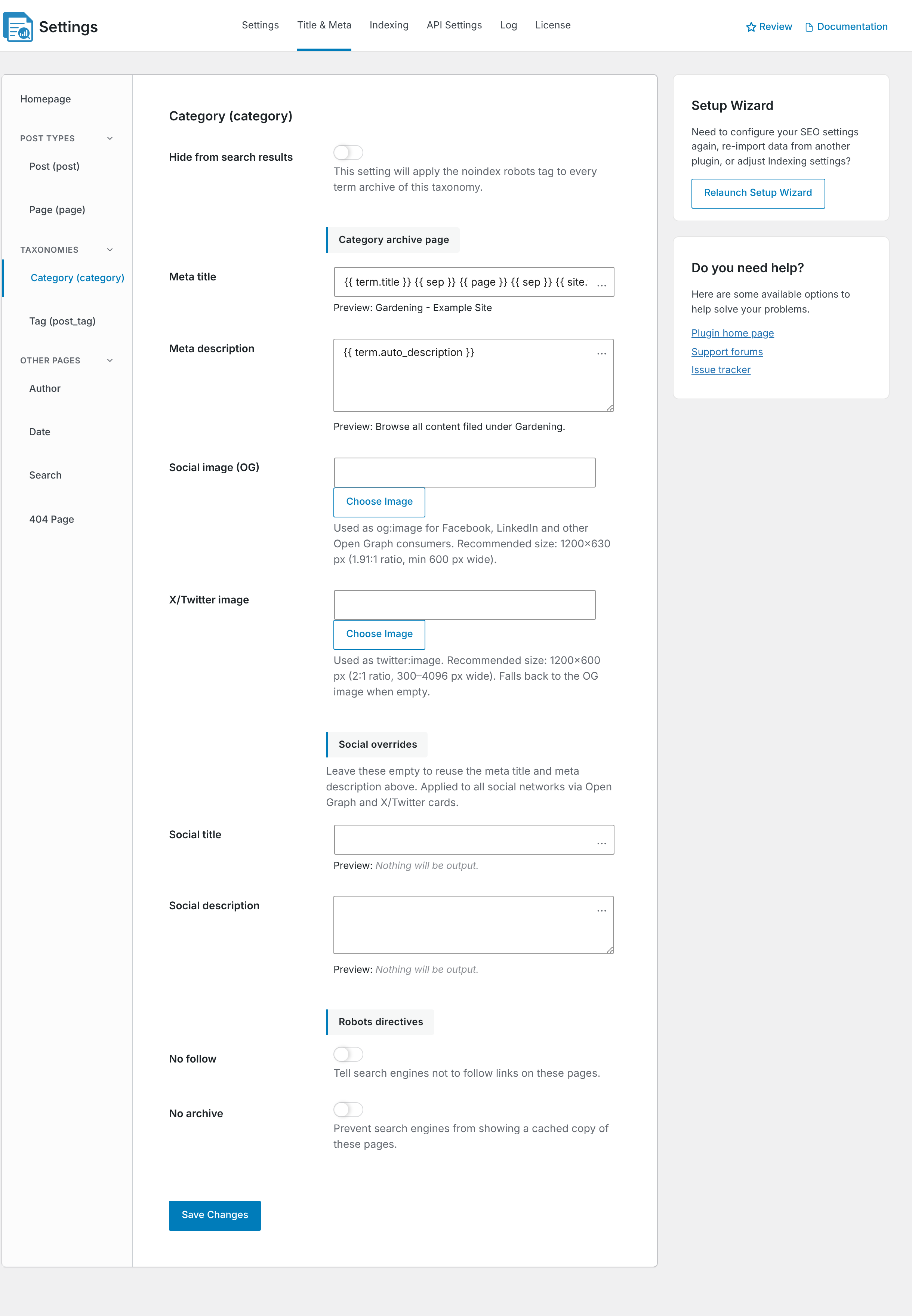
Configure the taxonomy defaults
The settings on this screen become the default SEO configuration for every term in the selected taxonomy unless an individual term has its own settings.
- Hide from search results: adds
noindexto the taxonomy’s term archive pages and removes the taxonomy from CrawlWP’s XML sitemap. - Meta title: provides the default SEO title for terms that do not have a custom title.
- Meta description: supplies the fallback description for terms without their own meta description.
- Social image (OG): specifies the default image used when a taxonomy archive is shared on platforms that support Open Graph data.
- X/Twitter image: sets the default image used when the term archive is shared on X.
- Social title: lets you use a separate title for social sharing instead of the normal SEO title.
- Social description: provides separate social-sharing text when you do not want to reuse the regular meta description.
- No follow: adds
nofollowto the term archive pages in this taxonomy. - No archive: adds the
noarchiverobots directive to the term archive pages.
These options are designed to give you a consistent starting point for the entire taxonomy. You can still make changes to specific categories, tags, or other terms later.
Default SEO title and meta description
The title and description fields support CrawlWP template variables, so the same template can automatically produce different metadata for each term. Click the … button beside a field to insert an available variable.
CrawlWP uses these templates by default:
| Field | Default template |
|---|---|
| Meta title | {{ term.title }} {{ sep }} {{ page }} {{ sep }} {{ site.title }} |
| Meta description | {{ term.auto_description }} |
For the complete list of supported template variables, see Title and meta description template variables (reference).
How the automatic term description works
The {{ term.auto_description }} variable uses the first 30 words from the term’s description. When the term has no description, CrawlWP generates fallback text beginning with “Browse all content filed under” followed by the term name.
For important category pages, it is better to write a useful description instead of relying entirely on the fallback. A well-written category description can give search engines and visitors more context about the content available on the archive.
Make important taxonomy pages search-friendly
Not every category or tag deserves a prominent place in search results. Before indexing a taxonomy, consider whether the archive provides useful, unique content for someone arriving from a search engine.
- Keep important categories indexable when they group valuable content and satisfy a useful search intent.
- Consider noindex for thin, empty, duplicate, or purely administrative taxonomy archives.
- Give important categories descriptive names and useful descriptions rather than relying on generic labels.
- Avoid creating large numbers of near-duplicate tags simply for SEO purposes.
The goal is not to make every taxonomy page rank. The goal is to make the taxonomy archives that can genuinely help users useful and discoverable.
When you finish changing the defaults, click Save Changes.
Customize one category, tag, or term
- Open the WordPress screen for the taxonomy you want to edit. For example, go to Posts > Categories or Posts > Tags.
- Open the term you want to customize.
- Scroll to the CrawlWP SEO section.
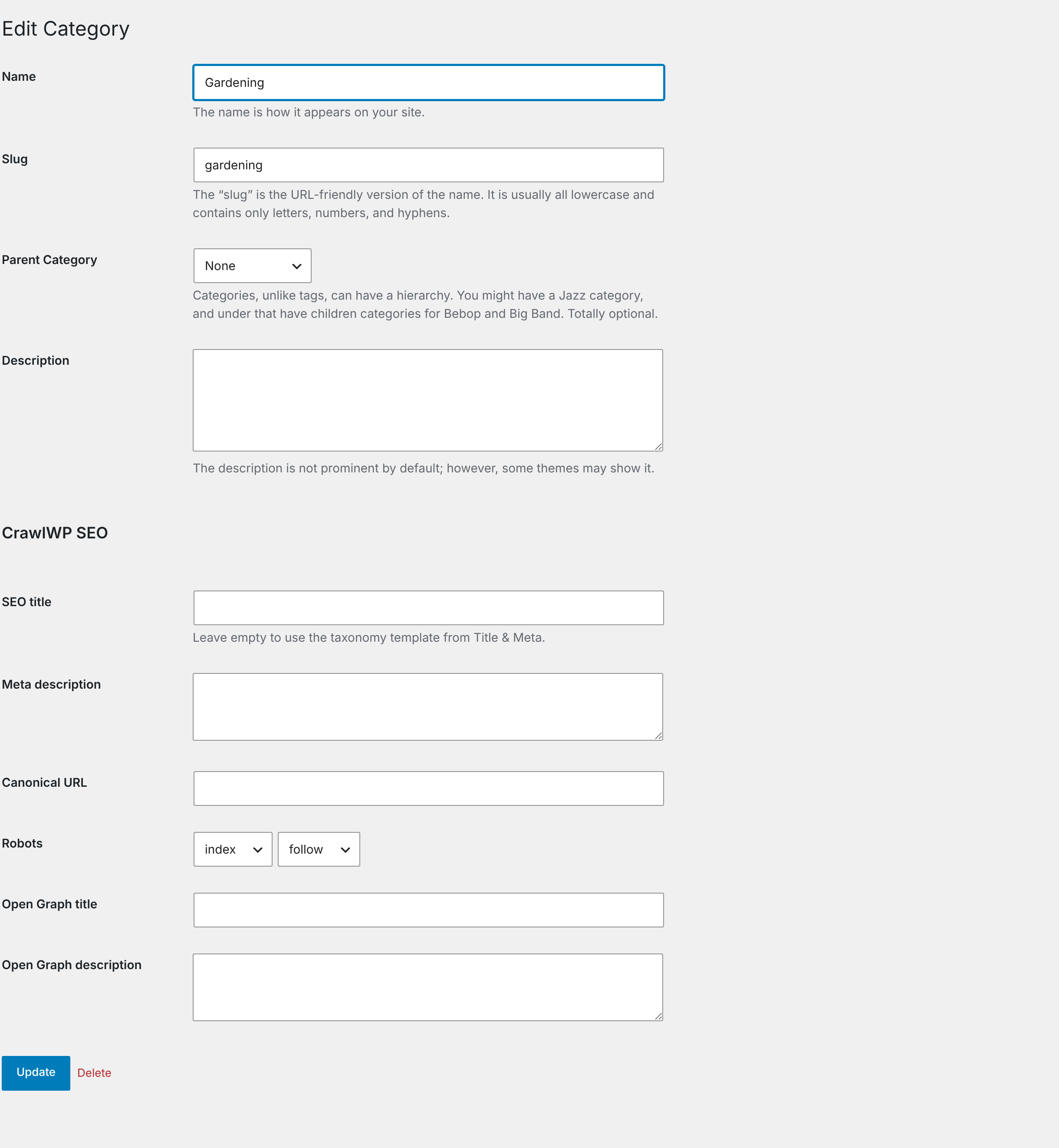
- Set any of the available SEO options for that specific term:
- SEO title: enter a custom search title, or leave it blank to inherit the taxonomy template.
- Meta description: provide a unique description when the default generated text is not suitable.
- Canonical URL: leave this empty to use the term archive’s own URL, or enter a different canonical when there is a specific reason to do so. See Setting the canonical URL for a post.
- Robots: control indexing and link following for the individual term. A term-level value overrides the taxonomy default.
- Open Graph title: use a different title when the term is shared on social networks.
- Open Graph description: set custom social-sharing text for the term.
- Click Update to save the term’s SEO settings.
Individual term settings take priority over the taxonomy defaults. For example, you can have one general title template for all categories but give your most important category a completely different SEO title and description.
Add SEO settings to a new term
When you create a new term, CrawlWP displays the SEO title and Meta description fields on the add-new screen. You can configure the remaining SEO options after you create the term.
After adding the term, open its edit screen to configure its robots settings, canonical URL, and social metadata.
How taxonomy SEO settings are applied
CrawlWP uses a hierarchy when deciding what metadata to output for a term archive.
- A custom SEO value saved on the individual term is used first.
- When no custom value exists, CrawlWP falls back to the template configured for the taxonomy.
This means you do not have to manually configure every term. A taxonomy-level template can handle the majority of your archives while still allowing important terms to have custom SEO data.
Control indexing at the taxonomy level
The Hide from search results option affects the term archives belonging to the entire taxonomy. It adds noindex and removes the taxonomy from CrawlWP’s XML sitemap.
An individual term can override the taxonomy’s indexing behavior. For example, you can hide an entire taxonomy from search and then make one specific term indexable by selecting index on that term.
The opposite works as well. A taxonomy can remain indexable while a particular low-value term is set to noindex.
Write better category and tag titles
Taxonomy pages often target broader topics than individual posts, so their titles should make that clear. A useful title can combine the term name with a short description of what the archive contains and your site or brand name.
Avoid turning category titles into long strings of keywords. The title should be useful to someone scanning a search results page and should accurately describe the content available in the archive.
Write useful taxonomy descriptions
A category or custom taxonomy description gives you an opportunity to explain what visitors can expect to find on that archive. For your most important terms, write original descriptions rather than using the same wording across multiple archives.
This can also make CrawlWP’s automatic meta description more useful because {{ term.auto_description }} uses the term description when generating the default description.
Review your taxonomy pages after making changes
After updating a template or individual term, visit the actual archive page on the front end of your website. Check the browser title, meta description, canonical URL, robots settings, and social metadata where applicable.
- Check one term that uses the taxonomy defaults.
- Check another term that has custom SEO values.
- Review an important category or taxonomy archive manually to make sure its content is useful and unique.
- Inspect the page source when you need to confirm exactly what CrawlWP outputs.
Common taxonomy SEO mistakes
- Indexing every tag: hundreds of thin tag archives can create unnecessary search URLs.
- Using empty categories: an archive with little or no useful content is usually a poor search landing page.
- Repeating the same description: important taxonomy pages should have descriptions that match their specific topics.
- Overusing keywords: make the title and description readable instead of forcing keywords into every field.
- Ignoring custom taxonomies: product categories and other custom taxonomy archives can also become search landing pages and may need their own SEO settings.
- Changing the taxonomy default without checking existing overrides: individual terms with custom SEO values will continue using those values.
Troubleshooting taxonomy search appearance
A taxonomy is missing from the CrawlWP settings. CrawlWP lists public taxonomies. A private or internal taxonomy may not appear, and post formats are not listed as taxonomies here.
A term still has an index directive after the taxonomy was set to noindex. The term probably has its own Robots setting set to index. Edit the term, change its robots setting, and click Update.
The taxonomy template is not being used. Check the individual term’s CrawlWP SEO section. A custom SEO title or meta description saved there takes precedence over the taxonomy template. Clear the custom field when you want the default to apply.
Several terms have nearly identical descriptions. Check whether those terms have their own descriptions. When no description exists, CrawlWP uses its automatic fallback. Add useful, topic-specific descriptions to important terms.
The archive still appears in search after enabling noindex. Search engines need to crawl the archive again before processing the new robots directive. Make sure the page is accessible to crawlers and is not blocked by robots.txt.
The title or description looks unchanged after editing it. Clear your WordPress page cache, hosting cache, or CDN cache and load the taxonomy archive again. Cached HTML can continue showing the previous SEO output until the cache is refreshed.