
CrawlWP does not use a separate set of controls for deciding what goes into your WordPress sitemap. Instead, the XML sitemap follows your site’s search appearance settings. In practice, content that you tell search engines not to index is also excluded from the sitemap.
This approach keeps your sitemap aligned with your indexing settings, so you don’t have to maintain the same exclusions in two places.
What WordPress Includes in the Sitemap
For a standard WordPress installation, the sitemap can include several types of publicly available content:
- Published posts, pages, and other public post types.
- Public category, tag, and other taxonomy archives that contain at least one published post.
- Author archives for users who have published posts.
Some content is excluded automatically. Media attachment pages, drafts, private posts, and scheduled posts are not included in the XML sitemap.
Hide an Entire Post Type or Taxonomy
When you do not want a particular post type or taxonomy to appear in search results, you can hide it from search results in CrawlWP. This also removes it from the WordPress sitemap.
- Go to CrawlWP > Settings and select the Title & Meta tab.
- In the left-hand menu, select the post type under Post Types, or the taxonomy under Taxonomies.
- Enable Hide from search results.
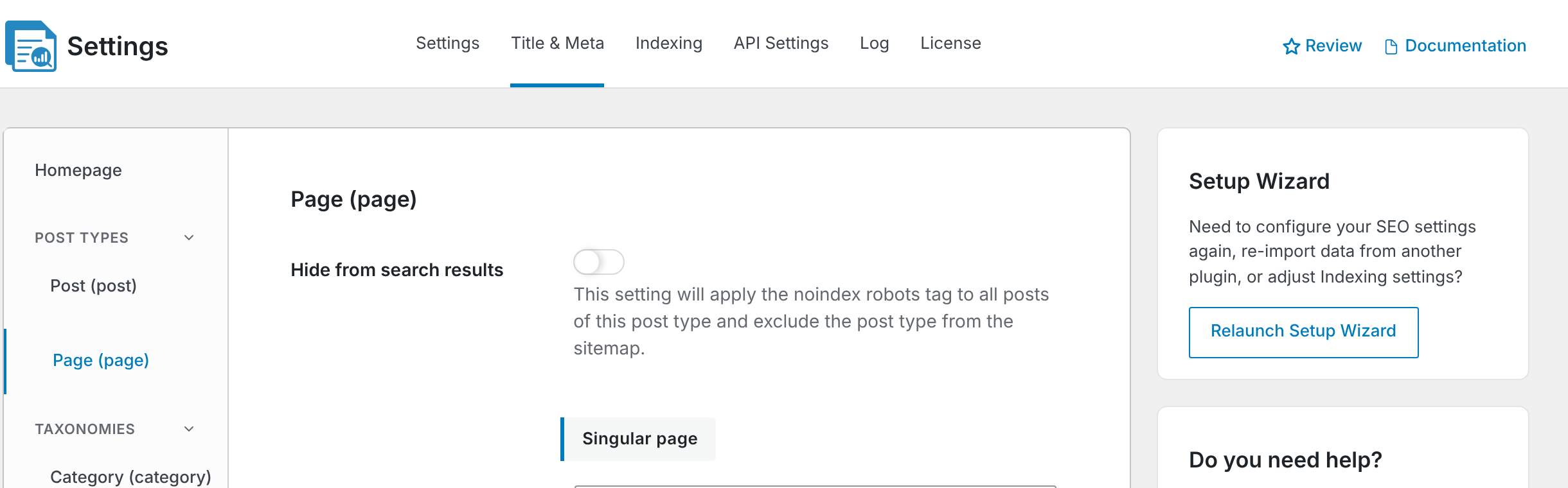
- Click Save Changes.
The post type or taxonomy is removed from the sitemap index, and the corresponding pages receive a noindex directive. For more information, see Search appearance settings for posts, pages and custom post types and Search appearance settings for categories, tags and custom taxonomies.
Remove Author Archives From the Sitemap
You can also prevent WordPress author archive pages from appearing in search results and the sitemap.
- Open CrawlWP > Settings and select the Title & Meta tab.
- Click Author under Other Pages.
- Enable Hide from search results.
- Click Save Changes.
The author sitemap, wp-sitemap-users-1.xml, is then removed from the sitemap index.
Exclude an Individual Post or Page
You do not have to hide an entire post type just because one particular page or post should not be indexed. CrawlWP lets you change the indexing setting on an individual piece of content.
- Open the post or page in the WordPress editor.
- Find the CrawlWP SEO box below the content and open the Advanced tab.
- Set Allow indexing to No.
- Update the post or page.
The URL is removed from the sitemap and receives a noindex directive. See Noindex, nofollow and other robots directives per post for more information.
Password-Protected Content Is Excluded Automatically
WordPress does not include password-protected posts and pages in the sitemap. You do not need to add a separate CrawlWP setting to exclude them.
Add URLs That WordPress Does Not Manage
Your XML sitemap can contain more than WordPress posts and pages. When an important page on your domain is managed outside WordPress, such as a static landing page, web application, or separate checkout, you can add it through CrawlWP’s custom URLs sitemap.
See Adding custom URLs to your sitemap for instructions. This feature is available in CrawlWP Premium.
How Sitemap Visibility Relates to Indexing
Think of the sitemap as a list of URLs that are eligible to be discovered. Your search appearance and indexing settings determine which WordPress content is considered suitable for that list.
For example, setting a single post to Allow indexing: No does more than add a noindex directive. The post is also removed from the sitemap, keeping the two settings consistent.
Likewise, hiding a complete post type or taxonomy removes the corresponding sitemap entry rather than leaving search engines with a sitemap full of URLs that you have told them not to index.
Check Your Sitemap After Changing Settings
After changing sitemap visibility, it is worth opening your XML sitemap and checking the result. This can help you confirm that the URL, post type, taxonomy, or author archive was removed as expected.
If your site uses page caching, a CDN, or another caching layer, remember that the sitemap itself may also be cached. In that case, you may need to clear the relevant cache before checking the sitemap again.
Troubleshooting Sitemap Entries
A post set to noindex is still listed
Clear the cache from your caching plugin, hosting provider, or CDN, then open the sitemap again. Some caching systems store sitemap XML files just like normal pages.
A hidden post type is still in the sitemap
Return to the Title & Meta tab, confirm that Hide from search results is enabled for the correct post type, and click Save Changes. Then clear any relevant cache.
A category or tag is missing
Check that the term has at least one published post. Empty taxonomy terms are not included in the sitemap.
A published page is missing
Make sure the page is published, is not password-protected, and has Allow indexing set to Yes in the Advanced tab of the CrawlWP SEO box. Also check that its post type has not been hidden from search results.
Keep Your Sitemap Focused
A useful XML sitemap should contain URLs that you actually want search engines to discover. Instead of looking for a separate sitemap switch for every content type, use CrawlWP’s search appearance and indexing settings to control what belongs in the sitemap.
For site-wide exclusions, use Hide from search results. For individual URLs, use Allow indexing. For pages outside WordPress, use the custom URL sitemap. This gives you a straightforward way to keep your sitemap aligned with the content you want indexed.