
Not every page on a website is necessarily managed by WordPress. You might have a static landing page, a web application installed in a sub-folder, or a separate checkout that lives on the same domain.
CrawlWP lets you add these URLs to a dedicated sitemap so search engines can discover them alongside your regular WordPress content.
This is useful when important URLs are part of your website but are not included in WordPress’s normal sitemap system. The feature is available in CrawlWP Premium.
Add Custom URLs to Your Sitemap
You can add as many relevant URLs as needed by entering them in the Custom URLs field, with one address on each line.
- Go to CrawlWP > Settings.
- Make sure the Settings tab at the top is selected, then click Sitemap in the left-hand menu.
- Under Additional Custom URLs, enter your URLs in the Custom URLs box, placing each URL on a separate line.
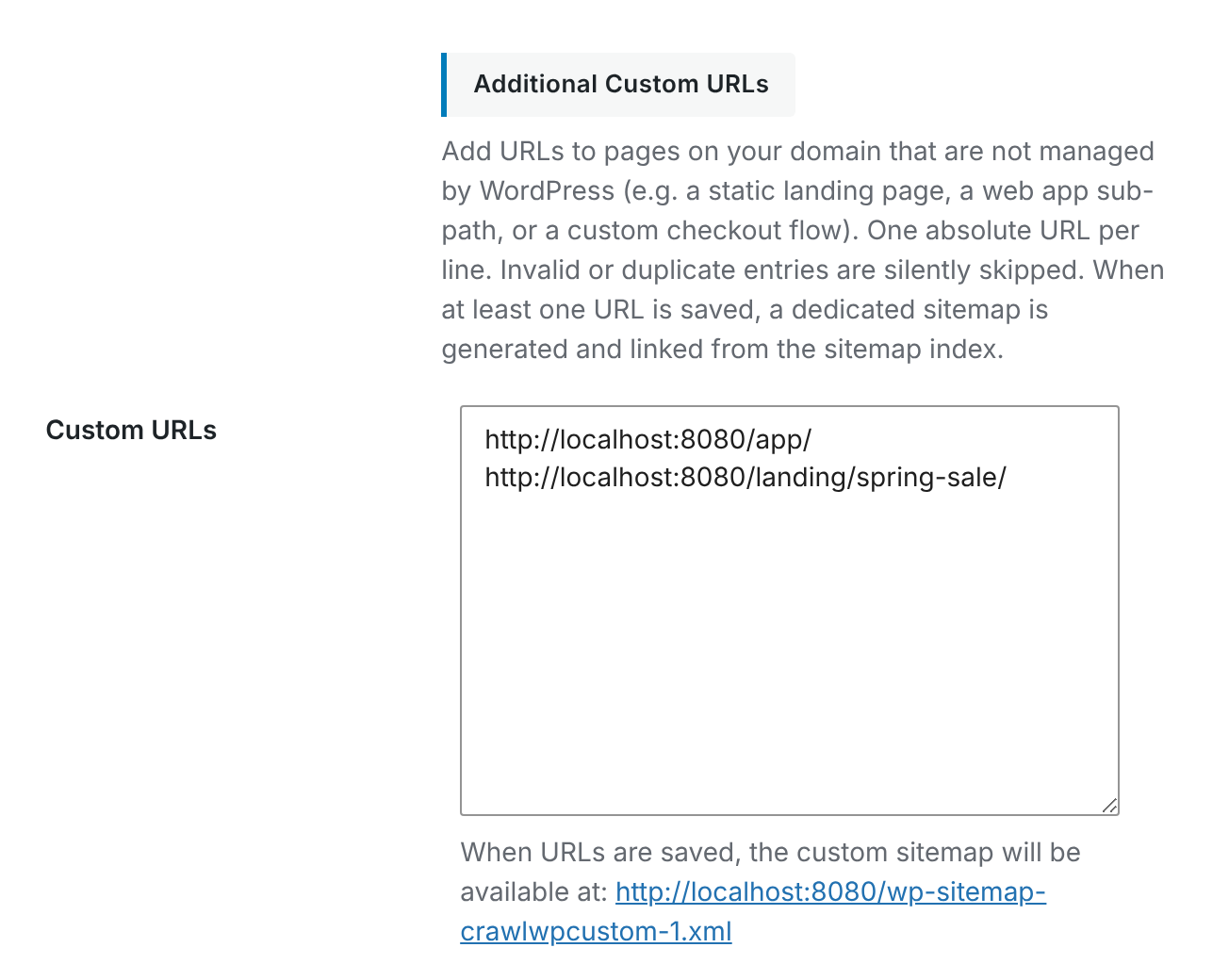
- Click Save Changes.
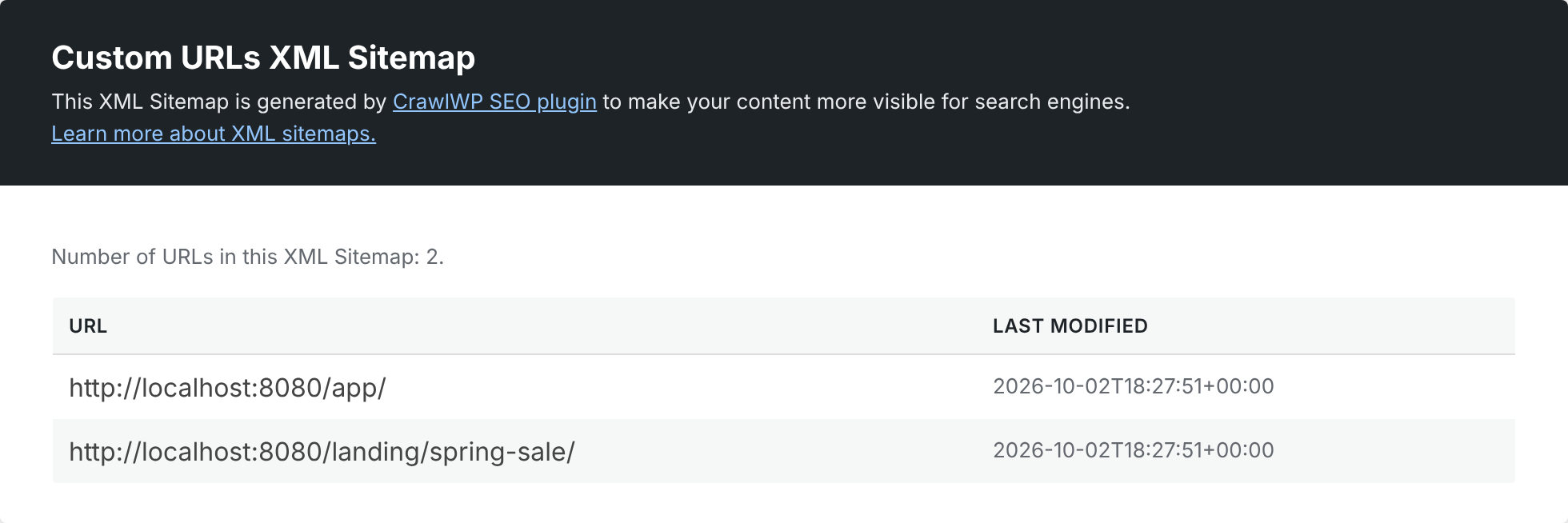
Once at least one valid URL has been saved, CrawlWP generates a separate sitemap for your custom addresses:
https://your-site.com/wp-sitemap-crawlwpcustom-1.xml
CrawlWP also adds this sitemap to your site’s main sitemap index at wp-sitemap.xml. This means search engines can discover the custom URLs through the sitemap index without you having to submit the custom sitemap separately.
What You Can Add
The custom sitemap is designed for URLs that belong to your website but are outside the normal WordPress content system. For example, you might use it for:
- A static HTML landing page hosted in a sub-folder.
- A web application installed under a directory such as
/app/. - A separate checkout or sales page running on the same domain.
- Other publicly accessible pages that WordPress does not manage as posts or pages.
Only add URLs that are useful to visitors and search engines. There is little value in adding private, temporary, duplicate, or otherwise unnecessary URLs to your sitemap.
Rules for Custom Sitemap URLs
CrawlWP processes each line in the Custom URLs field separately. Keep the following rules in mind when entering addresses.
- Use a complete URL. Include the protocol and domain, such as
https://your-site.com/app/. - Missing protocols are not automatically corrected to HTTPS. If you leave out
https://, CrawlWP addshttp://to the beginning of the line, and spaces are converted to%20. Always check the generated sitemap for mistakes after saving. - Paths without a domain are skipped. An entry such as
/app/does not qualify because it is not a complete URL. - Only HTTP and HTTPS URLs are accepted. Entries using schemes such as
ftp:are skipped. - Duplicate URLs are removed. If the same address is entered more than once, it appears only once in the sitemap.
- Blank lines are ignored. You can leave empty lines between entries without affecting the sitemap.
- Comments are supported. A line beginning with
#is ignored, allowing you to leave notes in the URL list.
For best results, use the canonical HTTPS version of each URL and avoid adding multiple variations of the same page, such as URLs that differ only because of unnecessary parameters.
Use URLs From Your Own Domain
Custom sitemap entries should point to URLs on your own website. The feature is intended for adding pages that are part of your domain but are not already managed by WordPress.
For example, if your website is https://example.com, entries such as https://example.com/app/ and https://example.com/checkout/ fit this use case. Do not use the field as a way to build a sitemap for unrelated domains.
How the Last Modified Date Works
CrawlWP assigns the same <lastmod> value to all URLs in the custom sitemap. The value is based on when the Sitemap settings were last changed and saved.
The date is not refreshed simply because you click Save Changes without modifying a setting. It changes when the Sitemap settings are actually updated and saved.
Check the Generated Sitemap After Saving
After saving your URLs, open the generated sitemap in your browser:
https://your-site.com/wp-sitemap-crawlwpcustom-1.xml
Check that the URLs you expected to add are present and that they use the correct protocol, domain, path, and spelling. This is especially important when entering URLs without https://, because CrawlWP will treat them differently rather than silently fixing a typo.
You can also open https://your-site.com/wp-sitemap.xml and confirm that the custom sitemap is listed in the sitemap index.
Removing Custom URLs
To stop CrawlWP from generating the custom URLs sitemap, remove all entries from the Custom URLs field and click Save Changes.
When there are no valid custom URLs left, CrawlWP removes the custom sitemap from the sitemap index. The custom sitemap URL will then return a 404 response.
SEO Considerations for Custom URLs
Adding a URL to a sitemap helps search engines discover it, but being listed in a sitemap does not guarantee that the page will be indexed. The page still needs to be accessible and technically eligible for crawling and indexing.
- The URL should return a normal 200 response.
- The page should not be blocked from crawling by
robots.txt. - The page should not contain a
noindexdirective when you want it indexed. - The URL should represent the preferred version of the page rather than a duplicate or alternate URL.
For SEO purposes, focus on adding valuable, indexable pages rather than trying to fill the sitemap with every URL your application can generate.
Troubleshooting Custom Sitemap URLs
The custom sitemap is not listed in the sitemap index
Make sure at least one valid full URL has been entered in the Custom URLs field and that you clicked Save Changes. Then check wp-sitemap.xml again.
One of my URLs is missing
Check the entry carefully. A path such as /app/ is skipped because it does not include a domain. URLs using unsupported schemes such as ftp: are also skipped.
The URL in the sitemap is incorrect
Review the original line in the Custom URLs field for typing mistakes or a missing protocol. When https:// is omitted, CrawlWP adds http://, so an incomplete entry can produce an unexpected URL.
The custom sitemap returns a 404 error
A 404 response for the custom sitemap normally means there are no valid custom URLs saved. Add at least one valid full URL and save the Sitemap settings.
The page is in the sitemap but is not being indexed
Verify the page itself rather than the sitemap entry. Make sure it is publicly accessible, returns a normal 200 response, is not blocked by robots.txt, and does not contain a noindex directive.
Best Practices When Adding Custom URLs
- Add only important URLs. Include useful pages that you want search engines and visitors to discover.
- Prefer the canonical HTTPS URL. This avoids creating unnecessary protocol variations.
- Verify the generated sitemap. Open the XML sitemap after making changes and confirm the URLs are correct.
- Keep your URL list maintained. Remove custom pages that no longer exist or are no longer intended to be indexed.
CrawlWP’s custom URL sitemap is useful for bringing non-WordPress pages into your site’s sitemap structure. By adding valid URLs and checking the generated XML after saving, you can help search engines discover important parts of your website that WordPress does not manage directly.