
When your WordPress site publishes videos, a video sitemap gives search engines a structured list of the videos they can find on your pages.
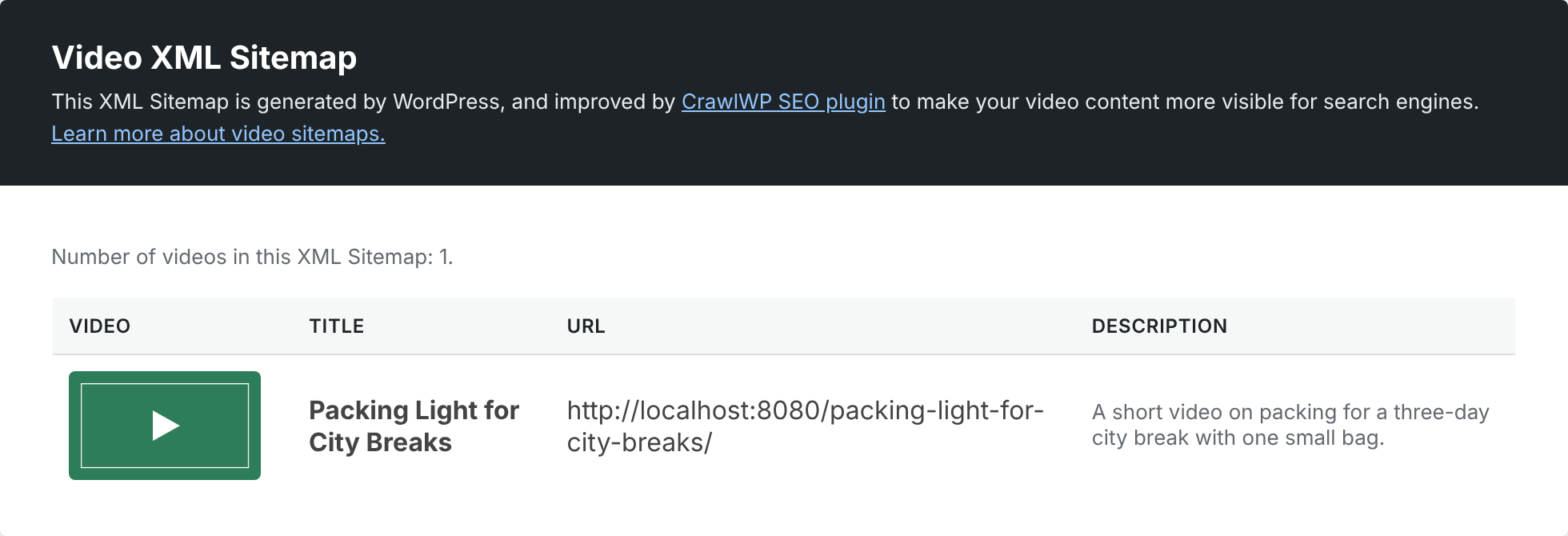
CrawlWP includes the video’s title, description, thumbnail, and video URL in the sitemap so search engines can better understand your video content.
CrawlWP can detect videos hosted on YouTube, Vimeo, or your own server and add them to a dedicated XML video sitemap. The feature is available in CrawlWP Premium.
Enable the Video Sitemap
To enable the video sitemap for your WordPress website, follow the steps below.
- Go to CrawlWP > Settings.
- Make sure the Settings tab at the top is selected, then click Sitemap in the left-hand menu.
- Under Video & HTML sitemaps, enable Enable Video Sitemap.
- Click Save Changes.
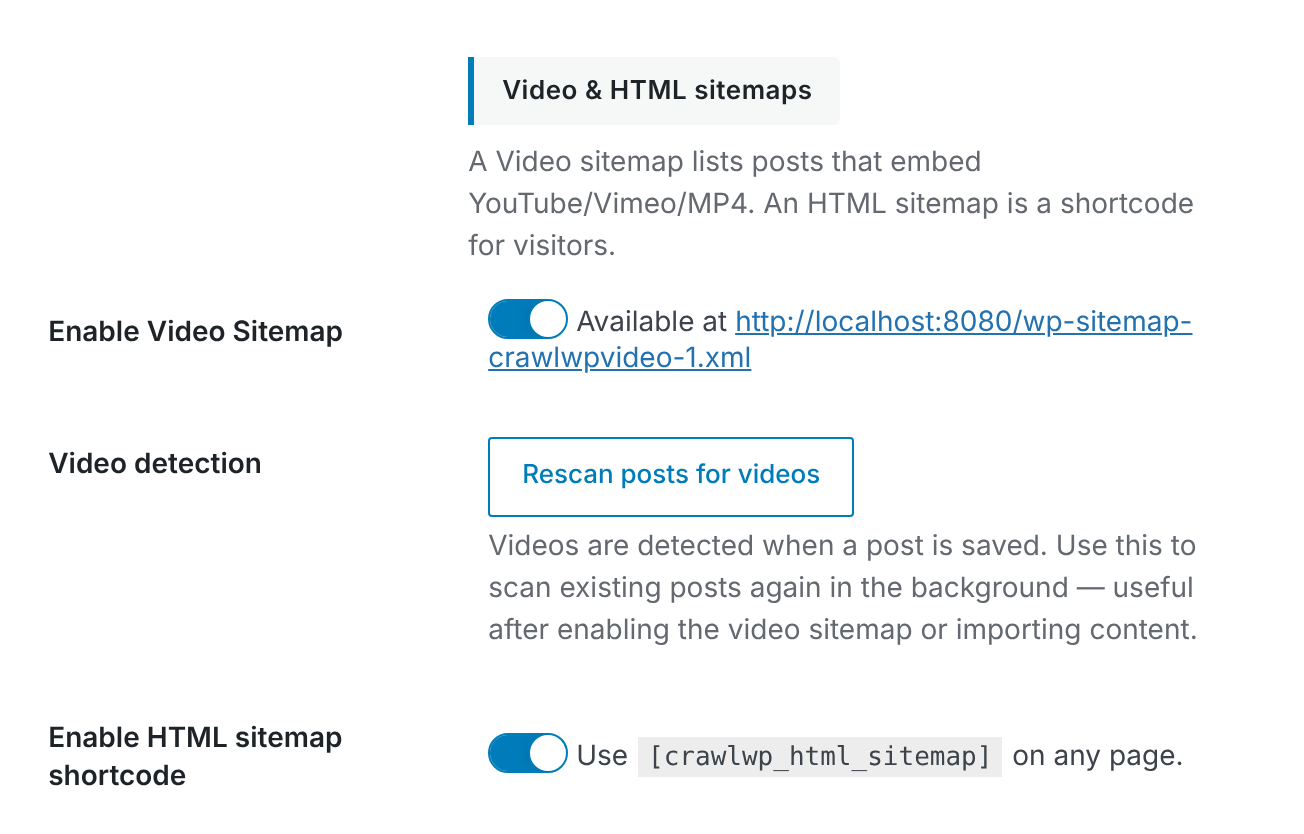
- Click Rescan posts for videos. CrawlWP scans your existing content in the background and looks for videos that have already been published.
Your video sitemap is available at:
https://your-site.com/wp-sitemap-crawlwpvideo-1.xml
CrawlWP also adds the video sitemap to your main sitemap index at wp-sitemap.xml. This allows search engines to discover it through your site’s sitemap index, so you do not need to submit the video sitemap separately.
Which Videos Does CrawlWP Detect?
CrawlWP checks published posts, pages, and custom post type entries for supported video sources. It currently recognizes the following:
- YouTube: watch URLs, embedded URLs, short links, and
youtu.beURLs. - Vimeo: supported Vimeo video URLs.
- Self-hosted videos:
.mp4,.webm,.ogv, and.m4vfiles added with the WordPress Video block.
CrawlWP adds only one video per post to the sitemap. When it detects multiple supported videos, it selects them in this order: YouTube first, Vimeo second, and self-hosted video third.
Posts that are set to noindex are excluded from the video sitemap, so a video will not be listed when its parent content is not intended for indexing.
When CrawlWP Detects a New Video
Video detection happens when you save or update a post. This means a newly added video can be picked up automatically when you save the post.
One important exception: videos that were already present before you enabled the video sitemap, or content imported from another site, may not have been scanned recently. Use Rescan posts for videos to check existing content for supported videos.
What Each Video Sitemap Entry Contains
| Field | Source |
|---|---|
| Title | The title of the post containing the video. |
| Description | The post excerpt. If no excerpt exists, CrawlWP uses the post content. The resulting text is limited to 2,000 characters. |
| Thumbnail | YouTube uses the video’s YouTube thumbnail. Vimeo uses a thumbnail from the vumbnail.com service. Self-hosted videos use the post’s featured image. |
| Video address | The YouTube or Vimeo player URL, or the URL of the self-hosted video file. |
Improve the Information CrawlWP Uses
CrawlWP largely pulls the information in the sitemap from the post containing the video. A little preparation can make those entries more useful and accurate.
- Add a meaningful excerpt. When a post has no excerpt, CrawlWP falls back to the post content. That content may contain navigation text, introductions, or other material that does not describe the video itself.
- Use a featured image for self-hosted videos. CrawlWP uses the post’s featured image as the thumbnail for these videos. Without one, the sitemap entry has no featured image.
- Use descriptive post titles. The post title becomes the video title in the sitemap, so avoid vague titles that do not tell readers what the video covers.
Keep the Video Sitemap Focused
A video sitemap should contain pages where the videos are actually available to visitors. Avoid adding video content to pages that are private, password-protected, or intentionally excluded from indexing.
Also remember that the video sitemap does not replace the regular XML sitemap. Your normal sitemap continues to handle your site’s pages and other content, while the video sitemap provides additional information about supported videos.
Check the Generated Video Sitemap
After enabling the feature and scanning your content, open the sitemap directly in your browser:
https://your-site.com/wp-sitemap-crawlwpvideo-1.xml
Check that the expected posts are present and that each entry contains the correct video URL, title, description, and thumbnail information. This is also an easy way to confirm that CrawlWP detected the video source correctly.
Troubleshooting the Video Sitemap
The video sitemap says it is disabled
Go to CrawlWP > Settings > Sitemap and check Enable Video Sitemap under Video & HTML sitemaps. Enable it and click Save Changes.
A post containing a video is missing
First, check that the post is published and that Allow indexing is not set to No. Then make sure the video is from YouTube, Vimeo, or a supported self-hosted format. You can also run Rescan posts for videos to scan existing content again.
The video is hosted on another platform
CrawlWP currently detects YouTube, Vimeo, and supported self-hosted video files. Videos embedded from other platforms are not detected by the video sitemap scanner.
A post contains several videos, but only one is listed
This is expected. CrawlWP lists one video per post and prioritizes YouTube, followed by Vimeo, and then self-hosted video.
The sitemap exists, but videos are not appearing in Google
A video sitemap helps Google discover your videos, but it does not guarantee that a video will appear in search results. Make sure the video is accessible on the page, the page itself can be indexed, and the video is a meaningful part of the page rather than merely incidental content.
Once enabled, CrawlWP keeps the video sitemap connected to your site’s main sitemap index and updates its video information as supported content is saved or rescanned. For older content, running Rescan posts for videos is the easiest way to make sure existing videos are detected.