
An HTML sitemap gives visitors a convenient page to browse links to important content on your WordPress site. Unlike an XML sitemap, which is designed primarily for search engines, an HTML sitemap is a regular webpage that people can open and use.
CrawlWP lets you generate an HTML sitemap with the [crawlwp_html_sitemap] shortcode. You can place the shortcode on any page and control which post types are included. This is a CrawlWP Premium feature.
Why Add an HTML Sitemap to Your WordPress Site?
An HTML sitemap is particularly useful on sites with a large amount of content. Instead of asking visitors to search through several menus, categories, or archives, you can give them one page containing links to your published content.
- Give visitors another way to discover published content.
- Create a central page containing links to important posts, pages, products, or other post types.
- Make older content easier to find when it is not prominently linked from your main navigation.
- Provide a useful navigation page that can be linked from your footer or other site-wide areas.
An HTML sitemap should complement your XML sitemap rather than replace it. They serve different purposes and can both be useful on the same website.
Enable the HTML Sitemap Shortcode
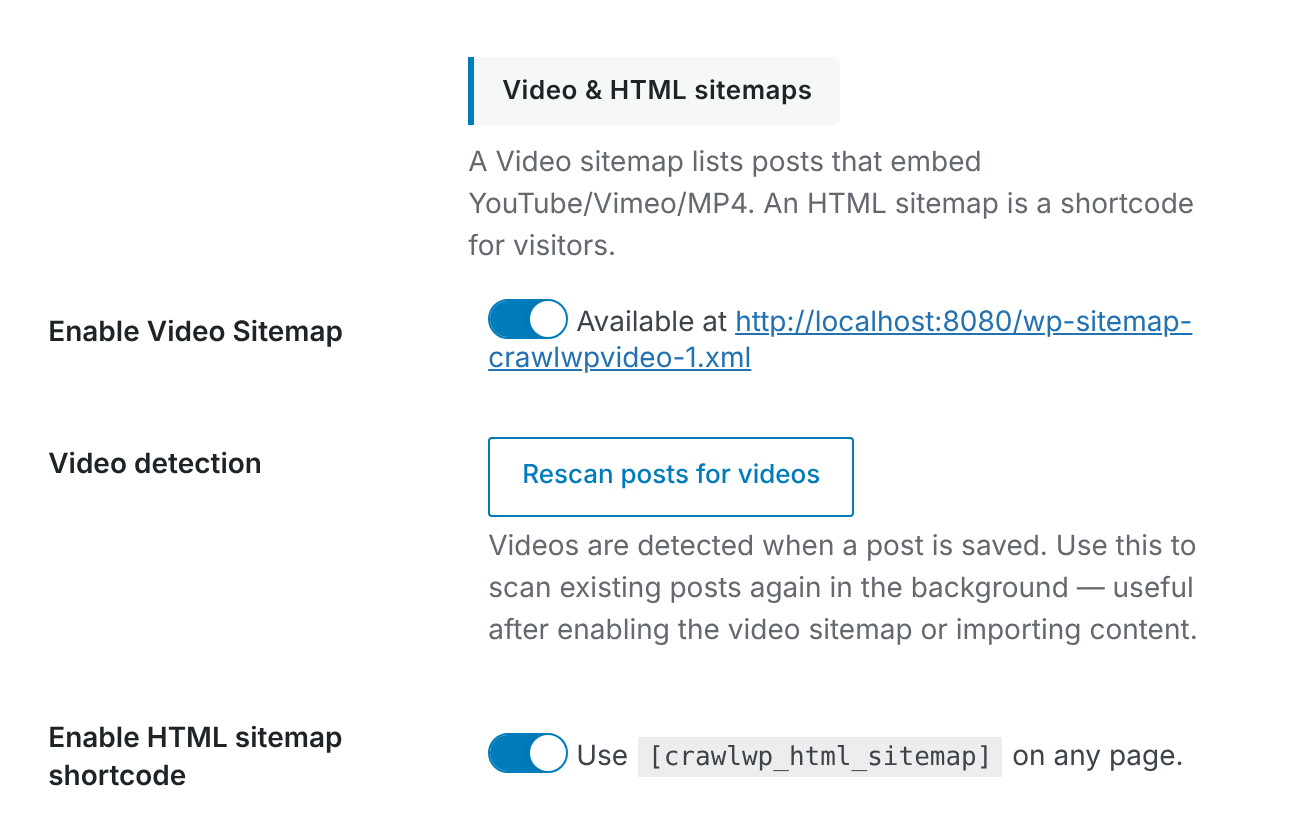
Before adding the shortcode to a page in WordPress that will serve as the HTML sitemap page, make sure the HTML sitemap feature is enabled in CrawlWP.
- Go to CrawlWP > Settings.
- Make sure the Settings tab at the top is selected, then click Sitemap in the left-hand menu.
- Under Video & HTML sitemaps, make sure Enable HTML sitemap shortcode is enabled. The setting is enabled by default.
Create an HTML Sitemap Page
Once the shortcode is enabled, create a normal WordPress page and place the shortcode inside a Shortcode block.
- Go to Pages > Add New Page.
- Enter a clear title such as Sitemap or HTML Sitemap.
- Add a Shortcode block to the page.
- Enter [crawlwp
_<strong>html</strong>_<strong>sitemap]</strong>. - Publish the page.
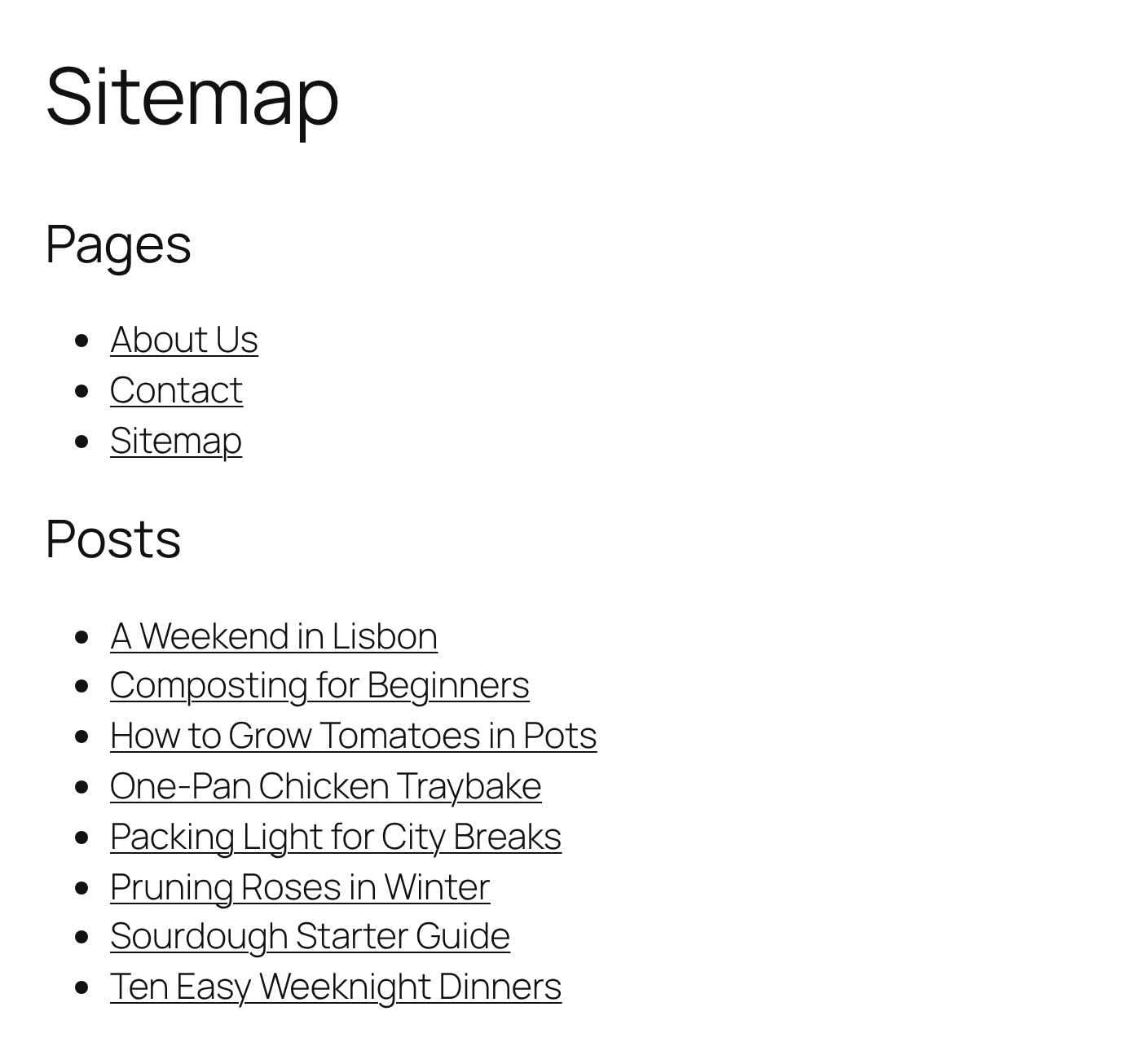
CrawlWP will generate the HTML sitemap content automatically. Pages and posts are listed under headings for their respective post types, with items sorted alphabetically by title.
Choose Which Post Types to Include
By default, the shortcode lists pages and posts. You can also include other post types by using the post_types option.
For example, to include pages, posts, and WooCommerce products, use:
[ crawlwp_html_sitemap post_types="page,post,product" ]
Enter the post type names as a comma-separated list. The post types will appear in the same order in which you specify them in the shortcode.
Use the actual WordPress post type name rather than the label you see in the WordPress admin menu. For example, WooCommerce products use product.
Common HTML Sitemap Examples
For a standard blog, the default shortcode is usually enough:
[ crawlwp_html_sitemap ]
For a WooCommerce store where you also want products listed:
[ crawlwp_html_sitemap post_types="page,post,product" ]
For a site that only needs to display pages and products:
[ crawlwp_html_sitemap post_types="page,product" ]
What CrawlWP Leaves Out
The WordPress HTML sitemap is built from content that is publicly available and eligible to be listed. CrawlWP does not include every item that exists in the WordPress database.
- Password-protected posts and pages are excluded.
- Posts and pages set to noindex in the CrawlWP SEO box are excluded.
- Unpublished content, such as drafts, is excluded.
This means the sitemap is less likely to expose content that you have intentionally restricted or told search engines not to index.
There Is a 200-Item Limit Per Post Type
CrawlWP lists up to 200 items for each post type. For example, a sitemap containing posts, pages, and products can list up to 200 posts, 200 pages, and 200 products.
Keep this limit in mind when deciding whether to include a post type with a very large number of entries. An HTML sitemap is generally most useful as a convenient navigation page rather than a replacement for a complete XML sitemap.
Link to the Sitemap From Your Website
After publishing the page, make it easy for visitors to find. A common approach is to add an HTML Sitemap or Sitemap link to the footer menu of your WordPress website.
You can also link to it from other useful navigation pages when appropriate. Use a descriptive link text so visitors know exactly what they will find when they open the page.
When Changes Appear on the Sitemap
CrawlWP caches the generated HTML sitemap for up to one hour so it does not have to rebuild the list for every page request.
The cached sitemap is cleared when you publish, update, or delete a post, and also when you change and save the Sitemap settings. As a result, changes to your content or sitemap configuration will normally be reflected without waiting for the full cache period to expire.
Troubleshooting the HTML Sitemap
The shortcode appears as plain text
If your page displays [ crawlwp_html_sitemap ] instead of an actual sitemap, the CrawlWP Premium functionality may not be active. Check that the CrawlWP SEO Premium plugin is installed and activated.
The sitemap area is empty
First, check that Enable HTML sitemap shortcode is enabled under CrawlWP > Settings > Sitemap. If the setting is already enabled, make sure the shortcode references valid post types that contain published content.
A post type is missing
Check the spelling of the post type name in the shortcode. The value must match the internal WordPress post type name, not the human-readable label shown in the WordPress dashboard.
Recently published content is not showing
When content is published, updated, or deleted, CrawlWP clears the cached HTML sitemap. If the new item still does not appear, verify that it is published, publicly accessible, and not set to noindex in the CrawlWP SEO box.
Best Practices for an HTML Sitemap
- Use a clear page title. “Sitemap” or “HTML Sitemap” makes the purpose immediately obvious.
- Keep the page accessible. Linking to it from your footer is a simple way to make it discoverable across the site.
- Only include useful post types. Adding every custom post type can make the page harder to navigate.
- Review noindex settings. Content intentionally excluded from indexing will also be excluded from the HTML sitemap.
With the [ crawlwp_html_sitemap ] shortcode, you can create a practical HTML sitemap without manually maintaining a long list of links. As your published content changes, CrawlWP updates the generated list automatically while respecting your sitemap settings and eligible content.