
An XML sitemap gives search engines a structured list of URLs that you want them to discover and crawl. If you use CrawlWP, you may notice that your sitemap is still located at the standard WordPress /wp-sitemap.xml address rather than at a separate CrawlWP URL.
That is intentional. CrawlWP builds on the XML sitemap system included with WordPress instead of creating a competing sitemap system. This keeps the main sitemap address consistent while allowing CrawlWP to control which content is included and add additional sitemap types when needed.
What Is an XML Sitemap?
An XML sitemap is a file that tells search engines about URLs available on your website. It is particularly useful for helping crawlers discover new or updated content without relying entirely on links from other pages.
A sitemap is a discovery tool, not an indexing or ranking guarantee. Adding a URL to a sitemap does not force a search engine to index that page or determine where it will appear in search results.
Where to Find Your CrawlWP Sitemap
WordPress has included its own XML sitemap functionality since WordPress 5.5. CrawlWP uses this core system, so the main sitemap index remains:
https://your-site.com/wp-sitemap.xml
You can open it directly in your browser or access it from the CrawlWP settings.
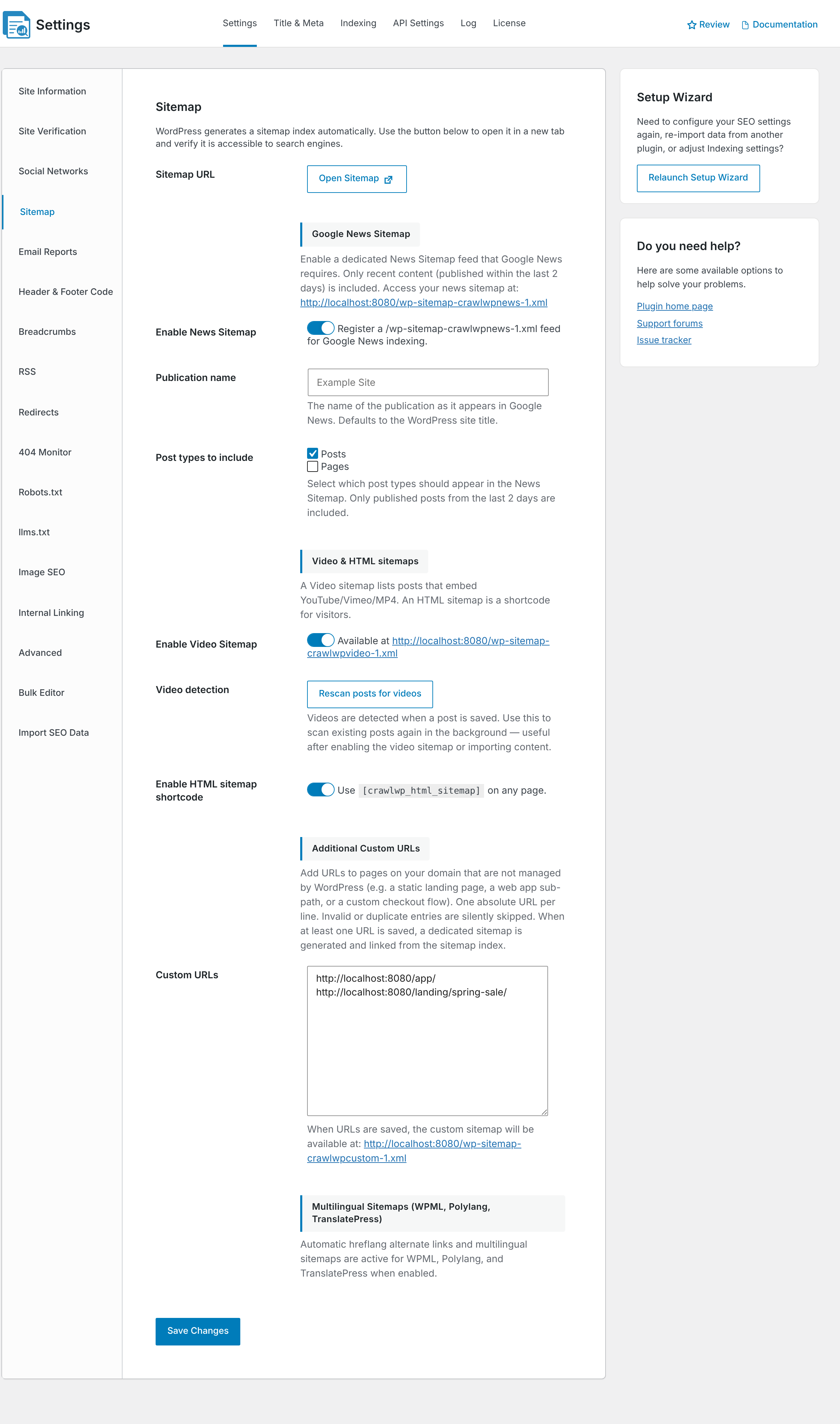
- Go to CrawlWP > Settings.
- Make sure the Settings tab at the top is selected, then click Sitemap in the left-hand menu.
- Click Open Sitemap next to Sitemap URL. The sitemap opens in a new browser tab.
How the WordPress Sitemap Is Structured
The URL /wp-sitemap.xml is a sitemap index, rather than a single file containing every URL on your site. The index points to smaller sitemap files for individual content types.
Depending on the content available on your site, the index can contain files such as:
wp-sitemap-posts-post-1.xmlfor postswp-sitemap-posts-page-1.xmlfor pageswp-sitemap-taxonomies-category-1.xmlfor category archiveswp-sitemap-users-1.xmlfor author archives
Each individual sitemap can contain up to 2,000 URLs. When a content type exceeds that limit, WordPress splits it across multiple sitemap files. For example, the next posts sitemap would be wp-sitemap-posts-post-2.xml.
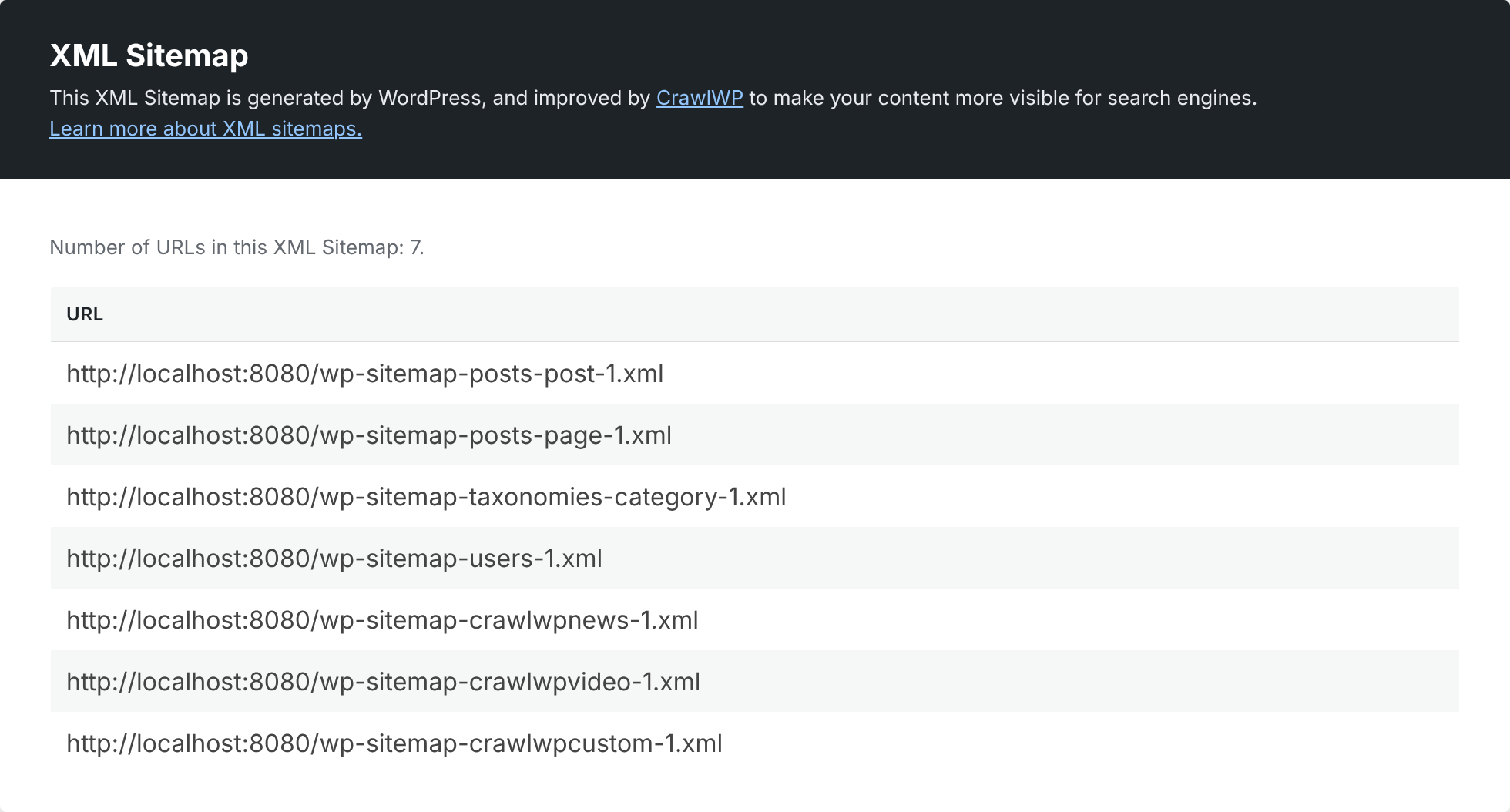
When you open them in a browser, WordPress sitemap files display in a more readable format, while search engines consume the underlying XML data. CrawlWP adds styling to make these sitemap pages easier to inspect visually.
Why CrawlWP Uses the WordPress Core Sitemap
Using the WordPress sitemap as the foundation has a few practical advantages.
- A consistent sitemap URL. Your main sitemap remains at
/wp-sitemap.xmlwhether CrawlWP is installed or not. This also means you can keep using the same sitemap address after changing SEO plugins. - Automatic updates. WordPress generates the sitemap from the site’s current content, so newly published and changed content can be reflected without manually rebuilding a sitemap file.
- Discovery through robots.txt. WordPress adds a
Sitemap:directive pointing to/wp-sitemap.xmlin its virtual robots.txt response, giving crawlers another way to discover the sitemap.
What CrawlWP Adds to the Core Sitemap
CrawlWP doesn’t leave the WordPress sitemap untouched. It adds SEO-aware controls and additional sitemap functionality on top of the core system.
- It respects your search visibility settings. Post types, taxonomies, and author archives hidden with Hide from search results are excluded. Individual posts set to noindex and password-protected content are also left out. See Choosing what appears in your sitemap.
- It adds specialized sitemaps. When enabled, CrawlWP adds its additional sitemap types to the same sitemap index:
- Google News sitemap (Premium)
- Video sitemap (Premium)
- Custom URLs sitemap (Premium)
- It improves browser readability. CrawlWP styles sitemap output so you can inspect the files more easily when troubleshooting or verifying their contents.
Your Search Settings and Sitemap Work Together
One of the most important things to understand is that CrawlWP does not ask you to maintain a separate set of sitemap exclusion switches. Your search appearance and indexing settings determine what WordPress content should be represented in the sitemap.
For example, hiding an entire post type from search results removes that post type from the sitemap. Likewise, setting an individual post’s Allow indexing option to No removes that URL from the sitemap.
This keeps the sitemap focused on URLs that are intended to be available for search engine discovery instead of requiring you to configure the same exclusion twice.
What You Should Submit to Search Engines
Because the main file is a sitemap index, the address to submit to services such as Google Search Console is normally:
https://your-site.com/wp-sitemap.xml
You do not normally need to submit every individual post, page, taxonomy, News, video, or custom URL sitemap separately. Search engines can follow the links in the index and discover the child sitemaps.
For instructions on submitting the index to Google Search Console, see Submitting your sitemap to Google Search Console.
Troubleshooting the WordPress Sitemap
The sitemap returns a 404 error
Start by checking Settings > Reading in WordPress. Make sure Search engine visibility is not enabled. When this option is checked, WordPress disables its built-in sitemap.
If search engine visibility is already correct, go to Settings > Permalinks and click Save Changes to refresh the site’s rewrite rules. Then test /wp-sitemap.xml again.
Another plugin’s sitemap is appearing
If the sitemap has a different layout, redirects to another sitemap URL, or appears to be generated by another plugin, check whether another SEO or sitemap plugin is still active. Two plugins attempting to control the same sitemap system can produce conflicts. Deactivate the competing sitemap functionality or plugin before testing again.
The Sitemap line is missing from robots.txt
WordPress provides a virtual robots.txt response that includes the sitemap URL. However, if your server has a physical robots.txt file in the site’s root directory, that file can be served instead.
Check the contents of the physical file. You can add the following line manually:
Sitemap: https://your-site.com/wp-sitemap.xml
Alternatively, remove the physical file if it is not needed so WordPress can serve its own virtual robots.txt response.
A page or post is missing from the sitemap
First check whether the content is eligible for indexing. Confirm that it is published, publicly accessible, and not password-protected. For an individual URL, also check the Advanced tab in the CrawlWP SEO box and make sure Allow indexing is not set to No.
If the entire post type or taxonomy is missing, review its Title & Meta settings and make sure Hide from search results has not been enabled.
See Choosing what appears in your sitemap for a detailed explanation of sitemap inclusion and exclusions.
A Simple Way to Think About CrawlWP Sitemaps
The simplest way to understand CrawlWP’s sitemap system is that WordPress provides the core sitemap infrastructure, while CrawlWP adds SEO controls and extra sitemap capabilities around it.
Your main sitemap stays at /wp-sitemap.xml. From there, search engines can follow the individual content sitemaps and any additional CrawlWP sitemaps you have enabled. Your indexing settings then determine which WordPress URLs belong in those files.
This approach gives you one stable sitemap entry point while still providing control over search visibility, Google News, video content, and URLs managed outside WordPress.