
If you publish news or other time-sensitive content, a Google News sitemap gives Google a separate list of your latest eligible articles. CrawlWP generates this sitemap using the format required for Google News and automatically removes articles from it once they are more than two days old.
The News sitemap works alongside your regular XML sitemap. Older articles remain available in the normal sitemap even after they drop out of the News sitemap. This feature is available in CrawlWP Premium.
Enable the Google News Sitemap
To enable the Google News sitemap for your WordPress website, follow the steps below.
- Go to CrawlWP > Settings.
- Make sure the Settings tab at the top is selected, then click Sitemap in the left-hand menu.
- Under Google News Sitemap, enable Enable News Sitemap.
- Enter a Publication name if you want to use a name different from your WordPress site title. When this field is empty, CrawlWP uses your site title.
- Under Post types to include, select the post types that contain your news articles. Posts is selected by default.
- Click Save Changes.
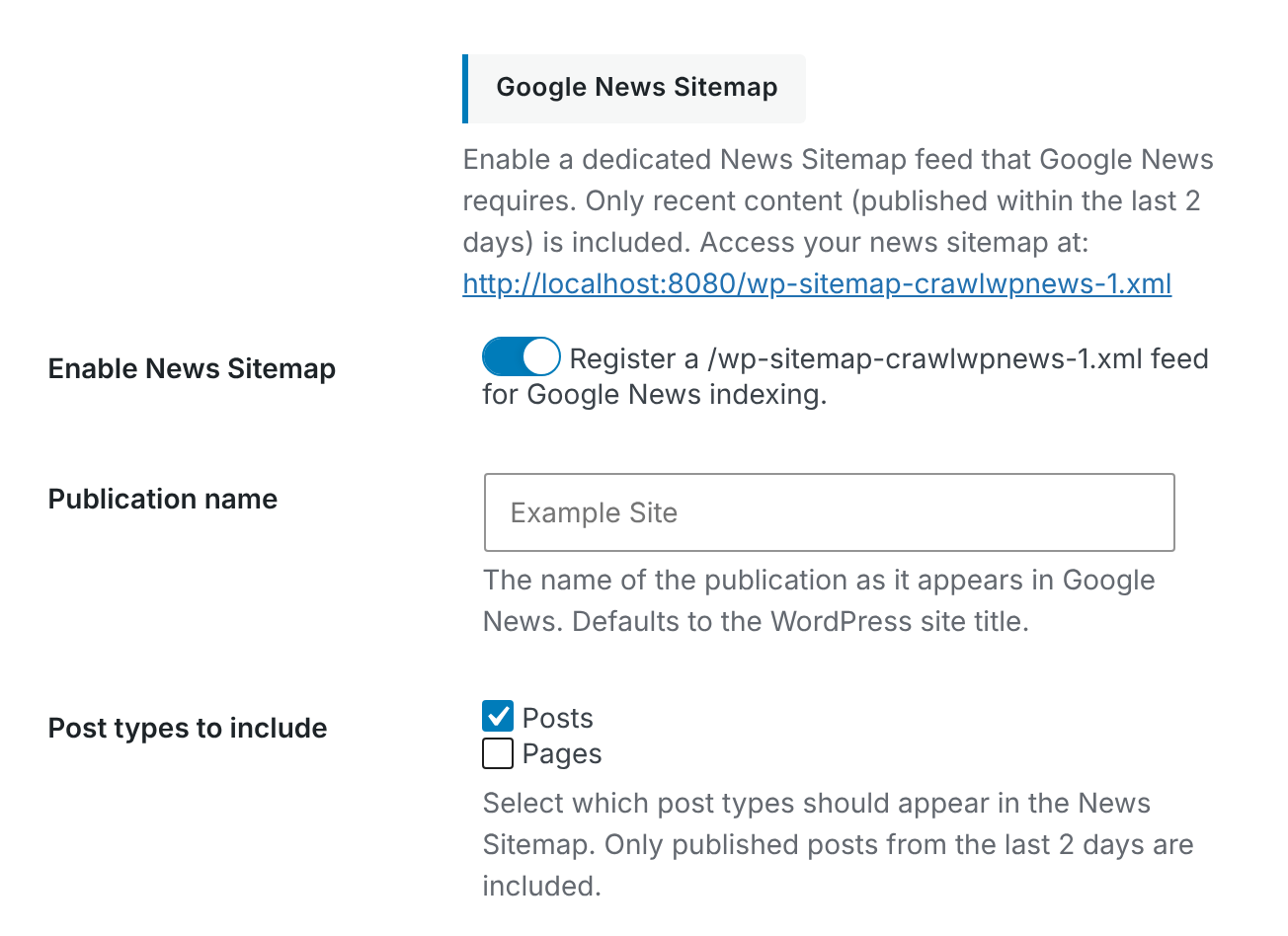
After saving the settings, CrawlWP makes the News sitemap available at:
https://your-site.com/wp-sitemap-crawlwpnews-1.xml
The News sitemap is also added to your site’s main sitemap index, so it can be discovered through wp-sitemap.xml.
What CrawlWP Adds to the News Sitemap
CrawlWP builds the sitemap from recently published content in the post types you selected. Each eligible article includes the information Google needs to understand its News sitemap entry.
- Published articles from the selected post types that were published within the last two days.
- Up to 1,000 articles in the News sitemap.
- The article URL, title, publication date, publication name, and site language.
Password-protected content and posts set to noindex are excluded automatically. An article also leaves the News sitemap once it becomes older than two days, but it remains in your normal XML sitemap.
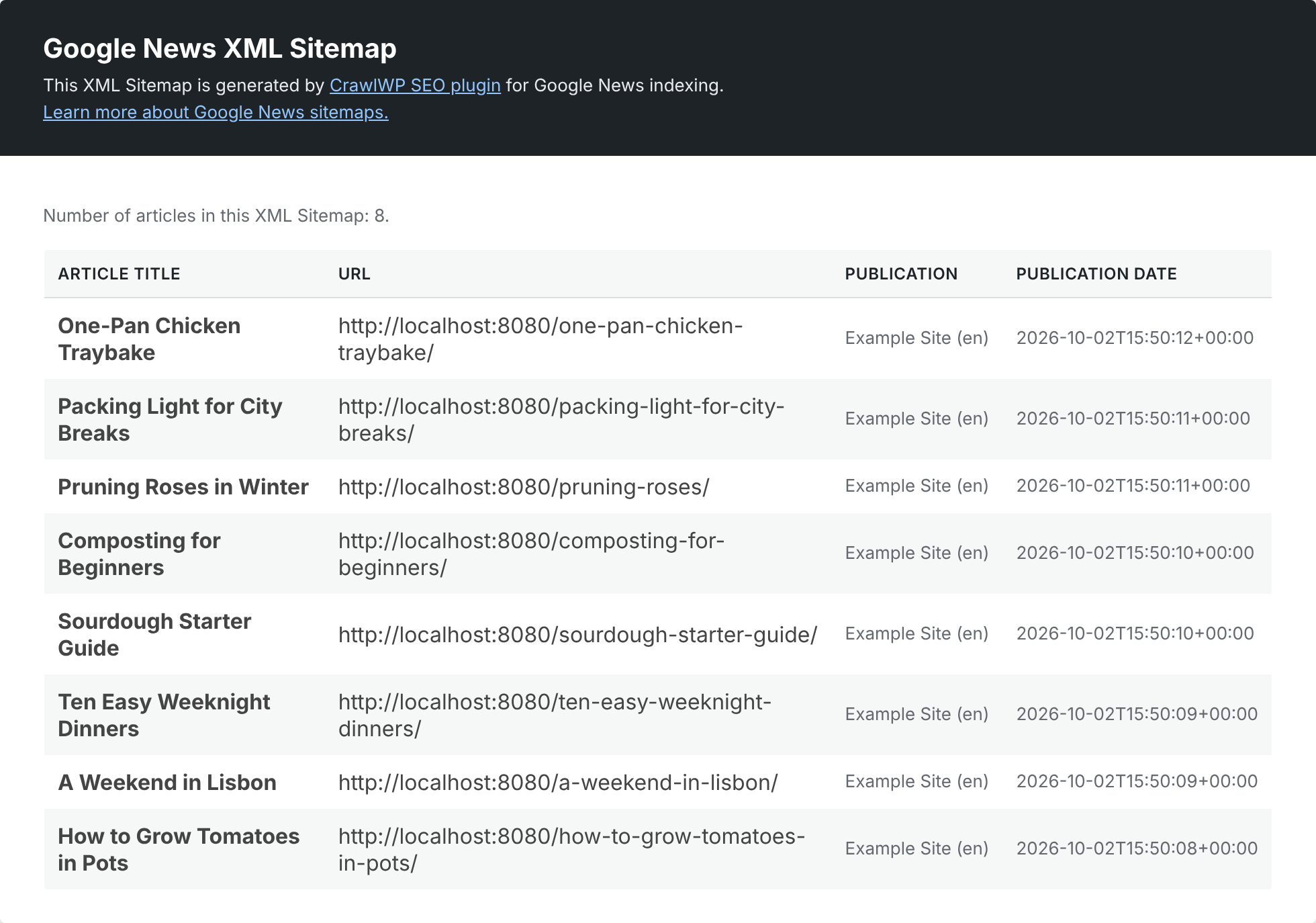
For a standard WordPress site, CrawlWP gets the language from Settings > General. For example, an English site may use en.
Choose the Right Post Types
Only select post types that actually contain news articles. Including unrelated content types can make the sitemap less useful and may result in entries that are not appropriate for a news publication.
For example, a site that publishes all of its news under the standard WordPress Posts post type can simply leave Posts enabled. A publisher using a custom post type for articles can select that post type instead.
How CrawlWP Handles Multilingual News Sites
On multilingual websites, CrawlWP Premium can use the language associated with each article when WPML, Polylang, or TranslatePress is installed.
| Plugin | How the News sitemap handles languages |
|---|---|
| WPML | Each translation is listed as its own entry with its corresponding language. The entries also appear in the relevant language sitemap, such as /fr/wp-sitemap-crawlwpnews-1.xml. |
| Polylang | Articles are listed for each language, with the language associated with each entry. |
| TranslatePress | Each article can be listed once for every published language, with the translated title used where TranslatePress has a translation available. |
WPML has additional behavior worth checking carefully: translations can be included even when they haven’t been published yet or when they are older than two days. After adding or changing a translation, open the relevant News sitemap and verify the entries it contains.
See Multilingual SEO with WPML, Polylang and TranslatePress for more information about multilingual SEO with CrawlWP.
Make Sure Your Publication Name Is Correct
The Publication name is included in each News sitemap entry. When the field is empty, CrawlWP falls back to the WordPress site title.
For a news WordPress site, it is a good idea to use the same publication name consistently across your SEO and publishing setup. This also makes it easier to spot configuration mistakes when inspecting the generated sitemap.
Check the News Sitemap Before Submitting It
After enabling the feature and publishing an article, open the News sitemap directly in your browser:
https://your-site.com/wp-sitemap-crawlwpnews-1.xml
Look for the article you expect to see and check its URL, title, publication date, publication name, and language. This is also a useful way to confirm that the selected post type and indexing settings are working as expected.
Submit the News Sitemap to Google
- Make sure your site is set up as a publication in Google Publisher Center.
- Open Google Search Console and go to Sitemaps.
- Submit
wp-sitemap-crawlwpnews-1.xml.
Submitting the sitemap gives Google a direct source for discovering your recent articles. It does not guarantee that your publication or every submitted article will appear in Google News. Google determines which publishers and articles are eligible to be shown.
Keep Your News Sitemap Focused
A News sitemap is meant for recent news content, not your entire article archive. You generally do not need to remove older articles manually because CrawlWP automatically drops them from the News sitemap after two days.
At the same time, make sure articles that should not be indexed are configured correctly. Password-protected posts and posts with Allow indexing set to No are excluded from the News sitemap.
Troubleshooting the Google News Sitemap
The News sitemap returns a 404 error
Check CrawlWP > Settings > Sitemap and make sure Enable News Sitemap is enabled. Then click Save Changes and open the sitemap URL again.
The News sitemap is empty
The selected post types may not contain any articles published within the last two days. Publish a new eligible article or select the correct post type under Post types to include.
A recent article is missing
Confirm that the article was published within the last two days, belongs to a selected post type, is not password-protected, and does not have Allow indexing set to No in the Advanced tab of the CrawlWP SEO box.
The publication name is incorrect
Open the Google News Sitemap settings and review the Publication name field. Enter the name you want associated with your publication and click Save Changes.
The article is old but still appears in the normal sitemap
This is expected. CrawlWP’s two-day limit applies to the Google News sitemap only. Older articles continue to appear in the regular XML sitemap as long as they remain eligible for indexing.
Once configured, CrawlWP keeps the Google News sitemap focused on your latest eligible articles while your regular XML sitemap continues to cover your broader site content. Check the generated News sitemap after publishing new articles or changing your sitemap settings to make sure it contains the content you expect.