
Not every page on your WordPress website needs to appear in search results. You may want to hide a thank-you page, stop search engines from following links on a specific WordPress page, limit the amount of content shown in search results, or prevent images from being indexed.
CrawlWP lets you control these robots directives for individual posts and pages. Your choices are added to the page’s robots meta tag, which can be read by search engines such as Google, Bing, and Yandex.
Set robots directives for a post or page
- Open the post or page in the WordPress editor.
- Scroll down to the CrawlWP SEO box and select the Advanced tab.
- Find Search engine visibility and adjust the directives you need.
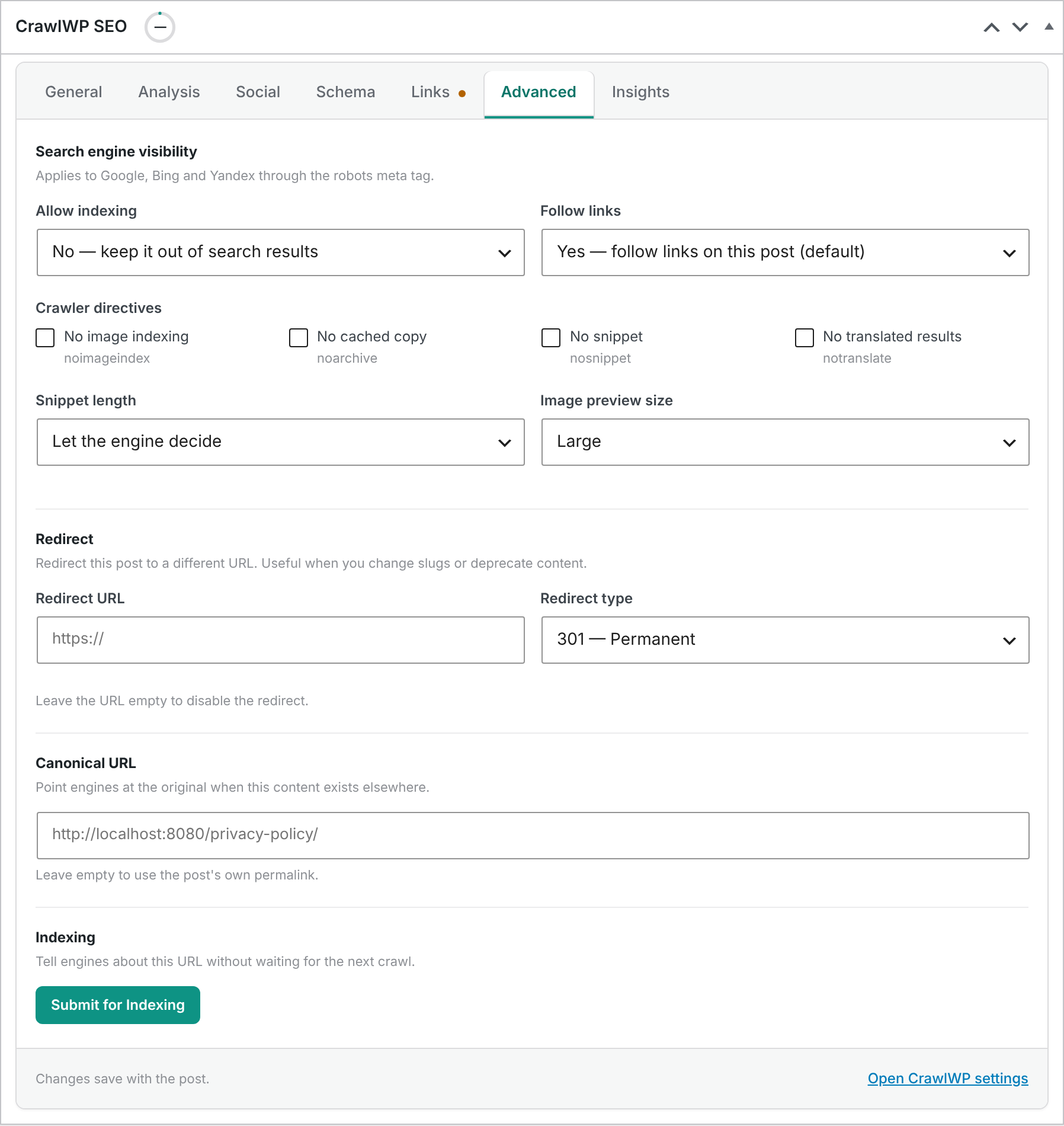
- Save or update the post to apply your changes.
What the robots settings mean
| Setting | Options | Robots directive |
|---|---|---|
| Allow indexing | Yes (default) or No | index or noindex |
| Follow links | Yes (default) or No | follow or nofollow |
| No image indexing | Enable to turn it on | noimageindex |
| No cached copy | Enable to turn it on | noarchive |
| No snippet | Enable to turn it on | nosnippet |
| No translated results | Enable to turn it on | notranslate |
| Snippet length | Let the engine decide, No text snippet, or Up to 160 characters | Nothing, max-snippet:0, or max-snippet:160 |
| Image preview size | Large, Standard, or None | max-image-preview:large, max-image-preview:standard, or max-image-preview:none |
You can combine several directives on the same page. For example, you can set a page to noindex while still allowing links to be followed.
To see what CrawlWP actually outputs, open the live page, view its source code, and search for <meta name='robots'.
Noindex vs nofollow
noindex and nofollow control different things, so they should not be treated as interchangeable.
- Noindex tells search engines not to include the page in their search results.
- Nofollow tells search engines not to follow the links on that page.
A page can therefore be noindex, follow when you want to keep it out of search results but still allow search engines to follow its links.
When should you use noindex?
The noindex directive is useful for pages that are available to visitors but do not provide enough value to deserve their own search result.
- Thank-you and confirmation pages
- Login, registration, and account pages
- Internal search result pages
- Thin utility pages that are useful to visitors but not intended as search landing pages
- Duplicate or near-duplicate pages that should not appear independently in search
Do not use noindex simply because a page currently ranks poorly. A page that can attract useful search traffic may be better improved than removed from the index.
Do not block a noindex page in robots.txt
Search engines need to be able to crawl a page to discover its noindex directive. If you block the same URL in robots.txt, a crawler may not be able to reach the page and read the robots meta tag.
Use noindex when your goal is to keep a page out of search results. Use robots.txt when your goal is to control crawling. They solve different problems.
Control search snippets and image previews
CrawlWP also lets you control how much of a page may appear in search results. These settings are useful when you want more control over snippets and image previews without removing the page from the index.
- No snippet: prevents a text snippet or video preview from being shown.
- Snippet length: sets a maximum number of characters for the text snippet.
- No image indexing: prevents images on the page from being indexed through that page.
- Image preview size: controls the maximum image preview size available to search engines.
- No translated results: tells search engines not to offer a translated version of the page in supported search experiences.
The No cached copy option outputs noarchive. Google has moved noarchive to its historical robots documentation because its cached-link feature is no longer available, although other search engines or services may still use the directive.
Check the generated robots tag
- Save or update the post after changing its robots settings.
- Open the published page on your website.
- View the page source in your browser.
- Search the source for
<meta name='robots'. - Confirm that the directives match your settings.
For example, a page with indexing disabled and links set to nofollow may contain a robots value similar to noindex, nofollow.
How individual settings interact with post type defaults
CrawlWP also provides robots controls at the post type level under Title & Meta settings. This allows you to set a default for all posts belonging to a particular post type and then make exceptions for individual posts.
For example, suppose every post in a custom post type is set to Hide from search results. You can override that setting on one important post by setting Allow indexing to Yes for that post.
The same approach works in reverse. You can leave a post type indexable and mark a particular post as No under Allow indexing when that page should not appear in search.
Some directives can behave differently at the post type level. For example, when No archive is enabled for a post type, its posts receive noarchive regardless of the individual post setting.
When to use nofollow
Use nofollow when you have a specific reason for not having search engines follow the links on a page. It should not be used simply as a general SEO setting for ordinary content.
For example, an internal page that should stay out of search results can often use noindex, follow so that the links on the page remain available for crawling. Adding nofollow changes that behavior by telling supported search engines not to follow those links.
When not to use noindex
Before hiding a page from search engines, ask whether the page could bring useful organic traffic. Important service pages, product pages, category pages, tutorials, and other valuable content should normally remain indexable unless there is a clear reason to remove them from search.
If several URLs contain substantially similar content and you want one version to be preferred, a canonical URL may be a better solution than setting the other pages to noindex.
Remember that noindex is not immediate
Adding noindex changes the instruction CrawlWP sends with the page, but search engines still need to crawl the URL before they can see the change. As a result, a page may continue to appear in search results for some time after you change the setting.
After setting a page to noindex, make sure it remains accessible to search engine crawlers and use Google Search Console’s URL Inspection tool when you need to check how Google sees the page.
Check your sitemap too
When you set a post or page to noindex, check your XML sitemap as part of your SEO cleanup. CrawlWP removes posts set to noindex from its XML sitemap, so a noindex URL should not normally continue to be submitted through CrawlWP’s sitemap.
If another plugin or service generates a separate sitemap for your site, check that sitemap as well and remove the URL there if necessary.
Common examples of robots directives
| Goal | Suggested setting |
|---|---|
| Keep a thank-you page out of search results | Allow indexing: No |
| Keep a page out of search but allow its links to be followed | Allow indexing: No, Follow links: Yes |
| Prevent search engines from following links on a page | Follow links: No |
| Prevent images on a page from being indexed | No image indexing |
| Prevent text snippets from being displayed | No snippet |
| Limit a text snippet to 160 characters | Snippet length: Up to 160 characters |
| Prevent large image previews | Image preview size: Standard or None |
| Prevent translation offers | No translated results |
Troubleshooting robots directives
The page source still contains “index”. Clear your WordPress, hosting, or CDN cache and reload the page. Also make sure you updated the post after changing the setting.
The page source contains two robots meta tags. Another SEO plugin, WordPress extension, or your theme may also be adding a robots tag. Check the page source and disable the duplicate source where appropriate.
Google Search Console says “Submitted URL marked noindex”. This means Google found a noindex directive on the URL. If you intended to exclude the page from search, the message is expected. Make sure the URL is not being submitted by another sitemap if it should no longer be indexed.
A page marked noindex still appears in Google. Google must crawl the page again before it can process the new directive. Check that the page is not blocked by robots.txt, then use the URL Inspection tool in Google Search Console to request another crawl when appropriate.
A page is not being removed even though noindex is enabled. Open the live page source and confirm that the robots meta tag actually contains noindex. If the correct tag is missing, check your CrawlWP settings and clear all relevant caches.
Noimageindex does not seem to remove an image from search. The directive applies to images associated with that page. If the same image is available through other crawlable pages or URLs, it may still be discovered elsewhere. Check the image URL separately when image indexing is the main concern.
The page has no robots meta tag. Check that CrawlWP‘s on-page SEO features are enabled and that no other plugin is replacing or removing CrawlWP’s SEO output. Then clear your cache and inspect the live source again.