
The robots.txt file tells search engine crawlers which parts of your site they are allowed to visit.
CrawlWP lets you edit the robots.txt file from CrawlWP > Settings instead of creating or uploading a physical file yourself. The free version includes this feature.
This guide explains how to edit WordPress robots.txt via CrawlWP, what happens when you save your own rules, and how to avoid common crawling problems.
Understand robots.txt before editing it
robots.txt is a text file normally available at https://your-site.com/robots.txt. WordPress generates its robots.txt response automatically rather than storing it as a normal file on your server.
The file controls crawling, not indexing. Blocking a URL in robots.txt does not guarantee that it will disappear from search results. To keep a page out of search results, use noindex instead. See Noindex, nofollow and other robots directives per post.
Edit your robots.txt file with CrawlWP
To edit your WordPress robots.txt file with the CrawlWP SEO plugin, follow the steps below.
- Go to CrawlWP > Settings.
- Make sure the Settings tab is selected, then click Robots.txt in the left-hand menu.
- Tick Enable robots.txt editing. This makes the robots.txt content box editable.
- Edit the rules in the box.
- Click Save Changes.
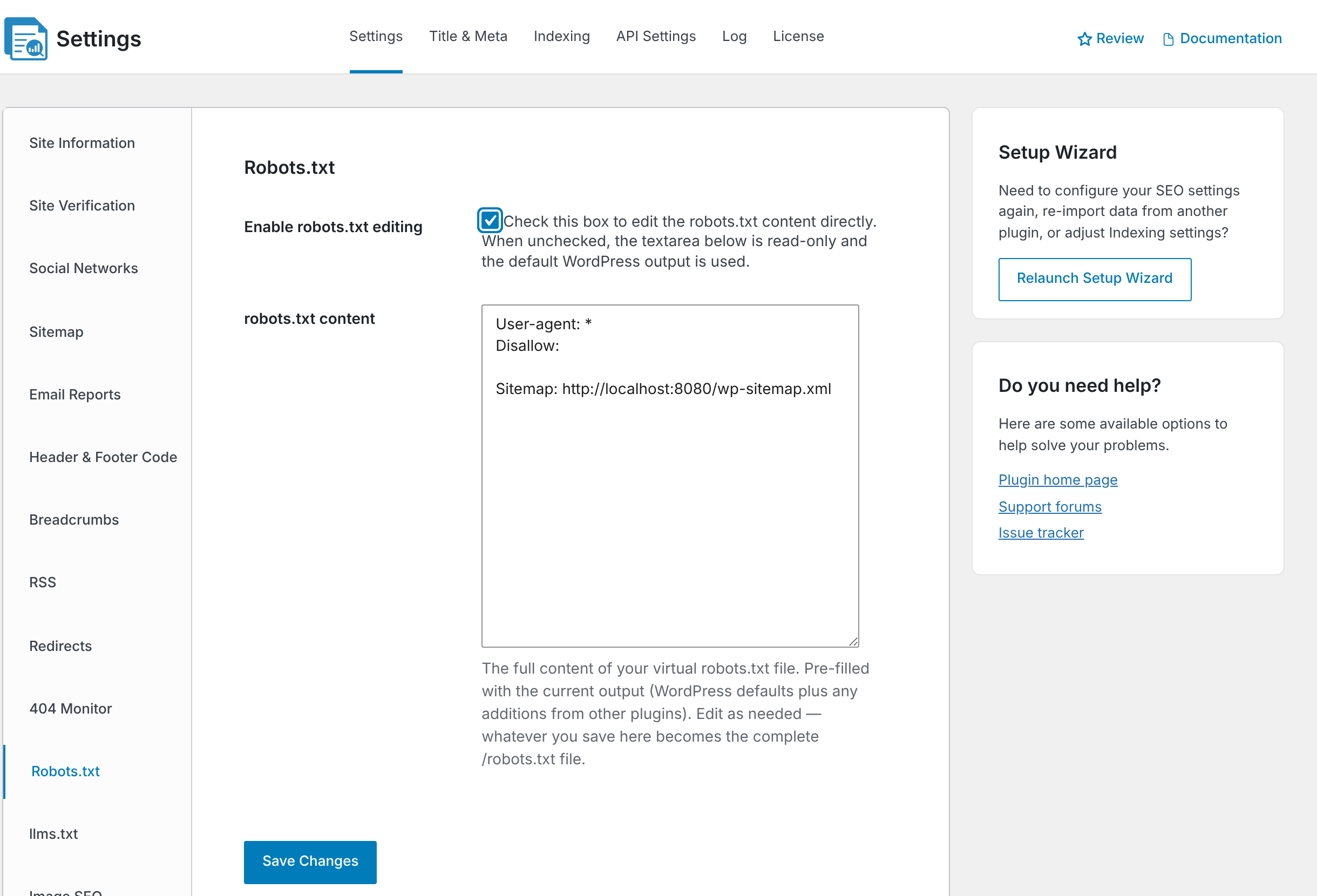
When you save the section, the contents of robots.txt content become the complete robots.txt response generated for your site. Check the result by opening https://your-site.com/robots.txt in your browser.
Compare the starting content with your live file
The first time you open the editor, CrawlWP fills the box with starting content. It may not be an exact copy of the robots.txt currently being generated by WordPress. In particular, WordPress’s standard admin-area rules are not included in the starting content:
Disallow: /wp-admin/
Allow: /wp-admin/admin-ajax.php
Before saving, open your current https://your-site.com/robots.txt in another tab and compare the two versions. Copy across any rules you want to retain, including rules added by WordPress or another plugin.
Be careful when clicking Save Changes
At present, clicking Save Changes in the Robots.txt section saves the contents of the box as your robots.txt even when Enable robots.txt editing is not ticked. Only use Save Changes in this section when you intend to change the robots.txt content.
Common robots.txt rules
For example, a WordPress robots.txt might look like this:
User-agent: *
Disallow: /wp-admin/
Allow: /wp-admin/admin-ajax.php

Sitemap: https://your-site.com/wp-sitemap.xml
Additional rules can target a folder, a particular crawler, or your sitemap:
| Goal | Rule to add |
|---|---|
| Prevent all crawlers from visiting a folder | Disallow: /private-folder/ under User-agent: * |
| Prevent one crawler from visiting the entire site | User-agent: ExampleBot followed by Disallow: / |
| Point crawlers to your sitemap | Sitemap: https://your-site.com/wp-sitemap.xml |
Be careful not to block your theme or plugins’ CSS and JavaScript files. Google needs access to these resources to render your pages correctly.
Also keep the Sitemap: line in your saved content when you need it. CrawlWP does not add the sitemap line back after you have saved your own robots.txt content. See Understanding CrawlWP sitemaps.
Restore WordPress’s default robots.txt
CrawlWP does not provide a reset button. To return to WordPress’s generated robots.txt:
- Tick Enable robots.txt editing.
- Remove all text from the robots.txt content box.
- Click Save Changes.
With the box empty, WordPress’s default robots.txt is used again.
Check for a physical robots.txt file
A real robots.txt file in the site’s root directory takes precedence over WordPress’s generated response. In that case, your web server serves the physical file, and WordPress doesn’t receive the request.
CrawlWP shows the message:
“A physical robots.txt file exists in your site root.”
While that physical file exists, the settings on the Robots.txt screen do not control the file visitors receive.
Delete or rename the physical file through your hosting file manager or FTP if you want CrawlWP to handle robots.txt. Copy its existing contents into robots.txt content first if you need to preserve its rules.
Watch for the blocking-all-crawlers warning
If robots.txt contains Disallow: / for all crawlers, CrawlWP warns you with the notification “Your robots.txt file is blocking all search engine crawlers.” This prevents search engine crawlers from visiting any page in WordPress covered by that rule.
CrawlWP can start with Disallow: / when Discourage search engines from indexing this site is enabled under Settings > Reading in WordPress. This is common on development sites. If you save the robots.txt content while that option is enabled, the rule remains in the saved content even after you later turn the WordPress setting off.
If you no longer want to block crawlers, edit the robots.txt content box and remove Disallow: /.
Using CrawlWP on a multisite network
Each site on a multisite network has its own Robots.txt settings. However, search engines read robots.txt from the root of the domain. On a subdirectory network such as example.com/site2/, the main site’s robots.txt is the one that applies.
For more information, see Using CrawlWP on WordPress Multisite.
Troubleshoot robots.txt changes
My changes do not appear at /robots.txt. First check whether a physical robots.txt file exists in the site’s root directory. If it does, that file is being served instead. If there is no physical file, clear your page cache and CDN cache, as some hosts and CDNs cache robots.txt responses.
The wp-admin rules are missing. They are not included in CrawlWP’s starting content. If you want to retain those rules, add them to the robots.txt content box:
Disallow: /wp-admin/
Allow: /wp-admin/admin-ajax.php
Characters such as %20 disappear from my rules. CrawlWP removes encoded characters when it saves the content. Use the plain character instead, or use a wildcard such as * where appropriate.
A blocked page still appears in search results. robots.txt controls whether crawlers can visit a URL; it does not act as a noindex directive. If a page needs to stay out of search results, use noindex and avoid blocking the page in robots.txt so search engines can see the directive.
Review the live file after every change
Because a saved CrawlWP robots.txt replaces the content WordPress would otherwise generate, check the live file after making changes. Open https://your-site.com/robots.txt and confirm that important rules, admin exclusions, crawler directives, and the Sitemap: line are still present.
Small changes to robots.txt can affect how search engines crawl an entire site, so avoid saving experimental rules without checking the resulting file.