
The CrawlWP Bulk Editor lets you update SEO titles and meta descriptions for multiple posts from one screen. It is included in the free version, so you can make common SEO changes without opening every post individually.
This guide covers how to find the content you need, edit and save changes safely, understand the character counters, and troubleshoot common problems.
Open the Bulk Editor
- Go to CrawlWP > Settings.
- Make sure the Settings tab is selected, then click Bulk Editor in the left-hand menu.
The table contains posts, pages, and other content, sorted by title. It can include published, scheduled, draft, pending, and private posts.
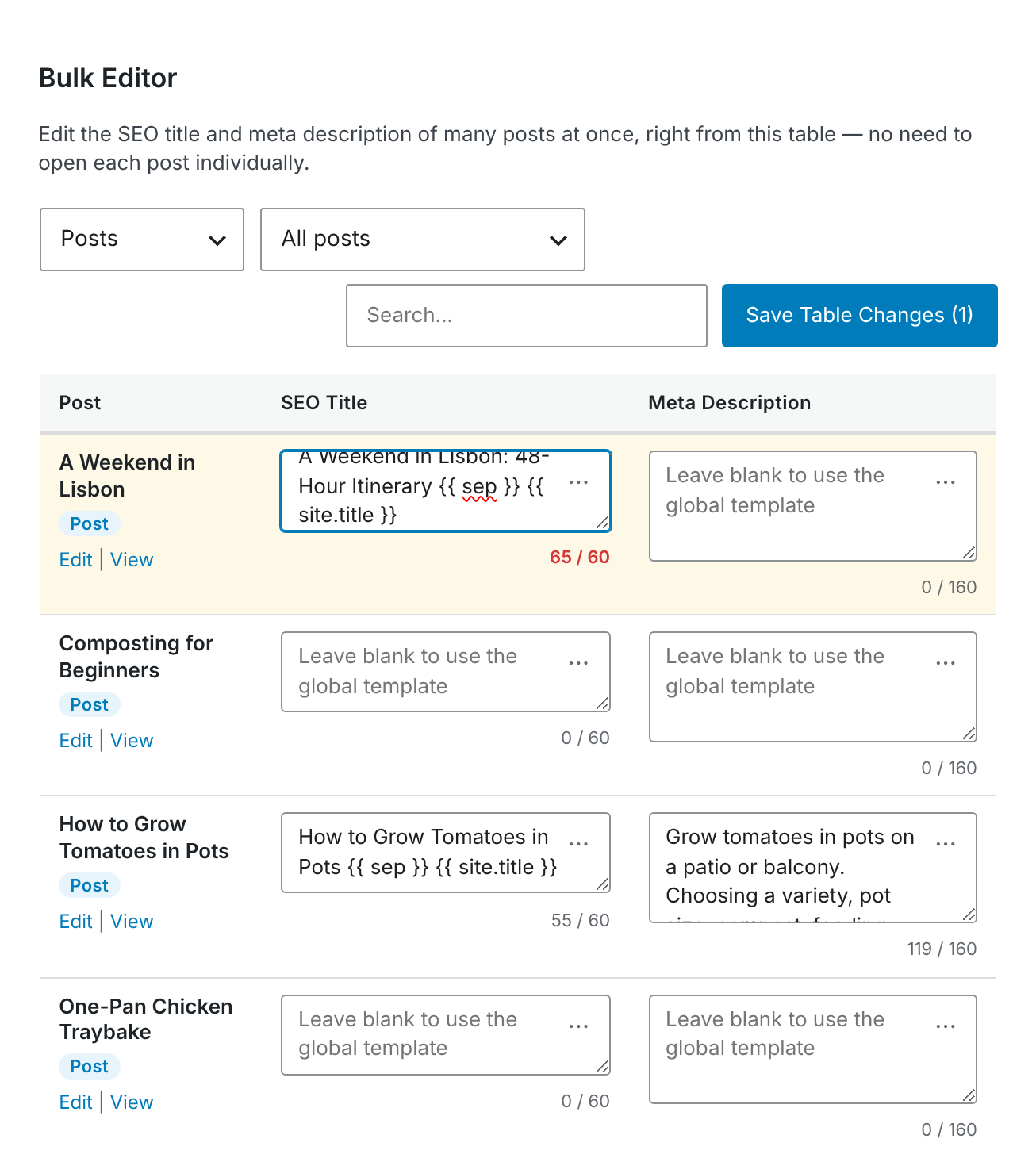
Narrow down the list
The Bulk Editor provides several controls for finding the posts you want to change.
- Post type: choose All post types or a specific type such as Posts or Pages.
- Filter: choose Missing SEO title or Missing meta description to show only posts where that field is empty. Those posts use the corresponding templates from Title & Meta.
- Search: enter part of a post’s title, content, or excerpt. The table updates as you type.
- Items per page: choose 20, 50, or 100 entries and move between pages of results.
Save before changing these controls. Changing the post type, filter, search term, current page, or number of items per page reloads the table and discards edits that have not been saved. CrawlWP does not ask you to confirm first.
Edit SEO titles and meta descriptions
- Enter a value in the SEO Title or Meta Description field for each row you want to change. Rows with edits are highlighted.
- Click the … button in a field to insert a variable such as
{{ post.title }}or{{ sep }}. See Title and meta description template variables. - Click Save Table Changes. The button shows how many rows currently contain unsaved changes.
CrawlWP confirms how many posts were updated. When a row cannot be saved, for example because the post was deleted in another browser tab, the row is highlighted and the message identifies the problem.
Leave a field empty when you want that post to use its corresponding template from Title & Meta.
Understand the character counters
A character counter appears below each field. The reference point is 60 characters for SEO Title and 160 characters for Meta Description. The counter turns red when the value exceeds the limit.
The counter counts the characters you enter, including variable names. For example, {{ site.title }} counts as 16 characters regardless of the actual length of the site title when the variable is replaced.
Use the counter as a rough guide rather than a prediction of how the final result will appear in search. For the rendered value, check the search preview in the post’s CrawlWP SEO box.
What the Bulk Editor can change
The Bulk Editor is limited to these two fields:
- SEO Title
- Meta Description
For focus keywords, social settings, schema, robots settings, and other SEO options, open the individual post and use the CrawlWP SEO box. Click Edit under a post’s title to open it in a new tab.
Saving changes in the Bulk Editor updates the signal letters in the posts-list SEO column, but not the stored SEO score. Open the post and click Update to refresh the score. See Using the content analysis and SEO score.
A safer way to edit large batches
When working through a large number of posts, it is best to treat each saved batch as a separate step. Filter the list, make your changes, click Save Table Changes, and only then change the filter, search, page, or number of entries.
The Missing SEO title and Missing meta description filters are particularly useful for cleanup tasks because they let you focus on content that currently relies on the Title & Meta templates.
Troubleshoot the Bulk Editor
My edits disappeared. The table was reloaded before the changes were saved. Repeat the edits and click Save Table Changes before changing the post type, filter, search, page, or items per page.
Some rows were not saved. A post may have been deleted or moved to the bin after the table was loaded. Reload the page and make the changes again.
A post is missing. Check the selected post type and filter. Trashed posts and attachments are not listed.
The table reloads when I press Enter in Search. The search field updates automatically as you type, so pressing Enter is unnecessary. Enter the search text and wait for the table to refresh.
The SEO score did not change after saving. This is expected. The Bulk Editor updates the SEO title, meta description, and signal letters in the posts list, but it does not refresh the stored SEO score. Open the post and click Update to recalculate it.
Use the Bulk Editor for site-wide SEO cleanup
The Bulk Editor is useful for handling repetitive SEO work at scale. Use the filters to locate missing fields, search for specific content, make the changes in batches, and save each batch before moving to another part of the list.
For anything beyond SEO titles and meta descriptions, switch to the individual post’s CrawlWP SEO box, where the remaining SEO settings are available.