
CrawlWP gives you two ways to work with internal links in WordPress. The free Links tab in the post editor helps you find linking opportunities, while automatic keyword linking in CrawlWP Premium adds configured links to your content as visitors view it.
Internal links connect one page on your site to another. They make related content easier for visitors to discover and help search engines understand the relationships between pages on your site.
Use the Links tab to find opportunities
To find opportunities to improve internal linking in your WordPress website, follow the steps below.
- Open a post in the WordPress editor.
- In the CrawlWP SEO box below the content, select the Links tab.
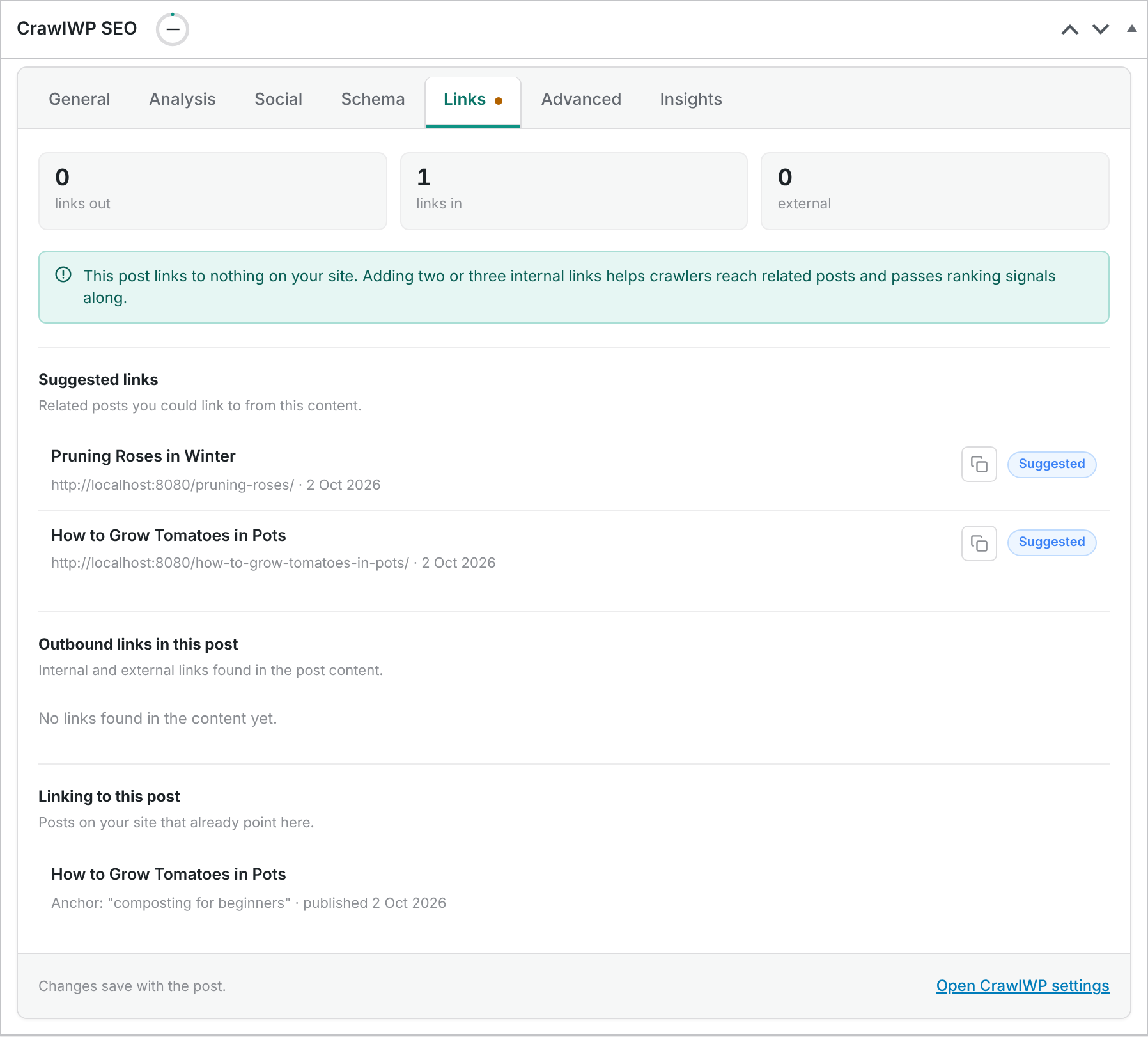
The tab gives you a quick picture of the links around the current WordPress post.
| Section | What it shows |
|---|---|
| links out, links in, external | The number of links in the post, including links to your own site and other sites, plus the number of published posts and pages linking to this post |
| Suggested links | Up to 10 related published posts of the same type that may be useful to link to |
| Outbound links in this post | The links in the post content, identified as Internal or External |
| Linking to this post | Up to 20 published posts and pages that link to the current post, including the link text |
If the WordPress post has no internal links, CrawlWP displays a notice suggesting that you add two or three. A dot also appears on the Links tab.
Where the suggestions come from
- When the post has a focus keyword, CrawlWP searches for posts matching the first keyword. If none match, no suggestions are shown.
- Without a focus keyword, CrawlWP starts with the newest posts in the same category. If the post has no category, it uses posts with the same tag or, when necessary, your most recent posts.
A suggestion is not inserted automatically. Click the copy button beside a suggested post to copy its address, then add the link to your content yourself.
The Linking to this post section is refreshed every 15 minutes and when you save the post. It only detects links in published posts and pages that use the post’s full URL, such as https://example.com/composting-for-beginners/. Relative links such as /composting-for-beginners/ are not counted.
Set up automatic keyword linking in Premium
CrawlWP can automatically turn specified words or phrases into links as individual posts and pages are displayed. Your saved post content is not changed.
- Go to CrawlWP > Settings.
- Make sure the Settings tab is selected, then click Internal Linking in the left-hand menu.
- Switch on Enable auto-linking.
- Enter your rules in Keyword rules, one per line, using the format
keyword|address. - Click Save Changes.
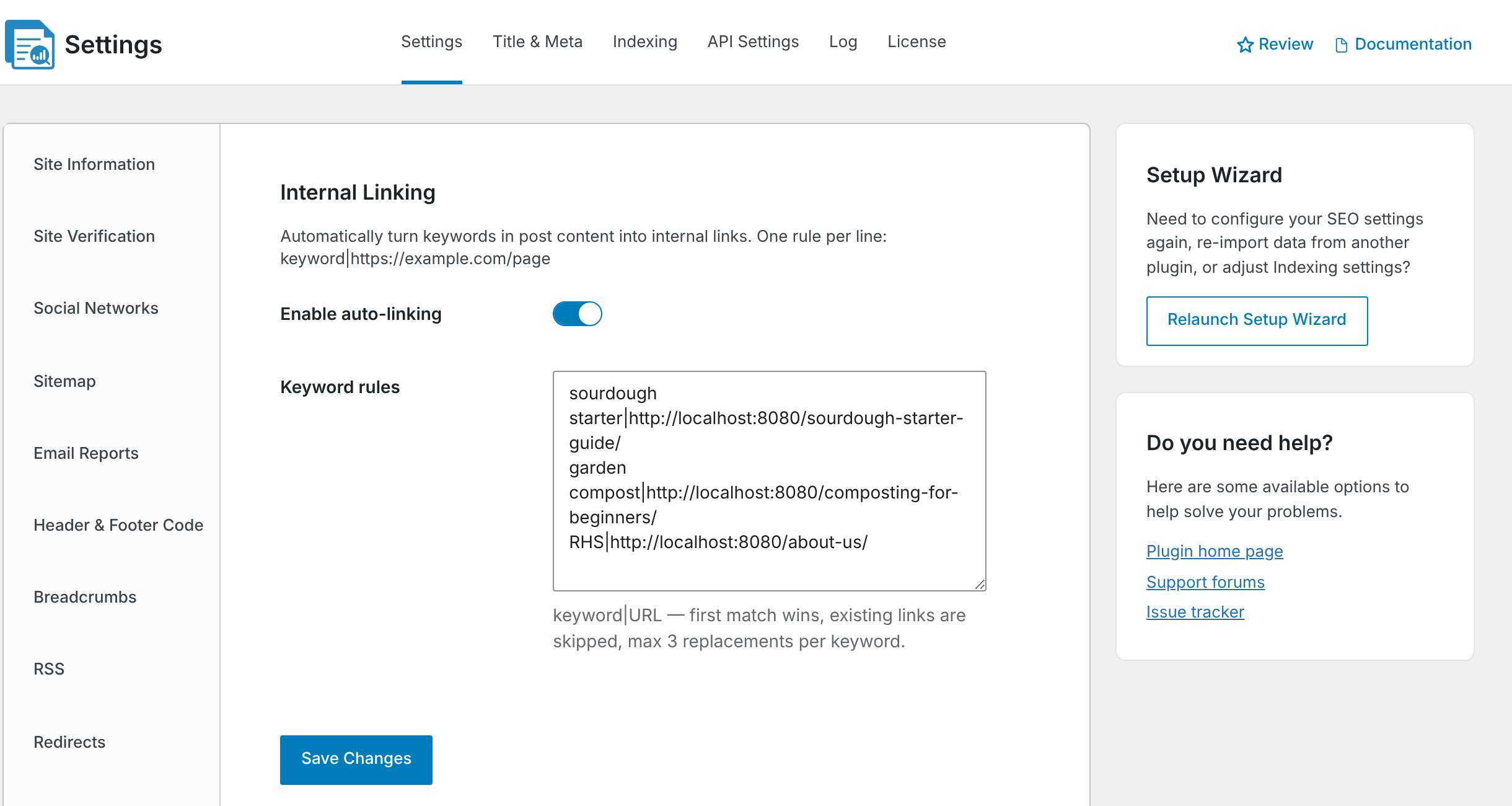
For example:
sourdough starter|https://example.com/sourdough-starter-guide/
garden compost|https://example.com/composting-for-beginners/
With this rule, every matching occurrence of “garden compost” that qualifies under the automatic-linking rules becomes a link to the composting guide.
Understand how automatic linking behaves
- It is added at display time. The links are inserted when the page is displayed. Turning Enable auto-linking off removes those generated links without changing the saved post.
- It works on individual content. Automatic linking applies to single posts, pages, and other single content. Archives, feeds and excerpts are excluded.
- Matching is case-sensitive. A rule for
garden compostdoes not match “Garden compost”. Add a separate rule when you need the capitalized form. - Only whole words are matched. A keyword must occur as a complete phrase rather than as part of another word.
- Each keyword is linked up to three times per post.
- Longer keywords are matched first. This helps longer phrases take precedence over shorter matching phrases.
- Existing links are skipped. Text already inside a link is not automatically linked again. Text inside headings, code, and preformatted blocks is also skipped.
- The last duplicate rule wins. If the same keyword appears more than once in the rules, CrawlWP uses the last occurrence.
Avoid overlapping keyword rules
Automatic linking can produce broken or nested links when one rule overlaps another rule or its destination URL. Review your rules before enabling them.
- Do not create overlapping keywords such as
SEOandWordPress SEO. - Do not use a keyword that appears inside another rule’s destination URL, such as
wpwhen another destination contains/wp-seo/.
After adding or changing rules, open several posts and check the generated links before relying on the rules across the site.
Automatic linking does not check whether the destination is the current post. A rule can therefore create a self-link. Avoid using a keyword on a page when the rule points to that same page.
Troubleshoot automatic linking
Keywords are not being linked. Confirm that Enable auto-linking is on, every rule contains a | with text on both sides, and the capitalization matches the text in your post. Also remember that a keyword can be linked only three times per post.
The generated links look broken or nested. Check for overlapping rules. A shorter keyword can match inside a phrase or destination used by another rule. Review the Avoid overlapping keyword rules section above.
Post content disappears after I enable auto-linking. A known issue affects posts with damaged text characters, often introduced by pasting content from another program, or very long posts. Switch off Enable auto-linking so the content displays again, then contact support.
No suggested links appear in the Links tab. If the post has a focus keyword, it may not match any other posts in WordPress. Try removing or changing the focus keyword. Suggestions are limited to published posts of the same type.
Internal Linking shows an upgrade message. Automatic keyword linking is a CrawlWP Premium feature. Install and activate CrawlWP Premium to use it.
Addresses in my rules lose characters such as %20. CrawlWP removes encoded characters when it saves the rules. Use addresses without those encoded characters.
Choose the right internal-linking method
Use the free Links tab when you want suggestions and an overview of links around an individual post. It helps you decide where to add links manually.
Use automatic keyword linking when you have repeatable terms that should point to specific URLs across individual posts and pages. Because the links are generated when content is displayed, you can change or remove the rules without rewriting the saved content.
For either approach, review the resulting links regularly. Relevant internal links are more useful than adding links simply to increase the number of links on a page.