
The CrawlWP Stats panel gives you a quick look at a published post without leaving the WordPress editor. CrawlWP Premium brings together the post’s search-engine index status and recent Google search performance in one place.
What the panel shows
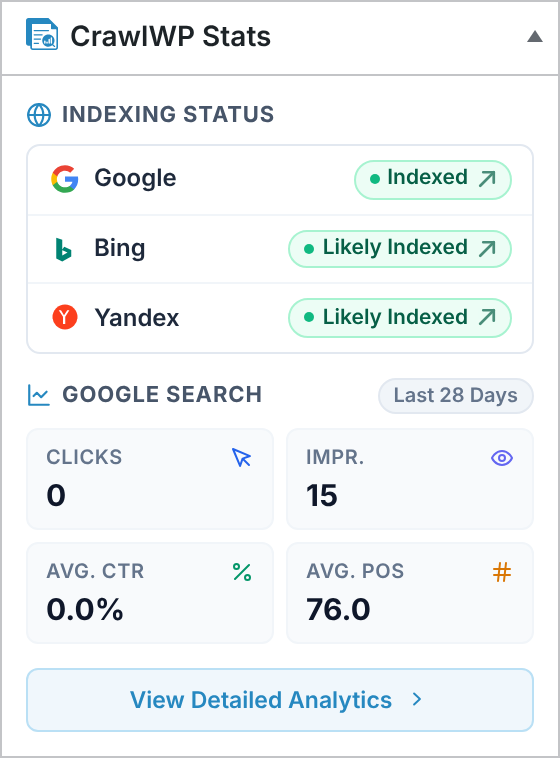
The panel has two main sections. Indexing Status shows what CrawlWP knows about the post in Google, Bing, and Yandex, while Google Search shows the post’s search performance for the Last 28 Days.
You can also use the links in the panel to jump directly to the related CrawlWP reports. This makes the sidebar useful for a quick check while editing, with the full SEO Indexing and SEO Stats pages available when you need more detail.
When the CrawlWP Stats panel appears
The panel is available on published posts whose post type is enabled in CrawlWP > Settings > Indexing > General. The Post Types setting controls which types can use the panel, and Posts are enabled by default.
- In the block editor, look in the settings sidebar on the right. Click the Settings button at the top right first if the sidebar is hidden.
- In the Classic editor, the panel appears in the right-hand column near the top.
CrawlWP does not show the panel for drafts, scheduled posts, pending posts, or private posts. The post must be published for the panel to appear.
Check the post’s indexing status
The Indexing Status section shows the current status CrawlWP has for the post in Google, Bing, and Yandex. Depending on the engine and the information available, you may see statuses such as Indexed or Likely Indexed. For an explanation of these statuses, see Understanding index statuses, including Likely Indexed.
The status itself is also a shortcut to a more detailed CrawlWP view:
- Google opens SEO Indexing with the post searched for.
- Bing opens the Bing Stats tab in SEO Stats, filtered to the post.
- Yandex opens the Yandex Stats tab.
These status links become available once CrawlWP has a status for the post other than Not Checked. Each link opens in a new browser tab, so you can inspect the report and return to the editor easily.
Read the Google Search figures
The Google Search section is focused on the post’s Google performance over the Last 28 Days. It gives you four figures that answer the basic questions: how much traffic search sent, how often the post appeared, how often people clicked it, and where it tended to rank.
| Figure | What it tells you |
|---|---|
| Clicks | The number of clicks from Google search results to the post |
| Impr. | The number of times the post appeared in Google search results |
| Avg. CTR | The percentage of impressions that resulted in a click |
| Avg. Pos | The post’s average position in Google results, where a lower number is better |
These figures help you spot obvious search-performance changes without opening a separate analytics screen. For example, impressions can show that a post is appearing in search even when clicks remain low, while average position helps put that visibility into context.
Open the full analytics report
The sidebar is intended for a quick view. For a fuller breakdown, click View Detailed Analytics. CrawlWP opens the Google tab of the SEO Stats page, filters it to the current post, and uses the Last 28 Days period. The report opens in a new tab.
You can also dig deeper from the editor through the Insights tab in the CrawlWP SEO box. For details on that view, see Per-post insights in the SEO metabox.
Collapse or hide CrawlWP Stats
You can keep the panel available without taking up space, or remove it from the editor altogether.
- Click the arrow in the panel header to collapse the panel.
- In the block editor, open the Options menu (three dots), go to Preferences > General, then turn off CrawlWP Stats under Advanced.
- In the Classic editor, click Screen Options at the top and untick CrawlWP Stats.
Troubleshooting the Stats panel
The panel is missing. Confirm that the post is published and that its post type is selected under Post Types in CrawlWP > Settings > Indexing > General. In the block editor, also make sure CrawlWP Stats isn’t hidden in your editor preferences.
Google figures are all 0. The Google API may not be connected, or the post may be too new to have search data. When the Google API is not connected, the panel shows 0 instead of an error. Check CrawlWP > Settings > API Settings.
An indexing status is Not Checked. This means CrawlWP has not checked the post yet. Index-status checks run in the background, so a newly published post may show Not Checked until a check has taken place. See how automatic indexing works and how to schedule it.
The CrawlWP Stats panel is most useful as an editor-side snapshot: check indexing first, glance at the recent Google figures, then follow the links when you need the complete report.