
The Bing Stats report in the CrawlWP WordPress SEO plugin shows how your site appears in Bing search results using data from Bing Webmaster Tools.
You can use it to see which search terms (keywords) generate impressions and clicks, which pages appear in Bing results, and how your search performance changes over the reporting period available from Bing.
The Bing report differs from the Google report in a few important ways. Bing determines the reporting period, returns keyword data in weekly blocks, and does not provide a CTR metric.
Connect Bing Webmaster Tools first
The Bing Stats of a website displayed in WordPress cannot display a report until CrawlWP has access to your Bing Webmaster Tools data. Connect the Bing API from CrawlWP > Settings > API Settings > Bing API.
See Integrating WordPress with Bing Search API for the connection steps.
Before the connection is available, the Bing Stats screen shows “You need to connect with the Bing API to view reports.” and a Connect with Bing API button.
Open the Bing report
To view your WordPress site SEO performance on Microsoft Bing search engine, follow the steps below.
- Go to CrawlWP > SEO Stats.
- Click Bing Stats at the top.
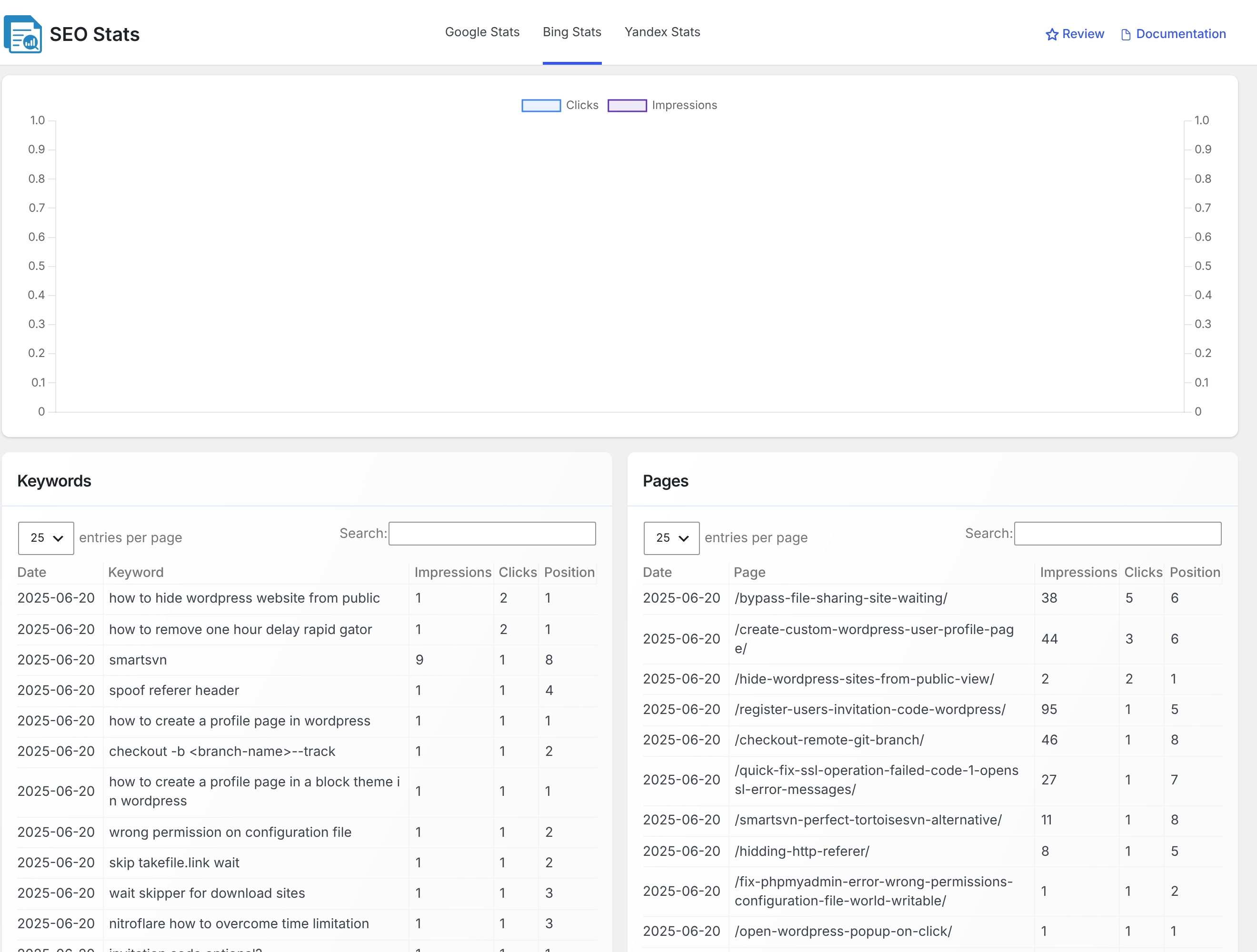
This screen has no date-range picker. Bing determines the period covered by the data that it returns to CrawlWP.
Start with the site-wide chart
The main chart gives you a high-level view of your Bing search activity. It plots Clicks and Impressions over time.
The two metrics use different scales: clicks use the left-hand axis, and impressions use the right-hand axis. This lets CrawlWP display both measures even when impressions are much larger than clicks.
Bing Stats does not show CTR because Bing does not provide that metric in the data used by this report.
You also will not see total summary cards in the normal site-wide view. Those cards appear when you filter the report to a specific WordPress page.
Understand the Keywords table
The Keywords table shows the search terms or SEO keywords for which your WordPress site appeared in Bing results.
Bing reports this information in weekly blocks, so the Date value represents the week covered by that row.
| Column | What it shows |
|---|---|
| Date | The week to which the figures belong. |
| Keyword | The search term people used when your site appeared in Bing. |
| Impressions | How many times your site appeared in Bing results for that keyword. |
| Clicks | How many times searchers clicked through to your site. |
| Position | Your average position when the site was shown. Lower is better. |
The weekly format means the same keyword can appear more than once. For example, a keyword can have one row for one week and another row for a later week.
Use the Pages table to see which URLs appear
The Pages table contains the same basic measures as the Keywords table, but groups them by page instead of search term. It shows which URLs from your WordPress website appeared in Bing search results.
The two tables answer different questions. The Keywords table tells you what people searched for in Bing, while the Pages table tells you which of your WordPress site URLs appeared for those searches.
Search and sort the report
- Use Search to find a particular keyword or page.
- Click a column heading to sort the table by that column.
- Change entries per page when you want to see more than the default 25 rows.
- Use Copy Data to copy the table or Download CSV to export it as a spreadsheet file.
These controls are useful when the report contains a large number of keywords or pages, and you want to work with a smaller set of rows.
Investigate a keyword or page
Click a keyword or page in either table to filter the Bing SEO report. The report changes depending on what you select.
- Keyword filter: the chart shows the selected keyword’s clicks and impressions over time, while the Pages table shows which pages appeared for it.
- Page filter: the chart is replaced by Clicks and Impressions cards for that page, while the Keywords table shows the terms for which it appeared.
- Keyword + page filter: the chart shows that specific keyword-page combination, and the summary cards don’t appear.
This makes the report useful from either direction. Start with a keyword when you want to see which pages compete for the same search term, or start with a page when you want to understand the searches that bring visibility to that URL.
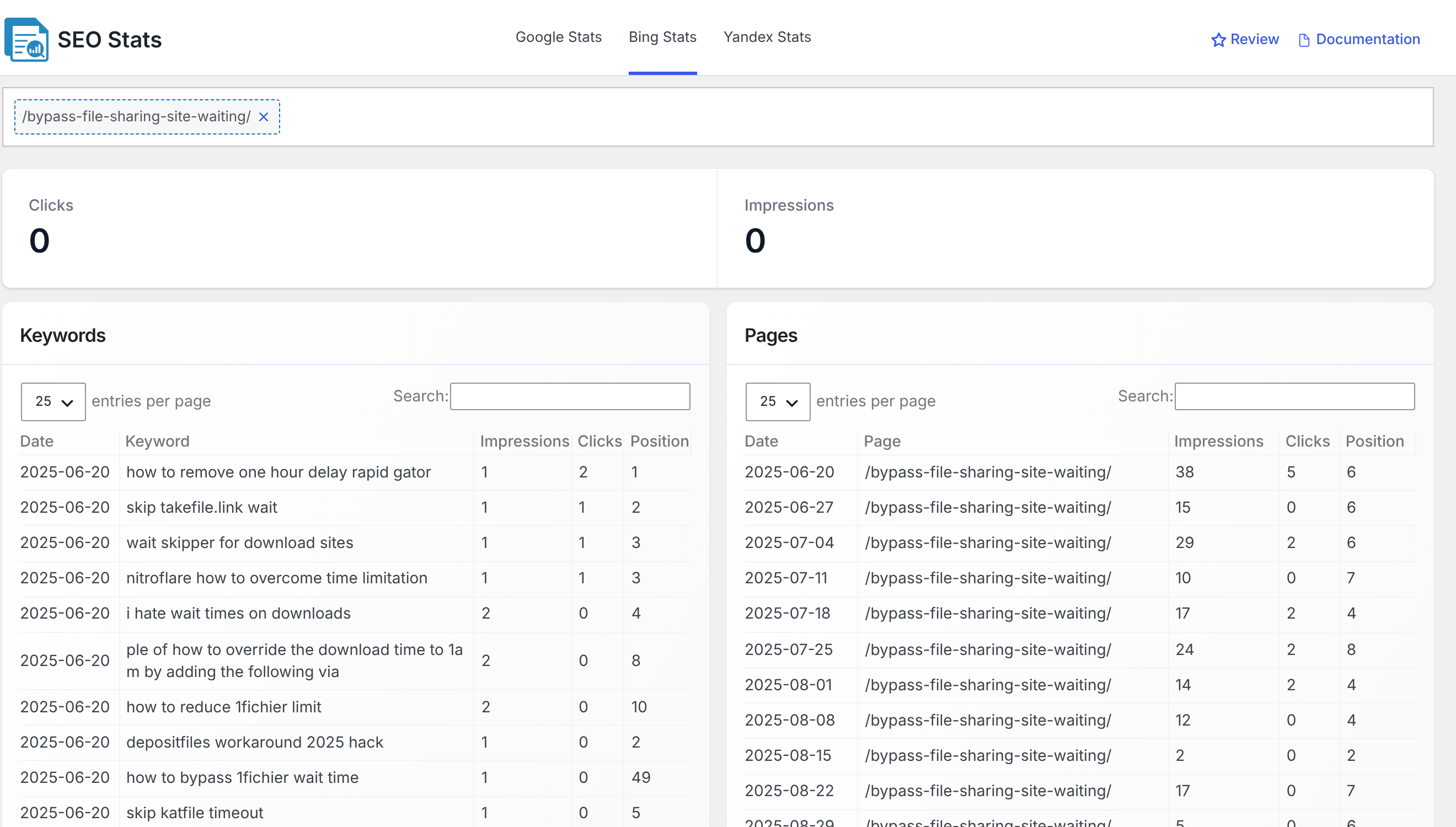
To remove a filter, click the × next to it at the top left, or click Bing Stats again.
Why you may see older dates
CrawlWP keeps each response from Bing for up to 24 hours. More importantly, Bing does not necessarily provide new search-performance data as frequently as Google, so the newest information in CrawlWP can sometimes be several days old.
Do not assume that an older date means the API is broken. The first check is whether Bing itself has newer data available for the WordPress site.
Use Bing Stats to find useful patterns
The report becomes more useful when you compare impressions, clicks, and position rather than looking at one number alone.
- A keyword with many impressions and a high average position can be worth investigating because the page is already getting visibility but may not rank near the top.
- A page with impressions across many keywords may be an important entry point for Bing traffic.
- A keyword appearing across several pages may indicate that multiple URLs compete for the same search query.
These are ways to explore the data inside the report. Bing Analytics itself does not provide recommendations or diagnose ranking problems for you.
Troubleshooting the Bing report
The tab is empty, or the chart has no lines. Check the Bing API connection under API Settings. Also make sure your site has been added and verified in Bing Webmaster Tools under the same account. If the connection is correct, allow up to 24 hours for a cached CrawlWP response to refresh.
The dates are several days old. Check the same report in Bing Webmaster Tools. Bing may not have newer search-performance data available yet. If Bing shows newer information, check the API connection and allow up to 24 hours for CrawlWP’s saved response to expire.
The page cards do not match the totals in the tables. The cards and tables come from different Bing reports, so their totals can differ. This is expected behavior and does not necessarily indicate an API problem.
I cannot select a date range. Bing Stats does not provide a date filter. CrawlWP displays the reporting period supplied by Bing.
I cannot find CTR. The Bing report CrawlWP uses does not provide CTR, so the Bing Stats screen does not display it.
Clear filters before starting another analysis
It is easy to forget that the report is still filtered. Before comparing a new keyword or page with the whole site, remove the current filter using the × control or reopen Bing Stats.
A simple way to work through Bing Stats
- Start with the site-wide chart to understand clicks and impressions.
- Review the Keywords table for search terms with meaningful impressions and their average positions.
- Switch to the Pages table to see which URLs are receiving Bing visibility.
- Click a keyword to investigate the pages ranking for it, or click a page to investigate its keywords.
- Export the data with Download CSV when you need to analyze it outside CrawlWP.
Bing statistics or analytics is best treated as a snapshot of the search-performance data Bing makes available to CrawlWP.
The reporting period, weekly keyword format, data freshness, and separate Bing reports for cards and tables mean that it will not always look or behave like the Google report.
When you understand those differences, the report gives you a useful way to investigate Bing visibility at both the keyword and page level without leaving CrawlWP.