
The Insights tab inside the CrawlWP SEO box brings page-level search data into the WordPress editor. With CrawlWP Premium, you can review search performance, see the keywords driving visits, and check the page’s indexing status without opening a separate report.
Open Insights for a post or page
- Open a published post or page in the WordPress editor.
- Scroll to the CrawlWP SEO box below the content and select Insights.
CrawlWP loads the report when the tab is opened for the first time. The Premium version provides the actual insights; without Premium, the tab explains the feature and provides a link to upgrade.
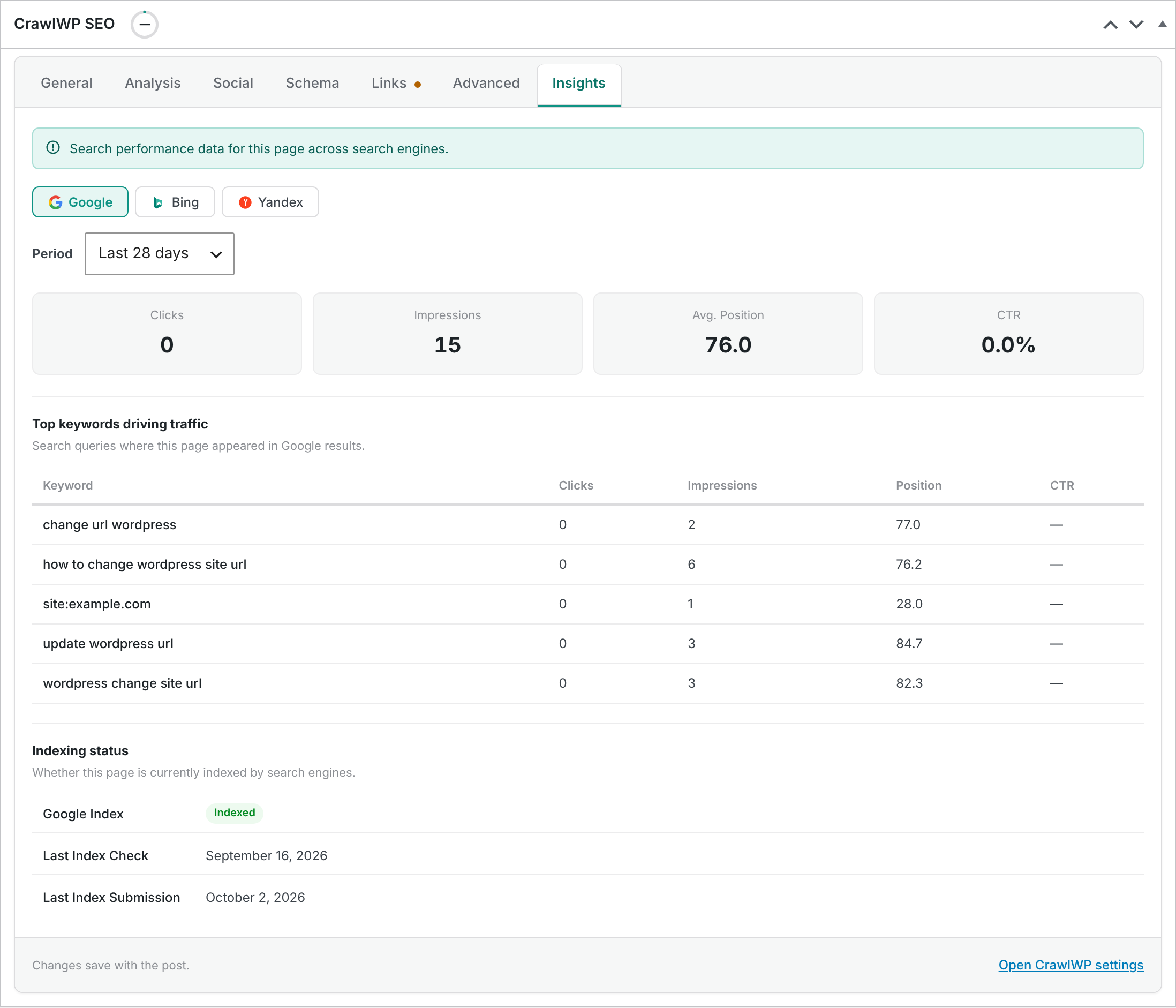
Set the search engine and date range
Insights lets you switch between the three supported search engines and choose how much recent data to display.
- Select Google, Bing, or Yandex. Google is selected by default.
- Choose a Period of Last 7 days, Last 28 days or Last 3 months. The default is Last 28 days.
Understand the four search metrics
For Google and Bing, the top of the Insights tab summarizes four search-performance measurements for the selected period.
| Metric | Meaning |
|---|---|
| Clicks | The number of visits to the page that started from a search result |
| Impressions | The number of times the page appeared in search results |
| Avg. Position | The page’s average position in search results; a lower number is better |
| CTR | Clicks divided by impressions, expressed as a percentage |
A dash means CrawlWP does not have a value for that metric, such as when the required search-engine connection is unavailable or Yandex is selected. For Google, a period with no data is displayed as 0.
The periods used in this tab count one additional day compared with their labels. As a result, figures shown here can differ slightly from the corresponding period on the SEO Stats page.
See the keywords behind the traffic
The keyword section lists up to 10 search terms for which the page appeared. Each term includes Clicks, Impressions, Position, and CTR, making it easier to see which searches are producing visibility and visits.
When a keyword has no clicks, its CTR is shown as a dash. When CrawlWP has no keyword information for the selected period, the message No keyword data available for this period. is displayed.
Check indexing from the same screen
The lower part of the tab keeps indexing information alongside the search metrics. The exact index label changes with the selected search engine.
| Row | What it contains |
|---|---|
| Google Index, Bing Index or Yandex Index | The page’s current index status, such as Indexed or Likely Indexed |
| Last Index Check | The date and time CrawlWP last checked the page’s index status |
| Last Index Submission | The date and time CrawlWP last submitted the page. For Google, this is the most recent Google Indexing API submission when one exists |
When CrawlWP does not have a status or date yet, the relevant row shows Not available. The index statuses match those used on the SEO Indexing page. For an explanation of the statuses, see Understanding index statuses, including Likely Indexed.
What changes between Google, Bing and Yandex
Google provides the full view: all four metrics, the keyword list and the index status. Its search-performance data comes from Google Search Console.
Bing provides the four metrics, keyword information, and the index status using Bing Webmaster Tools data. Bing reports in weekly blocks, so a Last 7 days selection can contain a week’s worth of data or no data at all. A single page may also have less Bing data than Google.
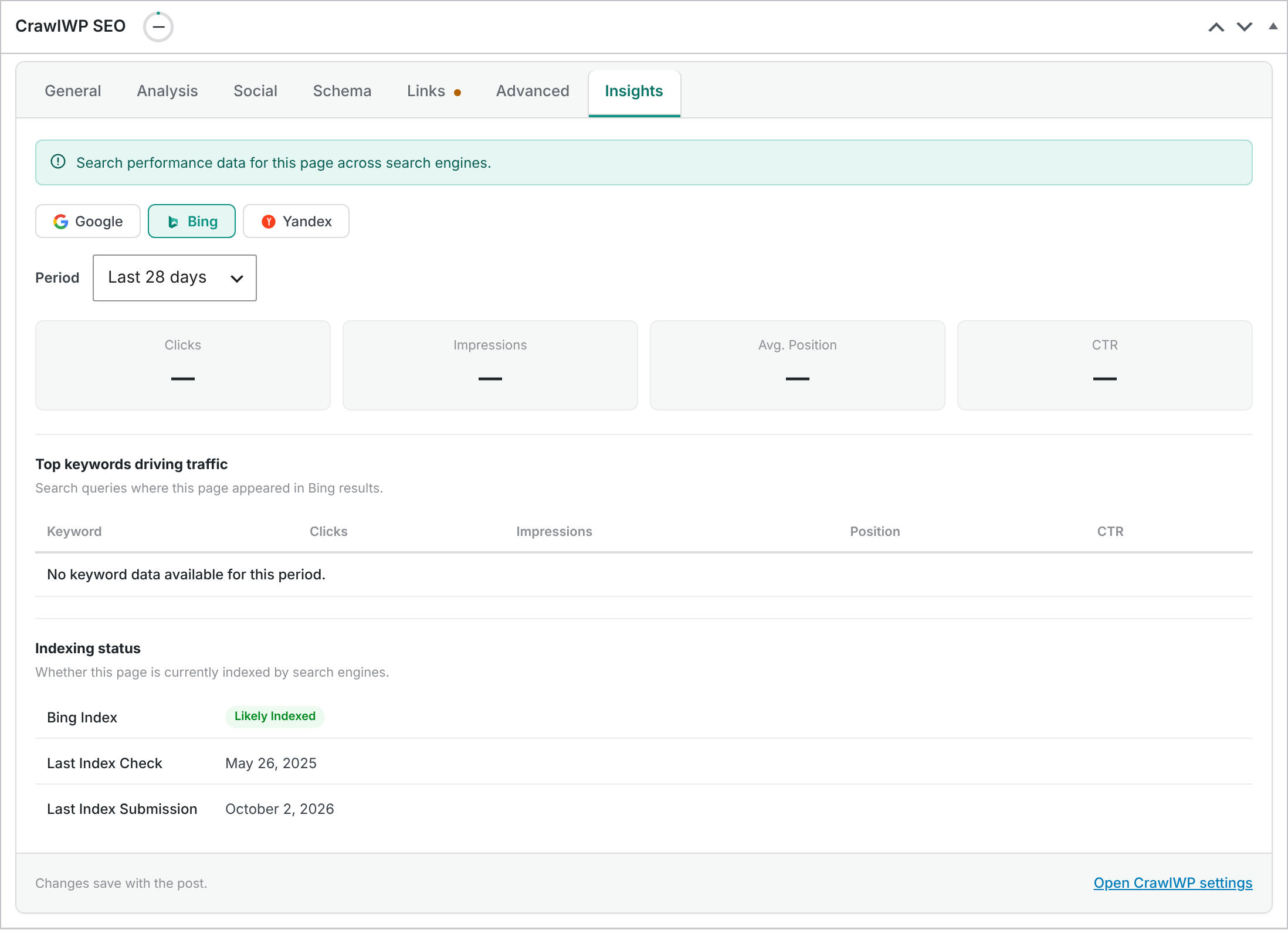
Yandex provides the index status but not page-level search-performance figures. Its metrics therefore show a dash, and the keyword section displays No keyword data available for this period.
Connect the APIs before using Insights
The search engines need their APIs connected before CrawlWP can retrieve their data. The connections are managed from CrawlWP > Settings > API Settings.
For setup instructions, see Integrating WordPress with Google Search API, Bing and Yandex.
Why recent data may be missing
The numbers are not necessarily real-time. Google figures can be up to 12 hours old, and Bing figures can be up to 24 hours old because CrawlWP keeps a copy of each response. The search engines can also report the most recent two or three days late.
Newly published pages commonly have no search data during their first few days. When you need site-wide or more detailed reporting, use the SEO Stats page. See Reading the SEO Stats dashboard.
Troubleshoot missing or unchanged data
Everything shows a dash. Verify that the API for the selected search engine is connected under CrawlWP > Settings > API Settings. Also make sure the post is published and has been live long enough to collect search data. When Google is not connected, the tab can still display No keyword data available for this period.
The index status stays on “Checking…”. The tab could not load the data. Reload the editor and open Insights again.
Changing the period does not change the figures. Let the first data load finish before switching periods. Then select the required period again.
With the Insights tab, you can check a page’s search visibility and indexing details while working on the page itself, then move to the full SEO Stats or SEO Indexing reports when you need a wider view.