
Page builders change how WordPress content is created, but they do not prevent CrawlWP from adding SEO information to the page.
CrawlWP’s SEO output is generated separately from the page builder content, so titles, meta descriptions, canonical URLs, robots directives, social tags, schema, and breadcrumbs can work on pages built with Elementor, Divi, Bricks, Beaver Builder, Oxygen, WPBakery, and other builders.
The main difference is where you edit the SEO settings and how much of the builder’s content CrawlWP can read for content analysis or AI features.
Elementor has the deepest editor integration; with Divi, Bricks, and other builders, you generally manage the SEO settings from the WordPress editor.
CrawlWP Works Independently of Your Page Builder
CrawlWP does not need to control the layout of a page to generate its SEO output. SEO information comes from WordPress data and CrawlWP settings, not the visual layout your builder creates.
- SEO titles and meta descriptions
- Canonical URLs and robots directives
- Open Graph and X/Twitter metadata
- Schema and structured data
- Breadcrumbs
You can therefore build a landing page with Elementor, a marketing page with Divi, or a template with Bricks and still use CrawlWP for the page’s SEO output.
Where to Edit SEO Settings
For all builders, you can set a page’s SEO from the CrawlWP SEO box in the WordPress editor. Open the page from Pages > All Pages and click Edit, rather than opening it through the builder’s edit link. The CrawlWP SEO box appears below the content.
Elementor is different because CrawlWP also places its page-level SEO settings inside Elementor’s Page Settings panel. This lets you manage the main SEO fields without leaving the Elementor editor.
Elementor Gets Its Own CrawlWP Controls
When you edit a page with Elementor, open Page Settings using the gear icon in the top bar. On the Settings tab, you will find the CrawlWP sections.
- Open the page in Elementor.
- Click Page Settings in the top bar.
- Open the relevant CrawlWP section on the Settings tab.
- Edit the fields you need and save the page in Elementor.
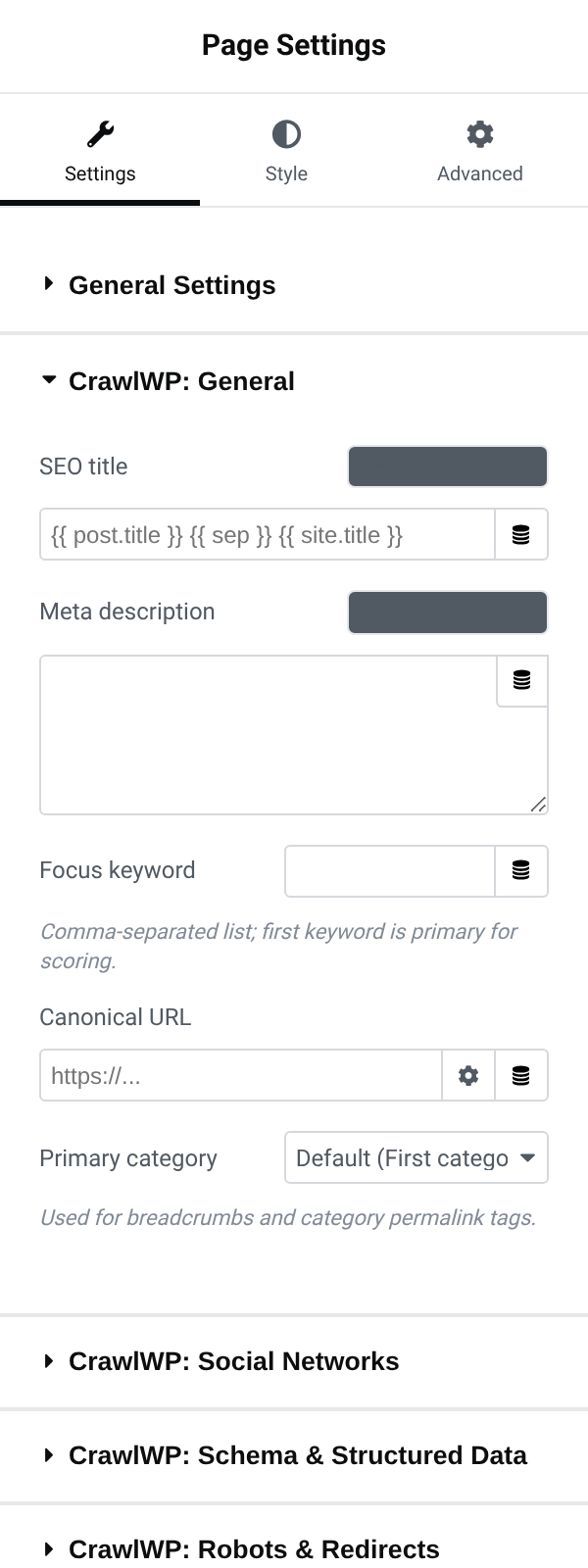
| Elementor section | What you can manage |
|---|---|
| CrawlWP: General | SEO title, Meta description, Focus keyword, Canonical URL, and Primary category |
| CrawlWP: Social Networks | Sync with SEO title & description, Open Graph image, Social image alt text, Sync with Open Graph, Card type, and Creator (@username). Open Graph and X titles, descriptions, and the X image become available when the relevant sync setting is turned off |
| CrawlWP: Schema & Structured Data | Page type, Article type, Headline, Article section, Breadcrumb title, and Custom JSON-LD schema |
| CrawlWP: Robots & Redirects | Allow Indexing, Follow links, Crawler directives, Max snippet, Max image preview, redirect address, and redirect status |
These Elementor controls save to the same values used by the CrawlWP SEO box in the WordPress editor. A value changed in Elementor is therefore visible in the WordPress editor too.
Be Careful When Editing the Same Page in Two Places
Although the Elementor controls and the WordPress editor use the same SEO data, mixing both editing locations can produce confusing results. Elementor can remember the values from the last time you saved the page in Elementor and show those values later.
That means a later save in Elementor can write older values back over changes you made in the WordPress editor. The safest approach is to choose one place as the main editing location for a page’s SEO and use it consistently.
A Useful Elementor Workflow
- Use Elementor’s CrawlWP panels when you are already editing the page and want to change its SEO at the same time.
- Use the WordPress CrawlWP SEO box when you need the content analysis, SEO score, search preview, or Insights.
- After changing SEO in the WordPress editor, avoid saving the page in Elementor unless you have checked the values Elementor will write back.
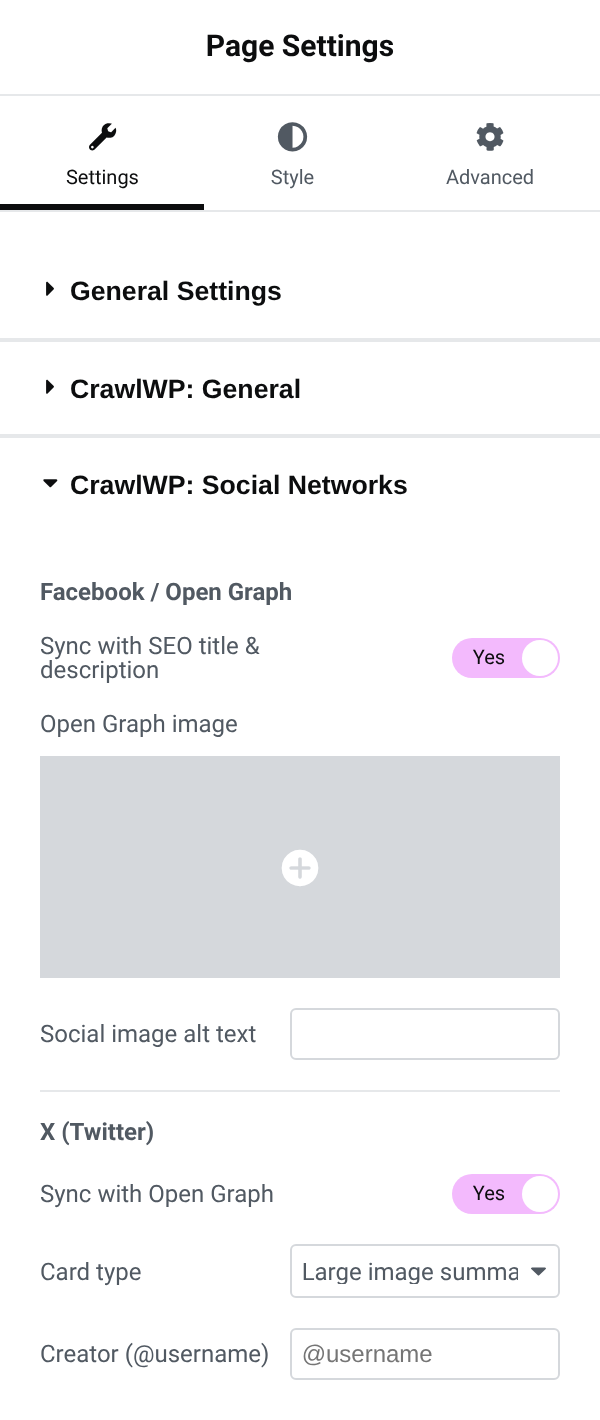
Another Elementor-specific detail: the small dark button next to fields such as SEO title, Meta description, social titles and descriptions, and Headline opens CrawlWP’s variable list. It currently has no text label.
The variables can include values such as {{ post.title }}. On product pages, WooCommerce variables are also available. Elementor’s own dynamic tags do not work in these CrawlWP fields, so enter the value directly or use CrawlWP’s variables instead.
The Elementor panel does not show the content analysis, SEO score, search preview, or Insights. Open the page in the normal WordPress editor and use the CrawlWP SEO box when you need those features.
Content Analysis Is a Separate Question
Treat CrawlWP’s SEO output and its content analysis as two different things. SEO metadata can work normally even when a page builder makes the content difficult for CrawlWP to analyze.
The content analysis reads the page content saved in WordPress. Elementor saves a copy of the page text there, so CrawlWP can analyze Elementor pages. Other builders may store their content differently.
For example, you may see a page in a builder with plenty of headings, images, links, and text, while CrawlWP reports very little content. When that happens, the analysis isn’t seeing the same content representation you see in the builder.
In that situation, you can treat the analysis as unavailable for that particular page. It does not stop CrawlWP from outputting the page’s SEO title, meta description, social metadata, schema, canonical URL, or robots directives.
Divi and Bricks Have Different Levels of Integration
Neither Divi nor Bricks has a CrawlWP panel inside the builder like Elementor does. For these builders, set the page’s SEO from the CrawlWP SEO box in the WordPress editor.
- Divi: when the Divi theme is active, CrawlWP removes Divi’s layout codes before sending the content to its AI features, so the AI can work with the page text. This behavior doesn’t apply to the Divi Builder plugin when used with another theme.
- Bricks: when the Bricks theme is active, CrawlWP gets the page from Bricks’ own data for its AI features, allowing the AI to work with the text on the page.
These differences mainly affect how CrawlWP can read page content for its analysis and AI features. They do not change the basic SEO output generated by CrawlWP.
What About Other Page Builders?
CrawlWP does not have a dedicated editor integration for Beaver Builder, Oxygen, WPBakery, or other page builders listed here. You can still use CrawlWP’s normal SEO output and manage the page from the WordPress editor.
For these builders, the important distinction is again content analysis. If a builder stores content in a format CrawlWP cannot read fully, the analysis may not reflect everything visible on the page. That limitation does not prevent CrawlWP from generating the page’s SEO metadata.
Keep Other SEO Output From Creating Duplicates
When a page builder or theme has its own SEO or metadata features, make sure you are not generating duplicate SEO tags from multiple systems. Check the theme or builder settings if you see more than one title, description, canonical tag, or set of social metadata in the page source.
This is different from page-builder compatibility itself. CrawlWP can generate the correct output while another plugin or theme also outputs competing metadata.
Troubleshooting Page-Builder Issues
CrawlWP sections are missing from Elementor. Check that CrawlWP’s SEO features are enabled, then reload the Elementor editor. If the sections still do not appear, open the page in the normal WordPress editor and confirm that the CrawlWP SEO box is available there.
Changes made in Elementor are replaced later. Avoid editing the same page’s SEO in both Elementor and the WordPress editor without checking which values Elementor has retained. Use one editing location consistently when possible.
Elementor saves a CrawlWP field as empty. Do not use Elementor dynamic tags in CrawlWP fields. Enter the value directly or use a CrawlWP variable such as {{ post.title }}.
The content analysis reports too little content. The builder may be storing the page in a format that CrawlWP cannot fully read. Compare the content reported by CrawlWP with what is visible in the builder. When the analysis is incomplete, the SEO output itself is not affected.
The SEO title or social tags are not what I expect. Check whether another SEO plugin, the active theme, or the builder is outputting its own metadata. Remove the competing output or use its settings to prevent duplicate tags.
The Practical Takeaway
You do not have to change page builders to use CrawlWP. The core SEO output works independently of the builder. Elementor is the exception in terms of editing convenience because CrawlWP exposes page-level settings directly inside Elementor.
For Divi, Bricks, and other builders, the normal CrawlWP SEO box remains the main place to manage page SEO. When a builder’s content is stored in a way CrawlWP cannot fully analyse, the limitation is mainly with content analysis or AI input, not with the SEO metadata CrawlWP outputs.