
When WooCommerce is active, CrawlWP automatically adjusts several parts of your site’s SEO output for products, product archives, and WooCommerce pages. You do not need to enable a separate WooCommerce mode.
This includes Product schema, WooCommerce-specific template variables, product-category breadcrumbs, and the handling of pages such as Cart, Checkout, and My Account. The WooCommerce features described here are available in the free version.
What changes when WooCommerce is active?
CrawlWP detects WooCommerce and applies several WooCommerce-specific behaviors automatically:
- Product pages receive
Productstructured data containing details such as price, stock, images, and reviews. - WooCommerce’s own product structured data is removed so search engines do not receive two competing product-schema versions.
- Cart, Checkout, and My Account pages are given a
noindexdirective. - Product breadcrumbs use the product category in place of the normal primary taxonomy.
- WooCommerce product details can be inserted into SEO title and meta description templates.
Products, product categories, and product tags are still managed through CrawlWP’s normal post type and taxonomy settings. You can edit an individual product in the CrawlWP SEO box and configure templates for products from CrawlWP > Settings > Title & Meta.
Managing SEO for individual products and all products
- One product: open the product editor and use the CrawlWP SEO box. See Setting your SEO title and meta description.
- All products: use CrawlWP > Settings > Title & Meta to create the default SEO templates for products. See Search appearance settings for post types.
How CrawlWP builds Product schema
On a product page, CrawlWP outputs a Product node in the structured data. Much of the information comes directly from the WooCommerce product, so keeping your product data complete also gives CrawlWP more information to use in the schema.
| Property | Source or behavior |
|---|---|
name | The WooCommerce product name. |
description | The short description, or the full description when there is no short description. |
sku | The product SKU. |
gtin | The value from WooCommerce’s GTIN, UPC, EAN, or ISBN field when it contains 8, 12, 13, or 14 digits. Spaces and hyphens are ignored. |
image | The main product image and gallery images. |
offers | Product price, currency, stock status, and product address, according to the product type and WooCommerce settings. |
aggregateRating | The average rating and number of reviews when the product has rated reviews. |
review | The five most recent approved reviews with a star rating when Enable star rating on reviews is enabled in WooCommerce. |
seller | Your site, represented as the organization or person configured under Site Information. |
The offer depends on the product type
CrawlWP does not use exactly the same Offer structure for every WooCommerce product. The schema reflects the type of product being sold.
- Simple products: receive an
Offerusing the current price, including a sale price when applicable. - Variable products: receive an
AggregateOffercontaining the lowest and highest variation prices and the number of variations that can be bought. - Grouped products: receive an
Offerusing the lowest price in the group. - External products: receive an
Offerlinked to the product’s external address.
Stock status is represented as InStock, OutOfStock, or BackOrder. The prices used in the schema follow WooCommerce > Settings > Tax > Display prices in the shop.
The priceValidUntil value uses the end date of the current sale. When the sale has no end date, CrawlWP uses 31 December of the following year.
Some Product schema fields are intentionally not included
CrawlWP does not output brand, MPN, shipping details, or return policy data in its Product schema. Google may therefore show these as optional improvements when you test the product with the Rich Results Test.
Use Testing your schema with Google’s Rich Results Test to check what CrawlWP is outputting for an individual product.
CrawlWP removes WooCommerce’s duplicate Product schema
WooCommerce can output its own product structured data. CrawlWP removes that WooCommerce output across the site and provides its own Product schema instead. This prevents search engines from receiving two versions of the product structured data from the same page.
If a test still shows two Product items, do not assume that both came from WooCommerce. Another plugin or your theme may also be generating product schema.
Why Cart, Checkout, and My Account are noindexed
Cart, Checkout, and My Account are functional WooCommerce pages rather than pages you normally want appearing in search results. CrawlWP therefore outputs noindex for them automatically, so you do not have to change their robots settings manually.
The pages can still appear in the page sitemap because CrawlWP applies the noindex directive when the page loads rather than saving the setting directly on the page. Search engines see the noindex when they visit the page.
When you also want these pages removed from the sitemap, set each page to noindex in its CrawlWP SEO box. See Noindex, nofollow and other robots directives per post.
Product categories change the breadcrumb path
On a WooCommerce product page, CrawlWP uses the product category in the breadcrumb path after the shop page. For example:
Home › Products › Planters › Terracotta Plant Pot 30cm
This behavior is specific to products and replaces the Primary taxonomy used by the general breadcrumb settings. WooCommerce does not provide a primary product category, so CrawlWP uses the first category assigned to the product.
See Setting up breadcrumbs for the general breadcrumb settings.
Use WooCommerce variables in product SEO templates
CrawlWP provides product-specific variables that you can insert into a product’s SEO title and Meta description. Click Insert variable to see the available options.
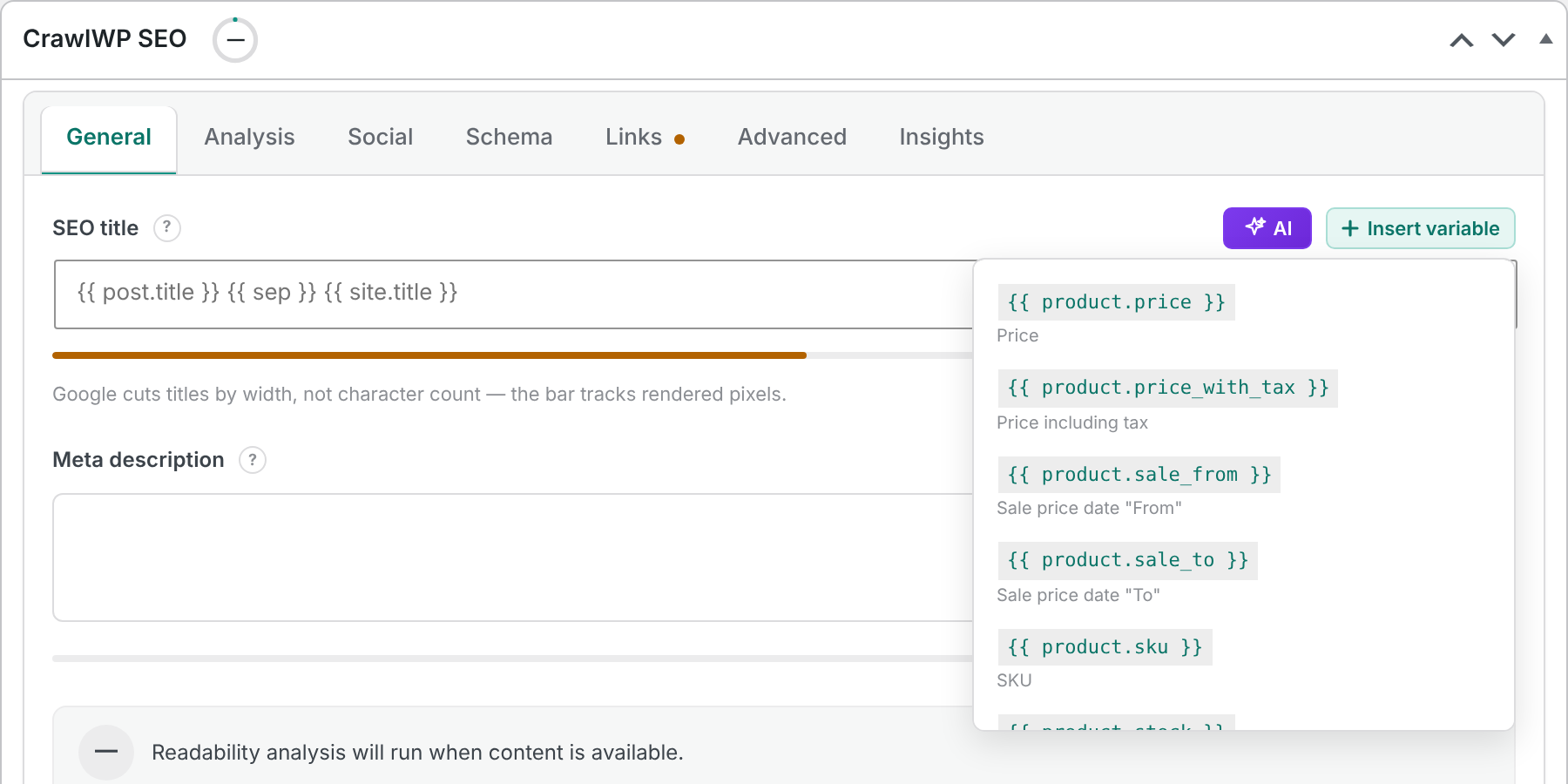
| Variable | What it returns |
|---|---|
{{ product.price }} | The current price as a plain number, such as 19.99. |
{{ product.price_with_tax }} | The price including tax. |
{{ product.sale_from }} | The sale start date. |
{{ product.sale_to }} | The sale end date. |
{{ product.sku }} | The product SKU. |
{{ product.stock }} | The stock status, such as “In stock”. |
{{ product.currency }} | The currency code, such as GBP. |
{{ product.rating }} | The average product rating, such as 4.50. |
{{ product.review_count }} | The number of reviews. |
{{ product.low_price }} | The lowest variation price for variable products. |
{{ product.high_price }} | The highest variation price for variable products. |
{{ product.offer_count }} | The number of variations for variable products. |
These variables can also be used in the product templates under Title & Meta. This is useful when you want product titles or descriptions to include changing WooCommerce information automatically. See Title and meta description template variables.
Plan variable-based titles carefully
Product variables are useful, but not every variable is suitable for every product. Check the generated title and description for both old and newly created products before using a template site-wide.
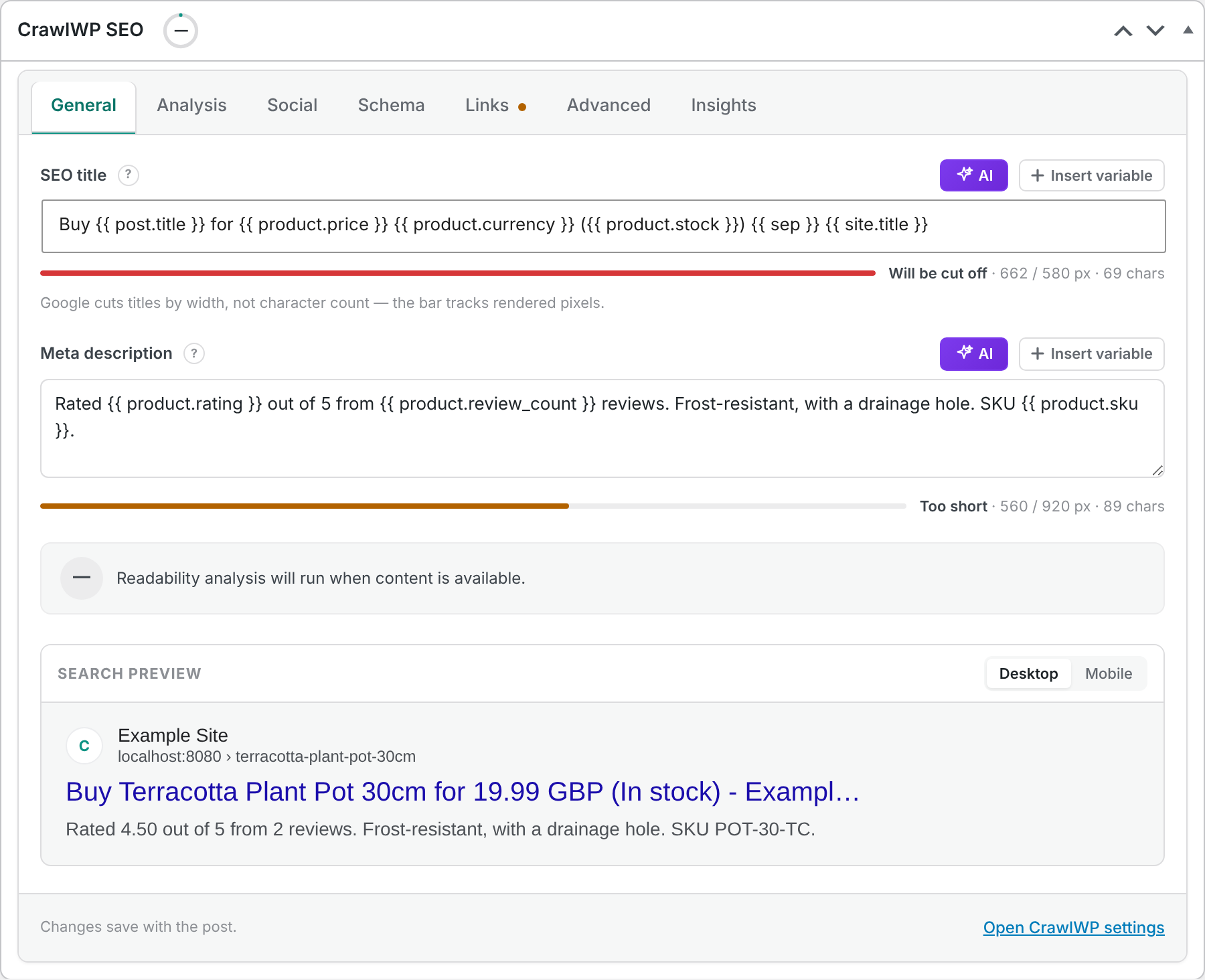
Buy {{ post.title }} for {{ product.price }} {{ product.currency }} ({{ product.stock }}) {{ sep }} {{ site.title }}
Rated {{ product.rating }} out of 5 from {{ product.review_count }} reviews.
A product using this template could display its current price, currency, stock status, rating, and review count in the search preview.
{{ product.price }}does not include a currency symbol. Add{{ product.currency }}or type the symbol yourself.{{ product.sale_to }}can show a date even when the product is not currently on sale, so use it carefully in general templates.{{ product.low_price }}and{{ product.high_price }}always include tax, even when your shop displays prices without tax.{{ product.rating }}is empty when a product has no ratings, so check the resulting title or description for new products.{{ product.offer_count }}counts every variation, while the Product schema counts only variations that can be bought.
The WooCommerce shop page uses the Products archive settings
The shop page is treated as the Products archive. Its title and description come from the Products archive settings under CrawlWP > Settings > Title & Meta.
The SEO settings in the CrawlWP SEO box of the Shop page itself are not used for the shop archive. Configure the Products archive instead when you want to control the shop page’s search appearance.
How WooCommerce products are shared on social networks
WooCommerce products use the same basic social metadata as other post types. CrawlWP can use the product’s image, title, and description when generating social sharing metadata.
For products, CrawlWP outputs og:type as article. It does not add product-specific Open Graph fields such as the product price.
Troubleshooting WooCommerce SEO
The Rich Results Test shows two Product items. CrawlWP removes WooCommerce’s own product schema, but another plugin or your theme may be adding structured data too. Check your other SEO and ecommerce plugins for duplicate Product schema.
The price in the schema is different from what I expect. Check WooCommerce > Settings > Tax > Display prices in the shop. For variable products, check the variation prices and remember that CrawlWP uses the lowest and highest prices of variations that can be bought.
There is no gtin in the schema. Enter the barcode in the product’s GTIN, UPC, EAN, or ISBN field. CrawlWP includes it when the value contains 8, 12, 13, or 14 digits after spaces and hyphens are ignored.
Reviews are missing from the Product schema. CrawlWP includes the five most recent approved reviews with a star rating only when Enable star rating on reviews is enabled in WooCommerce.
The product has no Product schema. CrawlWP does not output Product schema when the product is set to noindex or when its Page type is set to None. Check the product’s Schema and Advanced tabs in the CrawlWP SEO box.
If another plugin is outputting its own product schema, remember that CrawlWP removes WooCommerce’s schema, not arbitrary schema generated elsewhere. Check the page source or the Rich Results Test to identify the second source.