
CrawlWP can add Google Analytics (GA4) or Google Tag Manager to your WordPress site without requiring you to edit your theme files. All you need to do is enter the appropriate ID in CrawlWP, and it outputs the tracking code in the correct part of the page.
The important choice is whether you need a direct GA4 installation or a Google Tag Manager container. This guide covers that choice, the CrawlWP setup, how to verify the code, and what to check when tracking is duplicated or missing.
Choose GA4 or Google Tag Manager
Before entering anything in CrawlWP, decide which tracking method you are actually using.
- GA4 measurement ID: starts with
G-and is used when you want CrawlWP to add Google’s standard GA4 tag directly. - Google Tag Manager container ID: starts with
GTM-and is used when your tracking tags are managed through a Tag Manager container.
You normally choose one. When your GA4 tag is already configured inside Google Tag Manager, enter only the Google Tag Manager ID in CrawlWP. Adding the same GA4 tracking again directly through CrawlWP can result in duplicate page views.
Also check your theme and other plugins before adding anything. If another tool already outputs the same GA4 or GTM code on your WordPress website, remove the duplicate installation or use only one source for the tracking code.
Find the ID you need
For GA4, open Google Analytics and go to Admin > Data streams. Select your web stream and copy its measurement ID, which begins with G-.
For Google Tag Manager, open your Tag Manager workspace and copy the container ID shown at the top. It begins with GTM-.
Make sure CrawlWP’s code settings are available
CrawlWP stores these settings on its Header & Footer Code screen. If that screen is missing, check that the SEO features are enabled under the SEO Features tab in CrawlWP > Settings.
Add the tracking ID in CrawlWP
- Go to CrawlWP > Settings.
- Make sure the Settings tab at the top is selected, then click Header & Footer Code in the left-hand menu.
- Enter your ID in the GA4 measurement ID or Google Tag Manager ID.
- Click Save Changes.
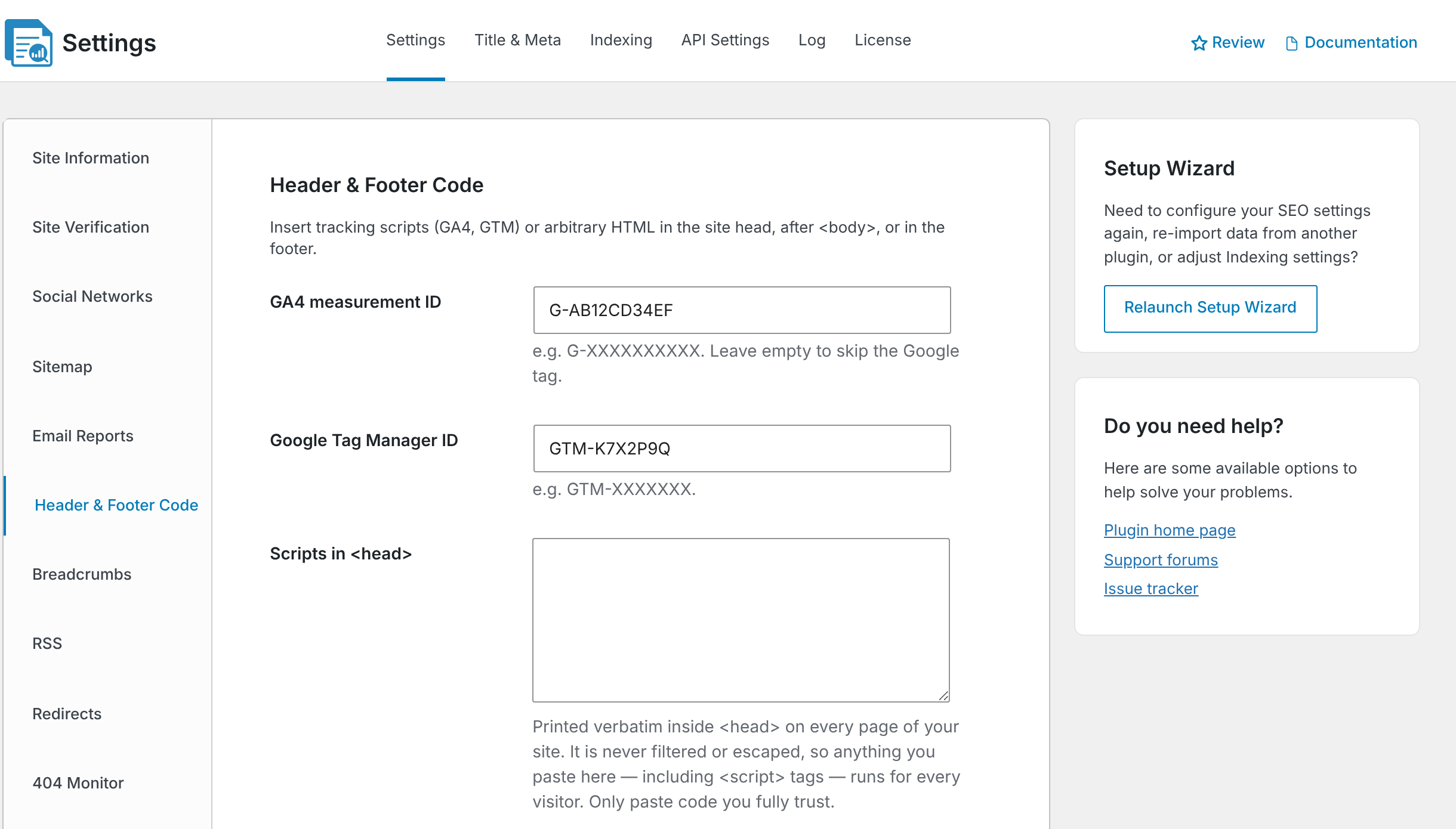
CrawlWP checks the ID when it outputs the code rather than when you save the setting. An ID that does not use the expected G- or GTM- format, or contains spaces and other unexpected characters, can therefore be saved without producing tracking code on the front end.
Copy the ID exactly as Google provides it instead of typing it from memory.
What CrawlWP outputs for GA4
When a valid GA4 measurement ID is entered, CrawlWP adds Google’s standard gtag.js implementation inside the page <head>.
<!-- CrawlWP GA4 -->
<script async src="https://www.googletagmanager.com/gtag/js?id=G-XXXXXXXXXX"></script>
<script>window.dataLayer=window.dataLayer||[];function gtag(){dataLayer.push(arguments);}gtag('js',new Date());gtag('config','G-XXXXXXXXXX');</script>
The Google Analytics code is output on every WordPress page where CrawlWP adds its header code, including pages viewed while you are logged in.
What CrawlWP outputs for Google Tag Manager
For Google Tag Manager, CrawlWP adds the container script inside WordPress <head>. It also adds the GTM <noscript> portion immediately after the opening <body> tag and marks the head portion with <!-- CrawlWP GTM -->.
The body portion depends on your theme calling WordPress’s wp_body_open hook. Most themes made since 2019 support it. If the hook is missing, the head portion can still load for visitors with JavaScript enabled, but the <noscript> portion will not be inserted in its expected location.
CrawlWP does not decide which tags run inside your Tag Manager container. Once the container is installed, configure your tags, triggers, and exceptions in Google Tag Manager.
Tracking your own visits
CrawlWP does not automatically exclude administrators or logged-in users from GA4 or GTM. If you do not want your own visits included, handle that in Google Analytics or Tag Manager instead.
For Google Analytics, you can use an internal traffic definition and filter. For Google Tag Manager, use an appropriate trigger exception or other configuration inside the container.
Cookie consent is separate from code installation
Adding GA4 or GTM through CrawlWP does not provide a cookie-consent system. If your site needs visitors to give consent before analytics or advertising tracking runs, use a consent solution that supports the required Google Consent Mode setup, or configure consent handling through Google Tag Manager.
Verify the installation from your browser
- Open your WordPress website in a private browser window.
- View the page source.
- Search for
CrawlWP GA4when you installed GA4, orCrawlWP GTMwhen you installed Google Tag Manager.
This confirms that CrawlWP is outputting the code. It is still worth checking the service itself: in Google Analytics, open Reports > Realtime and look for your visit. For Tag Manager, use Preview in your workspace to confirm that the container loads.
Clearing your page cache can help if you changed the ID recently and the old page source is still being served by a cache layer.
Use the other Header & Footer Code fields for scripts
The same CrawlWP screen can be used for other snippets such as a verification tag or another trusted script. The three fields place the code in different parts of the page:
| Setting | Where the code is placed |
|---|---|
| Scripts in <head> | Inside <head> on every page. |
| Scripts after <body> | Immediately after the opening <body> tag on every page, when the theme supports wp_body_open. |
| Scripts in footer | Before the closing </body> tag on every page. |
CrawlWP inserts code from these fields as provided and does not validate arbitrary snippets. Paste only code from sources you trust because malformed or unsafe code can affect your site’s front end.
Only users who can add unfiltered HTML can change these fields, which normally means administrators. On a multisite network, this means network administrators. Other users may see a message indicating that their changes are ignored.
Avoid installing the same tracker twice
One of the most common Google Analytics problems is not a missing tag but a duplicate one. Before troubleshooting analytics numbers, search for every place your tracking code may be installed.
- You entered a GA4 measurement ID in CrawlWP and also installed the same GA4 tag through Google Tag Manager.
- Your theme or another plugin already adds the GA4 or GTM snippet.
- A site-management tool adds the same script in addition to CrawlWP.
Choose one installation path for each tracker. If GA4 is managed inside Tag Manager, the usual setup is to install only the GTM container through CrawlWP and manage the GA4 tag inside that container.
Troubleshooting GA4 and Google Tag Manager
The CrawlWP code is missing from the page source. Confirm that the SEO features are enabled, the correct ID is entered, and the ID uses the expected format. Then clear your page or server cache and check the source again.
GA4 records each visit twice. Look for another GA4 installation. The duplicate may be in Google Tag Manager, your theme, another plugin, or another tracking service. Remove one of the duplicate installations.
The GTM container loads, but the noscript part is missing. Check whether your theme calls wp_body_open. The head portion can still work for visitors with JavaScript enabled, but the body fallback depends on that WordPress hook.
The GA4 measurement ID saves, but no code appears. Check the value character by character. It should begin with G- and contain the expected ID without spaces or other unexpected characters.
The Tag Manager preview does not connect. First, confirm that the GTM container snippet appears in the page source. If it does, the issue may be inside the Tag Manager container rather than CrawlWP. Check your container’s tags, triggers, and preview status in Google Tag Manager.
My changes to the code fields are not saved. Your account may not have permission to save unfiltered HTML. Ask an administrator or network administrator, as appropriate, to make the change.
A simple setup to keep tracking clean
- Choose one method: direct GA4 or Google Tag Manager for the tracker you are installing.
- Use the correct ID:
G-for GA4 orGTM-for a Tag Manager container. - Check for duplicates: make sure your theme, plugins, and Tag Manager are not installing the same tracker again.
- Verify both sides: inspect the page source, then confirm the visit or container in Google Analytics or Tag Manager.
Once you enter the correct ID and remove duplicate installations, CrawlWP places the tracking code on your WordPress website, so you don’t have to edit your theme files directly.