
Want to add scripts to the header and footer of your WordPress website?
CrawlWP lets you add site-wide scripts and snippets to WordPress without editing your theme files. This is useful for tracking pixels, chat widgets, verification tags, and other code that needs to appear across the front end of your site. The free version includes this feature.
For Google Analytics and Google Tag Manager, CrawlWP also provides dedicated ID fields that generate the required code for you. See Setting up Google Analytics and Google Tag Manager.
Adding codes to your WordPress site
Use the Header & Footer Code settings in CrawlWP to decide where your scripts, codes, or snippets should be inserted on the front end.
- Go to CrawlWP > Settings.
- Make sure the Settings tab is selected, then open Header & Footer Code from the left-hand menu.
- Paste the code into the field that matches the location required by the service providing it.
- Click Save Changes.
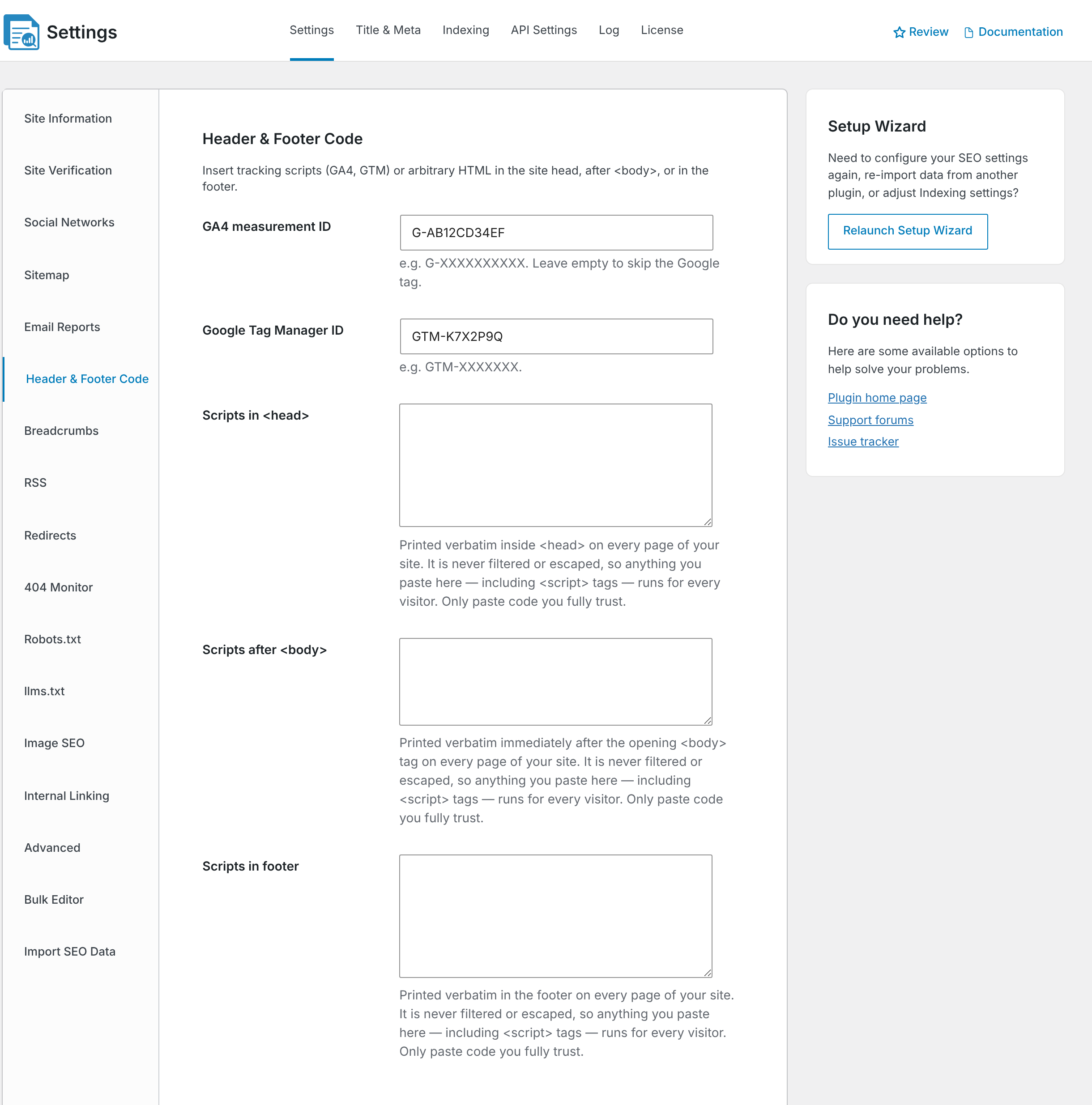
| Field | Where CrawlWP adds the code | Typical uses |
|---|---|---|
| Scripts in <head> | Inside the <head> element on every front-end page | Tracking scripts, verification meta tags, fonts, and similar code |
| Scripts after <body> | Immediately after the opening <body> tag | <noscript> portions of tracking implementations, such as Tag Manager or Facebook Pixel |
| Scripts in footer | Immediately before the closing </body> tag | Chat widgets and scripts that can load near the end of the page |
Use the placement instructions supplied by the service you are installing. If its instructions specifically require the code in the head of your website, after the opening body tag, or in the footer, use the corresponding CrawlWP field.
Where the code is added
Code saved in these fields is added to every WordPress front-end page of your site for every visitor, including logged-in visitors. It is not added to the WordPress admin area.
Important things to know
- CrawlWP does not modify the code. What you paste is added as provided. A typo, missing closing tag, or invalid snippet can affect every front-end page, so remove the code and save your changes if it causes a problem.
- Only add code you trust. Anything saved in these fields is delivered to visitors across the site.
- Your account must be allowed to save unfiltered HTML. Administrators normally have this permission on a regular site. On a multisite network, only network administrators can do this. Other users may see the message “Your account cannot save unfiltered HTML, so changes to this field are ignored.”
- The after-body field depends on your theme. CrawlWP uses the
wp_body_openhook for Scripts after <body>. Most themes made since 2019 support it, but a theme without the hook will not output code from this field. - Scripts are site-wide. There are no per-page script fields. To place code on a single page, use a block such as Custom HTML in that page’s content instead.
For Google, Bing, Yandex, Baidu, or Pinterest verification, use Site Verification instead of manually adding the verification tag. CrawlWP can add the appropriate tag for you. See How to Verify Your Website with Google Search Console.
Verify that your code was added
To check if the code or script saved in CrawlWP is visible on your WordPress site frontend, follow the steps below.
- Open your site in a private browser window.
- Open the page source and search for part of the snippet you added.
- Use the service’s own verification or testing tool when one is available.
Troubleshoot missing or broken scripts
The code does not appear in the page source. Clear any page cache from your caching plugin, hosting provider, or CDN and check again. Then confirm that the snippet is in the correct Header & Footer Code field.
My changes are not saved. Your account may not have permission to save unfiltered HTML. Ask an administrator, or, on a multisite network, a network administrator.
My site broke after I added a script. Remove the code, click Save Changes, and check the site again. If the problem disappears, review the snippet with the service that supplied it before adding it again.
Code in Scripts after <body> does not appear. Your theme may not include the wp_body_open hook. Use Scripts in <head> or Scripts in footer instead when the service permits it, or ask the theme developer to add the hook.
The same script runs twice. Check whether another plugin or your theme is already adding the same code. Keep each script in one location to avoid duplicate output.
Choose the right method for your script
Use Header & Footer Code when you need to paste a script or snippet supplied by another service and have it loaded site-wide in WordPress.
For Google Analytics and Google Tag Manager, the dedicated CrawlWP settings are simpler because you only need to enter the relevant ID. For search engine and platform verification, Site Verification is the better option because CrawlWP handles the required verification tag.