
CrawlWP WordPress SEO plugin can generate an llms.txt file for your site and serve it at https://your-site.com/llms.txt. The free version includes this feature, and it’s enabled by default. You can use CrawlWP’s generated content as-is or replace it with your own text.
What llms.txt is for
llms.txt is a proposed plain-text format intended to give AI tools and agents a concise description of a website and links to important resources. It is similar in spirit to robots.txt, but it does not tell crawlers what they may or may not access.
It is not an official web standard, and AI companies do not guarantee that they will read or use the file. Having one is therefore optional, but CrawlWP makes it easy to provide one for your site.
What CrawlWP generates by default
When llms.txt is enabled and you have not saved custom content, CrawlWP generates a short file using information from your WordPress site. The default content includes your WordPress site title, tagline, a short description, sitemap URL, and home page URL.
# Example Site
> Gardening, recipes and travel

This site publishes web pages that may be used as context by language models.

## Sitemap
https://example.com/wp-sitemap.xml

## Home
https://example.com/
The generated file does not list individual posts. The sitemap provides a way for AI tools to discover the site’s URLs.
You can see the file that CrawlWP is currently serving by opening https://your-site.com/llms.txt in your browser.
Enable llms.txt for WordPress and edit its content
To generate the llms.txt for your WordPress website, follow the steps below.
- Go to CrawlWP > Settings.
- Make sure the Settings tab is selected, then click llms.txt in the left-hand menu.
- Make sure Enable llms.txt is switched on.
- Edit the llms.txt content box.
- Click Save Changes.
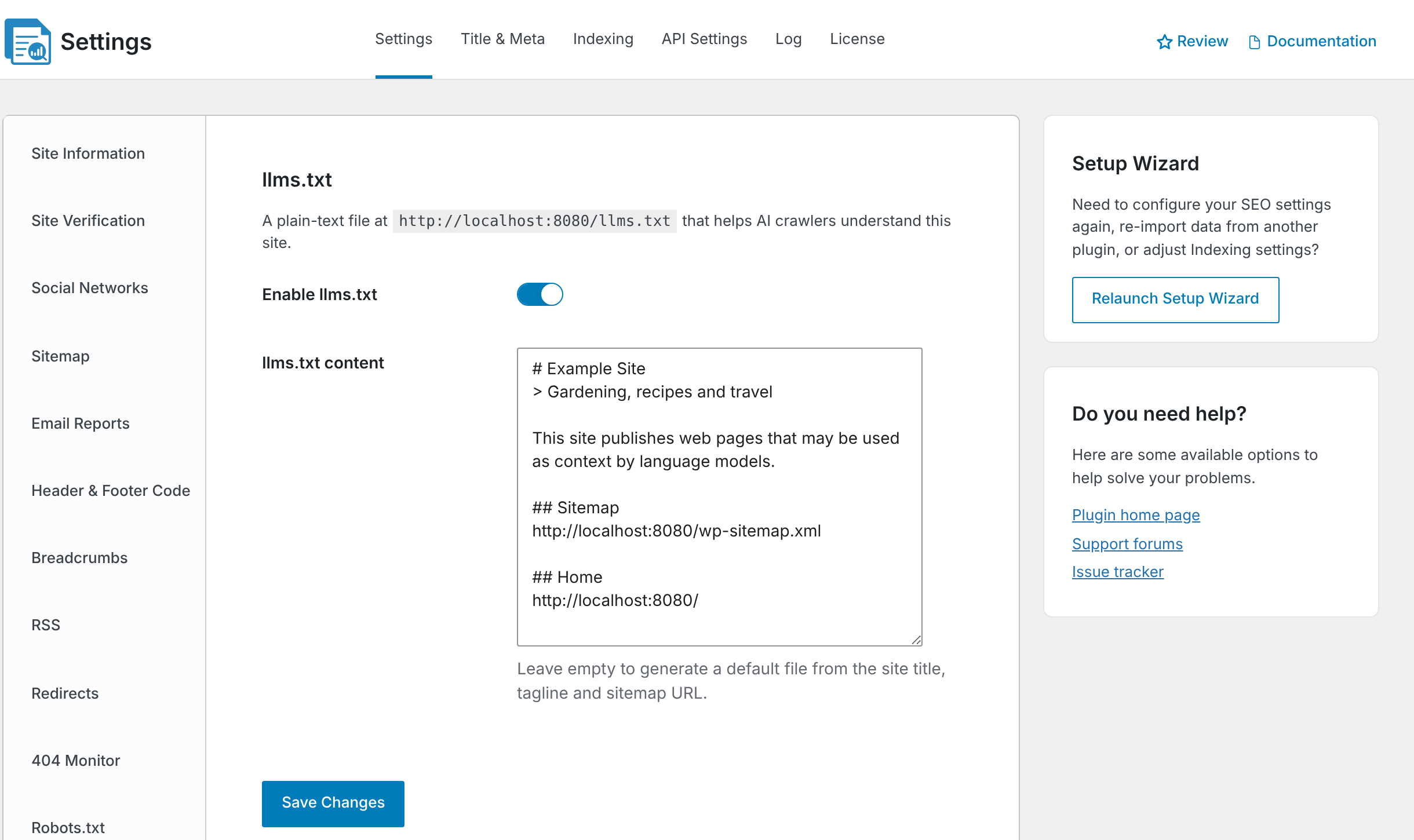
Once you save the content, what you entered becomes the complete llms.txt file. CrawlWP does not add extra sections around it.
Use a clear Markdown-style structure
The file uses Markdown-style headings and links. A typical structure starts with a # heading for the site name, a > line for a short summary, followed by ## sections containing useful links.
## Guides
- [How to grow tomatoes in pots](https://example.com/how-to-grow-tomatoes-in-pots/): Pot size, compost and feeding
- [Composting for beginners](https://example.com/composting-for-beginners/): Starting a compost heap
You can use sections like this to point AI tools toward the parts of your site that are most useful as reference material.
Saving changes how the file is generated
The content initially shown in the box is generated automatically from your site. However, clicking Save Changes in this section saves that content as fixed text, even when you have not edited it.
After that, changes to your site title, tagline, or sitemap address no longer update the saved llms.txt automatically. You must edit the llms.txt content yourself when those details change.
To return to CrawlWP’s automatically generated file, delete everything in llms.txt content and click Save Changes. CrawlWP will generate the file again.
Turn llms.txt off
To stop serving the generated llms.txt file for your WordPress site, switch off Enable llms.txt and click Save Changes.
Once disabled, CrawlWP stops serving /llms.txt. Visiting that address then shows your site’s “page not found” page.
Check for a physical llms.txt file
A real llms.txt file in the site’s root can be served by the web server instead of CrawlWP’s generated response.
If your edits do not appear, check whether a physical llms.txt file exists in the root folder of your site. If one does, delete or rename it using your hosting file manager or FTP, then clear any page cache.
Make sure WordPress permalinks are supported
llms.txt does not work when WordPress is using Plain permalinks.
- Go to Settings > Permalinks in WordPress.
- Choose any permalink structure other than Plain.
- Click Save Changes. You can save without changing anything to refresh WordPress’s address rules.
Keep the file useful
When you customize llms.txt for WordPress, keep the information concise and focus on the resources that are most useful for understanding your site. You can add sections for guides, documentation, products, or other important pages.
Remember that adding a URL to llms.txt does not guarantee that an AI service will crawl or use it. The file is simply a way to publish a short, human-readable map of your site’s important resources.
Troubleshoot llms.txt
/llms.txt shows a “page not found” error. Check that Enable llms.txt is switched on and that WordPress is not using Plain permalinks. Go to Settings > Permalinks and click Save Changes, then try the URL again.
My saved content does not appear. Look for a physical llms.txt file in the site’s root folder. A real file can be served instead of CrawlWP’s generated version. Also clear your page and CDN caches.
Characters such as %20 disappear from my links. CrawlWP removes encoded characters when it saves the file. Use the plain character in the address instead.
The file still contains my old site title. The generated content was saved as fixed text. Edit the llms.txt content box with the new information, or empty the box and save it to return to automatic generation.
Use the default file or customize it
For most WordPress sites, the automatically generated llms.txt file provides a simple starting point with the site description, sitemap, and home page. Customize it when you want to highlight specific resources, and remember that saving the box changes the file from dynamic content to fixed content until you empty the box again.