
This article is for developers and site administrators who use WP-CLI, WordPress’s command-line tool. CrawlWP does not provide its own WP-CLI commands, but you can still manage much of its data using standard WP-CLI commands.
CrawlWP stores its settings as WordPress options, SEO fields as post and term meta, and logs in database tables. This makes it possible to inspect or modify many CrawlWP settings directly from the command line.
The examples in this article were tested on a single-site installation. On a multisite network, include --url= with the site’s address in each command, for example --url=https://example.com/site2/. Each site uses its own table prefix, such as wp_2_. Run wp db prefix --url=... to find the correct prefix.
Always back up your database before changing CrawlWP data from the command line. You can create a database backup with wp db export.
Find CrawlWP’s Settings
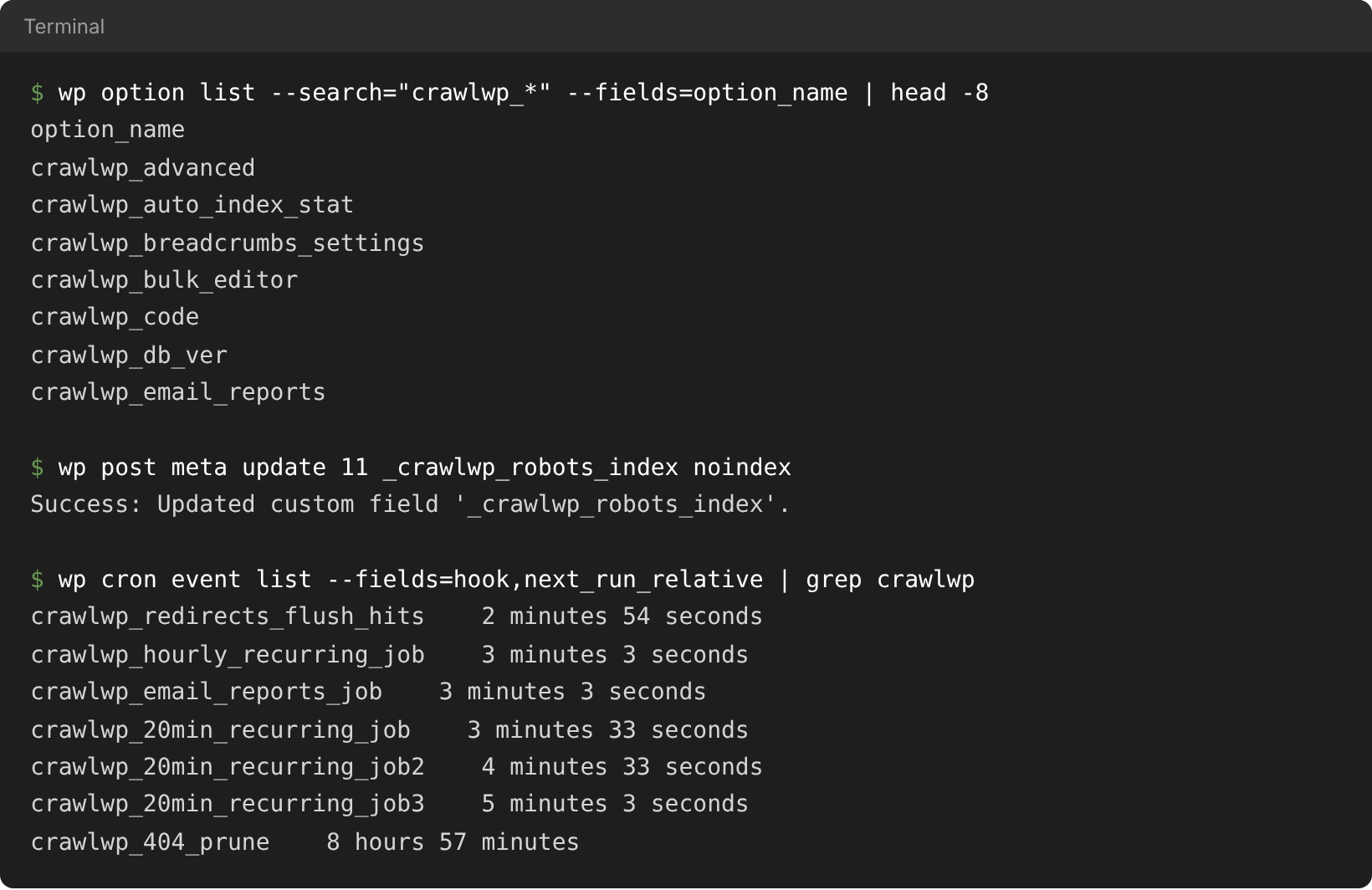
CrawlWP’s settings are stored as WordPress options whose names start with crawlwp_. To list them, run:
wp option list --search="crawlwp_*" --fields=option_nameHere are some of the options you may find:
| Option | What It Holds |
|---|---|
crawlwp_seo_features | Whether the on-page SEO features are enabled. |
crawlwp_tm_home, crawlwp_tm_pt_post, crawlwp_tm_tax_category and so on | The Title & Meta settings for each page type. |
crawlwp_social | The Social Networks settings. |
crawlwp_robots | The Robots.txt settings. |
crawlwp_sitemap_settings | The Sitemap settings. |
crawlwp_index_now | The IndexNow settings, including the API key. |
crawlwp_advanced | The Advanced settings, including Remove Data on Uninstall. |
crawlwp_license_status | The Premium license status, such as valid. This option only exists after a license has been activated. |
Most CrawlWP settings are stored as arrays. Use --format=json when reading one:
wp option get crawlwp_social --format=jsonA section that has never been saved may be stored as an empty value. CrawlWP then falls back to its defaults.
Be careful when using wp option update. Updating an option replaces the entire section, so it removes any fields you leave out. For routine configuration changes, the CrawlWP settings screens are safer.
Switch the SEO Features On or Off
wp option update crawlwp_seo_features '{"enabled":"on"}' --format=jsonUse "off" instead of "on" to disable the SEO features. This corresponds to the switch on the SEO Features tab.
Read and Change a Post’s SEO Fields
The fields in the CrawlWP SEO box are stored as post meta. Use wp post meta to read, update, or delete them:
wp post meta get 123 _crawlwp_seo_title
wp post meta update 123 _crawlwp_seo_title "Composting for Beginners {{ sep }} {{ site.title }}"
wp post meta delete 123 _crawlwp_seo_description
Deleting a field makes the post fall back to the template configured under Title & Meta.
These are the main CrawlWP post meta keys:
| Meta Key | Field | Values |
|---|---|---|
_crawlwp_seo_title | SEO title | Text. Variables are allowed. |
_crawlwp_seo_description | Meta description | Text. Variables are allowed. |
_crawlwp_focus_keyword | Focus keyword | Text. Separate multiple keywords with commas. |
_crawlwp_canonical_url | Canonical URL | A full URL. |
_crawlwp_robots_index | Allow indexing | index or noindex. Delete the meta key to use the default. |
_crawlwp_robots_follow | Follow links | follow or nofollow. Delete the meta key to use the default. |
_crawlwp_og_title | Social title | Text. Ignored while _crawlwp_og_sync is 1. |
_crawlwp_og_description | Social description | Text. Ignored while _crawlwp_og_sync is 1. |
_crawlwp_og_image | Social image | The image’s attachment ID. |
_crawlwp_x_title | X title | Text. Ignored while _crawlwp_x_sync is 1. |
_crawlwp_x_description | X description | Text. Ignored while _crawlwp_x_sync is 1. |
_crawlwp_x_image | X image | The image’s attachment ID. |
_crawlwp_schema_page_type | Schema page type | For example, WebPage, AboutPage, or none. |
Categories, tags, and other terms use some of the same SEO and social fields as term meta. These include _crawlwp_seo_title, _crawlwp_seo_description, _crawlwp_canonical_url, _crawlwp_robots_index, _crawlwp_robots_follow, and the social title, description, and image keys.
Terms do not have focus keyword or schema meta keys. Use wp term meta to manage their fields:
wp term meta update 7 _crawlwp_seo_title "Gardening guides {{ sep }} {{ site.title }}"Changing SEO meta from the command line does not recalculate the SEO score or signal letters shown in the posts list. Open the post in WordPress and click Update to refresh them.
Change Many Posts at Once
You can combine wp post list with xargs to update multiple posts. For example, this sets every post in the internal category to noindex:
wp post list --category_name=internal --field=ID | xargs -I % wp post meta update % _crawlwp_robots_index noindexTo remove that setting and return those posts to the default:
wp post list --category_name=internal --field=ID | xargs -I % wp post meta delete % _crawlwp_robots_indexSubmit a Post for Indexing
CrawlWP does not provide a dedicated WP-CLI command for indexing submissions, but you can use wp eval to fire the action CrawlWP listens for:
wp eval 'do_action( "crawlwp/post_updated", 123, get_post( 123 ) );'This submits post 123 to every search engine that is enabled under Indexing, unless that engine has been paused after an error. Check the indexing log to see what happened.
Creating, publishing, or updating a post with wp post create or wp post update also triggers CrawlWP’s automatic submissions, just as saving the post in the WordPress editor does.
See Available filter and action hooks.
Read the Indexing Log
CrawlWP stores its indexing log in the crawlwp_log database table. Your site’s table prefix is added to the beginning of the table name, usually wp_. Run wp db prefix to check your actual prefix.
wp db query "SELECT created_at, search_engine, status_code, message FROM wp_crawlwp_log ORDER BY log_id DESC LIMIT 20"To delete all entries from the log:
wp db query "TRUNCATE TABLE wp_crawlwp_log"See Reading the indexing submission log.
Redirects
CrawlWP stores redirects in the crawlwp_redirects table. To list the existing redirects:
wp db query "SELECT id, from_url, to_url, redirect_type, match_type, enabled, hits FROM wp_crawlwp_redirects"You can also create a redirect directly in the database. After inserting it, clear CrawlWP’s redirect cache so the change takes effect immediately:
wp db query "INSERT INTO wp_crawlwp_redirects (from_url, to_url, redirect_type, match_type, created_at) VALUES ('old-page', '/new-page/', 301, 'exact', NOW())"
wp transient delete crawlwp_redirects_cache- Enter
from_urlwithout the domain or a leading slash, matching the format used by CrawlWP’s Redirects screen. to_urlcan be a path on your site or a full URL on your site.- Redirects to another domain are blocked unless the row’s
allow_externalcolumn is1.
Without clearing the cache, a new or modified redirect can take up to five minutes to start working. For normal redirect management, use the Redirects screen instead. See Creating a redirect (301, 302, 410).
Scheduled Tasks
CrawlWP uses WordPress scheduled tasks through WP-Cron. To view the relevant cron events:
wp cron event list --fields=hook,next_run_relative | grep -E "crawlwp|mihdan"| Task | What It Does |
|---|---|
mihdan-index-now__clear-log | Deletes log entries older than the Lifetime setting. |
crawlwp_404_prune | Removes old 404 log entries. |
crawlwp_redirects_flush_hits | Saves redirect hit counts. |
crawlwp_hourly_recurring_job | Premium: submits pages for automatic indexing and saves index statistics. |
crawlwp_20min_recurring_job, crawlwp_20min_recurring_job2, crawlwp_20min_recurring_job3 | Premium: checks index status with Google, Bing, and Yandex. |
crawlwp_daily_recurring_job | Premium: checks pages that were indexed a month ago again. |
crawlwp_email_reports_job | Premium: sends SEO email reports when they are due. |
wp_1_crawlwp_bg_process_cron_custom_healthcheck | Runs CrawlWP’s background queue. Premium index checks and submissions are processed through this queue. The number represents the site ID. |
You may also see crawlwp_twicedaily_recurring_job and crawlwp_weekly_recurring_job. Nothing currently runs on those events.
To run a cron event immediately, use:
wp cron event run crawlwp_hourly_recurring_jobCrawlWP Premium adds pages to a background queue during its scheduled tasks. The results appear after the queue has processed them.
When WP-Cron is disabled on your site, run wp cron event run --due-now from your server’s own scheduler, such as a system cron job running every five minutes.
Fix “Page Not Found” for Sitemaps and llms.txt
If /wp-sitemap.xml or /llms.txt returns a 404 page, refresh WordPress’s rewrite rules:
wp rewrite flushThis is equivalent to clicking Save Changes under Settings > Permalinks.
The IndexNow key file works differently. It does not use rewrite rules. It requires a permalink structure other than Plain, and your server must pass requests for .txt files to WordPress.
Uninstall from the Command Line
wp plugin uninstall mihdan-index-now-pro mihdan-index-now --deactivatewp plugin uninstall runs the same cleanup that occurs when deleting the plugin from the Plugins screen and then removes the plugin files.
Add --skip-delete to run the cleanup while keeping the plugin files. In contrast, wp plugin delete only removes the files and does not run the cleanup.
When Remove Data on Uninstall is disabled, uninstalling the free plugin keeps its data. Uninstalling Premium always removes its licence details and SEO Indexing data. See Uninstalling CrawlWP and what gets removed.
What You Cannot Do from the Command Line
- Activate or deactivate the Premium licence. Use the License tab under CrawlWP > Settings.
- Run the importer for data from other SEO plugins. Use Import SEO Data under CrawlWP > Settings.
- Connect the Google, Bing, or Yandex APIs. Use API Settings.
If It Does Not Work
wp db query says the table does not exist. Your database prefix is probably not wp_. Run wp db prefix and replace wp_ in the table name with the prefix returned by the command.
A change made with wp option update is not being used. Check the stored value with wp option get ... --format=json. Remember that updating an option replaces the whole section, so you may have removed fields that CrawlWP needs. Re-enter any missing settings from the appropriate settings screen.
A meta change does not appear on the site. Clear your page cache and check that CrawlWP’s SEO features are enabled. When the SEO features are disabled, CrawlWP does not output the SEO fields.
wp eval does not submit anything. Check that the search engine is enabled under Indexing and has not been paused because of an earlier error. See Indexing submissions are failing: how to read the error.