
The CrawlWP indexing log lets you see when CrawlWP sends a URL to a search engine and what happens next. You can use it to confirm that a submission was made, identify an error, and see which indexing service handled the request.
Open the log
- Go to CrawlWP > Settings.
- Click the Log tab at the top.
The newest entries appear at the top, making it easy to check the most recent submission first.
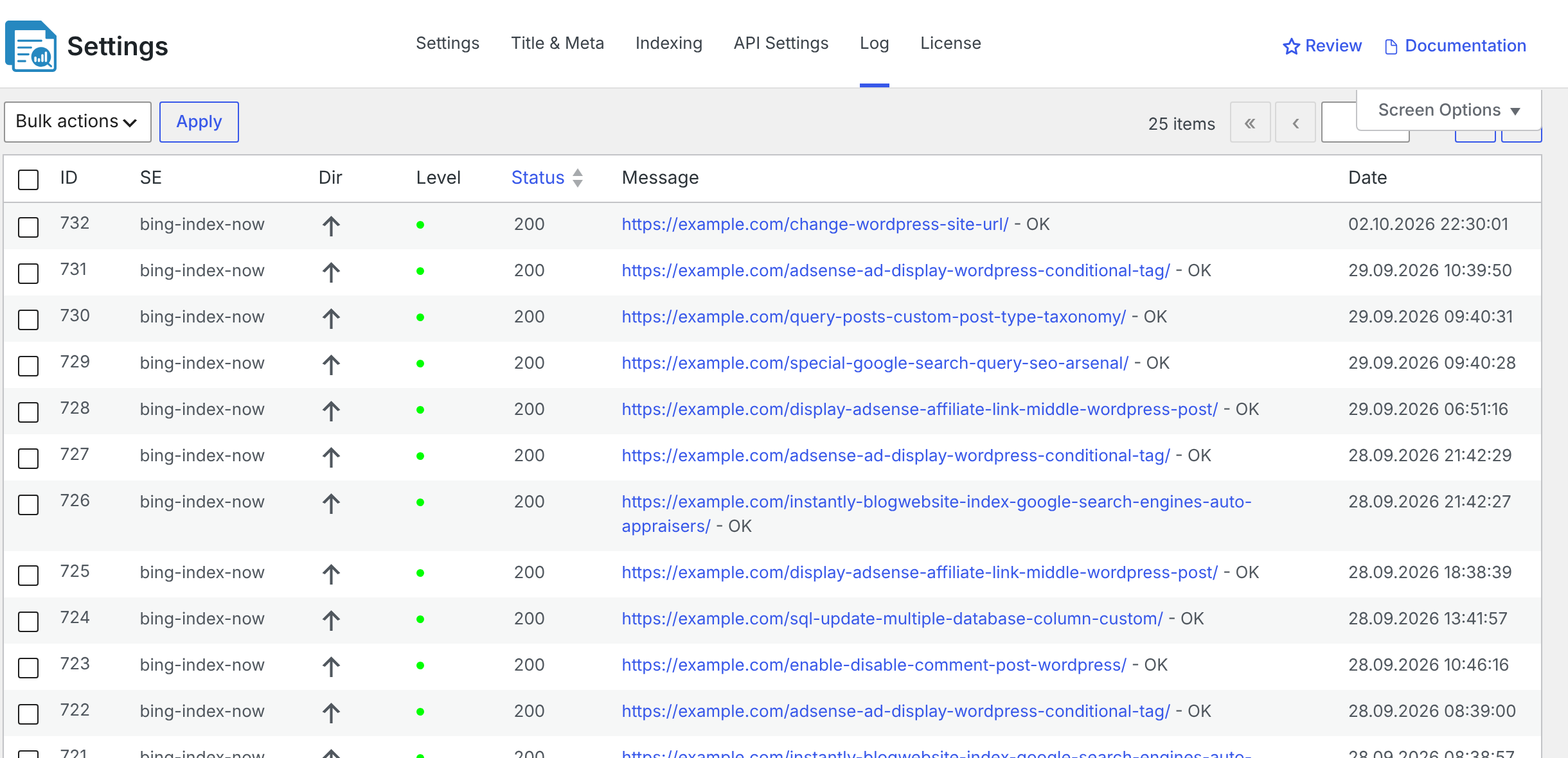
What each column means
Each log entry contains a few fields that help you work out what happened and when.
| Column | What it shows |
|---|---|
| ID | The entry number. |
| SE | The service or destination associated with the request. See the table below for the values CrawlWP uses. |
| Dir | The direction of the request. An up arrow means your site sent the request. A down arrow means a search engine made the request to your site. Hover over the arrow to see “Outgoing request” or “Incoming request”. |
| Level | A green dot indicates a normal entry and a red dot indicates an error. Hover over the dot to see the level. |
| Status | The HTTP status code returned for the request. |
| Message | For IndexNow, this is the address submitted. For the Google, Bing, and Yandex APIs, it is the post title followed by “OK” or the error message. |
| Date | When the event happened, using your site’s time zone. |
The Status, Level, and Message fields are especially useful when a submission did not go through as expected. A successful-looking entry still means that the request was accepted, not that the page has already been indexed.
What the SE values mean
| SE | Meaning |
|---|---|
bing-index-now | IndexNow, sent to Bing. |
index-now | IndexNow, sent to the shared IndexNow address. |
yandex-index-now | IndexNow, sent to Yandex. |
seznam-index-now | IndexNow, sent to Seznam. |
naver-index-now | IndexNow, sent to Naver. |
google-webmaster | The Google Indexing API. In Premium, it can also show errors from Google index status checks, which end with the post ID. |
bing-webmaster | The Bing URL Submission API. In Premium, it can also show errors from Bing statistics and status checks. |
yandex-webmaster | The Yandex Webmaster API, including errors that occur while connecting your Yandex account. |
site | An entry that is not linked to a search engine. |
These values help you identify which service generated an entry. For example, an entry with google-webmaster points you toward the Google API, while an entry with bing-index-now relates to an IndexNow request sent to Bing.
Common status codes
| Status | Meaning |
|---|---|
| 200 | The search engine accepted the address. |
| 202 | IndexNow accepted the address but has not finished checking your key yet. This is normal for a new key. |
| 400 | The request was not valid. |
| 403 | The search engine refused the request. For IndexNow, this usually means the key could not be checked. For Google, it usually means the service account is not an owner of the site in Search Console. |
| 422 | For IndexNow, the address does not belong to your site, or the key does not match. |
| 429 | Too many requests. The search engine’s request limit has been reached. |
A 200 response means the search engine accepted the address. It does not mean that the page is already indexed. Premium users can check the page’s index status from the SEO Indexing page. See Understanding index statuses, including Likely Indexed.
“Bot checked the key file”
An incoming entry with the message “Bot checked the key file” means a search engine fetched your IndexNow key file to verify the key used for submissions. This is a normal part of IndexNow. The SE value reflects the engine selected in your IndexNow settings, so it does not necessarily identify the specific bot that made the request. Opening the key file yourself in a browser also creates an entry.
What is not logged
The log records requests that CrawlWP actually processes. It does not create an entry for every page that CrawlWP decides not to send. For example:
- The post type is not selected on the General tab.
- Post added or Post updated is turned off.
- The post was saved again within the Ping Delay.
- The posts were changed with WordPress Bulk Edit while Disable for Bulk Edit is enabled.
- The Google, Bing, or Yandex API is enabled under Indexing but is not connected under API Settings.
- Submissions to the affected service are paused after an error. After an error in the 400 range, such as 403 or 429, CrawlWP pauses IndexNow for 3 hours and the Google, Bing, and Yandex APIs for 6 hours.
So an empty log doesn’t necessarily mean the plugin is failing. First, check whether CrawlWP was actually expected to send the page under your indexing settings.
Log settings
- Go to CrawlWP > Settings and click the Indexing tab.
- Click Logs in the left-hand menu.
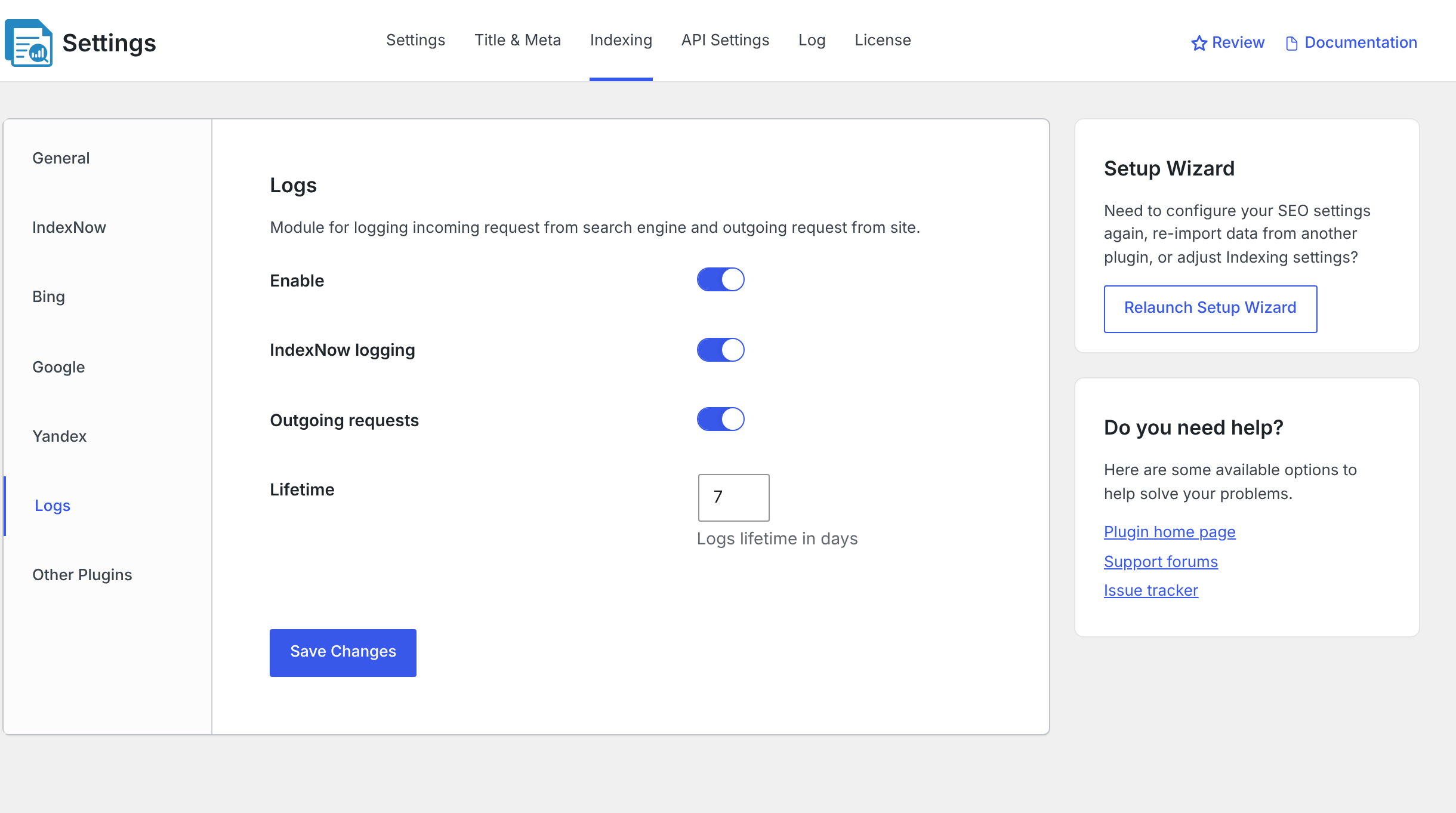
| Setting | What it does |
|---|---|
| Enable | Turns the log on or off. |
| IndexNow logging | Logs search engines checking your IndexNow key file. |
| Outgoing requests | Intended to control logging of requests sent by your site. In the current version, outgoing requests are logged whenever Enable is on. |
| Lifetime | Sets how many days entries are kept. Older entries are deleted automatically once an hour. The default is 7 days. |
Delete log entries
- Select the entries you want to remove, or select the checkbox in the table header to select all entries on the current page.
- Choose Delete from Bulk actions.
- Click Apply.
To display more entries at once, click Screen Options at the top right and change the number of entries shown per page.
Troubleshooting the indexing log
The log is empty. Make sure Enable is turned on under Indexing > Logs. Then publish a post or use Submit for Indexing in a post’s CrawlWP SEO box and reload the log.
There is no entry for a page. Check the post type and your Post added, Post updated, Ping Delay, and Disable for Bulk Edit settings. Also check whether submissions to the relevant service are temporarily paused after an error.
Old entries have disappeared. Entries older than the Lifetime setting are deleted automatically. Increase the setting when you need to retain log entries for longer.
I need help understanding an error. See How to view the indexing error log for more information.
Remember what the log can and cannot tell you
The indexing log is useful for confirming that CrawlWP made a request and for identifying the response it received. It is not an indexation report. A successful submission only confirms the request was accepted; you still need to check the search engine’s index status to determine whether the page was actually indexed.