
CrawlWP can notify the Naver search engine when you publish new content or update existing content in WordPress. It does this through IndexNow, so you don’t need a separate Naver integration in CrawlWP. The feature is available in the free version.
This guide shows you how to select Naver as the IndexNow search engine, choose which content CrawlWP can submit, test a submission, and troubleshoot common errors.
How CrawlWP sends pages to Naver
Naver supports IndexNow. When a qualifying WordPress post or page is published or updated, CrawlWP can send the URL to the Naver IndexNow endpoint. The notification tells Naver that the URL has changed so it can discover the update sooner.
IndexNow is a notification system, not a guarantee of search visibility. A successful submission means Naver accepted the notification; it does not mean the page has already been crawled or indexed.
Select Naver in CrawlWP
- Go to CrawlWP > Settings and click the Indexing tab.
- Click IndexNow in the left-hand menu.
- Make sure Enable is switched on.
- Under Search Engine, choose Naver.
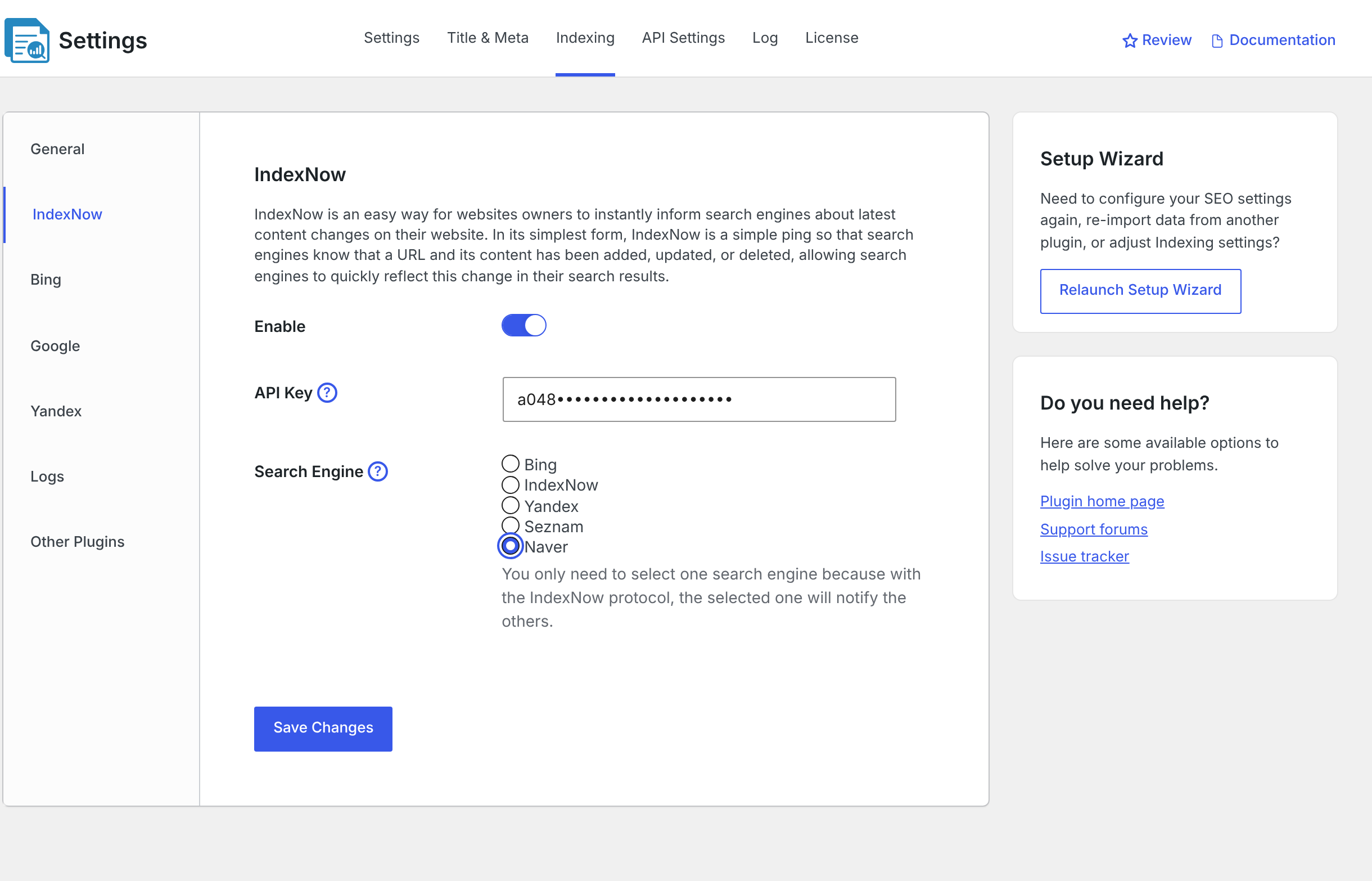
- Click Save Changes.
CrawlWP will now use https://searchadvisor.naver.com/indexnow when it sends an IndexNow request to Naver.
You only need to select one engine here. Choosing Naver does not mean your site stops supporting IndexNow as a whole; it changes the IndexNow destination selected in this setting.
Choose which content CrawlWP submits
Selecting Naver only determines where the IndexNow request goes. The General settings determine which post types and taxonomies are eligible and which events trigger a submission.
- On the Indexing tab, click General in the left-hand menu.
- Under Post Types and Taxonomies, tick the content you want CrawlWP to submit.
- Under Notify Search Engines when, enable Post added to submit newly published content.
- Enable Post updated as well if you want qualifying updates to existing published content submitted to Naver.
- Click Save Changes.
Only enable the content types you actually want search engines to discover. This keeps your indexing setup focused on the parts of your site that matter. See Excluding posts or post types from indexing for more information.
Test a Naver submission
You do not need to wait for the next automatic submission to test the connection. You can submit an individual published post from its editor and then inspect the CrawlWP log.
- Publish a post, or open an existing published post in WordPress.
- In the CrawlWP SEO box, open the Advanced tab and click Submit for Indexing.
- Go to CrawlWP > Settings and click the Log tab.
- Find the submission with
naver-index-nowin the SE column.
A 200 or 202 status indicates that the IndexNow request was accepted. That confirms the submission request, not that Naver has indexed the URL.
See Reading the indexing submission log for an explanation of the log columns and status codes.
What Naver Search Advisor is for
Naver Search Advisor (https://searchadvisor.naver.com) is Naver’s tool for site owners. CrawlWP does not connect to Search Advisor, and you do not need it for IndexNow submissions to work.
Search Advisor is useful when you want to investigate what happens after a URL has been submitted. It provides information about how Naver crawls and indexes your site and also lets you submit your sitemap.
Troubleshooting Naver submissions
The log shows a 403 error
A 403 response means Naver could not confirm your IndexNow key. First, open https://your-site.com/{key}.txt in your browser, replacing {key} with the key shown in the API Key field.
The page should display the same key. If the URL returns a 404 page instead, go to Settings > Permalinks in WordPress and choose any option other than Plain.
No new Naver entries appear in the log
Check that Enable is switched on under IndexNow, that Naver is selected under Search Engine, and that the relevant post type is enabled under General. Also check whether Post added or Post updated is enabled for the event you are testing.
If you are testing manually, use Submit for Indexing from the Advanced tab of the CrawlWP SEO box on a published post, then check the Log tab again.
Nothing is logged after an error
After an error in the 400 range from Naver, such as 403 or 429, CrawlWP pauses submissions to Naver for 3 hours. You can wait for the pause to end before testing again, or choose a different engine under Search Engine.
The submission succeeds but the page is not in Naver
IndexNow does not guarantee indexation. A successful 200 or 202 response means Naver accepted the notification, but Naver still decides whether and when to crawl and index the page.
Start by confirming the successful submission in the CrawlWP log. If the submission was accepted but the page still does not appear in Naver search, use Naver Search Advisor to investigate the site’s crawl and index status.
Naver indexing checklist
- IndexNow is enabled: CrawlWP > Settings > Indexing > IndexNow has Enable switched on.
- Naver is selected: Search Engine is set to Naver.
- Your content is eligible: the relevant post type is selected under General.
- The right trigger is enabled: Post added or Post updated is enabled for the event you are testing.
- The request was accepted: the log contains
naver-index-nowwith a successful response such as200or202.
Once these checks pass, CrawlWP is correctly configured to notify Naver through IndexNow. The remaining step is for Naver to crawl and decide whether to index the submitted page.