
CrawlWP can notify Seznam when a URL on your WordPress site is published or updated. It uses IndexNow for these notifications, so there is no separate Seznam connection to configure inside CrawlWP.
The important distinction is between submitting a URL and getting it indexed. CrawlWP can tell Seznam that a page has changed, but Seznam decides whether and when to crawl and index that page.
What You Need Before Configuring Seznam
- Make sure IndexNow is enabled in CrawlWP.
- Have the content type or taxonomy you want to submit selected in the indexing settings.
- Enable the submission event that matches what you want CrawlWP to notify Seznam about.
Configure the Seznam IndexNow Endpoint
Seznam has its own IndexNow endpoint. In CrawlWP WordPress SEO plugin, you select Seznam from the IndexNow settings so submissions are sent to the correct destination.
- Go to CrawlWP > Settings and open the Indexing tab.
- Select IndexNow from the left-hand menu.
- Make sure Enable is switched on.
- Set Search Engine to Seznam.
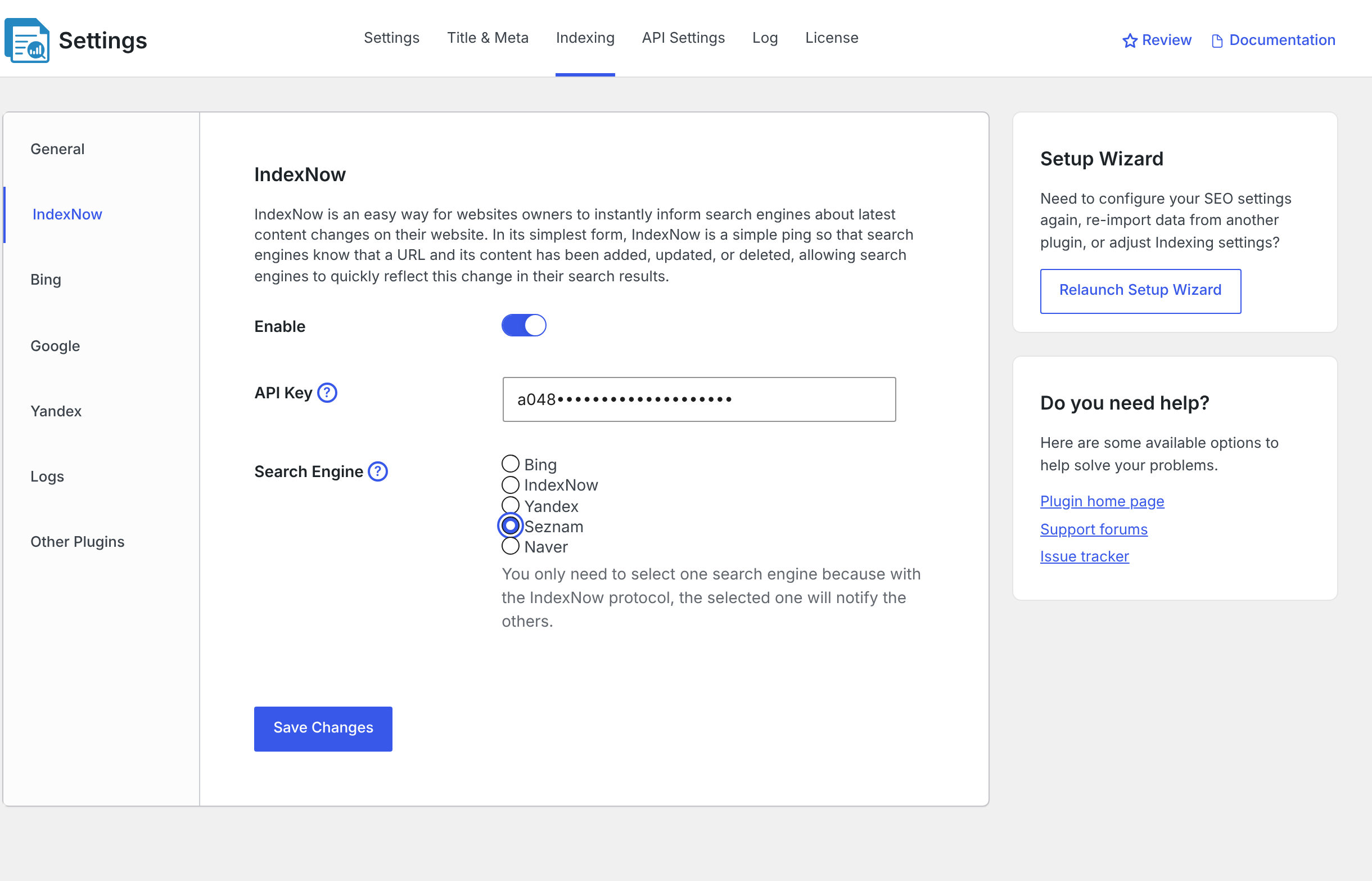
Click Save Changes. CrawlWP will then use https://search.seznam.cz/indexnow for IndexNow submissions to Seznam.
You don’t need to select multiple search engines for Seznam to work. The IndexNow setting uses the search engine selected under Search Engine.
Decide When CrawlWP Should Notify Seznam
Choosing Seznam only sets the destination. The General section controls which content is included and when CrawlWP sends a notification.
- In CrawlWP > Settings > Indexing, click General.
- Under Post Types and Taxonomies, select the content you want CrawlWP to submit.
- Under Notify Search Engines when, enable Post added for newly published content.
- Enable Post updated when changes to existing published posts should trigger another submission.
- Click Save Changes.
It is usually better to select only the post types and taxonomies that you want search engines to discover. See Excluding posts or post types from indexing for more information about controlling the submission scope.
Verify a Submission Instead of Waiting for an Automatic Event
After configuring Seznam via IndexNow in CrawlWP, test the setup with a published post. This lets you confirm the IndexNow request before relying on automatic publishing or update events.
- Open a published post in the WordPress editor.
- In the CrawlWP SEO box, open Advanced and click Submit for Indexing.
- Go to CrawlWP > Settings and open the Log tab.
- Find the entry where the SE value is
seznam-index-now.
A 200 response means Seznam accepted the address. A 202 response means IndexNow accepted the address but has not finished checking the key yet, which is normal when a new key is being used.
Neither response confirms that the URL is already indexed. For more detail about the log, see Reading the indexing submission log.
Check Your IndexNow Key When Seznam Rejects a Request
One of the most useful checks when troubleshooting Seznam is to verify that your IndexNow key file is publicly available. CrawlWP uses the key shown in the API Key field when it makes the submission.
- Copy the key shown in the API Key field.
- Open
https://your-site.com/{key}.txtin a browser, replacing{key}with your actual key. - Confirm that the page displays the key.
If the URL returns a 404 page instead, go to Settings > Permalinks in WordPress and choose any option other than Plain.
Use Seznam’s Webmaster Tools for the Next Step
Seznam provides its own webmaster tools for site owners. CrawlWP does not connect to these tools, and you don’t need them for IndexNow submissions.
They are useful after submission because IndexNow only sends a notification. When you need additional information about how Seznam crawls or indexes your site, its webmaster tools provide a place to investigate that part of the process.
Troubleshooting Common Seznam Problems
The Log Contains a 403 Response
A 403 response means Seznam could not confirm your IndexNow key. Check the key file first using the https://your-site.com/{key}.txt address described above. If the file cannot be reached, fix that before testing another submission.
There Is No Seznam Entry in the Log
Check the four parts of the configuration: Enable must be on under IndexNow, Search Engine must be set to Seznam, the relevant content must be selected under General, and the event you are testing must be enabled.
Submissions Stopped After an Error
After an error in the 400 range from Seznam, such as 403 or 429, CrawlWP pauses submissions to Seznam for 3 hours. You can wait for the pause to finish before testing again or choose a different engine under Search Engine.
Seznam Accepted the Request, but the Page Is Missing from Search Results
There is no contradiction here. A successful IndexNow response confirms that the notification was accepted, not that the page was indexed. Use Seznam’s webmaster tools to investigate crawling and indexing after a successful submission.
A Simple Seznam Setup to Check
- IndexNow: Enable is on, and Search Engine is set to Seznam.
- Content: the required post types or taxonomies are selected under General.
- Triggers: Post added or Post updated is enabled for the event you want to test.
- Key: the IndexNow key file is accessible at
https://your-site.com/{key}.txt. - Result: the CrawlWP log contains
seznam-index-nowwith a successful response such as200or202.
Once those checks pass, CrawlWP is set up to notify Seznam through IndexNow. What happens after that—whether Seznam crawls the URL and adds it to its index—is determined by Seznam.