
When you have several posts or pages in WordPress that you want search engines to check, submitting them one at a time can be tedious.
CrawlWP provides two ways to send URLs for search engine indexing: you can submit an individual published post from the WordPress editor with the free version, or use the SEO Indexing page in CrawlWP Premium to bulk-submit multiple URLs.
An indexing submission tells a search engine that a URL exists or has been changed and asks it to check the page. It is not a guarantee that the search engine will crawl the URL, index it, or display it in search results.
For large sites, bulk submission is particularly useful after publishing a group of articles, importing content, updating older pages, or moving content from another site.
Submit One Post From the WordPress Editor
For a single URL, you can submit for indexing directly from the WordPress post editor instead of opening the SEO Indexing page.
- Open a published post or page in the WordPress editor.
- In the CrawlWP SEO box below the content, click the Advanced tab.
- Under Indexing, click Submit for Indexing.

When CrawlWP displays Successfully submitted for indexing!, it means the indexing submission request was accepted by CrawlWP. This message can still appear even if no request was sent, for example, when all indexing services are disabled. Check the indexing log to see what each service returned. See Reading the indexing submission log.
The button sends the URL immediately to every indexing service enabled under CrawlWP > Settings > Indexing. Depending on your configuration, this can include the selected IndexNow engine and the Google, Bing, and Yandex APIs.
The editor button can be used for any public post type, even when that post type is not selected under Post Types in the indexing settings. It also bypasses the Ping Delay setting.
The post must already be published. When you try to submit a draft, CrawlWP displays Failed to submit. Please try again. Publish the content first and submit it again.
Submit Multiple URLs at Once For Indexing
For a larger batch, use the SEO Indexing page. CrawlWP Premium lists posts, pages, and terms belonging to the post types and taxonomies selected under Post Types and Taxonomies in the indexing settings.
This gives you a central place to find URLs, filter them by indexing status, and queue several submissions for search engine indexing without opening each item individually.
- Go to CrawlWP > SEO Indexing.
- Find the pages you want to submit. To focus on URLs that Google has not indexed, choose Not indexed under Select Google status to filter by, and click Filter.
- Select the required URLs using the checkboxes. To select all rows currently displayed, use the checkbox in the table header.
- Choose Submit for Indexing from Bulk actions.
- Click Apply.
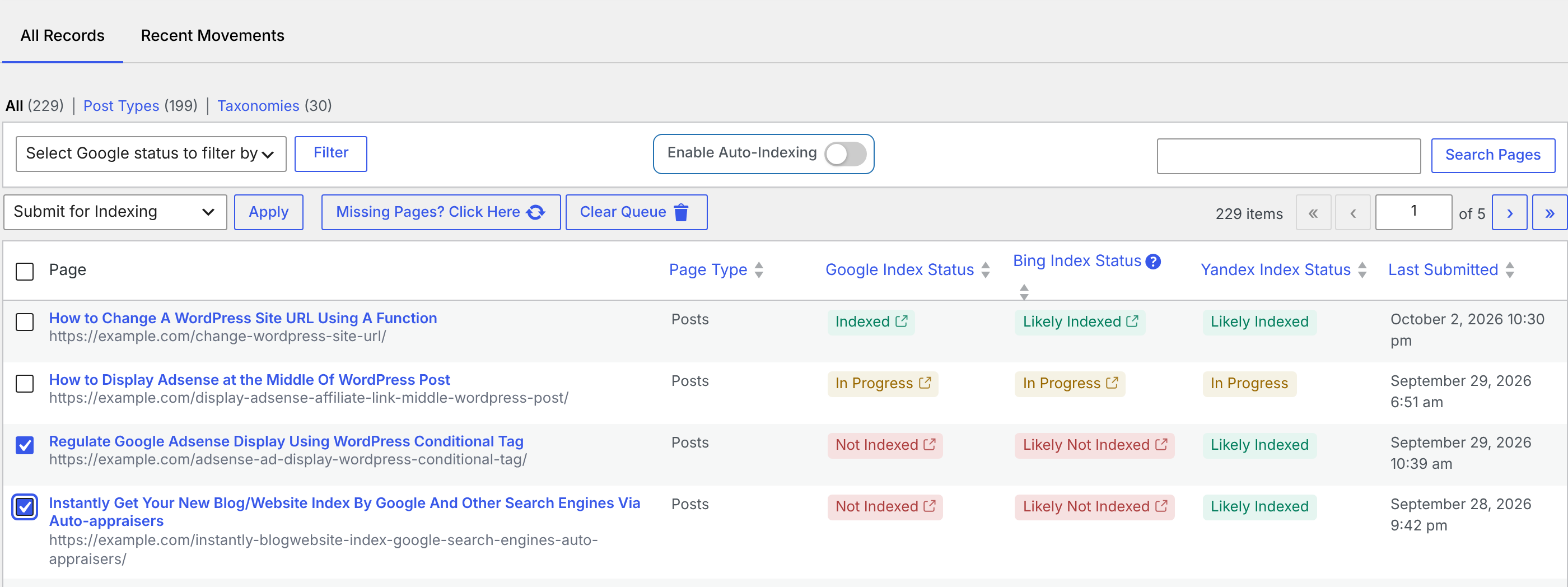
After the bulk action is applied, the selected URLs change to In Progress in the Google, Bing, and Yandex columns.
You Usually Do Not Need to Submit Every New Post Manually
Bulk submission is useful when you have a specific group of URLs to process, but you don’t normally need to submit every new WordPress post manually. CrawlWP automatically submits content when it is published and can also submit published content when Post updated is enabled.
This means the bulk tool is better suited to situations where you have several existing URLs or WordPress pages that need attention, such as after an import, a migration, or a large content update.
See Excluding posts or post types from indexing for more information about controlling which content is submitted.
A Practical Bulk Indexing Workflow
For a large batch of URLs, it helps to work through the process in stages rather than selecting everything without checking the content first.
- Check the URLs first. Make sure the content is published and is intended to be indexed.
- Filter the table. Use Not indexed when you specifically want to find pages Google has not indexed.
- Submit a manageable batch. Remember that the background job sends up to 50 queued pages at a time.
- Watch the status columns. In Progress means CrawlWP is still processing the submission and checking its status.
- Review the indexing log. Use it to see the response returned by each indexing service.
This workflow makes it easier to distinguish between URLs waiting in the queue, URLs submitted for search engine indexing, and URLs for which a search engine has already returned an indexing result.
Pause or Cancel Queued Submissions
You can stop pending background tasks from being processed by using Clear Queue on the SEO Indexing page.
Clear Queue removes submissions that are still waiting to run. It does not reset URLs that are already marked In Progress.
To prevent URLs already marked In Progress from being submitted again, select them and choose Exclude from indexing.
How Long Can Bulk Indexing Take?
There are several stages between selecting a large group of URLs and seeing a final indexing status. The hourly indexing job processes up to 50 queued pages per run, so large batches naturally take longer to send.
After submission, CrawlWP can continue retrying a URL every 12 hours until the next Google index check, which can take up to three days. Therefore, In Progress does not necessarily mean that CrawlWP has failed to submit the page for search engine indexing.
Troubleshooting Bulk Indexing
The pages stay “In Progress”
Make sure Enable Auto-Indexing is enabled. Then check the indexing log after the background job has had time to run. If no new log entries appear after about an hour, your site’s scheduled tasks may not be running.
See How to fix cron events missing their schedules if the indexing job is not running as expected.
The submit button reports success, but the log shows nothing
Check CrawlWP > Settings > Indexing and make sure at least one indexing service is enabled. The success message indicates that CrawlWP accepted the request, but there may be no actual service response when all available services are disabled.
Also check whether submissions have been temporarily paused after an error. CrawlWP pauses IndexNow submissions for three hours after an error and pauses the Google, Bing, or Yandex API for six hours after an error from the affected search engine.
A URL I expected is not listed
Check the post type or taxonomy selections under the indexing settings. If the content is published but missing from the table, click Missing Pages? Click Here to refresh the list of available published content.
A draft cannot be submitted
The individual Submit for Indexing action requires the content to be published. Publish the post or page first, then submit it again.
The bulk action does not send pages immediately
This is expected. The SEO Indexing page places bulk submissions in the background queue. The automatic indexing job runs once an hour and processes up to 50 queued pages per run.
Bulk Submission vs. Automatic Submission
| Method | When to use it | How it works |
|---|---|---|
| Submit for Indexing in the editor | You need to submit one published URL immediately. | Sends the URL immediately to the indexing services enabled in CrawlWP. |
| Submit for Indexing on SEO Indexing | You need to submit several existing URLs. | Adds URLs to the background queue for processing by the automatic indexing job. |
| Automatic submission | You are publishing or updating content normally. | CrawlWP can automatically submit content when it is published and, when enabled, when published content is updated. |
The right method depends mainly on how many URLs you need to submit and whether you need the request sent immediately. For a single URL, the editor button is the quickest option. For a larger group, the SEO Indexing queue is designed for bulk processing.
Bulk indexing is most useful when you have a defined set of published URLs that need another crawl or indexing request. After queuing them, keep an eye on In Progress, Last Submitted, and the indexing log so you can see how CrawlWP is processing the batch.
Bulk Submissions Are Added to a Queue
The Submit for Indexing action on the SEO Indexing page works differently from the button in the post editor. Bulk submissions are added to a background queue instead of being sent immediately.
The automatic indexing job runs once an hour and sends up to 50 queued pages per run. If you submit hundreds or thousands of URLs, the complete batch can therefore take several hours to work through.
After a URL has been sent, it remains In Progress until CrawlWP performs its next Google index check. That check can take up to three days. Until the check occurs, CrawlWP retries the submission every 12 hours.
If the Google API is not connected, the URL remains In Progress and continues to be submitted every 12 hours.
Auto-Indexing Must Be Enabled
The background queue is processed only when Enable Auto-Indexing is enabled at the top of the SEO Indexing table.
When Enable Auto-Indexing is disabled, URLs can remain marked In Progress, but CrawlWP does not send them from the queue. Enable the option to allow the scheduled indexing job to process pending submissions.
See How automatic indexing works and how to schedule it for more information about the background indexing process.
Understand the Last Submitted Time
The Last Submitted column records the most recent time CrawlWP attempted to submit a URL. It is not limited to bulk submissions.
The timestamp can be updated when a post is published, when a published post is updated, or when you use Submit for Indexing. This makes the column useful when checking whether CrawlWP has recently attempted to send a URL.
Show More URLs on the SEO Indexing Page
When working with a large batch, you may want to display more rows at once. Click Screen Options in the top-right corner and increase the Pages value.
Increasing the number of rows displayed can make it easier to select and submit a group of related URLs without moving between as many pages of results.
Refresh the SEO Indexing Table With Missing Pages
If a published post, page, or term that you expect to see is missing from the SEO Indexing table, use Missing Pages? Click Here.
CrawlWP then adds published posts and terms belonging to the selected post types and taxonomies when they are missing from the table. It also removes entries for content that no longer exists.
You Usually Do Not Need to Submit Every New Post Manually
Bulk submission is useful when you have a specific group of URLs from WordPress to submit for search engine indexing, but it is not normally necessary to manually submit every new post. CrawlWP automatically submits content when it is published and can also submit published content when Post updated is enabled.
This means the bulk tool is better suited to situations where you have several existing URLs that need attention, such as after an import, a migration, or a large content update.
See Excluding posts or post types from indexing for more information about controlling which content is submitted.
A Practical Bulk Indexing Workflow
For a large batch of URLs, it helps to work through the process in stages rather than selecting everything without checking the content first.
- Check the URLs first. Make sure the content is published and is intended to be indexed.
- Filter the table. Use Not indexed when you specifically want to find pages Google has not indexed.
- Submit a manageable batch. Remember that the background job sends up to 50 queued pages at a time.
- Watch the status columns. In Progress means CrawlWP is still processing the submission and checking its status.
- Review the indexing log. Use it to see the response returned by each indexing service.
This workflow makes it easier to distinguish between URLs that are waiting in the queue, URLs that have been submitted, and URLs for which a search engine has already returned an indexing result.
Pause or Cancel Queued Submissions
You can stop pending background tasks from being processed by using Clear Queue on the SEO Indexing page.
Clear Queue removes submissions that are still waiting to run. It does not reset URLs that are already marked In Progress.
To prevent URLs already marked In Progress from being submitted again, select them and choose Exclude from indexing.
How Long Can Bulk Indexing Take?
There are several stages between selecting a large group of URLs and seeing a final indexing status. The hourly indexing job processes up to 50 queued pages per run, so large batches naturally take longer to send.
After submission, CrawlWP can continue retrying a URL every 12 hours until the next Google index check, which can take up to three days. Therefore, In Progress does not necessarily mean that CrawlWP has failed to submit the page.
Troubleshooting Bulk Indexing
The pages stay “In Progress”
Make sure Enable Auto-Indexing is enabled. Then check the indexing log after the background job has had time to run. If no new log entries appear after about an hour, your site’s scheduled tasks may not be running.
See How to fix cron events missing their schedules if the indexing job is not running as expected.
The submit button reports success, but the log shows nothing
Check CrawlWP > Settings > Indexing and make sure at least one indexing service is enabled. The success message indicates that CrawlWP accepted the request, but there may be no actual service response when all available services are disabled.
Also check whether submissions have been temporarily paused after an error. CrawlWP pauses IndexNow submissions for three hours after an error and pauses the Google, Bing, or Yandex API for six hours after an error from the affected search engine.
A URL I expected is not listed
Check the post type or taxonomy selections under the indexing settings. If the content is published but missing from the table, click Missing Pages? Click Here to refresh the list of available published content.
A draft cannot be submitted
The individual Submit for Indexing action requires the content to be published. Publish the post or page first, then submit it again.
The bulk action does not send pages immediately
This is expected. The SEO Indexing page places bulk submissions in the background queue. The automatic indexing job runs once an hour and processes up to 50 queued pages per run.
Bulk Submission vs. Automatic Submission
| Method | When to use it | How it works |
|---|---|---|
| Submit for Indexing in the editor | You need to submit one published URL immediately. | Sends the URL immediately to the indexing services enabled in CrawlWP. |
| Submit for Indexing on SEO Indexing | You need to submit several existing URLs. | Adds URLs to the background queue for processing by the automatic indexing job. |
| Automatic submission | You are publishing or updating content normally. | CrawlWP can automatically submit content when it is published and, when enabled, when published content is updated. |
The right method depends mainly on how many URLs you need to submit and whether you need the request sent immediately. For a single URL, the editor button is the quickest option. For a larger group, the SEO Indexing queue is designed for bulk processing.
Bulk indexing is most useful when you have a defined set of published URLs that need another crawl or indexing request. After queuing them, keep an eye on In Progress, Last Submitted, and the indexing log so you can see how CrawlWP is processing the batch.