
Breadcrumbs are a simple way to show visitors where they are on your WordPress website. A trail such as Home › Gardening › Composting for Beginners gives visitors an easy way to move back to a parent category or page.
Breadcrumbs can also provide search engines with information about your site’s structure. CrawlWP handles both parts: it can display a visible breadcrumb trail on your pages and generate BreadcrumbList structured data for search engines.
These are separate features, so you can display breadcrumbs to visitors, add only the structured data, or use both.
What CrawlWP does with breadcrumbs
- Visible breadcrumbs: CrawlWP generates a linked trail that you can place wherever you want using the [crawlwp_breadcrumbs] shortcode.
- Breadcrumb schema: CrawlWP adds a BreadcrumbList item to its JSON-LD structured data so search engines can understand the page hierarchy. This can be enabled even when you do not display visible breadcrumbs.
This separation is useful when your theme already displays breadcrumbs. You can turn off CrawlWP’s visible trail and still keep the breadcrumb structured data.
Configure the breadcrumb settings
- In the WordPress dashboard, go to CrawlWP > Settings.
- Select the Settings tab and open Breadcrumbs from the left-hand menu.
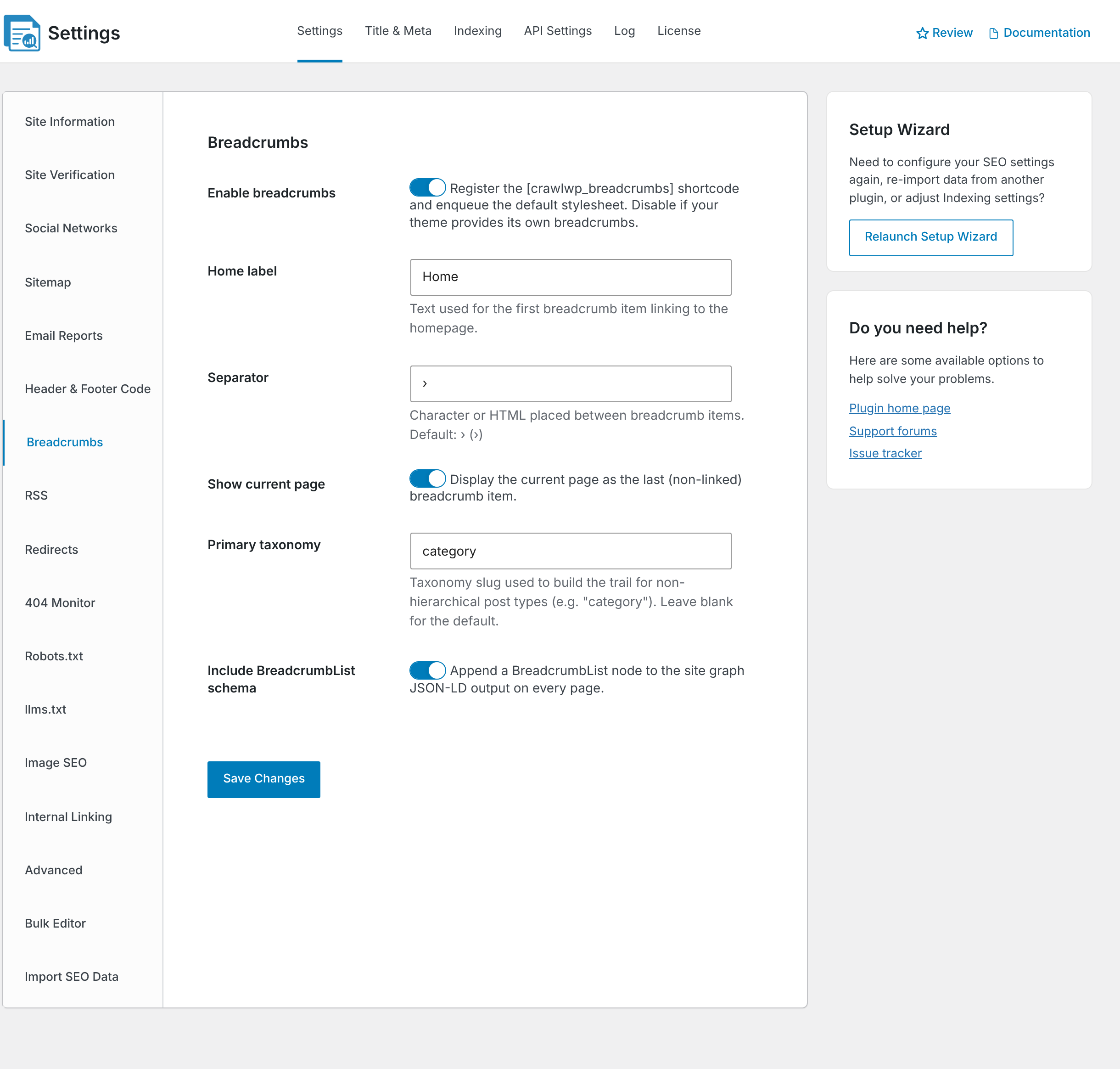
- Adjust the breadcrumb options to suit your website:
- Enable breadcrumbs: controls the visible breadcrumb shortcode and its stylesheet. Turn this off when your theme or another plugin already provides the visible trail.
- Home label: controls the text of the first breadcrumb, which links to your homepage. The default is Home.
- Separator: controls what appears between breadcrumb items. The default separator is ›, but you can use another character or HTML.
- Show current page: adds the current page as the final breadcrumb without making it a link.
- Primary taxonomy: tells CrawlWP which taxonomy should be used to build breadcrumbs for posts and other content without a parent page. The default is
category. - Include BreadcrumbList schema: controls whether CrawlWP adds the breadcrumb structured data to the page.
- Click Save Changes.
All of these options are enabled by default, so many websites can leave the settings alone and simply add the shortcode where the breadcrumbs should appear.
Choose a good breadcrumb structure
Your breadcrumb trail should reflect a sensible path through your site’s content. For a blog post, this might be:
Home › WordPress SEO › Breadcrumbs › Setting Up BreadcrumbsThe exact structure depends on how your website organizes its content. Avoid creating a breadcrumb trail with unnecessary levels or categories that don’t help visitors understand where the page belongs.
Add breadcrumbs to a WordPress theme
Once the settings are configured, place [crawlwp_breadcrumbs] where you want the visible trail to appear. The best location is usually near the top of the content, such as above the post title or just below the header.
Add breadcrumbs to a block theme
Block themes use the WordPress Site Editor, so you can add the shortcode directly to a template without editing PHP files.
- Go to Appearance > Editor.
- Open Templates and select the template you want to change, such as Single Posts.
- Insert a Shortcode block at the desired location.
- Enter [crawlwp_breadcrumbs].
- Click Save.
You can repeat this for other templates, including page and archive templates, when you want breadcrumbs to appear on those types of content as well.
Add breadcrumbs to a classic theme
With a classic theme, you can call the shortcode from a theme template such as single.php, page.php, or another template where the trail should appear.
<?php echo do_shortcode( '[crawlwp_breadcrumbs]' ); ?>Use a child theme when modifying theme template files. This keeps your changes separate from the parent theme and helps prevent them from being lost during a theme update.
Add breadcrumbs to a specific post or page
You do not have to edit your theme to display breadcrumbs on one page. Add a Shortcode block to the content and enter [crawlwp_breadcrumbs].
This approach is useful for landing pages, documentation pages, and other content where you only want the trail in a specific location.

Customize breadcrumbs with shortcode options
The shortcode can accept options that change the output for one location without changing your global breadcrumb settings.
| Option | Example | Purpose |
|---|---|---|
separator | [ crawlwp_breadcrumbs separator="/" ] | Changes the symbol or HTML used between items. |
label_home | [ crawlwp_breadcrumbs label_home="Start" ] | Changes the label used for the homepage link. |
display_current | [ crawlwp_breadcrumbs display_current="false" ] | Removes the current page from the visible trail. |
taxonomy | [ crawlwp_breadcrumbs taxonomy="post_tag" ] | Uses a different taxonomy when building the trail. |
These shortcode options only affect the particular breadcrumb trail where they are used. Your global Breadcrumbs settings remain unchanged.
Choose the primary taxonomy for posts
Posts can belong to several categories, but a breadcrumb trail normally needs one main path. The Primary taxonomy setting tells CrawlWP which taxonomy to use when generating that path.
For most blogs, category is the obvious choice. If your content is primarily organized using a custom taxonomy, select that taxonomy instead.
Set the primary category for one post
You can override the default taxonomy selection for an individual post using the CrawlWP SEO settings.
- Primary category: found on the Advanced tab. When a post has several categories, this determines which one CrawlWP uses in the breadcrumb trail. Default (first category) uses the post’s first category.
- Breadcrumb label: found on the Schema tab. Use this when you want a shorter breadcrumb label than the actual post title.
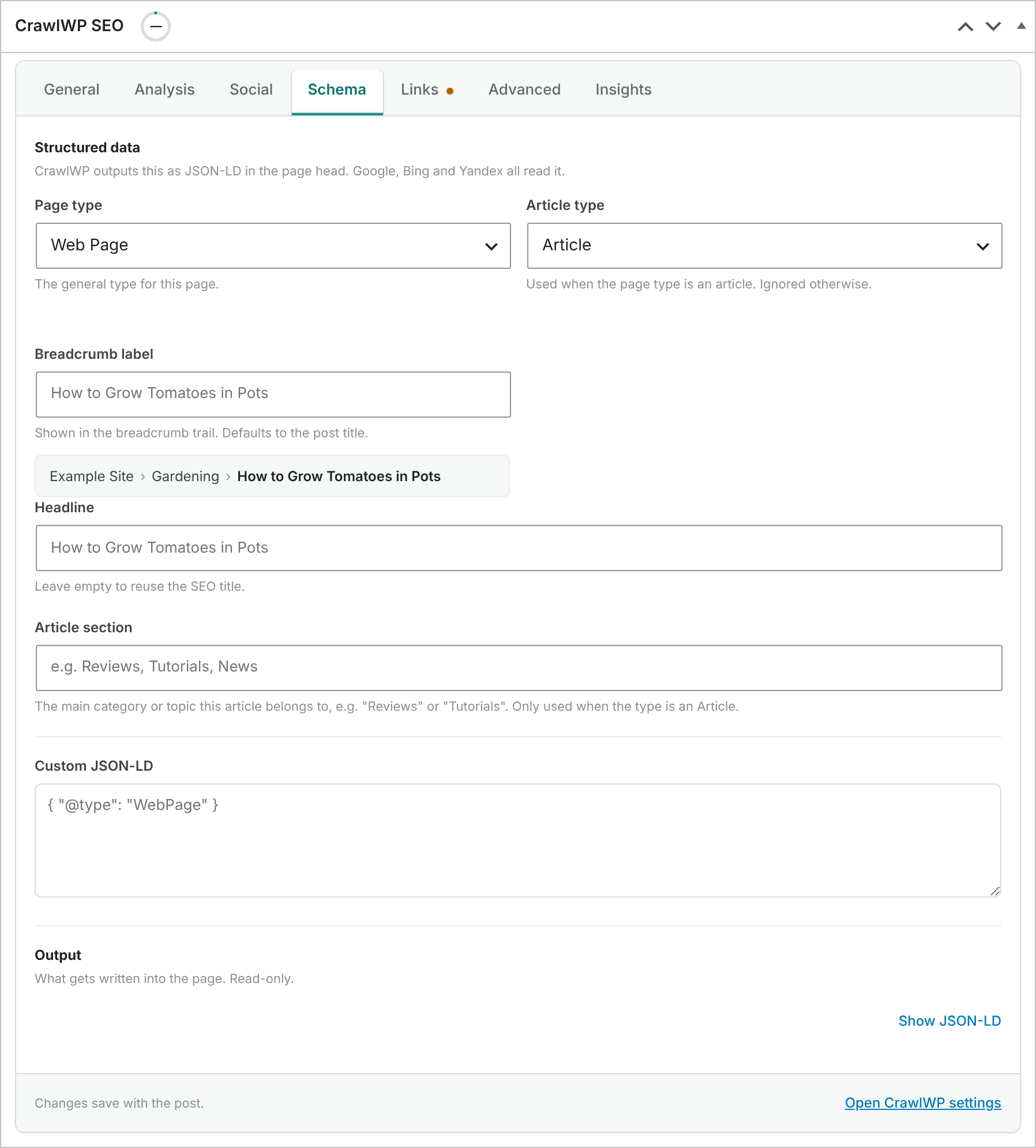
For example, a long post title such as “The Complete Guide to Choosing the Best Compost for Your Vegetable Garden” could use a shorter breadcrumb label such as “Choosing Compost”.
Use breadcrumbs to improve site navigation
Breadcrumbs are not just for search engines. They provide another navigation path for visitors, especially on websites with deep content structures.
- They show visitors where the current page sits in your site’s hierarchy.
- They provide direct links back to parent categories and the homepage.
- They make large websites easier to explore without relying entirely on the main menu.
- They give search engines additional information about the relationship between pages.
Breadcrumbs are particularly useful for blogs, online stores, documentation sites, news websites, directories, and other sites with multiple levels of content.
Visible breadcrumbs and breadcrumb schema are separate
You can use CrawlWP’s breadcrumb structured data without displaying a second breadcrumb trail on the page.
For example, if your theme already displays breadcrumbs, turn off Enable breadcrumbs in CrawlWP. Leave Include BreadcrumbList schema enabled if you still want CrawlWP to add the structured data.
This prevents duplicate visible breadcrumb trails while allowing the page’s structured data to continue describing its hierarchy.
Breadcrumbs and SEO
Breadcrumbs can help search engines understand how your content is organized, while the visible links can improve navigation and provide additional internal links between related levels of your site.
CrawlWP adds the breadcrumb trail to its structured data graph, alongside other schema such as your website, organization or person, and article information. Google supports Breadcrumb structured data as a search feature and recommends that the breadcrumb trail represent a typical user path through the site’s hierarchy.
Adding breadcrumbs does not guarantee that Google will display a breadcrumb trail for every search result. Search engines decide how they display search results.
Do breadcrumbs need to appear on every page?
Not necessarily. Breadcrumbs are most useful where visitors benefit from moving between levels of content. A deep blog post, product page, documentation article, or taxonomy archive is usually a better candidate than a simple contact page or standalone landing page.
You can still use CrawlWP’s breadcrumb structured data across your site, but place the visible trail where it makes sense for the site’s navigation.
Check the breadcrumb output
After adding breadcrumbs, open a few pages on your website and check that the trail follows the structure you expect. Pay particular attention to posts assigned to multiple categories and pages with custom post types.
- Open a page containing the breadcrumb trail.
- Follow each breadcrumb link and make sure it leads to the expected page.
- Check that the current page label is correct.
- View the page source and check that the BreadcrumbList structured data is present when it is enabled.
- Use Google’s Rich Results Test to validate structured data.
Common breadcrumb mistakes
- Showing two breadcrumb trails: this usually happens when CrawlWP and the theme or another SEO plugin are both displaying visible breadcrumbs.
- Using the wrong taxonomy: a post may show an unexpected category when the primary taxonomy is not configured correctly.
- Creating misleading paths: breadcrumbs should describe the site’s content structure rather than inventing relationships between unrelated pages.
- Adding too many levels: a long breadcrumb trail can become difficult to read and may not help visitors.
- Using breadcrumbs only for SEO: the visible trail should be useful to visitors first.
Troubleshooting breadcrumbs
The shortcode appears as plain text. Check that Enable breadcrumbs is turned on under CrawlWP > Settings > Breadcrumbs. Save the settings and reload the page.
The breadcrumb trail is missing from a template. The shortcode may not have been added to that template. For block themes, check the relevant template under Appearance > Editor. For classic themes, check the appropriate template file.
No breadcrumbs appear on the homepage. The homepage sits at the top of the site hierarchy, so there is normally no parent page to display in a breadcrumb trail. CrawlWP also does not generate BreadcrumbList schema for the homepage.
The wrong category appears in the breadcrumb trail. Open the post’s Advanced tab in the CrawlWP SEO box and choose the correct Primary category.
The breadcrumb styling looks wrong. CrawlWP includes a small stylesheet for its visible breadcrumbs, but your theme’s CSS can override it. Add your own CSS for the .cwp-bc class under Appearance > Customize > Additional CSS or in your theme’s stylesheet.
Two breadcrumb trails are visible. Your theme, page builder, or another plugin is already displaying one. Turn off CrawlWP’s visible breadcrumbs or remove the duplicate breadcrumb implementation.
Breadcrumb structured data is missing. Check that Include BreadcrumbList schema is enabled. If it is enabled, inspect the page source and clear your WordPress or CDN cache before testing again.
Google does not show breadcrumbs in search results. Having valid BreadcrumbList markup does not guarantee that Google will display it. First validate the markup and make sure the breadcrumb path accurately represents the page’s hierarchy.
The breadcrumb trail does not match my site’s structure. Review the Primary taxonomy setting and any individual post’s Primary category. You can also use the taxonomy shortcode option when you need a different taxonomy for a specific breadcrumb trail.