
CrawlWP automatically adds structured data to your WordPress site to help search engines understand what each page represents. Also known as schema markup, this information is written in a standard format and can help search engines identify details about your website and content for search features.
Where CrawlWP adds schema markup
CrawlWP places its structured data inside the page’s <head> as one JSON-LD script. JSON-LD is the format recommended by Google. The different schema items are grouped together inside an @graph and connected using IDs, allowing search engines to understand the relationship between them.
There is no separate schema option you need to activate. CrawlWP starts generating the markup once its on-page SEO features are enabled.
Schema added across your site
| Item | What it represents | Where the information comes from |
|---|---|---|
| WebSite | Your website, including its name, URL, language, and description. It can also contain the search action used for the sitelinks search box unless that feature has been disabled. | Site Information under CrawlWP > Settings |
| Organization or Person | The person or organization responsible for the website, including its name, logo, and social media profiles. | Site Information. See Setting up Organization vs Person site representation |
| LocalBusiness | Your business information, including its address, phone number, and opening hours when local business schema is enabled. | Site Information. See Setting up LocalBusiness schema |
Schema for posts and pages
For a normal post or page, CrawlWP can generate several related schema items:
- A WebPage item, or a more specific page type such as About Page or Contact Page. It contains information such as the page title, description, URL, language, and dates.
- An Article item, or another article type such as Blog Posting or News Article, when the content has been configured as an article. This can include the headline, author, image, publication date, modification date, and a connection to the site’s Organization or Person.
- An image item representing the post’s social image when one is available.
- A BreadcrumbList containing the page’s breadcrumb trail, unless Include BreadcrumbList schema has been disabled in the Breadcrumbs settings.
CrawlWP uses Web Page for pages and treats posts as Article by default. You can change these defaults or override them on individual pieces of content. See Choosing a schema type for a post or page.
Schema on archives and other page types
| Page | Schema item |
|---|---|
| Homepage showing the latest posts, blog posts page, post type archives, category and tag archives, other archives, and date archives | CollectionPage |
| Author archive pages | ProfilePage |
| Search results when Hide from search results is disabled for the search page | SearchResultsPage |
CrawlWP also adds a BreadcrumbList schema to these archive and search pages, except for the homepage.
What happens with noindex pages?
When a page is marked as noindex, CrawlWP does not generate its WebPage, Article, or CollectionPage item because the page is not intended to appear in search results. Site-level schema is still included, such as WebSite, Organization or Person, and LocalBusiness when enabled. Breadcrumbs and custom JSON-LD added to the content are also still output.
Preview schema for a post
- Open the post in the WordPress editor.
- Scroll to the CrawlWP SEO box and select Schema.
- Expand Output and click Show JSON-LD.
The preview shows the main schema item’s type and some of its important fields based on the settings currently applied to the post. The actual page contains additional information, the site-wide items described above, and any custom JSON-LD you have added.
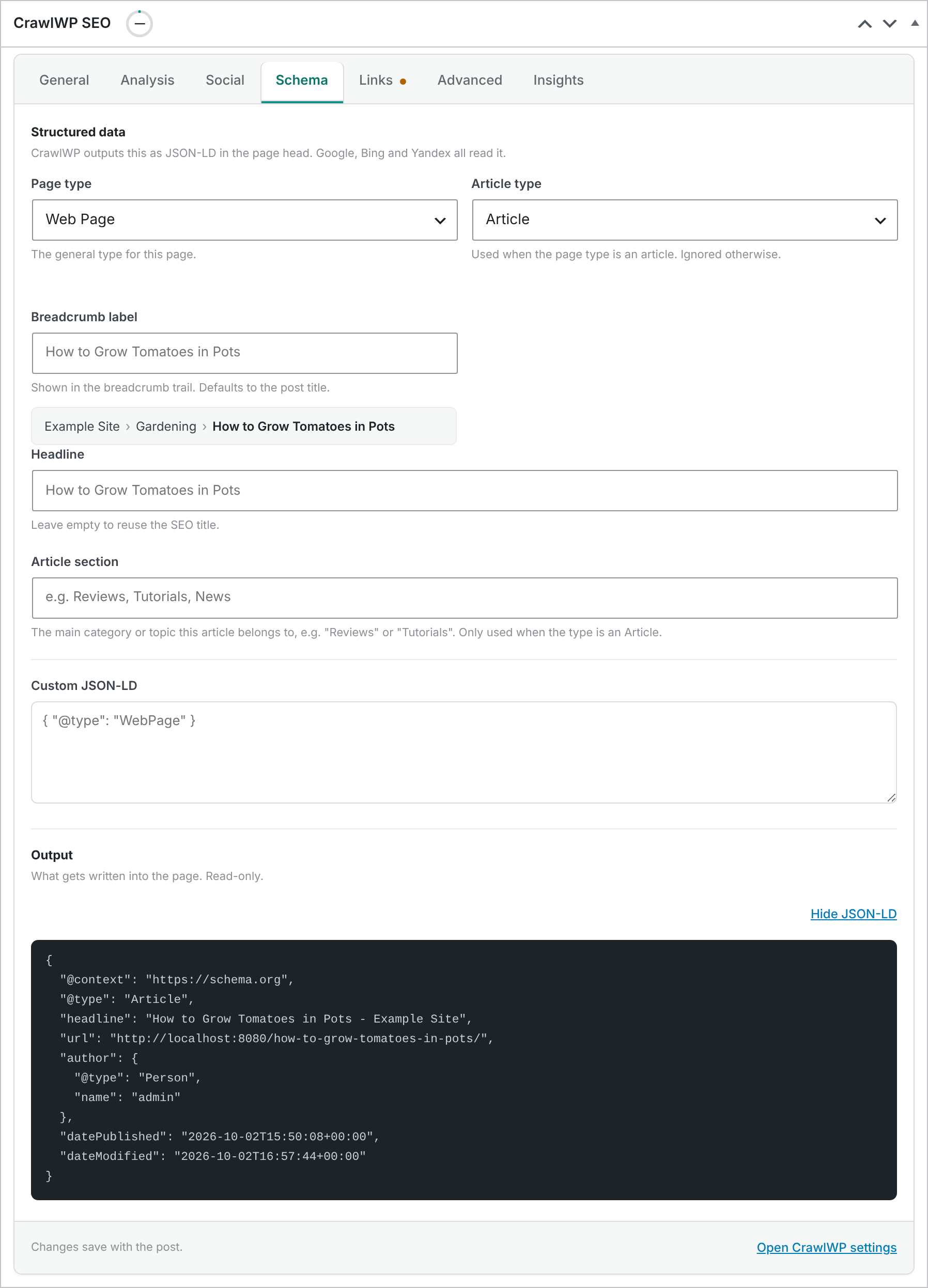
For the complete structured data generated on a live page, use Google’s Rich Results Test. See Testing your schema with Google’s Rich Results Test.
Add custom JSON-LD
CrawlWP does not generate every possible schema type. When you need something additional, such as Recipe or Event markup, you can add your own JSON-LD to an individual post in WordPress.
- Open the post’s Schema tab and paste the JSON object into Custom JSON-LD. Enter only the object, for example
{ "@type": "Event", "name": "Spring Plant Sale" }. Do not paste the surrounding<script>tag. - Save or update the post.
CrawlWP places the custom schema item in the same page graph as the schema it generates itself. Keep these two validation rules in mind when adding custom markup:
- Invalid JSON is not saved. CrawlWP clears the field when the JSON cannot be parsed, so validate your markup before adding it.
- HTML markup contained inside JSON values is stripped out.
Schema markup does not guarantee enhanced search results
Adding structured data can make a page eligible for certain rich results in search engine result pages, including breadcrumbs and article-related search features. However, having valid schema does not guarantee that a search engine will display a rich result. The decision is made separately for each page and search query.
Troubleshooting schema markup
No JSON-LD appears in the page source. Confirm that CrawlWP’s on-page SEO features are enabled. Under CrawlWP > Settings, open SEO Features when that tab is shown and enable the on-page SEO features. Then clear your page cache and test again.
A post is missing its WebPage or Article schema. Check the WordPress post’s noindex setting, and make sure its Page type isn’t set to None.
The page contains duplicate structured data. Another WordPress SEO plugin, schema plugin, or your WordPress theme may also be generating JSON-LD. Disable the other source to prevent duplicate or conflicting markup.
My custom JSON-LD disappears after I save the post. CrawlWP rejected the value because it was not valid JSON. Check for syntax problems such as missing quotation marks, unmatched braces, or trailing commas, then add the corrected JSON-LD again.