
Schema markup gives search engines more information about what a page is about. CrawlWP lets you describe your WordPress content with two settings: Page type and Article type. This guide explains the difference between them and how to choose the right options for your content.
Understand Page type and Article type
- Page type tells search engines what the page represents. Web Page is suitable for most content, while options such as About Page and Contact Page can be used when they better describe the page.
- Article type is intended for content presented as an article, including blog posts, news reports, and reviews. It provides additional information about the content, such as its author and publication date.
When you select an article type for your WordPress post, CrawlWP generates both a page item and an article item in the structured data. Set Article type to None when the content should not be described as an article, and CrawlWP will output only the page item.
Available schema options
Page type
| Option | Best suited for |
|---|---|
| Web Page | General website pages. This is the default. |
| Item Page | A page focused on one specific item, such as a product. |
| About Page | The main page that introduces your business, website, or organization. |
| FAQ Page | A page containing a set of questions and answers provided by the site owner. |
| Q&A Page | A page where users can submit answers to a question, such as a forum discussion. |
| Profile Page | A page dedicated to a person or organization. |
| Contact Page | A page visitors can use to find contact information. |
| Medical Web Page | A page that provides medical or healthcare information. |
| Collection Page | A page whose main purpose is to list or group other pages. |
| Real Estate Listing | A page advertising or describing a property. |
| None | Disables the page and article structured data for that page. Site-wide items, breadcrumbs, and custom JSON-LD continue to be generated. |
Article type
| Option | Best suited for |
|---|---|
| Article | General article content. This is the default for posts. |
| Blog Posting | Regular blog posts and similar blog content. |
| Social Media Posting | Short updates written in a social-media style. |
| News Article | News reports and current-event stories. |
| Advertiser Content Article | Paid, sponsored, or advertiser-created articles. |
| Satirical Article | Satirical content. |
| Scholarly Article | Academic or scholarly material. |
| Tech Article | Technical articles and how-to guides. |
| Report | Reports and similar formal documents. |
| None | Use when the content should not be identified as an article. CrawlWP will use only the selected page type. |
Selecting FAQ Page or Q&A Page only identifies the overall type of the page. It does not add the individual questions or answers to the schema. For that, you need to provide the question-and-answer data as custom JSON-LD. See How CrawlWP generates schema markup.
Set schema defaults for a post type
To set default schema for your WordPress post, page, or custom post types, follow the steps below.
- From your WordPress dashboard, go to CrawlWP > Settings and open the Title & Meta tab.
- Scroll to Post Types and select the post type you want to configure, such as Post (post).
- Find Schema Structured data and choose the appropriate Page type and Article type.
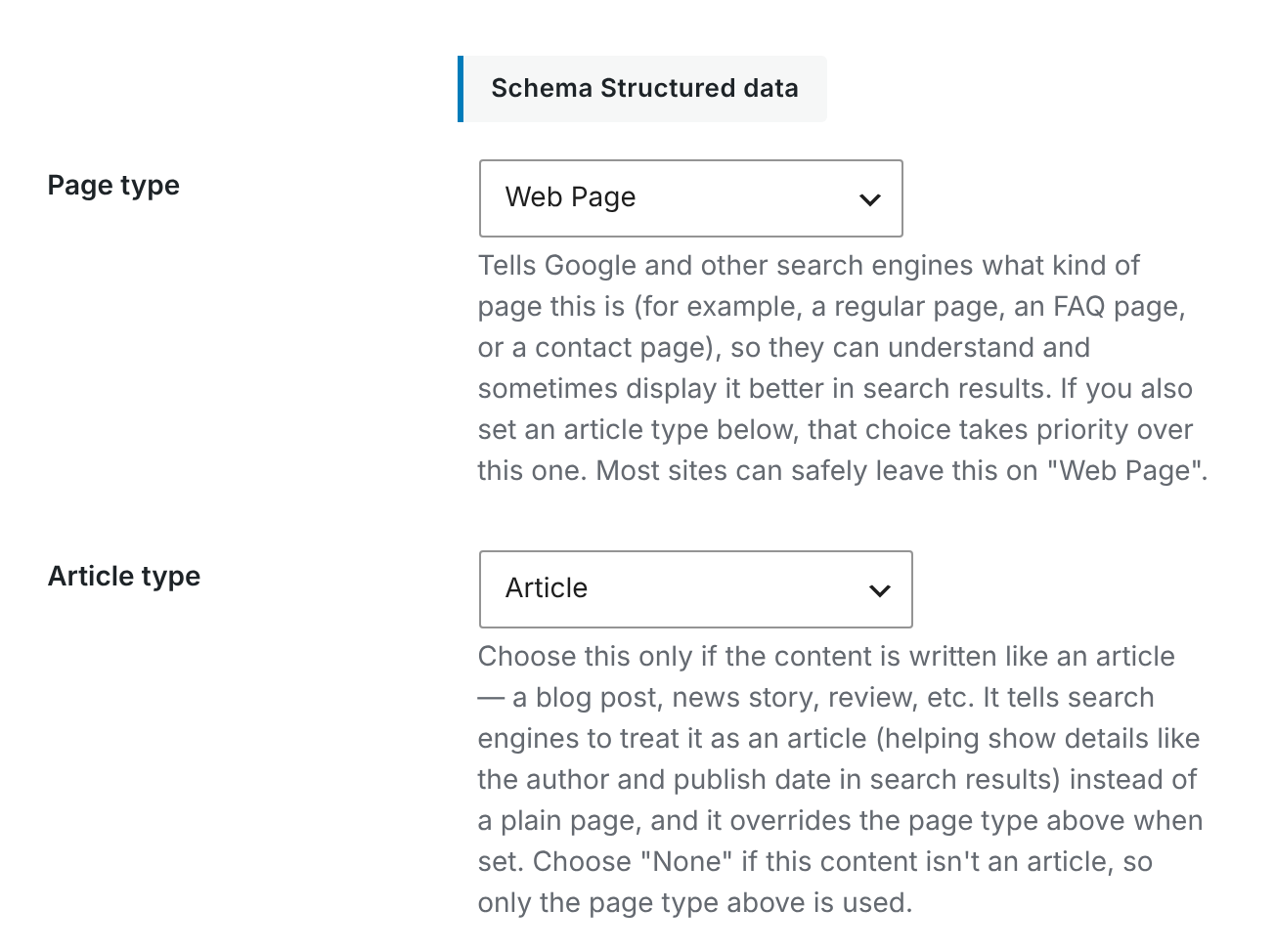
- Click Save Changes to apply the new defaults.
CrawlWP’s default setup uses Web Page and Article for posts. Standard pages and custom post types use Web Page without an article type.
Override the schema on an individual post or page
You can override the global/default schema of a WordPress post or page from the edit screen.
- Edit the post or page in WordPress.
- Find the CrawlWP SEO box below the editor and open the Schema tab.
- Select the Page type and Article type you want to use for that particular piece of content.
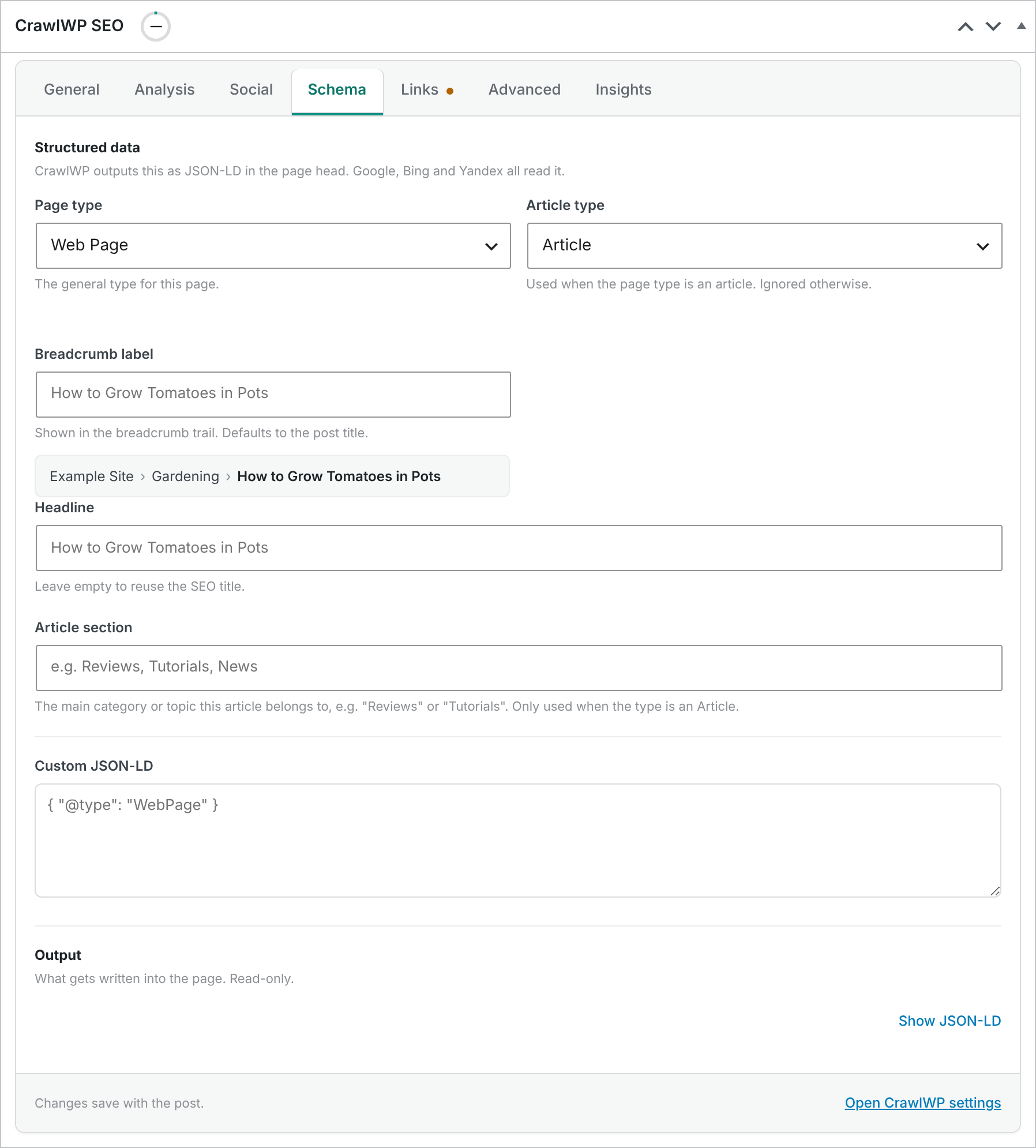
- You can also provide extra article information if needed:
- Headline: controls the headline used in the article schema. Leave this blank when you want CrawlWP to use the SEO title.
- Article section: identifies the main category or subject area of the article, such as “Reviews” or “Tutorials”.
- Update the post or page.
Any schema choice made for an individual post or page takes precedence over the default configured for its post type.
A static homepage is handled separately. By default, it uses Web Page without an article type unless you change the settings from that page’s Schema tab. The default for Page (page) does not control the static homepage. The page selected as the blog posts page is always represented as a CollectionPage.
Picking the right schema type for WordPress
- Blog posts: The default Article type works well, although Blog Posting is another suitable choice.
- Regular pages: Keep Web Page. For your About and Contact pages, use About Page and Contact Page, respectively.
- News content: Use News Article for genuine news stories.
- Product, landing, and sales pages: Use the appropriate page type and set Article type to None. These types of pages are not articles.
Schema works best when it accurately describes the content on the page. Selecting an unrelated type does not improve rankings, and search engines may ignore structured data they consider inaccurate.
Troubleshooting schema settings
The Rich Results Test does not display an article. Make sure Article type is not set to None either on the individual post or in the default for its post type. Also check that the post has not been marked as noindex.
A page does not contain a WebPage or Article item. Check whether Page type has been set to None. A noindex setting can also affect the page output. Other site-wide structured data can still be generated.
The article schema contains the wrong headline. Remove the custom value from Headline on the Schema tab if you want CrawlWP to use the SEO title. Otherwise, enter the headline you want to appear in the structured data.