
Search engines need to understand who is behind a website. Depending on the site, that may be a company, brand, publication, charity, or an individual person. CrawlWP WordPress SEO plugin lets you choose the right site representation and uses it in your structured data.
Choosing the correct representation gives search engines clearer information about your website’s identity. It can also connect your website with your logo and social profiles, making it easier for search engines to understand that these different online properties belong to the same entity.
Organization or Person: which should you use?
The choice depends on what your WordPress website represents, not how large your business is.
- Organization / Company: Use this for businesses, brands, agencies, charities, magazines, software companies, online publications, and other organizations. A one-person business can still use this option when the website represents the business rather than the individual.
- Individual / Person: Choose this when the website is primarily about one person, such as a personal blog, portfolio, consultant website, or personal brand.
Do not choose Individual / Person simply because you are the only person running your business. If customers know your website by a company or brand name, Organization / Company is usually the better fit.
Configure your site representation
- From your WordPress dashboard, open CrawlWP > Settings.
- Make sure the Settings tab is selected, then click Site Information.
- Find Site Representation and look for This website represents a….
- Select either Organization / Company or Individual / Person.
- Complete the fields under Organization / Person Identity.
- Click Save Changes.
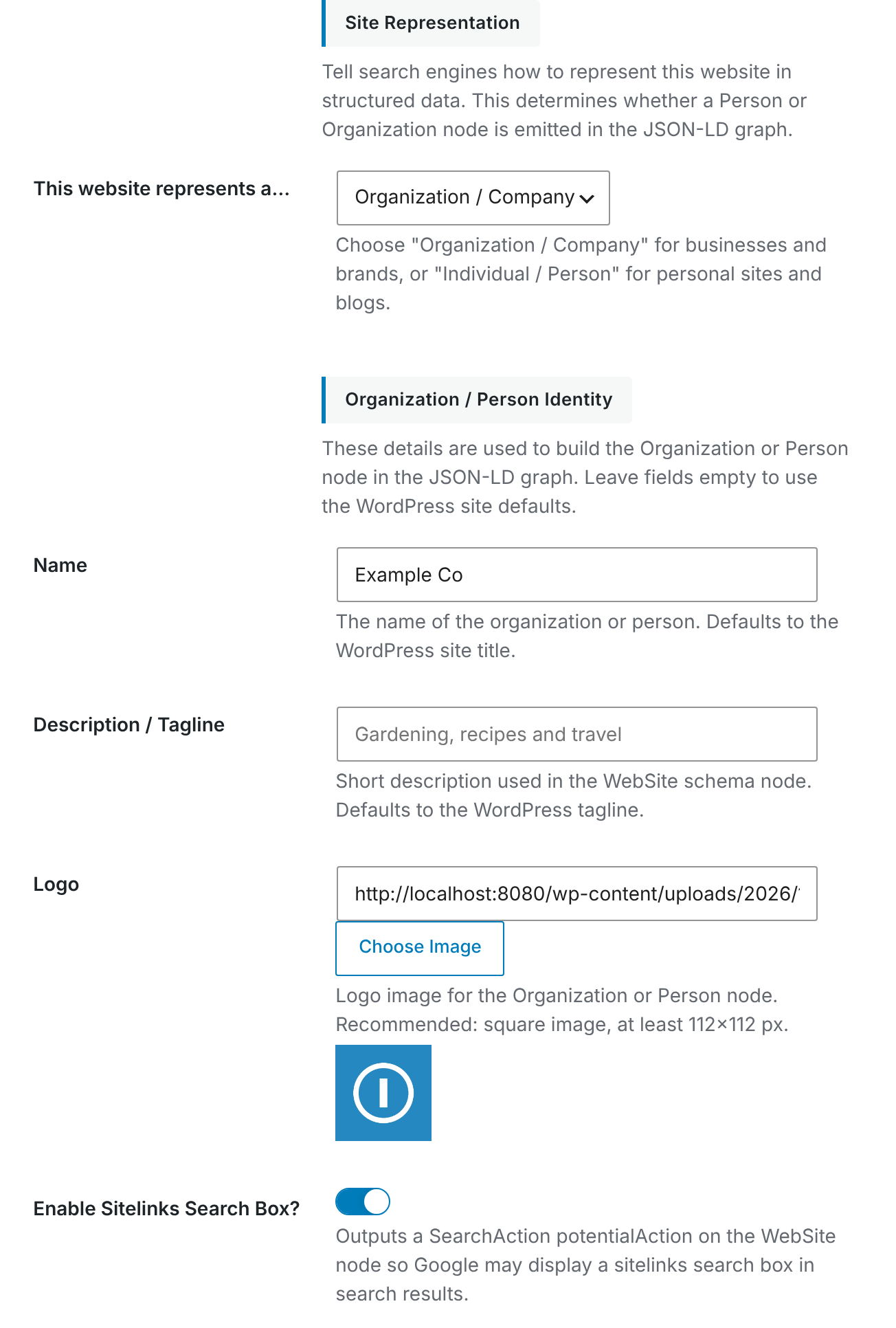
Complete the Organization or Person details
The information you enter here is used to build the identity part of CrawlWP’s schema graph. Use real, consistent information that matches how your business or personal brand is represented elsewhere online.
| Field | What to enter | What happens when it is empty |
|---|---|---|
| Name | The official or commonly used name of the business, organization, brand, or person represented by the website. | CrawlWP uses your WordPress site title from Settings > General. |
| Description / Tagline | A short description that explains what the website or entity is about. | CrawlWP uses the WordPress tagline from Settings > General. |
| Logo | For an organization, choose its logo. For a person, use an appropriate profile image. A square image of at least 112 × 112 pixels is recommended. | No logo or image is added to the identity item. |
| Enable Sitelinks Search Box? | Adds the search action used in the site’s WebSite structured data. | The search action is not included. |
Use the right name
The Name field is especially important because it identifies the entity represented by your website. For a business, use the business or brand name that appears on your website and other official profiles. For a personal website, use the person’s name.
Try to keep the spelling consistent across your website, social accounts, business listings, and other trusted profiles. Avoid adding extra marketing text such as “The Best WordPress Agency” to the entity name unless that is genuinely part of the name.
Choose a suitable logo or profile image
The Logo field tells search engines which image represents the organization or person. For a company, use the actual brand logo rather than a random image from the website. For a personal site, use a clear profile image when that better represents the person.
Use a square image and make sure it is available to search engines. Google recommends a minimum size of 112 × 112 pixels for organization logos.
Add your social profiles
Your website may not be the only place where your organization or personal brand appears online. CrawlWP lets you connect those profiles to your site using sameAs links in the Organization or Person structured data.
- On the Site Information screen, scroll to Social Profiles.
- Enter your Facebook Page URL and X (Twitter) URL where applicable.
- Add other official profiles under Additional Profile URLs, with one URL on each line. Examples include LinkedIn, Instagram, YouTube, and other relevant profiles.
- Click Save Changes.
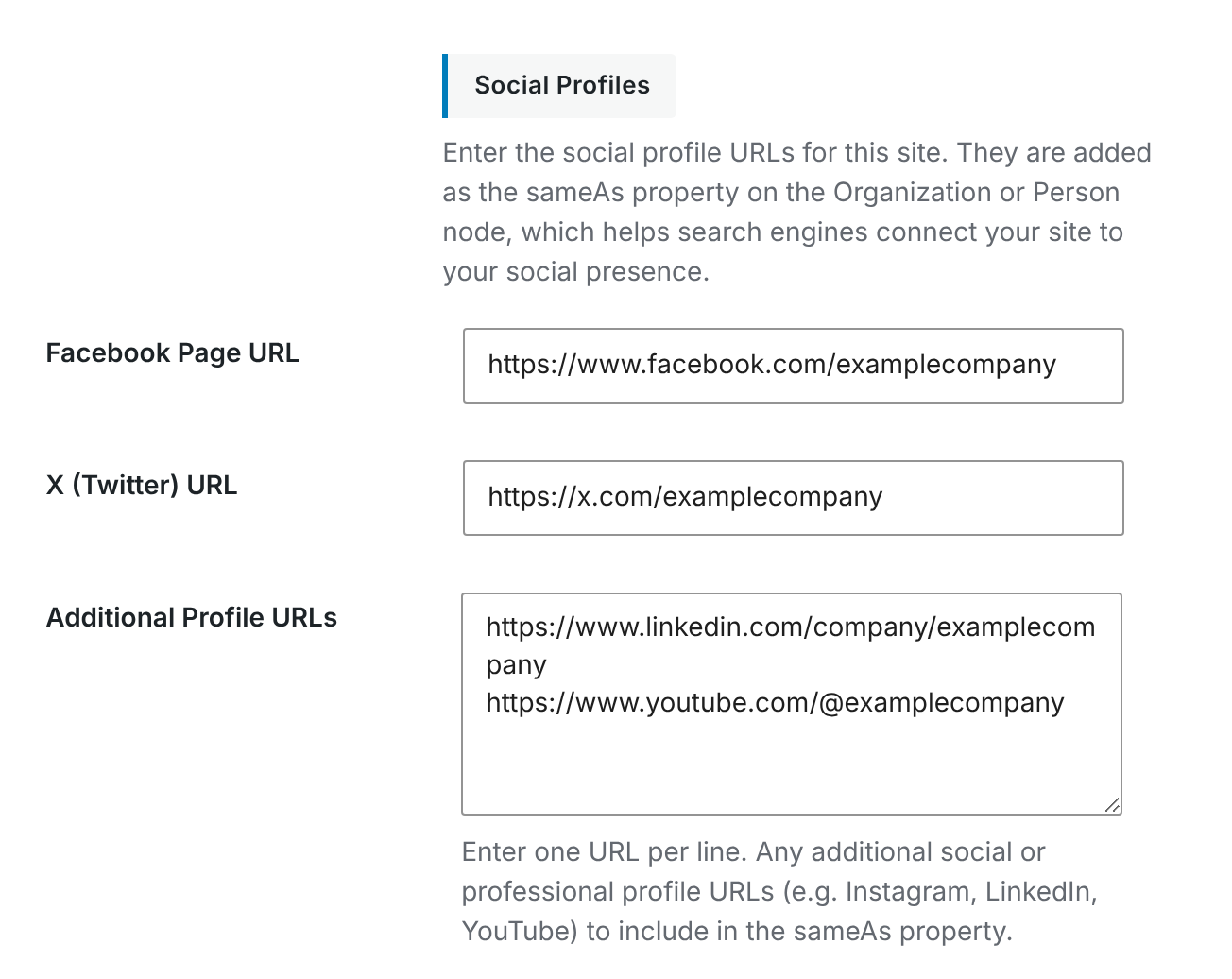
Always enter the complete profile URL, including https://. Only add accounts that genuinely belong to the organization or person represented on the website.
What the sitelinks search box setting does
The Enable Sitelinks Search Box? setting adds a search action to the WebSite structured data. This gives Google information about your site’s internal search function and can help Google understand how site search works.
Turning it on does not guarantee that Google will display a search box for your website. Search engines ultimately control search appearance.
How CrawlWP uses the site identity
- CrawlWP adds the selected Organization or Person identity to its structured data graph in WordPress.
- The WebSite item is connected to that identity as the site publisher or owner representation.
- Article markup can reference the same organization or person as the publisher.
- Your social profile URLs can be connected to the identity through
sameAs.
This information is part of your WordPress site structured data. It does not create a visible Organization or Person section on the front end of your website.
Organization and Person schema do not replace author schema
The site representation tells search engines who the website represents. It does not decide who wrote an article.
Each article can still have its own WordPress author. In other words, a website can use Organization / Company as its overall identity while individual articles are attributed to specific authors.
Best practices for better entity signals
- Keep your name consistent. Use the same real business or personal name across your website and official profiles.
- Use a genuine logo or profile image. Avoid unrelated stock images or decorative graphics.
- Link only to official profiles. Every
sameAsURL should actually belong to the entity represented by the website. - Complete the relevant information. Do not add fake or unnecessary details just to create more schema properties.
- Keep your public information consistent. If your company name, branding, or identity differs across important profiles, update them so search engines receive clearer signals.
Google recommends using the Organization type for organizations and the most specific applicable subtype when one exists. It also recommends using properties such as name, logo, url, and relevant sameAs links to help identify an organization.
Does Organization or Person schema improve rankings?
Structured data is not a direct guarantee of higher rankings. Its main purpose is to give search engines clearer information about your site and the entities connected to it. Google can use structured data to better understand pages and, when applicable, make them eligible for enhanced search features.
Check your structured data
After saving your settings, test your homepage or another important page that contains the site identity. Check that the Organization or Person name, logo, and other details are correct.
You can use Google’s structured data testing tools or inspect the JSON-LD source directly. When checking the result, make sure the entity type matches the website and that the information in the markup is consistent with what users see on the site.
Common mistakes to avoid
- Choosing Person for a company website: Being a solo founder or freelancer does not automatically make a website a personal site.
- Using a nickname or slogan as the entity name: Use the actual name by which the business or person is identified.
- Adding unrelated social accounts: Only connect profiles that belong to the same business, brand, or person.
- Using an unsuitable image: Don’t use an unrelated featured image as the organization’s logo or a person’s identity image.
- Expecting schema alone to change rankings: Structured data helps search engines understand your content, but it is not a ranking shortcut.
Troubleshooting
The wrong name appears in the structured data. Open Site Information and check the Name field. If it is empty, CrawlWP uses the site title from Settings > General.
The logo is not included. Check that a Logo has been selected and that the settings were saved. Also make sure the image is available in your WordPress Media Library and is suitable for use as an organization logo or profile image.
The social profile links are missing. Check the Social Profiles section and confirm that the URLs were entered correctly. Save the settings and inspect the generated structured data again.
A social profile is shown with http://. The URL was entered without a protocol. Edit the profile and enter its complete address beginning with https://.
Another Organization item appears on the page. Your theme or another plugin may also be generating organization schema. Review the page source and disable the duplicate source where appropriate so your website does not publish conflicting identity information.
The site still shows old schema information. Clear your page cache, CDN cache, or server cache and test the page again. Also make sure the CrawlWP settings were saved successfully.
I am not sure whether to choose Organization or Person. Ask what the website is actually representing. If it represents a company, brand, publication, charity, or business name, use Organization / Company. If the website is centered on the identity of one individual, use Individual / Person.