
LocalBusiness schema is useful for businesses that have a location customers can visit, such as restaurants, shops, clinics, and offices.
By adding this structured data, you can provide search engines with information about your business, including its address, phone number, and opening times.
Enable LocalBusiness schema in WordPress
To add LocalBusiness schema to your WordPress website using our CrawlWP SEO plugin, follow the steps below.
- From your WordPress dashboard, open CrawlWP > Settings.
- Stay on the Settings tab and select Site Information from the menu on the left.
- Find the Local SEO section and switch on Enable LocalBusiness schema.
- Enter the information for your business using the fields described below.
- Click Save Changes when you are finished.
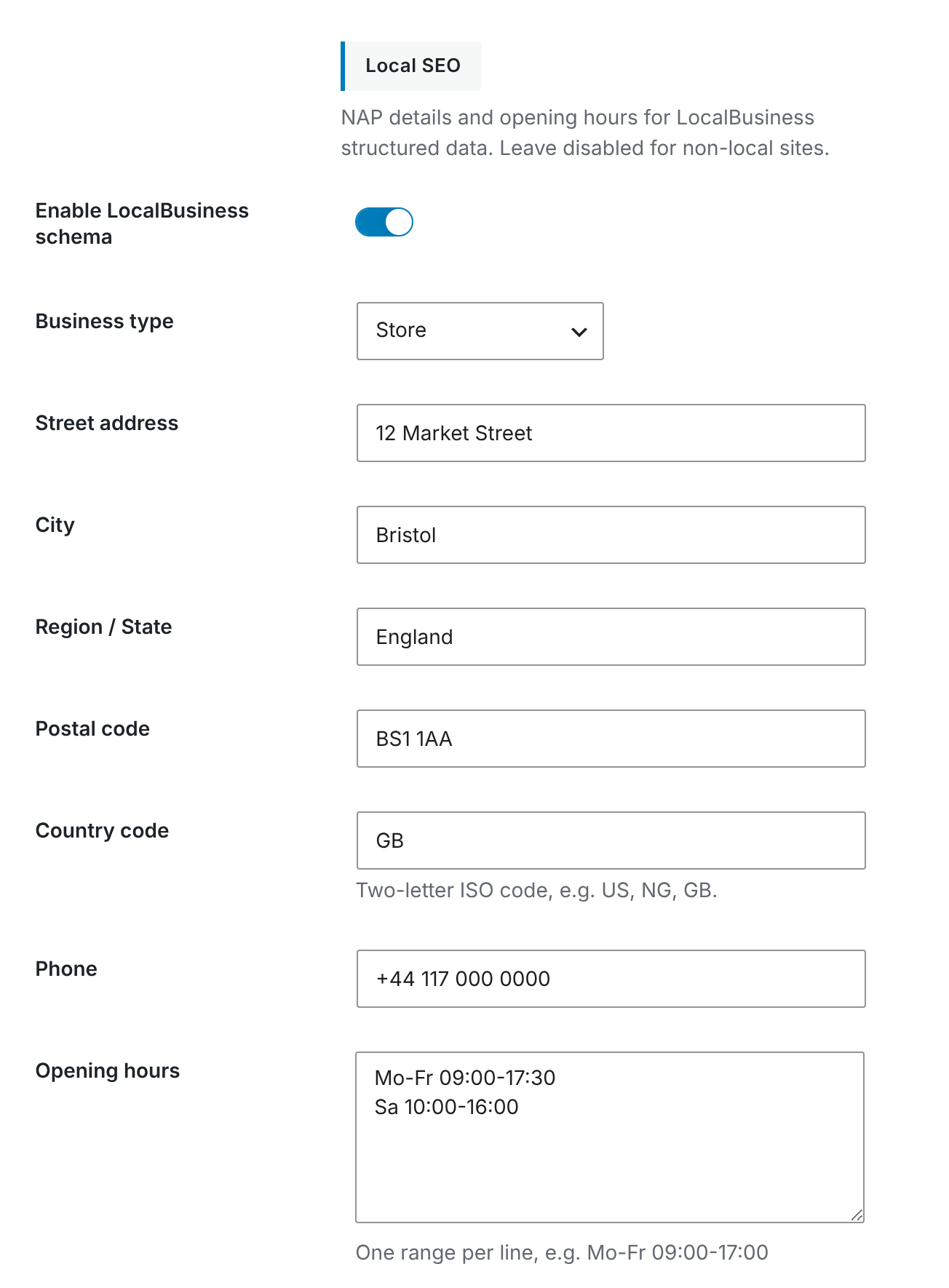
What to enter in each field
| Field | What to enter |
|---|---|
| Business type | Select the option that most closely represents your business: LocalBusiness, Restaurant, Store, ProfessionalService, MedicalBusiness, or LegalService. Use LocalBusiness when none of the more specific choices is suitable. |
| Street address | Enter the street name and building number, such as 12 Market Street. |
| City | Add the town or city where the business is located. |
| Region / State | Enter the relevant state, region, or county. |
| Postal code | Use the postcode or ZIP code for the location. |
| Country code | Enter the standard two-letter country code, such as GB, US, or NG. |
| Phone | Enter the business phone number, preferably including the country code, such as +44 117 000 0000. |
| Opening hours | Add one line for each group of days that shares the same opening hours. |
CrawlWP gets the business name from the Name field under Organization / Person Identity on the same settings screen. When that field is empty, it uses your site’s title.
Add your opening hours
Use one line for each set of days with identical hours. Enter the days with their two-letter codes and use the 24-hour clock for the opening and closing times.
Mo-Fr 09:00-17:30
Sa 10:00-16:00
CrawlWP accepts Mo, Tu, We, Th, Fr, Sa, and Su. Connect consecutive days with a hyphen, such as Mo-Fr. You do not need to add a line for days when the business is closed.
What CrawlWP adds to your schema
After you enable the feature, CrawlWP adds a LocalBusiness item to the structured data generated for your WordPress site, using the business type you selected.
The markup can include your business name, address, phone number, and opening hours. Any field you leave empty is omitted. For the address to be included, at least the Street address or City field must contain a value.
Verify your schema markup
Run your homepage through Google’s Rich Results Test or the Schema Markup Validator to check the generated structured data. See Testing your schema with Google’s Rich Results Test.
A testing tool may recommend additional properties for your WordPress website, such as an image or geographic coordinates. Optional recommendations do not necessarily mean that your CrawlWP markup is invalid.
LocalBusiness schema vs. Google Business Profile
LocalBusiness schema and your Google Business Profile serve different purposes. The schema gives search engines business information directly from your website, while your Google Business Profile supports your presence in Google Search and Google Maps.
Keep important details such as your business name, address, and phone number consistent across both.
Troubleshooting
No LocalBusiness item is shown. Return to CrawlWP > Settings > Site Information and verify that Enable LocalBusiness schema is enabled. Save the settings again if necessary.
The address does not appear in the markup. Check that you have entered at least the Street address or City.
The validator reports an opening-hours error. Make sure every entry uses the two-letter day format and a 24-hour time range, such as Mo-Fr 09:00-17:30.
Your business category is not available. Select LocalBusiness when there is no more specific business type that accurately describes your organization.