
A canonical URL tells search engines which URL should be treated as the main version of a piece of content when the same or very similar content can be reached through multiple URLs.
CrawlWP adds canonical tags automatically, but you can set a different canonical URL when there is a specific SEO reason to do so.
This guide explains how canonical URLs work in CrawlWP, when you should use a custom canonical URL, how to set one for posts, pages, categories, tags, and author archives, and how to troubleshoot common canonical issues.
What is a canonical URL?
A canonical URL is the preferred URL for a page when several URLs contain the same or substantially similar content. The canonical helps search engines understand which version you want to treat as the primary one.
Duplicate or near-duplicate URLs can happen for many reasons. For example, the same article may be available through multiple URL variations, a piece of content may have been republished elsewhere, or a website may expose similar pages through different parameters. Canonicalization helps search engines consolidate these versions instead of treating each URL as separate content.
A canonical tag is a signal rather than a guarantee. Google can choose a different canonical URL when other signals indicate another version better represents the content.
How CrawlWP sets canonical URLs by default
For most websites, you don’t need to configure anything. CrawlWP automatically generates a canonical tag for pages across your site and points it to the page’s own URL.
- Posts and pages: the canonical points to the post or page permalink.
- Category, tag, and custom taxonomy archives: the canonical points to the term archive URL.
- Author archives: the canonical points to the author’s archive URL.
- Homepage: the canonical points to your site’s home URL.
Paginated content is handled separately. Page 2, page 3, and later pages of a post or archive use their own URLs as the canonical instead of pointing every page back to page 1.
CrawlWP replaces the canonical tag that WordPress would otherwise output, helping prevent duplicate canonical tags on the same page.
When should you set a custom canonical?
Most pages should keep CrawlWP’s default self-referencing canonical. A custom canonical is mainly useful when another URL is the preferred version of substantially similar content.
- Republished content: You publish an article on your site that originally appeared somewhere else and want the original URL identified as the preferred version.
- Very similar pages: Two URLs contain largely the same content, and you want one of them to be treated as the main version.
- Syndicated content: Your article is republished on another website. The republishing site can use a canonical pointing back to your original article.
- URL variations: Several accessible URLs represent substantially the same page, and you have a clear preferred URL.
Google recommends using canonicalization as one of several signals when consolidating duplicate URLs. Redirects, internal links, sitemaps, and consistent URL choices can also help reinforce which version you consider primary.
Set a custom canonical URL for a post or page
- Open the post or page in the WordPress editor.
- Find the CrawlWP SEO box below the content and open the Advanced tab.
- Find the Canonical URL field and enter the preferred URL. Use the full address, including
https://. CrawlWP displays the post’s own URL as the placeholder.
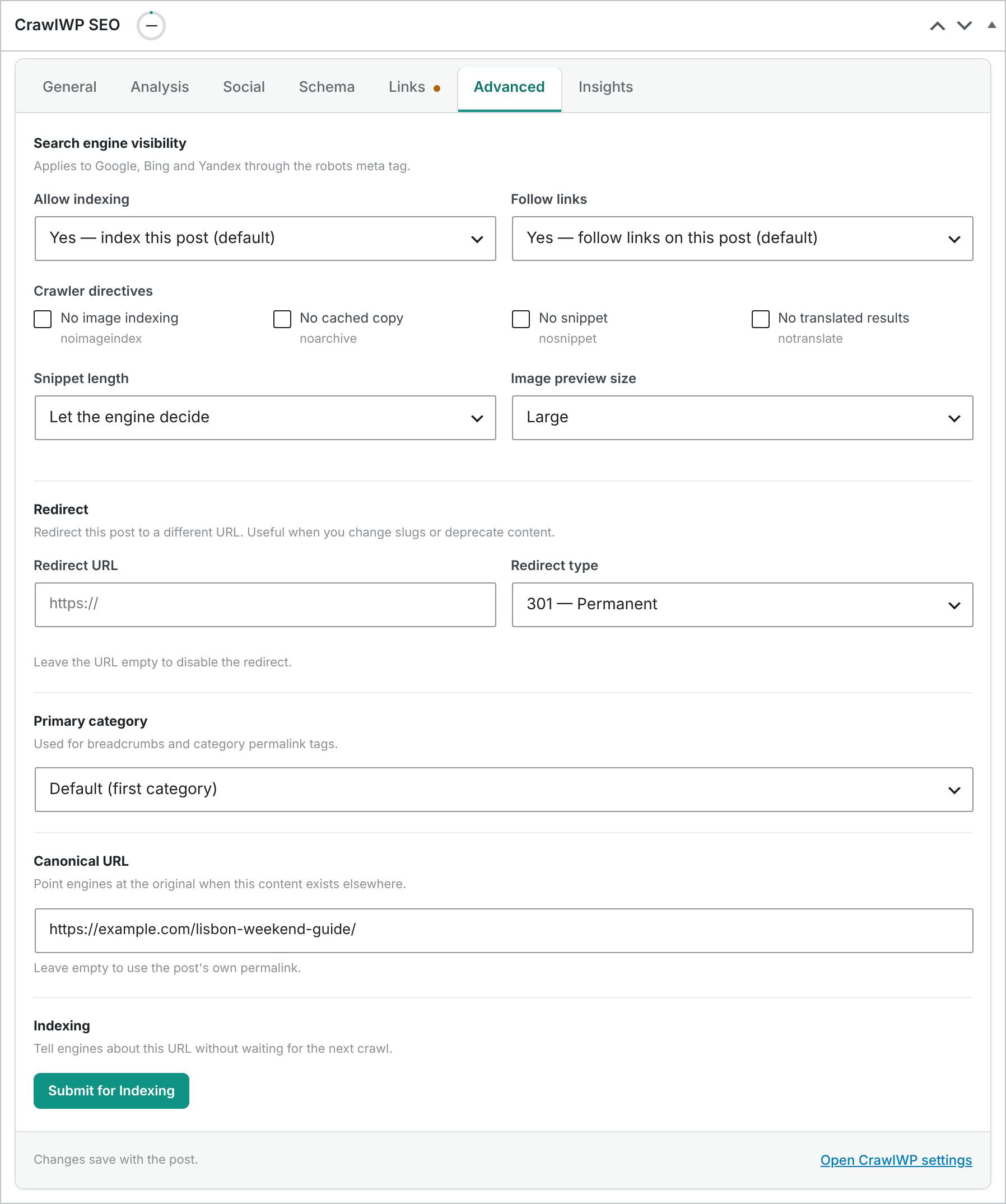
- Save or update the post.
CrawlWP will then use the custom canonical URL instead of the post’s normal permalink.
To verify the change, open the live page, view its source code, and search for rel="canonical". The value of the canonical link should match the URL you entered.
To restore the normal self-referencing canonical, remove the custom value and update the post again.
A custom canonical is used on every page of a paginated post. Make sure the canonical URL you enter is appropriate for all of those pages before using a custom value.
Set a canonical URL for a category or tag
You can also customize the canonical URL of taxonomy archives such as categories, tags, and custom taxonomies.
- Categories, tags, and custom taxonomies: open the term’s edit screen, such as Posts > Categories, and find the Canonical URL field in the CrawlWP SEO section. Enter the preferred URL and click Update.
- Author archives: go to Users, open the relevant user profile, and locate the Canonical URL field in the CrawlWP SEO Author Archive section. Click Update Profile, or Update User when editing another user’s profile.
Canonical URL vs redirect
A canonical tag and a redirect solve different problems.
- Use a canonical when both URLs should remain accessible, but one is the preferred version for search engines.
- Use a redirect when the old URL should no longer be used, and visitors should automatically be sent to another URL.
For example, if you have permanently moved an article to a new URL, a 301 redirect is generally more appropriate than leaving the old page accessible and only adding a canonical tag.
Do not use a canonical URL simply to point unrelated content at a page you want to rank. The source and canonical pages should be substantially similar or otherwise represent the same content. Search engines can ignore a canonical preference when it does not make sense for the pages involved.
Canonical URLs and duplicate content
Having some duplicate content is normal and does not automatically mean your site has an SEO penalty. The bigger issue is having several URLs that represent the same content without clear signals about which version to prefer.
Common sources of URL duplication include tracking parameters, filtering and sorting URLs, HTTP and HTTPS versions, alternate URL formats, and accidentally accessible duplicate pages. Google considers several signals when selecting a canonical URL, including redirects, sitemap inclusion, and rel="canonical" annotations.
Use consistent canonical SEO signals
A canonical URL works best when the rest of your website supports the same choice.
- Use the preferred URL consistently in your internal links.
- Use the preferred version in your XML sitemap where appropriate.
- Redirect obsolete URLs to the preferred version when they should no longer remain accessible.
- Keep the canonical URL consistent with your HTTPS and preferred domain setup.
- Avoid creating conflicting canonical tags from multiple SEO plugins.
Google’s canonicalization process considers multiple signals rather than relying on a single tag, so consistency across your site makes your preferred URL clearer.
Should the canonical URL point to another domain?
Yes. A canonical URL can point to another domain when appropriate, such as when content has been republished or syndicated. Enter the full URL, including https://, in CrawlWP.
Only use a cross-domain canonical when the destination genuinely represents the same or substantially similar content. Do not use one as a way to associate unrelated pages across different websites.
Canonical URLs and paginated content
CrawlWP normally gives each page of paginated content its own canonical URL. For example, the second page of a long article or archive points to page 2 rather than automatically declaring page 1 as its canonical.
When you add a custom canonical to the main content, CrawlWP uses that custom URL across the paginated versions of the post. Consider this carefully before setting a canonical that points to another page.
Check the canonical URL after changing it
- Open the published page on your website.
- View the HTML source.
- Search for
rel="canonical". - Confirm that there is one canonical link and that it points to the intended URL.
You can also use Google Search Console’s URL Inspection tool to see which canonical Google selected for a URL. This can be different from the canonical you declared on the page because Google’s systems make the final canonicalization decision.
Canonical URL SEO best practices
- Use a self-referencing canonical by default: Most normal pages do not need a custom canonical.
- Only consolidate genuinely similar content: The canonical should represent the same main content as the source page.
- Use the preferred HTTPS URL: Avoid pointing canonical tags at an outdated HTTP version when HTTPS is the preferred site version.
- Avoid canonical chains: Point directly to the preferred URL rather than to a page that itself has another canonical preference.
- Do not use canonicals as a replacement for redirects: Permanently moved content should normally use a redirect.
- Keep the canonical accessible: The preferred URL should return a normal, crawlable page rather than a broken or redirected destination.
Troubleshooting canonical URLs
The source code contains the wrong canonical. Clear your WordPress cache, hosting cache, and CDN cache, then reload the page. Also check whether an individual CrawlWP canonical value is overriding the default.
Two canonical tags appear in the source. Another SEO plugin, theme, or custom code is probably generating its own canonical. Disable the duplicate source so the page has one clear canonical preference.
Google Search Console says Google selected a different canonical. CrawlWP can declare your preferred canonical, but Google can choose another URL after considering the overall signals and content. Compare the two pages and check for differences in content, redirects, internal links, sitemap entries, and other canonical signals.
The canonical points to a page with different content. Remove the custom canonical unless the two URLs genuinely represent the same or substantially similar content. If you actually want visitors moved to the other page, use a redirect instead.
The canonical URL contains the wrong protocol. Edit the field and enter the preferred URL with https://. Make sure the URL matches the version of your website you use elsewhere.
I entered a relative URL such as /my-page/. CrawlWP can accept site-relative paths, but using the full canonical URL makes the intended destination clearer. Enter the complete URL, including https:// and your domain.
The canonical change is not visible. Confirm that the post was updated, clear your cache, and inspect the source of the live page rather than the editor preview.
For most WordPress websites, CrawlWP’s automatic canonical URLs are the right choice. Use a custom canonical when you have a clear duplicate-content or preferred-URL reason, and make sure your redirects, internal links, sitemap, and other SEO signals support the same URL.