
Your homepage is usually the most important page on your website, so its SEO title and meta description deserve more attention than a generic default. CrawlWP lets you control both, but the place where you set them depends on how WordPress is configured.
Before changing anything in CrawlWP, check what WordPress uses as your homepage. Go to Settings > Reading and look under Your homepage displays.
- Your latest posts: follow the instructions under If your homepage shows your latest posts.
- A static page: follow the instructions under If your homepage is a static page.
Why your homepage title and description matter
Your homepage title is one of the main pieces of information search engines use to understand your site. Search engines also commonly use it as the clickable title in search results.
The meta description gives searchers a summary of what your website offers.
A good homepage title should make it clear what the website is about and, where appropriate, include your brand or business name. Your description should explain what visitors can expect to find and give them a reason to visit.
Do not treat the homepage as a place to list every keyword you want to rank for. Focus on the main topic, product, service, or purpose of the website and write for people first.
If your homepage shows your latest posts
When WordPress is set to display your latest posts on the homepage, the homepage SEO settings are managed directly in CrawlWP.
- From your WordPress dashboard, go to CrawlWP > Settings.
- Open the Title & Meta tab and select Homepage from the menu on the left.
- Enter your preferred Meta title and Meta description. You can click … beside a field to insert one of CrawlWP’s template variables.
- Use the Preview shown below the fields to check how the generated result looks.
- Optionally configure your homepage’s Social image (OG), X/Twitter image, Social title, and Social description.
- Click Save Changes.
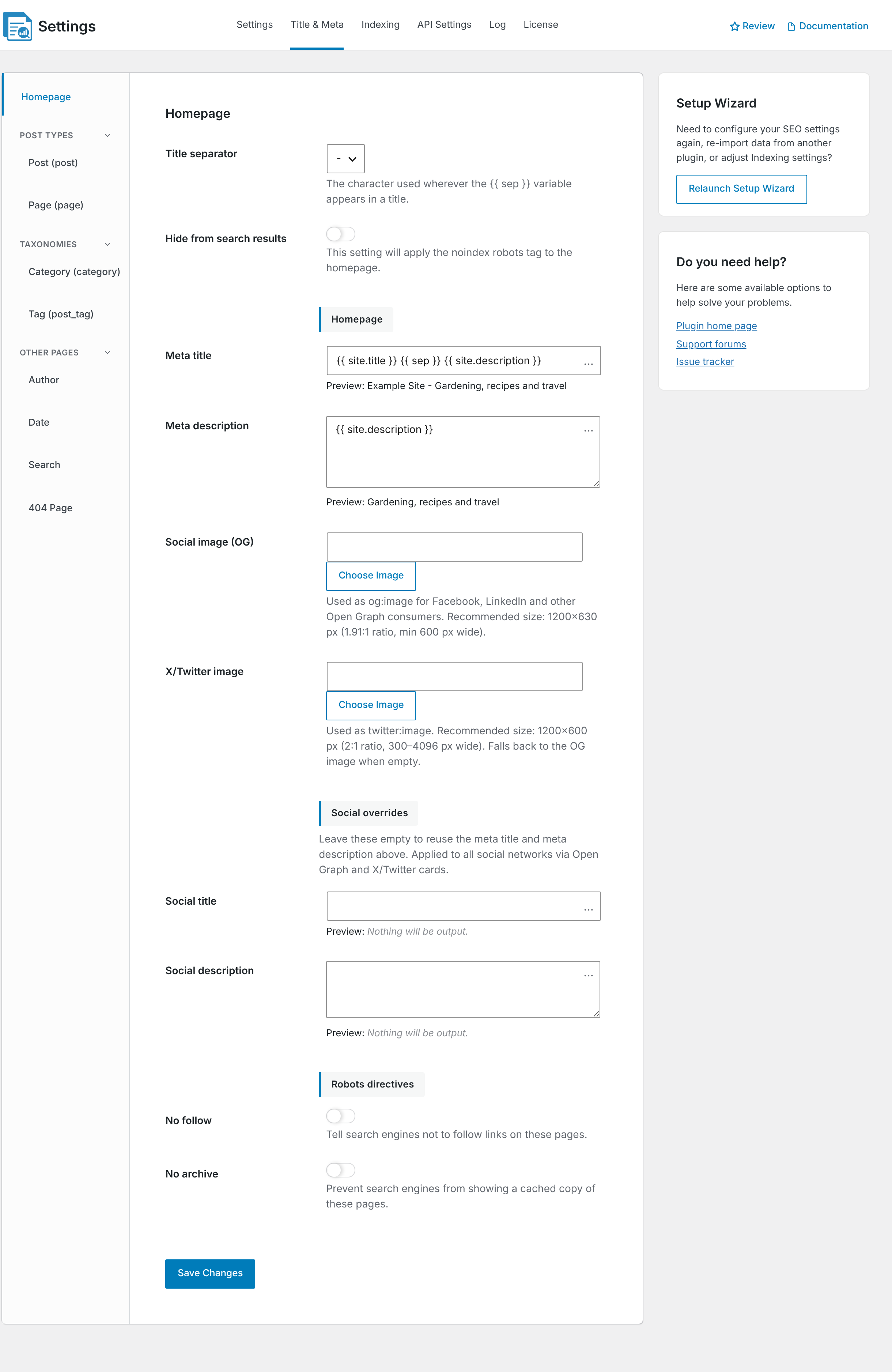
You can use a fixed title and description when you want full control over the homepage metadata. Template variables are useful when you want CrawlWP to build the values from information already stored in WordPress.
The default homepage templates
CrawlWP starts with these homepage templates:
| Field | Default | What it uses |
|---|---|---|
| Meta title | {{ site.title }} {{ sep }} {{ site.description }} | Your WordPress site title and tagline |
| Meta description | {{ site.description }} | Your WordPress tagline |
The {{ site.title }} and {{ site.description }} variables come from your WordPress settings. Your tagline is managed under Settings > General.
If your tagline is empty, the default meta description will also be empty. In that case, either add a useful tagline in WordPress or write a custom homepage meta description in CrawlWP.
How to write a better homepage SEO title
Your homepage title should tell someone exactly what your website offers. A simple structure is often enough:
Main topic or service | Brand nameFor example, a WordPress SEO company might use a title that combines its main service with its brand name. A software company could use its product category followed by the company name.
- Put the most important information near the beginning.
- Include your brand name when it helps identify the business or website.
- Use natural language instead of repeating the same keyword several times.
- Avoid stuffing the title with unrelated services or locations.
CrawlWP’s homepage preview helps you see the generated title before you save it. For other pages, CrawlWP also provides a title width meter so you can spot titles that are likely to be cut off in search results.
How to write a useful homepage meta description
Your homepage meta description should explain what the website does in one short, convincing summary. Think of it as an opportunity to tell a searcher why your site is worth visiting.
- Clearly describe your main product, service, or topic.
- Include an important keyword or phrase naturally when it fits.
- Give people a reason to click, such as the type of information, service, or solution they will find.
- Keep the wording specific to your website, not a generic company description.
Search engines can choose different text for the snippet they display, so your meta description is not a guarantee of exactly what will appear in every search. Treat it as your preferred description of the homepage.
Set homepage social sharing information
Your homepage can look different when someone shares it on Facebook, LinkedIn, X, WhatsApp, and other platforms. CrawlWP lets you provide separate social metadata instead of automatically using the same text everywhere.
- Social image (OG): the default Open Graph image used when your homepage is shared.
- X/Twitter image: the image used for sharing on X.
- Social title: a title written specifically for social sharing.
- Social description: a description designed for social cards rather than search snippets.
Leave the social title and description empty when you want to reuse your normal SEO title and meta description. Use a separate version when a more promotional or social-friendly message makes sense.
If your homepage is a static page
When WordPress uses a static page as your homepage, CrawlWP handles it differently. The Homepage section under Title & Meta displays a notice telling you to edit the homepage itself.
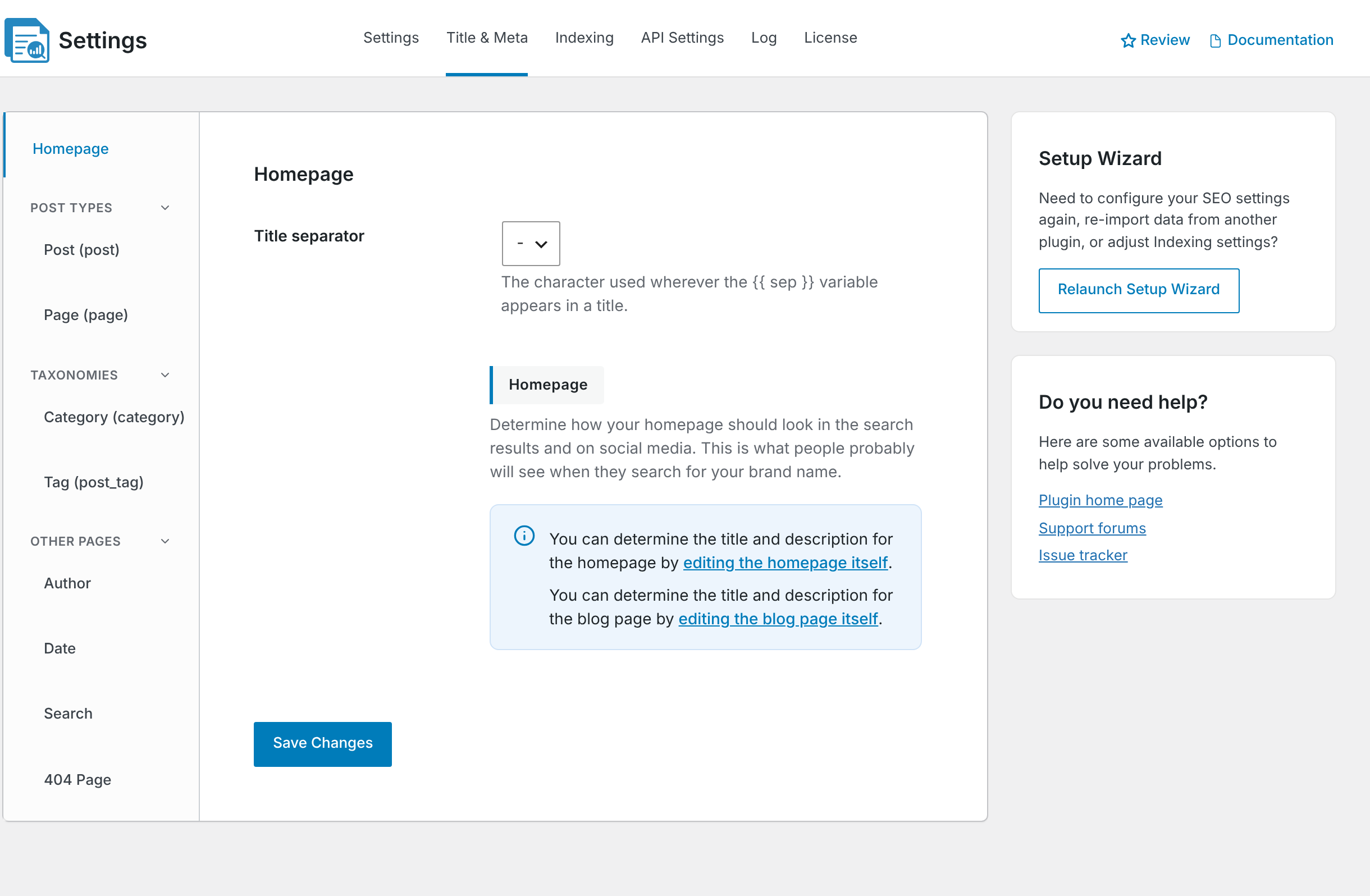
- Click editing the homepage itself in the notice, or find the selected homepage under Pages.
- Open the CrawlWP SEO box on the page.
- On the General tab, enter the SEO title and Meta description.
- Update the page.
The custom SEO values saved on the homepage take priority. When you leave them blank, CrawlWP falls back to the homepage template, which by default uses your site title and tagline.
Set the SEO information for your blog posts page
If you use both a static homepage and a separate page for your blog posts, do not forget about the posts page. The two pages serve different purposes and can have different SEO titles and descriptions.
You will see a link to editing the blog page itself on the homepage notice when a posts page has been selected under Settings > Reading. Open that page and set its SEO title and meta description in the CrawlWP SEO box.
If you leave those fields empty, CrawlWP uses the archive template configured for Post (post) under Title & Meta. The default template uses the post type name, separator, page number, and site title.
Do not confuse your homepage with your site’s blog archive
A common WordPress setup has a static homepage such as “Home” and a separate page such as “Blog” that displays your latest posts. These are different pages and should be optimized for different purposes.
Your homepage should describe your overall business, website, product, or brand. Your blog archive title should describe the collection of posts it contains.
The title separator affects your whole site
The Title separator setting at the top of the Homepage screen controls the character represented by {{ sep }}. It is not limited to the homepage.
For example, if you select a dash as the separator, every template that contains {{ sep }} will use that separator. This includes templates for posts, pages, taxonomies, archives, and other supported content types.
Hide the homepage from search engines
CrawlWP includes a Hide from search results option on the homepage settings screen when WordPress is using the latest-posts homepage setup. Turning it on adds a noindex instruction to the homepage.
For most websites, the homepage should remain indexable. Only use this setting when there is a specific reason you do not want the homepage appearing in search results.
If the homepage is a static page, this setting doesn’t appear on the Homepage screen. Instead, open the homepage itself and use Allow indexing under its Advanced tab.
Use your homepage to target the right search intent
Your homepage does not need to target every keyword related to your business. Choose the main topic or intent that best describes the website as a whole.
- A service business can focus on its primary service and location when relevant.
- A SaaS company can explain the product category and main benefit.
- An online store can emphasize its main product category or brand.
- A publisher or blog can describe its main subject area.
- A personal website can focus on the person’s name, profession, and main area of expertise.
Keep the homepage metadata aligned with what visitors actually find on the page. A title promising one topic while the homepage focuses on something completely different creates a poor search experience.
Check the homepage after changing the settings
- Save the CrawlWP settings or update the homepage.
- Open the live homepage in a new browser tab.
- View the page source and check the
<title>element and<meta name="description">. - Check the Open Graph and X metadata if you configured separate social information.
- Confirm that the homepage is not accidentally marked
noindex.
Checking the source is important because search engines may take time to recrawl your homepage. If the correct title and description are already in the HTML, the issue is usually not with CrawlWP itself.
Common homepage SEO mistakes
- Using only the company name: this may not tell searchers what the business or website actually does.
- Stuffing the homepage title with keywords: repeating several variations of the same keyword can make the title hard to read.
- Leaving the meta description empty: CrawlWP can provide a default from your tagline, but an important homepage deserves a deliberate description.
- Using the same social and SEO messaging without thinking about the audience: searchers and social users may respond to different wording.
- No clear brand identity: make sure your site name and brand are consistent with your Organization or Person settings where appropriate.
- Changing the homepage setup without checking SEO settings: switching from latest posts to a static page changes where CrawlWP gets the homepage title and description.
- Accidentally setting the homepage to noindex: this can prevent the most important page on your site from appearing in search results.
Homepage SEO checklist
- Your title clearly explains what the website is about.
- Your brand name is included where useful.
- Your meta description accurately summarizes the homepage.
- The title and description match the actual content of the homepage.
- The homepage is indexable unless you have a specific reason to hide it.
- Your social image looks good when the homepage is shared.
- Your blog archive has its own appropriate SEO title and description when it is on a separate page.
- The live page source contains only the SEO tags you expect.
Troubleshooting your homepage SEO settings
The Homepage screen does not show title or description fields. WordPress is using a static page as the homepage. Open that page and enter the SEO title and meta description in its CrawlWP SEO box.
The homepage title has not changed in Google. First, inspect the live page source. If the new title is already present there, CrawlWP has generated the updated HTML, and Google needs to crawl the homepage again before its search result changes.
The homepage has no meta description. Check whether the homepage is using the default template and whether your WordPress tagline is empty. Add a tagline under Settings > General or enter a custom meta description in CrawlWP.
The homepage title contains an unexpected separator. Check the Title separator setting on the Homepage screen. The {{ sep }} variable uses this value across your site’s templates.
The blog page has the wrong title. Make sure you are editing the correct page under Settings > Reading. A static homepage and a separate posts page have their own SEO settings.
The homepage is missing from search results. Check the page’s indexing settings and make sure it is not marked noindex. Also check your robots.txt and sitemap configuration if the problem persists.
The homepage title or description is duplicated. Another SEO plugin or your theme may also be generating its own metadata. Inspect the page source and remove the duplicate source where appropriate.
Changes are not visible after saving. Clear your WordPress cache, hosting cache, and CDN cache before testing the page again. Cached HTML may still contain the previous SEO values.
Once the homepage is configured correctly, review it again whenever your business, website purpose, branding, or primary search intent changes. A homepage title and description should describe what the site offers today, not what it offered when the website was first created.