
The Yandex Stats tab in CrawlWP Premium brings Yandex search data into the SEO Stats page in CrawlWP.
It lets you review search activity for your WordPress website, see which queries generate clicks, and inspect the pages Yandex has in its search results.
Connect Yandex before using the report
Connect the Yandex API from CrawlWP > Settings > API Settings > Yandex API. CrawlWP needs both the Yandex access token and the Host ID for your site. For the connection process, see Integrating WordPress with Yandex Search API.
When the API isn’t connected, the tab displays “You need to connect with the Yandex API to view reports.” and provides a Connect with Yandex API button.
Open Yandex Stats
- Go to CrawlWP > SEO Stats.
- Select Yandex Stats at the top of the page.
- Choose a date range and click Filter. Yandex uses the same date-range options as the Google tab, with Last 28 Days selected by default.
Read the Yandex charts
The report separates search-query performance from the number of pages Yandex has in its search results.
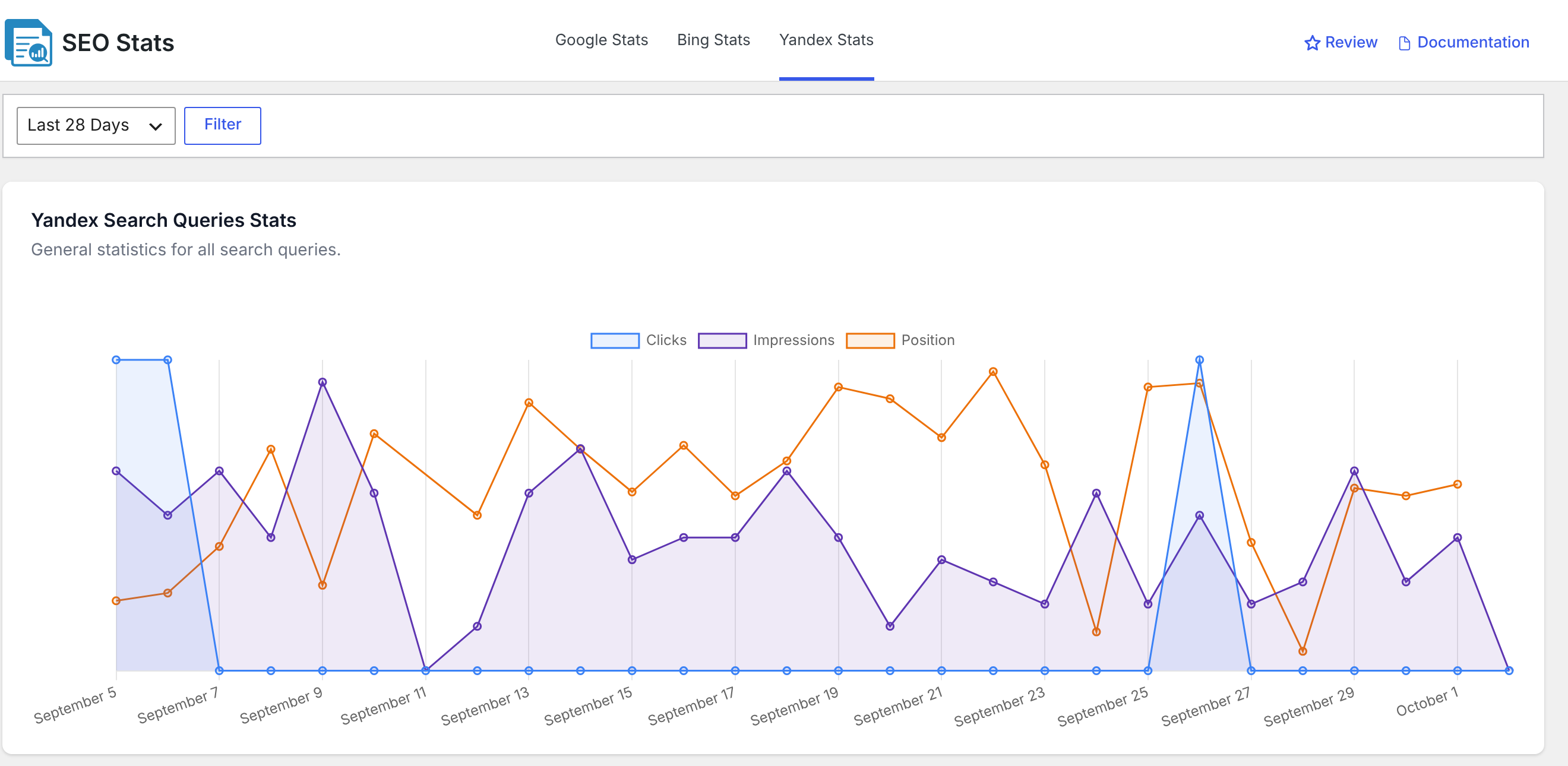
Yandex Search Queries Stats
Yandex Search Queries Stats plots your site’s Clicks, Impressions, and Position throughout the selected period. Hover over a point on the chart to see the figures for that point.
Pages in Yandex Search
Pages in Yandex Search shows how many of your pages Yandex had in its search results over the selected period.
Explore the Yandex tables
Top Keywords
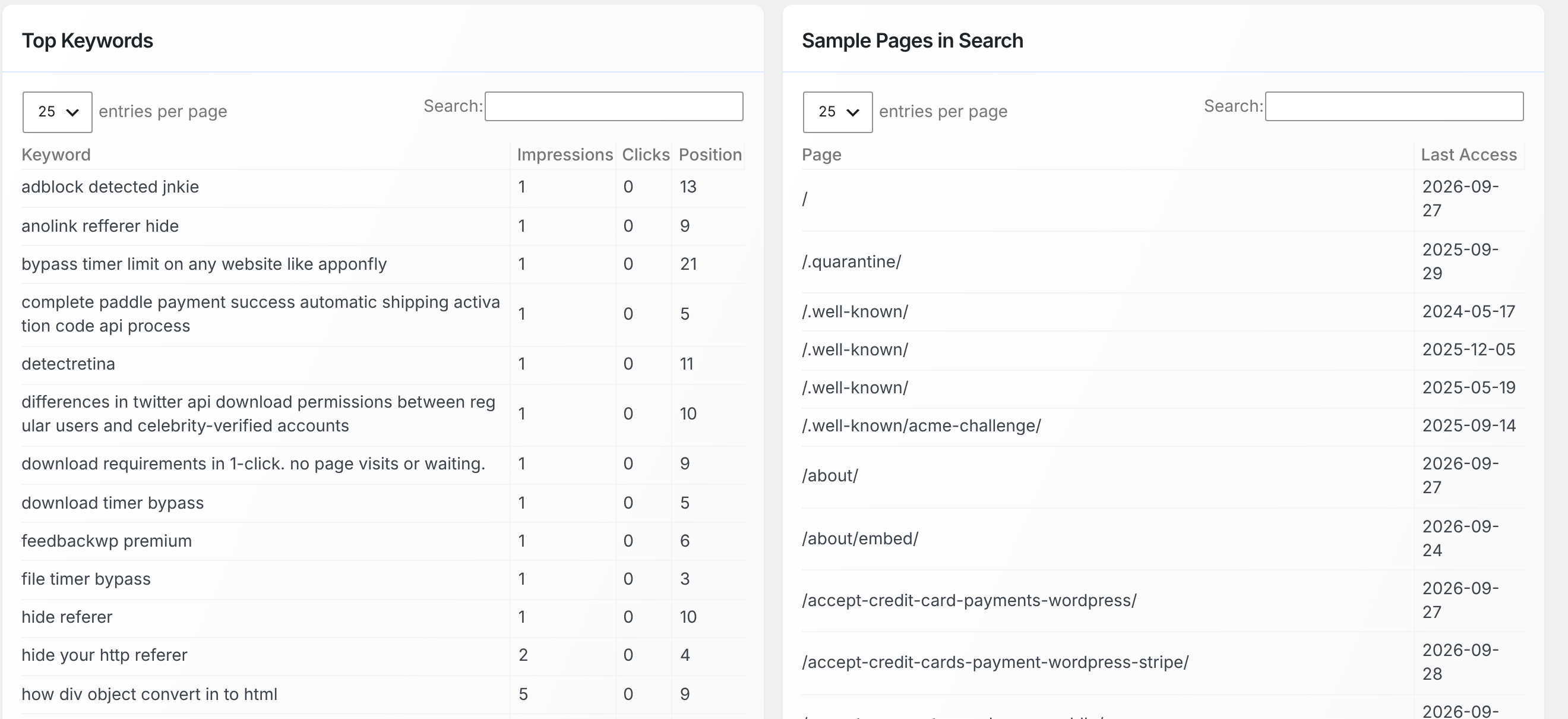
Top Keywords can contain up to 5,000 search terms returned by Yandex. The table starts with the keywords that generated the most clicks.
| Column | What it shows |
|---|---|
| Keyword | The search term people used |
| Impressions | How many times your site appeared in Yandex results for the keyword |
| Clicks | How many times visitors clicked through from Yandex results |
| Position | The keyword’s average position, rounded to a whole number; lower is better |
Sample Pages in Search
Sample Pages in Search shows a sample of pages that Yandex has in its search results. Each row includes Last Access, which tells you when Yandex’s robot last visited the page.
This is not a complete list of every page Yandex has indexed. Yandex returns up to 5,000 pages, and changing the selected date range does not change this list. Click a page to open it in a new browser tab.
There is no CTR metric on the Yandex tab because Yandex does not provide click-through rate data for this report.
Search, sort and export
The table controls work in the same general way as the other SEO Stats tabs. Use Search to find matching rows, change entries per page to control how much is visible, and use Copy Data or Download CSV when you need to work with the results elsewhere.
Focus on a single keyword
You can switch from the site-wide report to a keyword-specific view directly from Top Keywords.
- Click a keyword in Top Keywords.
- CrawlWP displays a chart titled “Yandex Queries Stats for” the selected keyword. The chart shows its Clicks, Impressions, and Position over the selected period.
- The other charts and tables are hidden while the keyword is selected. You can change the date range, and the selected keyword remains active.
- Click <<< Go Back to return to the complete Yandex report.
Expect some delay in Yandex data
CrawlWP caches each response from Yandex for 12 hours. Yandex Webmaster can also report search-query data several days behind, so the most recent activity may not appear immediately.
Troubleshoot the Yandex report
The Yandex tab is empty. Check CrawlWP > Settings > API Settings > Yandex API and make sure both the access token and Host ID are configured correctly. Connection problems are logged under CrawlWP > Settings > Log, with yandex-webmaster shown in the SE column.
Sorting by Impressions or Clicks appears incorrect. Large values are shortened in the table, such as 1.2k, and the displayed values are sorted as text. Use Download CSV and sort the exported data in a spreadsheet when you need numerical ordering.
A page I know is indexed is not listed under Sample Pages in Search. The table is a sample rather than a complete index, and Yandex returns a maximum of 5,000 pages for it. Check the page directly in Yandex Webmaster when you need to verify a particular URL.
The numbers look older than expected. Remember that CrawlWP can serve a response from its 12-hour cache, while Yandex Webmaster itself can lag by several days when reporting search-query data.
Use Yandex Stats to investigate search visibility
The Yandex report gives you two useful views of your site: overall search activity and the pages Yandex has in its search results. Start with Yandex Search Queries Stats to see clicks, impressions, and position, then use Top Keywords to identify the queries behind that activity.
When a particular keyword needs closer attention, select it from the table to open its dedicated chart. For indexing checks, use Sample Pages in Search as a reference and verify individual URLs in Yandex Webmaster when necessary.